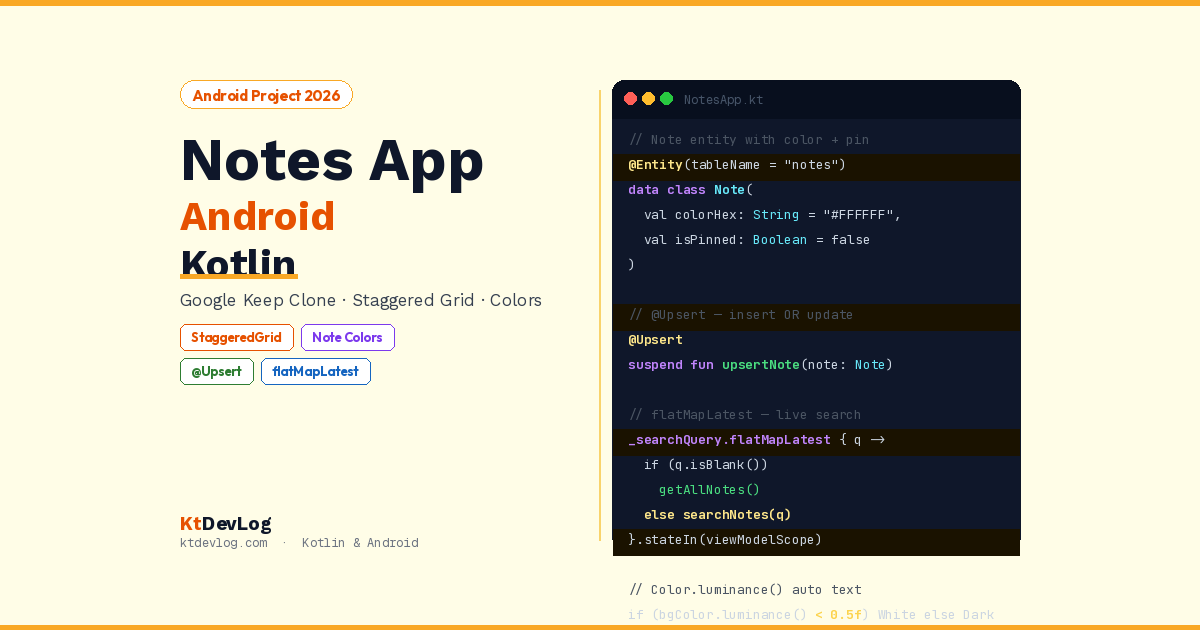

Open Google Keep right now. Look at it. Notes in a staggered grid, each with its own background colour, the important ones pinned to the top, a search bar to find anything instantly. It’s clean. It’s fast. It feels like a real app.
Now build it.
A notes app android studio kotlin project is one of the most satisfying things you can build early in your Android career — because the gap between “bare-bones demo” and “looks like a real app” is surprisingly small if you know which details matter. This guide builds a Google Keep-style notes app from scratch: staggered grid layout, per-note colour themes, pin-to-top, real-time search, full CRUD with Room Database 2.6.1, and a detail/edit screen with Compose Navigation.

Table of Contents
What You’ll Build
A Google Keep-inspired notes app with:
- Home screen — staggered grid of colourful note cards, pinned notes at top
- Note detail/edit screen — full-screen editor with title, content, and colour picker
- Real-time search — filter notes as the user types
- Pin notes — pinned notes always appear first in the grid
- Delete notes — with a confirmation snackbar
- Colour themes — 8 note background colours like Google Keep
- Persistent storage — Room Database 2.6.1 with KSP2
- MVVM + StateFlow — reactive architecture
- Jetpack Compose Navigation — list screen ↔ edit screen with arguments
Step 1 — Project Setup and Dependencies
// app/build.gradle.kts
plugins {
    id("com.android.application")
    id("org.jetbrains.kotlin.android")
    id("com.google.devtools.ksp") version "2.1.0-1.0.29" // KSP2 — recommended with Kotlin 2.0
}

dependencies {
    // Room 2.6.1 — KSP2 replaces kapt, required for Kotlin 2.0
    implementation("androidx.room:room-runtime:2.6.1")
    implementation("androidx.room:room-ktx:2.6.1")
    ksp("androidx.room:room-compiler:2.6.1")

    // Navigation Compose
    implementation("androidx.navigation:navigation-compose:2.9.0")

    // ViewModel + StateFlow
    implementation("androidx.lifecycle:lifecycle-viewmodel-compose:2.8.7")
    implementation("androidx.lifecycle:lifecycle-runtime-ktx:2.8.7")

    // Coroutines
    implementation("org.jetbrains.kotlinx:kotlinx-coroutines-android:1.8.1")
}2026 note: According to the official Room release notes, Room now targets Kotlin 2.0 and KSP2 is recommended when using Room with Kotlin 2.0 or higher. KSP2 processes annotations significantly faster than the old kapt and produces cleaner build output.
Step 2 — The Note Entity
The Note data class drives every feature in the app — from the colour picker to the pin button. Every design decision here has downstream consequences:
// Note.kt
import androidx.room.Entity
import androidx.room.PrimaryKey

@Entity(tableName = "notes")
data class Note(
    @PrimaryKey(autoGenerate = true)
    val id: Int = 0,
    val title: String = "",
    val content: String = "",
    val colorHex: String = "#FFFFFF",   // Note background color
    val isPinned: Boolean = false,
    val createdAt: Long = System.currentTimeMillis(),
    val updatedAt: Long = System.currentTimeMillis()
)colorHex: String — storing colour as a hex string ("#FFF8E1") is simpler than an Int for this use case. It’s human-readable in the database, easy to convert to a Compose Color, and straightforward to validate.
isPinned: Boolean — drives the sort order in the DAO query. Pinned notes float to the top without any client-side sorting — the database handles it.
updatedAt — separate from createdAt. When a user edits a note, updatedAt changes but createdAt stays fixed. Sorting by updatedAt DESC puts the most recently edited notes at the top — exactly the behaviour Google Keep uses.
Step 3 — The Note Colors
Define the 8 Google Keep-style note colors as constants:
// NoteColors.kt
import androidx.compose.ui.graphics.Color

object NoteColors {
    val White     = Color(0xFFFFFFFF)
    val Red       = Color(0xFFFFCDD2)
    val Orange    = Color(0xFFFFE0B2)
    val Yellow    = Color(0xFFFFF9C4)
    val Green     = Color(0xFFDCEDC8)
    val Teal      = Color(0xFFB2EBF2)
    val Blue      = Color(0xFFBBDEFB)
    val Purple    = Color(0xFFE1BEE7)

    val all = listOf(White, Red, Orange, Yellow, Green, Teal, Blue, Purple)

    fun fromHex(hex: String): Color = try {
        Color(android.graphics.Color.parseColor(hex))
    } catch (e: Exception) {
        White
    }

    fun toHex(color: Color): String {
        val argb = color.value.toLong()
        return String.format("#%06X", argb and 0xFFFFFF)
    }
}Step 4 — DAO With Smart Sorting
// NoteDao.kt
import androidx.room.*
import kotlinx.coroutines.flow.Flow

@Dao
interface NoteDao {

    // All notes — pinned first, then by most recently updated
    @Query("""
        SELECT * FROM notes
        ORDER BY isPinned DESC, updatedAt DESC
    """)
    fun getAllNotes(): Flow<List<Note>>

    // Search — matches title OR content, case-insensitive
    @Query("""
        SELECT * FROM notes
        WHERE title LIKE '%' || :query || '%'
           OR content LIKE '%' || :query || '%'
        ORDER BY isPinned DESC, updatedAt DESC
    """)
    fun searchNotes(query: String): Flow<List<Note>>

    // Get single note by ID — for the edit screen
    @Query("SELECT * FROM notes WHERE id = :id")
    suspend fun getNoteById(id: Int): Note?

    // CREATE + UPDATE
    @Upsert
    suspend fun upsertNote(note: Note)

    // DELETE
    @Delete
    suspend fun deleteNote(note: Note)
}@Upsert — introduced in Room 2.5.0, this single annotation replaces the @Insert(onConflict = OnConflictStrategy.REPLACE) boilerplate. It inserts a new note if it doesn’t exist, or updates the existing one if it does — based on the primary key. For a note editor where the same function handles both “create” and “update”, @Upsert is the cleanest approach in 2026.
The searchNotes query uses SQLite’s LIKE with the % wildcard and string concatenation (||) for case-insensitive full-text search. For a notes app with thousands of entries, you’d add FTS4 or FTS5 full-text search — but LIKE is entirely appropriate for a personal notes app.
Step 5 — Database and Repository
// NoteDatabase.kt
@Database(entities = [Note::class], version = 1, exportSchema = false)
abstract class NoteDatabase : RoomDatabase() {
    abstract fun noteDao(): NoteDao

    companion object {
        @Volatile private var INSTANCE: NoteDatabase? = null

        fun getInstance(context: Context): NoteDatabase =
            INSTANCE ?: synchronized(this) {
                Room.databaseBuilder(
                    context.applicationContext,
                    NoteDatabase::class.java,
                    "notes_database"
                ).build().also { INSTANCE = it }
            }
    }
}
// NoteRepository.kt
import kotlinx.coroutines.flow.Flow
class NoteRepository(private val dao: NoteDao) {
fun getAllNotes(): Flow<List<Note>> = dao.getAllNotes()
fun searchNotes(query: String): Flow<List<Note>> = dao.searchNotes(query)
suspend fun getNoteById(id: Int): Note? = dao.getNoteById(id)
suspend fun upsert(note: Note) = dao.upsertNote(note)
suspend fun delete(note: Note) = dao.deleteNote(note)
}Step 6 — ViewModel
// NoteViewModel.kt
class NoteViewModel(private val repository: NoteRepository) : ViewModel() {

    private val _searchQuery = MutableStateFlow("")
    val searchQuery: StateFlow<String> = _searchQuery

    // Switch between all notes and search results based on query
    val notes: StateFlow<List<Note>> = _searchQuery
        .flatMapLatest { query ->
            if (query.isBlank()) repository.getAllNotes()
            else repository.searchNotes(query)
        }
        .stateIn(
            scope        = viewModelScope,
            started      = SharingStarted.WhileSubscribed(5_000),
            initialValue = emptyList()
        )

    fun onSearchQueryChange(query: String) {
        _searchQuery.value = query
    }

    fun saveNote(note: Note) {
        viewModelScope.launch {
            repository.upsert(
                note.copy(updatedAt = System.currentTimeMillis())
            )
        }
    }

    fun togglePin(note: Note) {
        viewModelScope.launch {
            repository.upsert(
                note.copy(
                    isPinned  = !note.isPinned,
                    updatedAt = System.currentTimeMillis()
                )
            )
        }
    }

    fun deleteNote(note: Note) {
        viewModelScope.launch { repository.delete(note) }
    }

    suspend fun getNoteById(id: Int): Note? = repository.getNoteById(id)
}flatMapLatest is the architectural highlight here. When the searchQuery StateFlow emits a new value, flatMapLatest cancels the previous Flow subscription and switches to a new one immediately. If the query is blank, it subscribes to getAllNotes(). If it has text, it subscribes to searchNotes(query). The user types, the ViewModel switches Flows, Room emits updated results, the UI recomposes. All reactive. Zero manual refresh.
Step 7 — Navigation Setup
// Navigation.kt
sealed class Screen(val route: String) {
    object NoteList : Screen("note_list")
    object NoteDetail : Screen("note_detail/{noteId}") {
        fun createRoute(noteId: Int = -1) = "note_detail/$noteId"
    }
}

@Composable
fun NotesNavGraph(viewModel: NoteViewModel) {
    val navController = rememberNavController()

    NavHost(navController = navController, startDestination = Screen.NoteList.route) {
        composable(Screen.NoteList.route) {
            NoteListScreen(
                viewModel = viewModel,
                onNoteClick      = { note -> navController.navigate(Screen.NoteDetail.createRoute(note.id)) },
                onAddNoteClick   = { navController.navigate(Screen.NoteDetail.createRoute(-1)) }
            )
        }
        composable(
            route = Screen.NoteDetail.route,
            arguments = listOf(navArgument("noteId") { type = NavType.IntType })
        ) { backStackEntry ->
            val noteId = backStackEntry.arguments?.getInt("noteId") ?: -1
            NoteDetailScreen(
                noteId    = noteId,
                viewModel = viewModel,
                onBack    = { navController.popBackStack() }
            )
        }
    }
}noteId = -1 is the convention for a new note — a clean signal that the detail screen should start with a blank note rather than loading an existing one from the database.
Step 8 — Staggered Grid Home Screen
The staggered grid is what separates a notes app that looks like Google Keep from one that looks like a basic list. Jetpack Compose has LazyVerticalStaggeredGrid built in:
@OptIn(ExperimentalFoundationApi::class)
@Composable
fun NoteListScreen(
    viewModel: NoteViewModel,
    onNoteClick: (Note) -> Unit,
    onAddNoteClick: () -> Unit
) {
    val notes       by viewModel.notes.collectAsStateWithLifecycle()
    val searchQuery by viewModel.searchQuery.collectAsStateWithLifecycle()

    val pinnedNotes   = notes.filter { it.isPinned }
    val unpinnedNotes = notes.filter { !it.isPinned }

    Scaffold(
        topBar = {
            SearchTopBar(
                query         = searchQuery,
                onQueryChange = viewModel::onSearchQueryChange
            )
        },
        floatingActionButton = {
            FloatingActionButton(
                onClick        = onAddNoteClick,
                containerColor = Color(0xFF7C3AED),
                contentColor   = Color.White
            ) {
                Icon(Icons.Default.Add, contentDescription = "New note")
            }
        }
    ) { innerPadding ->
        LazyVerticalStaggeredGrid(
            columns            = StaggeredGridCells.Fixed(2),
            modifier           = Modifier.fillMaxSize().padding(innerPadding),
            contentPadding     = PaddingValues(12.dp),
            horizontalArrangement = Arrangement.spacedBy(8.dp),
            verticalItemSpacing   = 8.dp
        ) {
            // Pinned section header
            if (pinnedNotes.isNotEmpty()) {
                item(span = StaggeredGridItemSpan.FullLine) {
                    SectionHeader("PINNED")
                }
                items(pinnedNotes, key = { it.id }) { note ->
                    NoteCard(
                        note        = note,
                        onClick     = { onNoteClick(note) },
                        onPinToggle = { viewModel.togglePin(note) }
                    )
                }
                item(span = StaggeredGridItemSpan.FullLine) {
                    SectionHeader("OTHERS")
                }
            }

            // Regular notes
            items(unpinnedNotes, key = { it.id }) { note ->
                NoteCard(
                    note        = note,
                    onClick     = { onNoteClick(note) },
                    onPinToggle = { viewModel.togglePin(note) }
                )
            }

            // Empty state
            if (notes.isEmpty()) {
                item(span = StaggeredGridItemSpan.FullLine) {
                    EmptyNotesState()
                }
            }
        }
    }
}

@Composable
fun SectionHeader(text: String) {
    Text(
        text     = text,
        fontSize = 11.sp,
        fontWeight = FontWeight.Bold,
        color    = Color(0xFF94A3B8),
        modifier = Modifier.padding(horizontal = 4.dp, vertical = 8.dp)
    )
}

@Composable
fun EmptyNotesState() {
    Box(
        modifier = Modifier.fillMaxWidth().height(300.dp),
        contentAlignment = Alignment.Center
    ) {
        Column(horizontalAlignment = Alignment.CenterHorizontally) {
            Text("📝", fontSize = 56.sp)
            Spacer(modifier = Modifier.height(12.dp))
            Text("No notes yet", fontSize = 18.sp, fontWeight = FontWeight.Bold)
            Text("Tap + to create your first note", fontSize = 13.sp, color = Color.Gray)
        }
    }
}StaggeredGridCells.Fixed(2) — two columns where items can have different heights. Short notes take less vertical space than long ones, creating the organic, Google Keep-like grid where nothing is artificially stretched to match its neighbour.
StaggeredGridItemSpan.FullLine — makes a grid item span both columns. Used here for the “PINNED” and “OTHERS” section headers so they stretch across the full width.
Step 9 — Note Card Composable
@Composable
fun NoteCard(
    note: Note,
    onClick: () -> Unit,
    onPinToggle: () -> Unit
) {
    val bgColor = NoteColors.fromHex(note.colorHex)
    val isDarkBg = bgColor.luminance() < 0.5f   // Adjust text color for dark backgrounds

    Card(
        modifier = Modifier
            .fillMaxWidth()
            .clickable { onClick() },
        shape  = RoundedCornerShape(12.dp),
        colors = CardDefaults.cardColors(containerColor = bgColor),
        elevation = CardDefaults.cardElevation(defaultElevation = 2.dp)
    ) {
        Column(modifier = Modifier.padding(12.dp)) {
            Row(
                modifier = Modifier.fillMaxWidth(),
                horizontalArrangement = Arrangement.SpaceBetween,
                verticalAlignment     = Alignment.Top
            ) {
                if (note.title.isNotBlank()) {
                    Text(
                        text       = note.title,
                        fontSize   = 15.sp,
                        fontWeight = FontWeight.Bold,
                        maxLines   = 2,
                        overflow   = TextOverflow.Ellipsis,
                        color      = if (isDarkBg) Color.White else Color(0xFF1E293B),
                        modifier   = Modifier.weight(1f)
                    )
                }
                IconButton(
                    onClick  = onPinToggle,
                    modifier = Modifier.size(24.dp)
                ) {
                    Icon(
                        imageVector = if (note.isPinned) Icons.Filled.PushPin else Icons.Outlined.PushPin,
                        contentDescription = if (note.isPinned) "Unpin" else "Pin",
                        tint   = if (note.isPinned) Color(0xFF7C3AED) else Color(0xFF94A3B8),
                        modifier = Modifier.size(16.dp)
                    )
                }
            }

            if (note.content.isNotBlank()) {
                Spacer(modifier = Modifier.height(6.dp))
                Text(
                    text     = note.content,
                    fontSize = 13.sp,
                    maxLines = 8,
                    overflow = TextOverflow.Ellipsis,
                    color    = if (isDarkBg) Color(0xFFE2E8F0) else Color(0xFF475569)
                )
            }
        }
    }
}bgColor.luminance() — Compose’s built-in method to calculate a color’s perceived brightness. Notes with dark backgrounds (luminance < 0.5) get white text automatically. Light backgrounds get dark text. No hardcoded conditions — it works for any colour in your palette.
Step 10 — Search Bar
@Composable
fun SearchTopBar(query: String, onQueryChange: (String) -> Unit) {
    Surface(
        modifier  = Modifier.fillMaxWidth(),
        shadowElevation = 4.dp
    ) {
        OutlinedTextField(
            value         = query,
            onValueChange = onQueryChange,
            placeholder   = { Text("Search notes...") },
            leadingIcon   = {
                Icon(Icons.Default.Search, contentDescription = null, tint = Color(0xFF94A3B8))
            },
            trailingIcon  = {
                if (query.isNotEmpty()) {
                    IconButton(onClick = { onQueryChange("") }) {
                        Icon(Icons.Default.Close, contentDescription = "Clear search")
                    }
                }
            },
            modifier = Modifier
                .fillMaxWidth()
                .padding(horizontal = 12.dp, vertical = 8.dp),
            shape = RoundedCornerShape(28.dp),
            colors = OutlinedTextFieldDefaults.colors(
                focusedBorderColor   = Color(0xFF7C3AED),
                unfocusedBorderColor = Color(0xFFE2E8F0),
                containerColor       = Color(0xFFF8FAFC)
            ),
            singleLine = true
        )
    }
}Step 11 — Note Detail / Edit Screen
@Composable
fun NoteDetailScreen(
    noteId: Int,
    viewModel: NoteViewModel,
    onBack: () -> Unit
) {
    // Load existing note or start fresh
    var note by remember { mutableStateOf(Note()) }
    var selectedColor by remember { mutableStateOf(NoteColors.White) }

    LaunchedEffect(noteId) {
        if (noteId != -1) {
            viewModel.getNoteById(noteId)?.let { existing ->
                note = existing
                selectedColor = NoteColors.fromHex(existing.colorHex)
            }
        }
    }

    val bgColor = selectedColor

    Scaffold(
        containerColor = bgColor,
        topBar = {
            TopAppBar(
                title = {},
                navigationIcon = {
                    IconButton(onClick = {
                        // Save on back navigation
                        if (note.title.isNotBlank() || note.content.isNotBlank()) {
                            viewModel.saveNote(note.copy(colorHex = NoteColors.toHex(selectedColor)))
                        }
                        onBack()
                    }) {
                        Icon(Icons.AutoMirrored.Filled.ArrowBack, contentDescription = "Back")
                    }
                },
                actions = {
                    // Pin toggle
                    IconButton(onClick = {
                        note = note.copy(isPinned = !note.isPinned)
                    }) {
                        Icon(
                            imageVector = if (note.isPinned) Icons.Filled.PushPin else Icons.Outlined.PushPin,
                            contentDescription = "Pin",
                            tint = if (note.isPinned) Color(0xFF7C3AED) else Color(0xFF94A3B8)
                        )
                    }
                    // Delete
                    if (noteId != -1) {
                        IconButton(onClick = {
                            viewModel.deleteNote(note)
                            onBack()
                        }) {
                            Icon(Icons.Default.Delete, contentDescription = "Delete", tint = Color(0xFFEF5350))
                        }
                    }
                },
                colors = TopAppBarDefaults.topAppBarColors(containerColor = bgColor)
            )
        },
        bottomBar = {
            ColorPickerBar(
                selectedColor = selectedColor,
                onColorSelect = { selectedColor = it }
            )
        }
    ) { innerPadding ->
        Column(
            modifier = Modifier
                .fillMaxSize()
                .padding(innerPadding)
                .padding(horizontal = 20.dp)
        ) {
            // Title
            BasicTextField(
                value = note.title,
                onValueChange = { note = note.copy(title = it) },
                textStyle = TextStyle(
                    fontSize   = 22.sp,
                    fontWeight = FontWeight.Bold,
                    color      = Color(0xFF1E293B)
                ),
                modifier = Modifier.fillMaxWidth(),
                decorationBox = { inner ->
                    if (note.title.isEmpty()) {
                        Text("Title", fontSize = 22.sp, color = Color(0xFFCBD5E1), fontWeight = FontWeight.Bold)
                    }
                    inner()
                }
            )

            Spacer(modifier = Modifier.height(12.dp))

            // Content
            BasicTextField(
                value = note.content,
                onValueChange = { note = note.copy(content = it) },
                textStyle = TextStyle(fontSize = 16.sp, color = Color(0xFF334155)),
                modifier = Modifier.fillMaxSize(),
                decorationBox = { inner ->
                    if (note.content.isEmpty()) {
                        Text("Note", fontSize = 16.sp, color = Color(0xFFCBD5E1))
                    }
                    inner()
                }
            )
        }
    }
}

@Composable
fun ColorPickerBar(selectedColor: Color, onColorSelect: (Color) -> Unit) {
    Surface(shadowElevation = 4.dp) {
        LazyRow(
            modifier       = Modifier.fillMaxWidth().padding(horizontal = 12.dp, vertical = 8.dp),
            horizontalArrangement = Arrangement.spacedBy(10.dp)
        ) {
            items(NoteColors.all) { color ->
                Box(
                    modifier = Modifier
                        .size(32.dp)
                        .clip(CircleShape)
                        .background(color)
                        .border(
                            width  = if (color == selectedColor) 3.dp else 1.dp,
                            color  = if (color == selectedColor) Color(0xFF7C3AED) else Color(0xFFE2E8F0),
                            shape  = CircleShape
                        )
                        .clickable { onColorSelect(color) }
                )
            }
        }
    }
}BasicTextField instead of OutlinedTextField — on the edit screen, you want a completely clean text input with no border, no background tint, no extra padding. BasicTextField is the unstyled foundation that OutlinedTextField and TextField build on top of. The decorationBox lambda gives you a placeholder without any of the Material chrome.
Wire Everything in MainActivity
class MainActivity : ComponentActivity() {
    private val database   by lazy { NoteDatabase.getInstance(this) }
    private val repository by lazy { NoteRepository(database.noteDao()) }
    private val viewModel: NoteViewModel by viewModels {
        object : ViewModelProvider.Factory {
            override fun <T : ViewModel> create(modelClass: Class<T>): T {
                @Suppress("UNCHECKED_CAST")
                return NoteViewModel(repository) as T
            }
        }
    }

    override fun onCreate(savedInstanceState: Bundle?) {
        super.onCreate(savedInstanceState)
        enableEdgeToEdge()
        setContent {
            MaterialTheme {
                NotesNavGraph(viewModel = viewModel)
            }
        }
    }
}What Makes This App Look Like Google Keep
The difference between a notes app that looks like a tutorial demo and one that looks like a real product comes down to four details:
Staggered grid — LazyVerticalStaggeredGrid with two columns. Notes of different lengths sit at different heights. It breathes. It looks curated rather than forced.
Per-note background colour — the same note structure with a different colour hex makes it feel like a completely different card. The colour picker in the bottom bar changes the entire edit screen background in real time.
Dynamic text colour — bgColor.luminance() automatically picks white or dark text based on the background. Dark green note? White text. Pale yellow note? Dark text. No manual configuration.
Pin section headers — “PINNED” and “OTHERS” in small uppercase gray text, spanning full width. Two words that make the hierarchy immediately understandable — and it’s just two SectionHeader composables with StaggeredGridItemSpan.FullLine.
Frequently Asked Questions
App Structure
What is LazyVerticalStaggeredGrid and how is it different from LazyColumn?
LazyVerticalStaggeredGrid arranges items in a multi-column grid where each item can have a different height — columns are filled in a way that minimises empty space, like Pinterest or Google Keep. LazyColumn puts items in a single vertical column. LazyVerticalGrid puts items in a fixed grid where every cell is the same size. For notes with varying content lengths, the staggered grid gives a natural, organic layout that feels far more polished than a uniform grid.
Why use @Upsert instead of @Insert in Room for a notes app?
@Upsert was introduced in Room 2.5.0 and combines insert and update into a single annotation. When you save a note — whether it’s a brand new note or an existing one being edited — you call the same upsertNote() function. Room checks if a note with that primary key already exists: if not, it inserts; if so, it updates. This eliminates the need for separate @Insert and @Update functions and the logic to decide which one to call.
Features
How does real-time search work in this notes app?
The searchQuery is a MutableStateFlow<String> in the ViewModel. flatMapLatest observes it — when the query changes, it cancels the previous database Flow and subscribes to a new one. An empty query subscribes to getAllNotes() which returns all notes. A non-empty query subscribes to searchNotes(query) which uses SQLite’s LIKE operator to filter by title and content. The entire switch happens automatically — no manual database calls, no refresh button.
How do I make note text adapt to the background color automatically?
Use Compose’s built-in Color.luminance() method. It returns a float between 0 (pure black) and 1 (pure white) representing the perceptual brightness of the colour. If bgColor.luminance() < 0.5f, the background is dark and you use white text. If it’s 0.5 or higher, the background is light and you use dark text. This works correctly for every colour in your palette without any hardcoded conditions.
How do I save a note automatically when the user presses back?
In the NoteDetailScreen‘s back button handler, call viewModel.saveNote(note) before calling onBack(). The note state is held locally with remember { mutableStateOf(Note()) } and updated as the user types. When they navigate back, you save the current state. Only save if the note has actual content — if (note.title.isNotBlank() || note.content.isNotBlank()) — to avoid creating empty note entries.
Conclusion
A notes app android studio kotlin project built the Google Keep way teaches you things that matter far beyond the app itself. LazyVerticalStaggeredGrid for real layouts. flatMapLatest for switching reactive sources. @Upsert for clean create/update logic. Color.luminance() for dynamic theming. BasicTextField for undecorated editors. These are production patterns, not tutorial tricks.
The app you’ve built here looks and behaves like a real product. The staggered grid, coloured note cards, pinned section, and real-time search close the gap between “it works” and “it feels right” — and that gap is where portfolio projects either get remembered or forgotten.
For the local storage foundation this app uses, the simple to-do list app with Room Database covers the Room fundamentals that connect directly to what you’ve built here.
Build it. Use it every day. Then add markdown support. Then build something people actually pay for.