
Building a Unit Converter app in Kotlin Android Studio is one of the smartest first projects you can pick as an Android developer. It’s practical, teaches you the fundamentals of Jetpack Compose, and gives you something real to show on your portfolio.
I’ve guided dozens of beginners through their first Android project, and this one never disappoints. You’ll learn state management, live UI updates, dropdown menus, and conversion logic — all in one clean, focused app.
Let’s build it from scratch, step by step.



Table of Contents
What You Need to Get Started
Before you write a single line of your Unit Converter app in Kotlin Android Studio, make sure your environment is properly set up. Trust me — a clean setup saves hours of frustration later.
Here’s what you need:
- Android Studio (latest stable release — download from the official site)
- Kotlin — already bundled with Android Studio, nothing extra to install
- A working emulator or physical Android device (API 24 or higher)
- Basic familiarity with what a composable function is — if you’re brand new, Google’s Jetpack Compose basics codelab is worth 30 minutes of your time
Create a new project, select Empty Activity, set the language to Kotlin, and name the app UnitConverter. Use com.ktdevlog.unitconverter as the package name if you want to follow along exactly.
Understanding the Project Structure
Your Unit Converter app in Kotlin Android Studio lives almost entirely inside one file — MainActivity.kt. That’s the beauty of Jetpack Compose. No juggling XML layout files alongside Java activity code.
The app has two core pieces:
MainActivity— initializes the screen with edge-to-edge display and launches the UIUnitConverter()— the main composable holding all state, logic, and layout
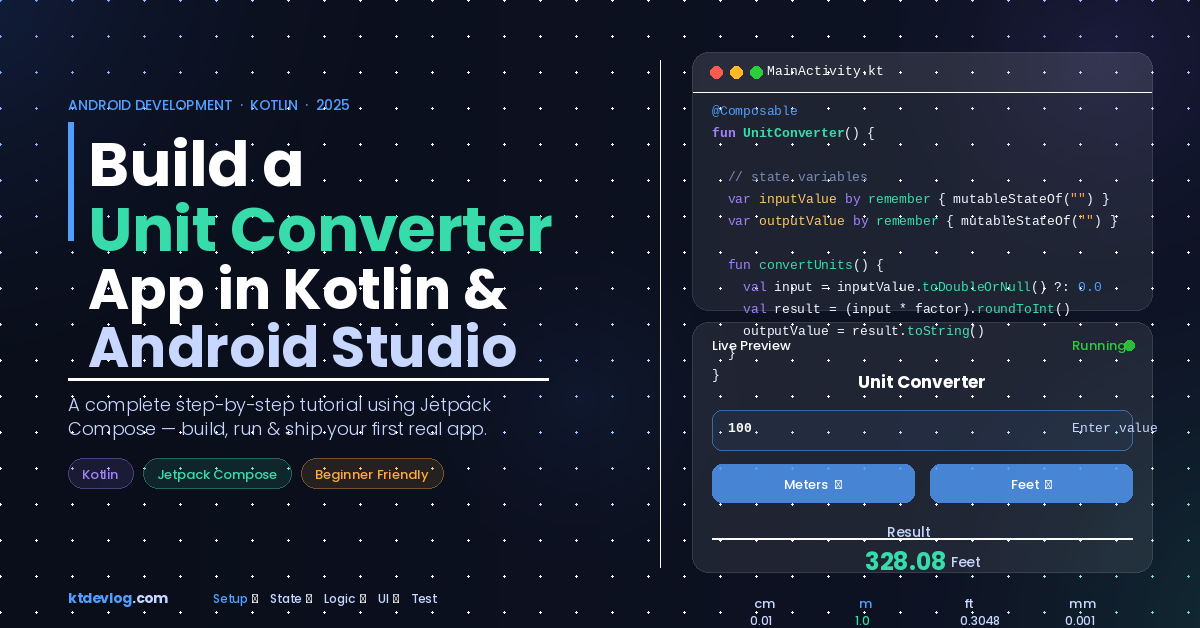
The final UI is clean and minimal: a title at the top, a number input field, two dropdown buttons to pick units, and a live result displayed at the bottom. No clutter, no confusion.
Setting Up State Variables
This is where most beginners building a Unit Converter app in Kotlin Android Studio hit their first wall. In Jetpack Compose, your UI only responds to values wrapped in remember and mutableStateOf. Without that, changing a value won’t update the screen at all.
Inside your UnitConverter() composable, declare these:
var inputValue by remember { mutableStateOf("") }
var outputValue by remember { mutableStateOf("") }
var inputUnit by remember { mutableStateOf("Meters") }
var outputUnit by remember { mutableStateOf("Meters") }
var iExpanded by remember { mutableStateOf(false) }
var oExpanded by remember { mutableStateOf(false) }
var conversionFactor = remember { mutableStateOf(1.00) }
var oConversionFactor = remember { mutableStateOf(1.00) }Each unit maps to a conversion factor relative to Meters as the shared base:
| Unit | Conversion Factor |
|---|---|
| Meters | 1.0 |
| Centimeters | 0.01 |
| Feet | 0.3048 |
| Millimeters | 0.001 |
This two-factor approach handles every unit combination elegantly — no messy lookup tables needed.
Writing the Conversion Logic
The heart of your Unit Converter app in Kotlin Android Studio is the convertUnits() function. It sits inside the composable and accesses all the state variables directly:
fun convertUnits() {
    val inputValueDouble = inputValue.toDoubleOrNull() ?: 0.0
    val result = (inputValueDouble * conversionFactor.value * 100.0 / oConversionFactor.value)
        .roundToInt() / 100.00
    outputValue = result.toString()
}Two things here are worth understanding deeply.
The toDoubleOrNull() ?: 0.0 part is Kotlin’s Elvis operator. If the user types letters or leaves the field blank, it silently defaults to zero instead of crashing the app. That one line eliminates an entire category of runtime errors.
The roundToInt() / 100.0 trick rounds the result to 2 decimal places cleanly — no need for String.format() or BigDecimal. Simple and effective.
Call convertUnits() in two places: inside onValueChange of the text field, and inside every onClick of every dropdown item.
Building the UI with Jetpack Compose
Now the fun part. Your entire layout for the Unit Converter app in Kotlin Android Studio goes inside a centered Column:
Column(
    modifier = Modifier.fillMaxSize(),
    verticalArrangement = Arrangement.Center,
    horizontalAlignment = Alignment.CenterHorizontally
) { ... }The Input Text Field
OutlinedTextField(
    value = inputValue,
    onValueChange = {
        inputValue = it
        convertUnits()
    },
    label = { Text("Enter a value") }
)Every keystroke triggers a live recalculation. That real-time feedback is what makes the app feel polished rather than clunky.
The Unit Dropdown Menus
Each dropdown uses a Box containing a Button and a DropdownMenu. Tapping the button flips iExpanded to true, which reveals the menu. Selecting an item updates the unit label, sets the conversion factor, dismisses the menu, and calls convertUnits():
Box {
    Button(onClick = { iExpanded = true }) {
        Text(text = inputUnit)
        Icon(Icons.Filled.ArrowDropDown, contentDescription = "ArrowDropDown")
    }
    DropdownMenu(expanded = iExpanded, onDismissRequest = { iExpanded = false }) {
        DropdownMenuItem(text = { Text("Centimeters") }, onClick = {
            iExpanded = false
            inputUnit = "Centimeters"
            conversionFactor.value = 0.01
            convertUnits()
        })
        DropdownMenuItem(text = { Text("Meters") }, onClick = {
            iExpanded = false
            inputUnit = "Meters"
            conversionFactor.value = 1.0
            convertUnits()
        })
        DropdownMenuItem(text = { Text("Feet") }, onClick = {
            iExpanded = false
            inputUnit = "Feet"
            conversionFactor.value = 0.3048
            convertUnits()
        })
        DropdownMenuItem(text = { Text("Millimeters") }, onClick = {
            iExpanded = false
            inputUnit = "Millimeters"
            conversionFactor.value = 0.001
            convertUnits()
        })
    }
}Mirror this exact structure for the output dropdown using oExpanded and oConversionFactor.
The Result Display
Text(
    "Result: $outputValue $outputUnit",
    style = MaterialTheme.typography.headlineMedium
)Kotlin’s string interpolation handles the display automatically. When outputValue updates, Compose recomposes and shows the new number instantly.
Running and Testing the App
Hit Run in Android Studio. Whether you’re on a physical device or a Pixel emulator, the app should launch within seconds.
Run these manual checks:
- 1 Meter → Centimeters should show
100.0 - 1 Foot → Centimeters should show
30.48 - 1000 Millimeters → Meters should show
1.0 - Typing letters should show
0.0, not crash
If a result looks wrong, your conversion factor has a typo. Double-check the decimal places — 0.3048 not 0.348, 0.001 not 0.01.
FAQ
How do I add more units to my Unit Converter app in Kotlin Android Studio?
Just add a new DropdownMenuItem with the correct factor. Kilometers = 1000.0, Inches = 0.0254, Miles = 1609.34. The formula handles everything automatically since all conversions route through Meters.
Why use Jetpack Compose instead of XML for this project?
Jetpack Compose is Google’s modern, officially recommended UI toolkit for Android. It’s more concise, easier to maintain, and handles reactive state updates far better than the older View-based system. Google’s official Compose documentation explains the full picture.
My app crashes when I type text in the number field — what’s wrong?
You’re likely missing the toDoubleOrNull() ?: 0.0 line in your convertUnits() function. Without it, non-numeric input causes a NumberFormatException crash. Add the Elvis operator and the problem disappears.
How do I restrict the keyboard to numbers only?
Add keyboardOptions = KeyboardOptions(keyboardType = KeyboardType.Number) to your OutlinedTextField. Import androidx.compose.foundation.text.KeyboardOptions and androidx.compose.ui.text.input.KeyboardType at the top of your file.
Is a Unit Converter app good enough for a developer portfolio?
On its own — probably not. But if you expand it with multiple unit categories (weight, temperature, speed), apply a proper Material 3 theme, and push it to a public GitHub repo with a solid README, it tells a real story. Pair it with 2-3 other projects and you’ve got a compelling portfolio.
Conclusion
Building a Unit Converter app in Kotlin Android Studio teaches you more than conversion math. You’ve practiced reactive state with Compose, safe input handling with Kotlin’s Elvis operator, dynamic UI with dropdowns, and clean layout structure — all skills that carry directly into every Android app you build from here.
The logical next step is to pick one feature and add it this week. A new unit category, a dark mode toggle, or a conversion history list. Each one adds another real skill to your toolkit.
Every senior Android developer started exactly where you are now. The only difference is they kept building.