
You’re staring at a blank ViewModel file. You know what it needs — MutableStateFlow, a viewModelScope.launch block, a sealed class for UI state, the usual setup. And you’re about to spend five minutes typing the same boilerplate you’ve typed a hundred times before.
Here’s the thing: you don’t have to anymore.
Android Studio Gemini AI is built directly into your IDE — no external browser tab, no copy-pasting from ChatGPT, no leaving your coding flow. As of 2026, Gemini in Android Studio has evolved from a basic code suggestion tool into a full AI development companion with Agent Mode, crash analysis, Compose UI debugging, and even the ability to generate entire app scaffolding from a text description.

This guide walks you through everything — how to activate it, what it can actually do, and the real prompts that save the most time in everyday Android development.
Table of Contents
What Is Gemini in Android Studio?
Gemini in Android Studio is your AI-powered coding companion for Android development. It helps you be more productive by answering your development queries, generating code, finding relevant resources, and encouraging best practices. It can help you mock up and troubleshoot Compose UIs, fix Gradle build errors, and analyze crashes through integrations with Logcat and App Quality Insights.
The key word there is uniquely. Gemini in Android Studio isn’t a generic AI chat window bolted onto an IDE. It has full context of your project — your files, your architecture, your dependencies — and it uses that context to give suggestions that actually fit your codebase rather than generic examples from the internet.
According to the official Android developer documentation, Gemini in Android Studio is under active development and updates frequently, with new AI features shipping in every Android Studio release cycle.
Step 1 — How to Activate Gemini in Android Studio
Getting Gemini running takes less than two minutes. Here’s exactly what to do.
Check Your Android Studio Version
Gemini is available in Android Studio Otter 3 and later. In 2026, Android Studio Otter 3 Feature Drop is the current stable release. If you’re on an older version, update first — go to Help → Check for Updates.
Open the Gemini Panel
To launch Gemini, open or start an Android Studio project and click the Gemini icon. Alternatively, click View → Tool Windows → Gemini. Sign in to your Google Account when asked. Complete the onboarding flow and select “Gemini for individuals” when given the choice of product tier. For the best results, select “Use all Gemini features” to allow project context sharing.
That last step — enabling project context sharing — is critical. Without it, Gemini answers from general knowledge. With it, Gemini reads your actual project files and gives you suggestions that are specific to your code structure.
Free vs Paid Tiers
If you’re an individual freelance developer, student, or hobbyist, the Gemini in Android Studio free edition gives you access to a lightweight version of Gemini with a small context window, which is appropriate for most tasks. If you need to execute more complex tasks that would benefit from Gemini Pro’s full 1M token context window, you can add a Gemini API key and pay per token.
For most beginners and intermediate developers, the free tier is genuinely enough to get massive productivity gains. If you’re working on large projects with many files, adding a Gemini API key unlocks the full context window — which makes Agent Mode significantly more powerful.
Step 2 — Generate Boilerplate Code Instantly
The first place you’ll feel Gemini’s impact is boilerplate generation. Let’s be honest — Android development has a lot of it. ViewModel setup, StateFlow declarations, repository patterns, data class definitions, NavGraph setup — all of it follows predictable patterns that you shouldn’t have to type from memory.
Open the Gemini chat panel and try these prompts directly:
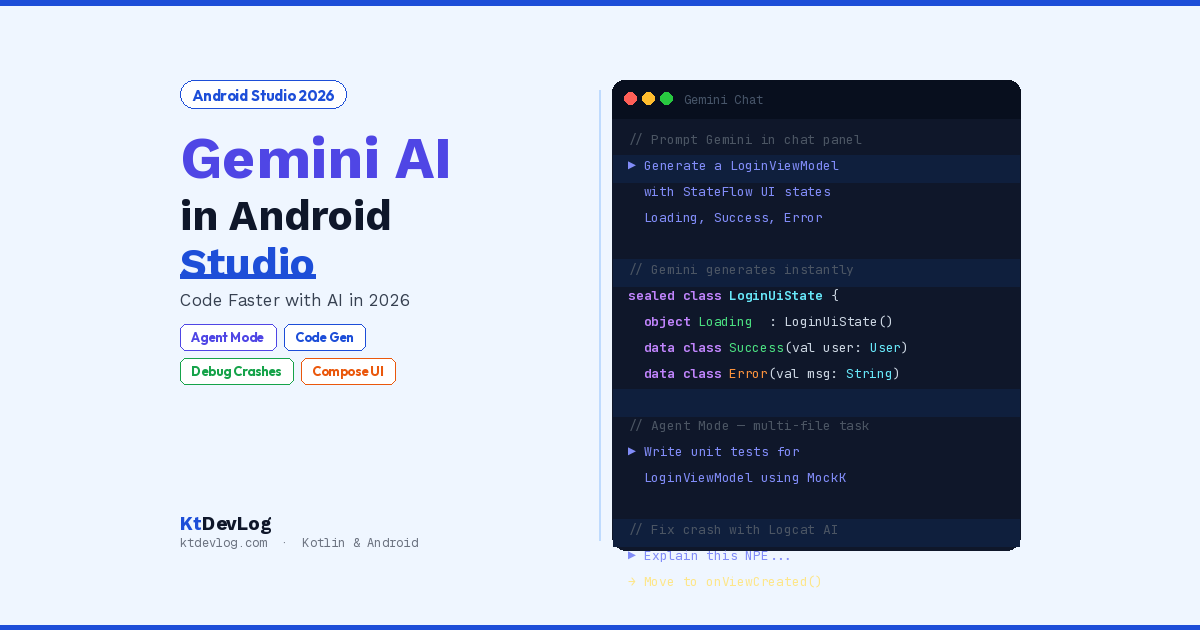
Generate a ViewModel with StateFlow:
Create a LoginViewModel with MutableStateFlow for a LoginUiState
sealed class that has Loading, Success(user: User), and Error(message: String) states.
Use viewModelScope.launch and include a login() function.
Gemini will generate the complete ViewModel — sealed class, StateFlow, coroutine scope, login function — in about three seconds. A setup that takes five minutes to type manually.
Generate a Repository:
Create a UserRepository with a suspend function getUser(userId: String)
that returns a Result<User>. Use Retrofit for the API call and
wrap it in a try-catch.
Generate a Compose Screen:
Create a Compose LoginScreen composable with email and password
TextFields, a login Button, and a CircularProgressIndicator
that shows when isLoading is true. Accept the UI state as a parameter.
Every one of these prompts produces code that’s immediately usable — not a generic template, but code structured for modern Android development with Jetpack Compose and Kotlin StateFlow.
Writing Better Prompts
Here’s the insight that most Gemini tutorials skip. The quality of the output is directly proportional to the specificity of your prompt.
When using Gemini Agents, don’t just ask it to “fix this code” — be very intentional with the context you provide and be specific about what you want and what you don’t. Being firm with your instructions — even telling the model “please do not invent things” in instances where you are using very new or experimental APIs — helps keep the AI focused on the outputs you are trying to achieve.
In plain terms: vague prompt → vague code. Specific prompt → production-ready code.
// ❌ Vague — output will be generic
"Create a ViewModel"

// ✅ Specific — output will match your architecture
"Create a ProductDetailViewModel that takes a productId: String
as a constructor parameter, fetches product data using
ProductRepository.getProduct(productId), and exposes the result
as StateFlow<ProductDetailUiState> with Loading, Success, and Error states"
Step 3 — Debug Crashes With Logcat Integration
This is one of the most underused features of Gemini in Android Studio — and one of the most valuable.
When your app crashes, you normally copy the stack trace from Logcat, paste it into a browser, search Stack Overflow, and spend 20 minutes piecing together what went wrong. Gemini cuts that entire process down to seconds.
How to use it:
- Run your app and trigger the crash
- Open Logcat — the crash stack trace appears in red
- Click “Explain with Gemini” that appears alongside the error
- Gemini reads the full stack trace, identifies the root cause, and suggests a fix
Here’s a real example. Say you get this crash:
FATAL EXCEPTION: main
Process: com.ktdevlog.app
java.lang.NullPointerException: Attempt to invoke virtual method
'android.content.res.Resources android.content.Context.getResources()'
on a null object reference
    at com.ktdevlog.app.ui.HomeFragment.setupRecyclerView(HomeFragment.kt:42)
Instead of searching this, you click “Explain with Gemini”. It immediately tells you: your setupRecyclerView() is being called before the fragment’s context is available — move it to onViewCreated() instead of onCreate(). Fix provided. Done. Two sentences instead of 20 minutes.
For Kotlin null safety issues especially, Gemini is excellent at identifying exactly where a null dereference is happening and suggesting the correct ?. or ?: operator to fix it safely.
Step 4 — Use Agent Mode for Complex Tasks
Agent Mode is the biggest upgrade to Gemini in Android Studio as of 2026. It’s not just answering questions — it’s an AI that can plan and execute multi-step development tasks across multiple files in your project.
Agent Mode is designed to handle complex, multi-stage development tasks. You can describe a goal — like generating unit tests, altering UI, or fixing errors — and the agent formulates an execution plan that spans multiple files in your project. The agent suggests edits and iteratively fixes bugs. You can review, accept, or reject the proposed changes and ask the agent to iterate on your feedback.
Here are the Agent Mode tasks that save the most time in real projects:
Generate unit tests for an entire ViewModel:
Write unit tests for LoginViewModel covering all states —
Loading, Success with a mock User object, and Error with
an exception message. Use MockK for mocking and JUnit 5.
Agent Mode reads your LoginViewModel file, understands the states, generates a complete test class with proper coroutine test setup, and proposes the changes for your review. Accept them with one click.
Refactor a screen to use Jetpack Compose:
Refactor ProfileFragment from XML-based layout to Jetpack Compose.
Keep the same functionality but convert it to a @Composable function
using the existing ProfileViewModel.
Add error handling across a feature:
Add proper error handling to all API calls in the UserRepository.
Wrap each with try-catch, return Result<T>, and update the
ViewModel to handle Result.failure() states.
The key with Agent Mode is reviewing every change before accepting. Gemini is powerful but not infallible — especially with very new APIs or complex architectural decisions. Read each proposed change, understand why it’s being made, and only accept what you’re confident in.
Step 5 — Fix Gradle Build Errors
Gradle build errors are some of the most frustrating moments in Android development. Cryptic error messages, dependency conflicts, version mismatches — they can burn an entire afternoon if you don’t know where to look.
Gemini in Android Studio has a direct integration with the Build output panel. When a Gradle sync or build fails, look for the “Fix with Gemini” button that appears alongside the error. Click it and Gemini analyzes the full build output, identifies the conflicting dependency or misconfiguration, and either fixes it directly or explains exactly what to change in your build.gradle.kts.
Common Gradle errors Gemini handles well:
- Dependency version conflicts
- Missing
implementationorkaptdeclarations - Kotlin Gradle plugin version mismatches
compileSdkandtargetSdkincompatibilities- Missing
buildFeaturesflags for ViewBinding or Compose
This is especially useful when you’re adding a new library for the first time and hitting version conflicts you don’t recognize.
Step 6 — Generate and Debug Compose UI
Gemini accelerates the process of building a modern UI. Attach an image of a wireframe or mock of your app’s UI and Gemini can convert it into working Jetpack Compose code that you can insert into your project. If you encounter a UI bug, save your troubleshooting time — simply capture a screenshot and ask Gemini for solutions.
This image-to-code feature is genuinely impressive in 2026. You can take a rough wireframe sketch, drop it into the Gemini chat, and get a working Compose layout back. It won’t be pixel-perfect, but it’s a massive head start compared to building from scratch.
For debugging Compose UI issues — like a Row that isn’t aligning correctly or padding that isn’t applying — you can screenshot the emulator output and ask Gemini “why isn’t this aligned correctly?” Gemini analyzes both your code and the visual output to pinpoint the issue.
If you’re new to Compose layouts, pair this with the guide on Row in Jetpack Compose — understanding the layout system makes Gemini’s suggestions much easier to evaluate and accept.
Step 7 — The New Project Assistant
The New Project Assistant — now available in the latest Canary builds — integrates Gemini with the Studio’s New Project wizard. By simply providing prompts and optionally design mockups, you can generate entire applications from scratch, including scaffolding, architecture, and Jetpack Compose layouts. Integrated with the Android Emulator, it can deploy your build and walk through the app, making sure it’s functioning correctly and that the rendered screens actually match your vision.
This is particularly powerful for learning. Instead of staring at a blank project wondering how to structure a feature, you can describe what you want to build and get a working starting point immediately. From there, you study the generated code, understand each piece, and build on top of it.
For students and developers learning Jetpack Compose Navigation, asking Gemini to scaffold a three-screen app with navigation already set up gives you a working reference immediately — and a much clearer understanding of how the pieces connect.
Gemini Features Quick Reference
Here’s what Gemini can do in Android Studio as of 2026:
| Feature | What It Does | How to Access |
|---|---|---|
| Chat panel | Answer questions, generate code | View → Tool Windows → Gemini |
| Inline code generation | Generate code in context | Right-click → Gemini → Generate |
| Logcat integration | Explain crashes, suggest fixes | “Explain with Gemini” in Logcat |
| Build error fix | Fix Gradle errors automatically | “Fix with Gemini” in Build panel |
| Agent Mode | Multi-file, multi-step tasks | Chat panel → Agent Mode toggle |
| Image to Compose | Wireframe → working UI code | Attach image in chat panel |
| New Project Assistant | Generate full app from prompt | File → New Project (Canary) |
| Prompt Library | Save and reuse frequent prompts | Gemini panel → Prompt Library |
Frequently Asked Questions
How do I activate Gemini in Android Studio?
Open Android Studio Otter 3 or later, then go to View → Tool Windows → Gemini. Sign in with your Google Account and complete the onboarding. Select “Gemini for individuals” for the free tier and enable project context sharing for the best results. Gemini is free for individual developers with a small context window — no subscription required to get started.
Is Gemini in Android Studio free to use?
Yes. The free edition of Gemini in Android Studio is available at no cost for individual developers, students, hobbyists, and open-source contributors. It includes a lightweight version of Gemini with a smaller context window. For larger projects or access to Gemini Pro’s full 1M token context window, you can add a Gemini API key or subscribe to Google One for higher rate limits and additional benefits.
What is Agent Mode in Android Studio?
Agent Mode is an advanced Gemini feature that handles complex, multi-step development tasks across multiple files in your project. You describe a goal — like “write unit tests for this ViewModel” or “refactor this screen to use Jetpack Compose” — and the agent creates an execution plan, makes file edits, and iteratively refines the result. You review each proposed change and accept or reject it before it’s applied to your code.
Can Gemini in Android Studio debug crashes automatically?
Gemini integrates directly with Logcat and the Build output panel. When your app crashes, a “Explain with Gemini” button appears alongside the stack trace in Logcat. Gemini analyzes the error, identifies the root cause, and suggests a fix. It also integrates with App Quality Insights for crash analysis from the Play Console. It doesn’t fix crashes automatically — it explains them and suggests fixes that you review and apply.
What version of Android Studio do I need for Gemini?
Gemini is available in Android Studio Otter 3 and later — the current stable release as of 2026. Some features like Agent Mode enhancements and the New Project Assistant are available in Canary (preview) builds before they reach stable. Check Help → Check for Updates to ensure you’re on the latest version.
Conclusion
Android Studio Gemini AI in 2026 is not a gimmick or a novelty. It’s a genuine productivity multiplier for Android developers at every level. The boilerplate that used to eat five minutes now takes five seconds. Crash analysis that used to mean 20 minutes of Stack Overflow searching now takes two clicks. UI generation from a wireframe that used to take an hour now takes minutes.
The key is learning to use it intentionally. Give it specific prompts. Review every suggestion before accepting. Use Agent Mode for bigger tasks and Logcat integration for debugging. Build the habit of reaching for Gemini first — not after you’ve already spent 30 minutes searching.
Start with the chat panel. Ask it to generate your next ViewModel. Accept the result, read it carefully, and understand every line. That combination — AI speed plus developer understanding — is what actually makes you a better, faster developer.
From here, deepen the Kotlin knowledge that makes Gemini’s output more readable — Kotlin sealed classes for UI state, Kotlin data classes for model layers, and Kotlin extension functions for utility code. The better you understand what Gemini generates, the better you can guide it and evaluate its output.
The fastest Android developers in 2026 aren’t the ones who type the most code — they’re the ones who know exactly what to ask Gemini to type for them.