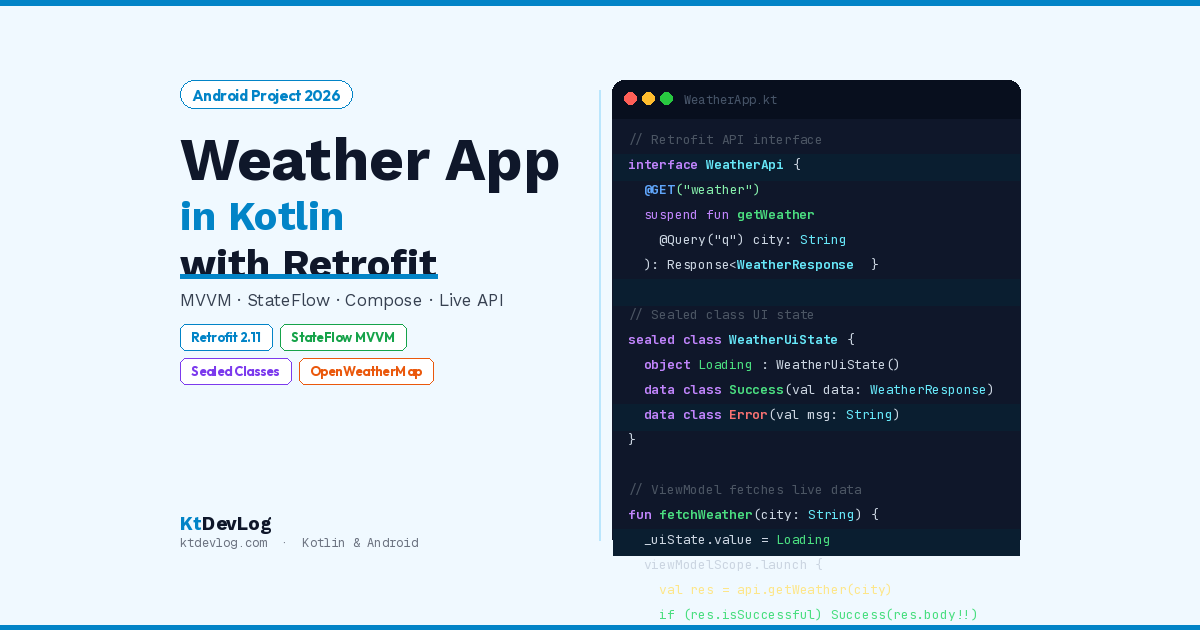

Here’s the moment every Android developer remembers: the first time their app showed real data from the internet.
Not hardcoded strings. Not fake JSON from a local file. Real live data — a city name, a temperature, a weather condition — fetched from an actual API and displayed on screen. It changes how you think about what’s possible.
Building a weather app in Kotlin is the perfect project for that moment. It’s genuinely useful, visually satisfying, and touches every skill you need for real Android development: API integration with Retrofit, JSON parsing, MVVM architecture, StateFlow for reactive state, and Jetpack Compose for the UI.
This guide walks you through the complete project from scratch. By the end, you’ll have a working weather app that fetches live data from the OpenWeatherMap API and displays it cleanly using Jetpack Compose and a proper MVVM architecture.
Table of Contents
What You’ll Build
A single-screen weather app that:
- Accepts a city name as user input
- Fetches live weather data from the OpenWeatherMap free API
- Displays temperature, weather condition, humidity, and wind speed
- Handles loading, success, and error states with sealed classes
- Uses MVVM architecture with
ViewModel+StateFlow - Fetches data using Retrofit 2.11.0 (2026 stable)
- Builds the UI with Jetpack Compose and Material 3
Step 1 — Get Your Free API Key
Before writing any code, sign up for a free OpenWeatherMap account at openweathermap.org. The free tier gives you:
- Current weather data for any city worldwide
- 60 API calls per minute
- No credit card required
After signing up, go to API Keys in your account dashboard and copy your key. API keys activate within a few minutes of account creation.
Alternative with no key needed: Open-Meteo is a completely free, no-key weather API that’s excellent for learning. The base URL is https://api.open-meteo.com/v1/ and it accepts latitude/longitude coordinates. We’ll use OpenWeatherMap in this guide for city-name search, but Open-Meteo is worth bookmarking for future projects.
Step 2 — Project Setup and Dependencies
Create a new Android project in Android Studio with Kotlin and Jetpack Compose as your selections. Then add the required dependencies to your app-level build.gradle.kts:
dependencies {
    // Retrofit — networking
    implementation("com.squareup.retrofit2:retrofit:2.11.0")
    implementation("com.squareup.retrofit2:converter-gson:2.11.0")

    // OkHttp — HTTP client + logging
    implementation("com.squareup.okhttp3:okhttp:4.12.0")
    implementation("com.squareup.okhttp3:logging-interceptor:4.12.0")

    // ViewModel + StateFlow
    implementation("androidx.lifecycle:lifecycle-viewmodel-compose:2.8.7")
    implementation("androidx.lifecycle:lifecycle-runtime-ktx:2.8.7")

    // Coroutines
    implementation("org.jetbrains.kotlinx:kotlinx-coroutines-android:1.8.1")
}Add the internet permission to your AndroidManifest.xml:
<uses-permission android:name="android.permission.INTERNET" />Store your API key in local.properties — never hardcode it directly in source files:
properties
# local.properties (never commit to Git)
WEATHER_API_KEY=your_actual_api_key_here
Read it in build.gradle.kts:
android {
    defaultConfig {
        buildConfigField(
            "String",
            "WEATHER_API_KEY",
            "\"${project.findProperty("WEATHER_API_KEY")}\""
        )
    }
    buildFeatures {
        buildConfig = true
    }
}Access it in code as BuildConfig.WEATHER_API_KEY.
Step 3 — Data Layer: API Interface and Data Classes
Define the API Response Models
The OpenWeatherMap /weather endpoint returns JSON like this:
{
  "name": "Dhaka",
  "main": {
    "temp": 31.5,
    "feels_like": 38.2,
    "humidity": 85
  },
  "weather": [
    { "description": "overcast clouds", "icon": "04d" }
  ],
  "wind": {
    "speed": 3.6
  }
}Create Kotlin data classes to model this response:
// WeatherResponse.kt
data class WeatherResponse(
    val name: String,
    val main: MainData,
    val weather: List<WeatherCondition>,
    val wind: WindData
)

data class MainData(
    val temp: Double,
    val feels_like: Double,
    val humidity: Int
)

data class WeatherCondition(
    val description: String,
    val icon: String
)

data class WindData(
    val speed: Double
)Create the Retrofit API Interface
// WeatherApi.kt
interface WeatherApi {

    @GET("weather")
    suspend fun getCurrentWeather(
        @Query("q")     city: String,
        @Query("appid") apiKey: String = BuildConfig.WEATHER_API_KEY,
        @Query("units") units: String = "metric"  // Celsius
    ): Response<WeatherResponse>
}suspend fun makes this function coroutine-friendly — Retrofit handles the threading automatically when called from a coroutine scope. The @Query("units") = "metric" default gives you Celsius. Change to "imperial" for Fahrenheit.
Set Up Retrofit Instance
// RetrofitInstance.kt
object RetrofitInstance {

    private const val BASE_URL = "https://api.openweathermap.org/data/2.5/"

    private val loggingInterceptor = HttpLoggingInterceptor().apply {
        level = HttpLoggingInterceptor.Level.BODY
    }

    private val okHttpClient = OkHttpClient.Builder()
        .addInterceptor(loggingInterceptor)
        .connectTimeout(30, java.util.concurrent.TimeUnit.SECONDS)
        .readTimeout(30, java.util.concurrent.TimeUnit.SECONDS)
        .build()

    val weatherApi: WeatherApi by lazy {
        Retrofit.Builder()
            .baseUrl(BASE_URL)
            .client(okHttpClient)
            .addConverterFactory(GsonConverterFactory.create())
            .build()
            .create(WeatherApi::class.java)
    }
}The HttpLoggingInterceptor logs every request and response to Logcat during development — invaluable for debugging API calls. You can filter Logcat with tag:OkHttp to see them clearly. Set its level to HttpLoggingInterceptor.Level.NONE in release builds.
Step 4 — UI State With Sealed Classes
Before writing the ViewModel, define your UI state. Using a sealed class for state management is the clean, type-safe way to represent every possible screen state:
// WeatherUiState.kt
sealed class WeatherUiState {
    object Idle    : WeatherUiState()
    object Loading : WeatherUiState()
    data class Success(val data: WeatherResponse) : WeatherUiState()
    data class Error(val message: String)          : WeatherUiState()
}Idle — initial state, search field is empty and nothing has been searched yet. Loading — API call is in progress. Success — API responded with data. Carries the full WeatherResponse. Error — something went wrong. Carries an error message to display.
Step 5 — ViewModel With StateFlow
// WeatherViewModel.kt
class WeatherViewModel : ViewModel() {

    private val _uiState = MutableStateFlow<WeatherUiState>(WeatherUiState.Idle)
    val uiState: StateFlow<WeatherUiState> = _uiState

    fun fetchWeather(city: String) {
        if (city.isBlank()) {
            _uiState.value = WeatherUiState.Error("Please enter a city name")
            return
        }

        _uiState.value = WeatherUiState.Loading

        viewModelScope.launch {
            try {
                val response = RetrofitInstance.weatherApi.getCurrentWeather(city)

                if (response.isSuccessful) {
                    val body = response.body()
                    if (body != null) {
                        _uiState.value = WeatherUiState.Success(body)
                    } else {
                        _uiState.value = WeatherUiState.Error("No data received")
                    }
                } else {
                    _uiState.value = when (response.code()) {
                        401  -> WeatherUiState.Error("Invalid API key")
                        404  -> WeatherUiState.Error("City \"$city\" not found")
                        429  -> WeatherUiState.Error("Too many requests — try again soon")
                        else -> WeatherUiState.Error("Server error: ${response.code()}")
                    }
                }

            } catch (e: IOException) {
                _uiState.value = WeatherUiState.Error("No internet connection")
            } catch (e: Exception) {
                _uiState.value = WeatherUiState.Error("Unexpected error: ${e.message}")
            }
        }
    }
}Three things make this ViewModel clean and production-quality:
Specific HTTP error codes. 401 means bad API key. 404 means city not found. 429 means rate limited. Mapping each code to a user-friendly message instead of just “Error: 404” makes your app feel professional and actually helpful.
Two separate catch blocks. IOException catches network failures (no internet, timeout). The generic Exception catch handles anything unexpected. Separating them gives you more precise error messages.
viewModelScope.launch. The coroutine is tied to the ViewModel’s lifecycle — if the user navigates away, the coroutine is cancelled automatically. No memory leaks, no dangling network calls.
Step 6 — Jetpack Compose UI
Weather Display Card
@Composable
fun WeatherCard(weather: WeatherResponse) {
    Card(
        modifier = Modifier
            .fillMaxWidth()
            .padding(16.dp),
        shape = RoundedCornerShape(20.dp),
        elevation = CardDefaults.cardElevation(defaultElevation = 4.dp),
        colors = CardDefaults.cardColors(containerColor = Color(0xFF1E3A5F))
    ) {
        Column(
            modifier = Modifier
                .fillMaxWidth()
                .padding(24.dp),
            horizontalAlignment = Alignment.CenterHorizontally,
            verticalArrangement = Arrangement.spacedBy(12.dp)
        ) {
            // City name
            Text(
                text = weather.name,
                fontSize = 28.sp,
                fontWeight = FontWeight.Bold,
                color = Color.White
            )

            // Temperature — big and central
            Text(
                text = "${weather.main.temp.toInt()}°C",
                fontSize = 72.sp,
                fontWeight = FontWeight.Light,
                color = Color.White
            )

            // Weather condition
            Text(
                text = weather.weather.firstOrNull()?.description?.replaceFirstChar {
                    it.uppercase()
                } ?: "Unknown",
                fontSize = 18.sp,
                color = Color(0xFFB0C4DE)
            )

            Spacer(modifier = Modifier.height(8.dp))

            // Details row
            Row(
                modifier = Modifier.fillMaxWidth(),
                horizontalArrangement = Arrangement.SpaceEvenly
            ) {
                WeatherDetailItem(label = "Feels Like",  value = "${weather.main.feels_like.toInt()}°C")
                WeatherDetailItem(label = "Humidity",    value = "${weather.main.humidity}%")
                WeatherDetailItem(label = "Wind",        value = "${weather.wind.speed} m/s")
            }
        }
    }
}

@Composable
fun WeatherDetailItem(label: String, value: String) {
    Column(horizontalAlignment = Alignment.CenterHorizontally) {
        Text(text = value, fontSize = 18.sp, fontWeight = FontWeight.Bold, color = Color.White)
        Text(text = label, fontSize = 12.sp, color = Color(0xFFB0C4DE))
    }
}Main Screen
@Composable
fun WeatherScreen(viewModel: WeatherViewModel = viewModel()) {
    val uiState by viewModel.uiState.collectAsStateWithLifecycle()
    var cityInput by rememberSaveable { mutableStateOf("") }

    Column(
        modifier = Modifier
            .fillMaxSize()
            .background(Color(0xFF0A1929))
            .padding(16.dp),
        horizontalAlignment = Alignment.CenterHorizontally
    ) {

        Spacer(modifier = Modifier.height(48.dp))

        Text(
            text = "Weather",
            fontSize = 32.sp,
            fontWeight = FontWeight.Bold,
            color = Color.White
        )

        Spacer(modifier = Modifier.height(24.dp))

        // Search field
        OutlinedTextField(
            value = cityInput,
            onValueChange = { cityInput = it },
            label = { Text("Enter city name") },
            singleLine = true,
            modifier = Modifier.fillMaxWidth(),
            shape = RoundedCornerShape(12.dp),
            colors = OutlinedTextFieldDefaults.colors(
                focusedBorderColor    = Color(0xFF4FC3F7),
                unfocusedBorderColor  = Color(0xFF37474F),
                focusedLabelColor     = Color(0xFF4FC3F7),
                focusedTextColor      = Color.White,
                unfocusedTextColor    = Color.White,
                containerColor        = Color(0xFF132F4C)
            ),
            keyboardOptions = KeyboardOptions(
                imeAction = ImeAction.Search
            ),
            keyboardActions = KeyboardActions(
                onSearch = { viewModel.fetchWeather(cityInput) }
            )
        )

        Spacer(modifier = Modifier.height(12.dp))

        Button(
            onClick = { viewModel.fetchWeather(cityInput) },
            modifier = Modifier.fillMaxWidth(),
            shape = RoundedCornerShape(12.dp),
            colors = ButtonDefaults.buttonColors(containerColor = Color(0xFF1976D2))
        ) {
            Text("Get Weather", fontSize = 16.sp, modifier = Modifier.padding(vertical = 4.dp))
        }

        Spacer(modifier = Modifier.height(24.dp))

        // State rendering
        when (val state = uiState) {
            is WeatherUiState.Idle    -> { /* Empty — waiting for search */ }
            is WeatherUiState.Loading -> {
                CircularProgressIndicator(color = Color(0xFF4FC3F7))
            }
            is WeatherUiState.Success -> {
                WeatherCard(weather = state.data)
            }
            is WeatherUiState.Error   -> {
                Text(
                    text = state.message,
                    color = Color(0xFFEF5350),
                    fontSize = 16.sp,
                    textAlign = TextAlign.Center
                )
            }
        }
    }
}The when (val state = uiState) pattern is important — it captures the current state as a local variable. This ensures Kotlin’s smart cast works correctly for is WeatherUiState.Success and is WeatherUiState.Error, giving you direct access to state.data and state.message without any casting.
Step 7 — Wire Everything in MainActivity
class MainActivity : ComponentActivity() {
    override fun onCreate(savedInstanceState: Bundle?) {
        super.onCreate(savedInstanceState)
        enableEdgeToEdge()
        setContent {
            MaterialTheme {
                WeatherScreen()
            }
        }
    }
}Run the app. Type a city name — try “Dhaka”, “London”, “New York” — tap Get Weather, and watch real live temperature data appear on your screen.
Common Mistakes to Avoid
Hardcoding your API key in source files. Put it in local.properties and access it through BuildConfig. Never commit an API key to Git — even private repositories.
Not handling HTTP error codes specifically. A generic "Error" message when the city isn’t found is frustrating. Map 404 to “City not found” and 401 to “Invalid API key” — users immediately know how to fix the problem.
Calling the API on the main thread. Always use viewModelScope.launch or another coroutine scope. Retrofit’s suspend fun requires a coroutine context — if you call it from the main thread without a coroutine, your app crashes with NetworkOnMainThreadException.
Not disabling logging in release builds. HttpLoggingInterceptor.Level.BODY logs your full API key and all response data. Always set it to Level.NONE in release builds:
val loggingInterceptor = HttpLoggingInterceptor().apply {
    level = if (BuildConfig.DEBUG) {
        HttpLoggingInterceptor.Level.BODY
    } else {
        HttpLoggingInterceptor.Level.NONE
    }
}Frequently Asked Questions
Project and API Setup
What is the best free Weather API for building a Kotlin Android app?
The two best options in 2026 are OpenWeatherMap and Open-Meteo. OpenWeatherMap’s free tier gives you current weather for any city name worldwide — 60 calls per minute, no credit card needed. Open-Meteo is fully free with no API key, no sign-up, no rate limits for reasonable usage — it accepts coordinates instead of city names. OpenWeatherMap is easier for beginners since you can search by city name directly.
Do I need to know MVVM to build this weather app?
Understanding the basic idea helps but it’s not required to follow this guide. MVVM (Model-View-ViewModel) separates your UI (the Compose screen) from your data logic (the ViewModel). The ViewModel fetches data and exposes it as StateFlow. The screen observes that StateFlow and updates automatically when the data changes. That’s the whole pattern — you can build this app first and understand why it works as you go.
Retrofit and Networking
Why use Retrofit instead of making HTTP calls manually in Kotlin?
Retrofit converts your API interface — a simple Kotlin interface with annotated functions — into a fully functional HTTP client automatically. You write @GET("weather") and @Query("q"), and Retrofit handles URL building, request execution, response parsing, and error handling. Without Retrofit, you’d write hundreds of lines of boilerplate using HttpURLConnection or raw OkHttp. Retrofit is the standard networking library for Android in 2026 and pairs perfectly with Kotlin coroutines through suspend fun API declarations.
How do I show temperatures in Fahrenheit instead of Celsius?
Change the units query parameter in your API call from "metric" to "imperial". In the WeatherApi interface, set @Query("units") units: String = "imperial". With imperial units, the temperature comes back in Fahrenheit, wind speed in miles per hour. Alternatively, let users choose their preferred unit and pass it as a parameter — a great feature to add once the basic app is working.
Why am I getting a 401 error from the OpenWeatherMap API?
A 401 response means your API key is invalid or hasn’t activated yet. New OpenWeatherMap API keys take up to a few minutes (occasionally longer) to become active after account creation. Check that you’ve copied the key correctly into local.properties and that buildConfig = true is set in your build.gradle.kts. Try making the API call directly in a browser: https://api.openweathermap.org/data/2.5/weather?q=London&appid=YOUR_KEY — if you get a 401 there too, the key isn’t active yet.
Conclusion
Building a weather app in Kotlin teaches you more about Android development than almost any other beginner project. You get real API integration with Retrofit, proper sealed class state management, MVVM architecture with StateFlow, and a Jetpack Compose UI that responds to live network data — all in one focused project.
The skills you’ve applied here — Retrofit for networking, sealed classes for state, ViewModel + StateFlow for reactive architecture — are exactly the same patterns used in every professional Android codebase. This isn’t a toy project. It’s a real app built the right way.
From here, the natural next steps are adding a five-day forecast (use the /forecast endpoint), caching results with Room so the app works offline, and adding location-based weather using the device GPS. Each addition builds on exactly what you’ve learned here.
For a deeper understanding of how the sealed class state pattern works across your whole app, Kotlin sealed classes vs enums explains why WeatherUiState is a sealed class and not an enum — and why that choice matters for clean Android architecture.
The first time real data appears on a screen you built — that feeling doesn’t get old.