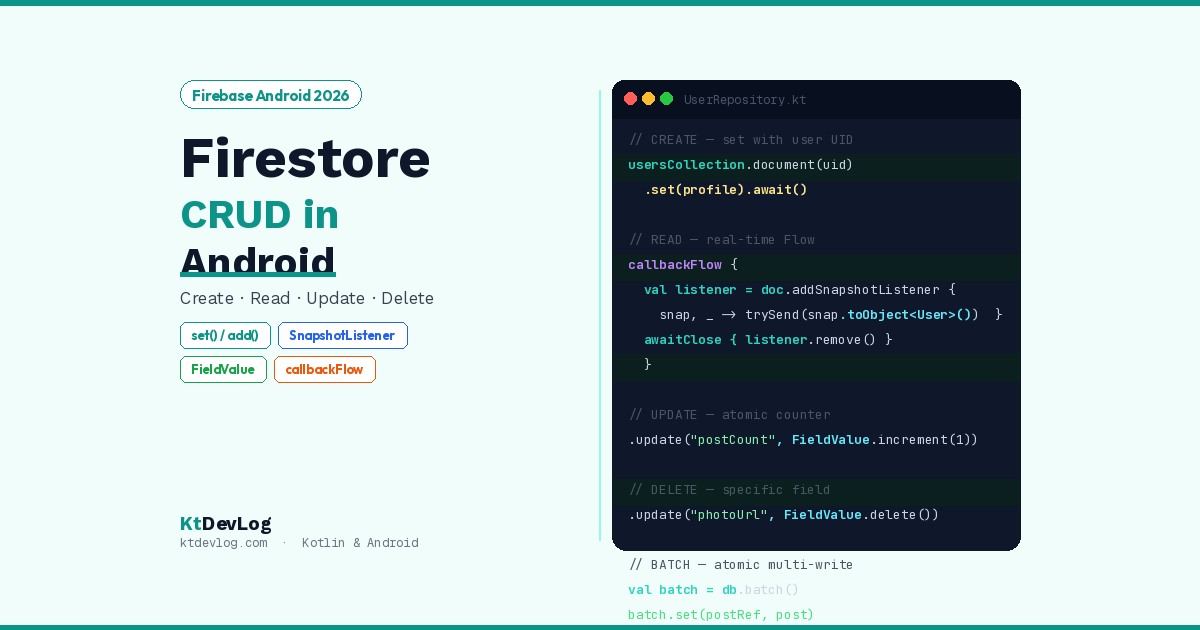

Your users are logged in. Firebase Authentication is handling who they are. Now comes the next question every app developer reaches almost immediately: where do I store their actual data?
That’s where Cloud Firestore comes in. Firestore is Firebase’s modern NoSQL document database — flexible, scalable, and built to sync data in real time across devices. Whether you’re building a social app, a productivity tool, a chat app, or a personal finance tracker, Firestore is where user data lives.
This guide walks through every Firestore CRUD operation in Android using Kotlin — Create, Read, Update, and Delete — using the 2026 standard approach with Firebase BoM 34.12.0, Kotlin coroutines with .await(), real-time listeners with addSnapshotListener, and a clean repository pattern that keeps all Firestore logic out of your UI layer.



Table of Contents
Firestore vs Room — Which One to Use?
Before diving into the code, a quick but important framing question that trips up many developers.
Room Database (covered in the simple to-do list app guide) stores data locally on the device. It’s fast, works offline without any setup, and never leaves the phone. Perfect for personal data, offline-first apps, and sensitive information you don’t want in the cloud.
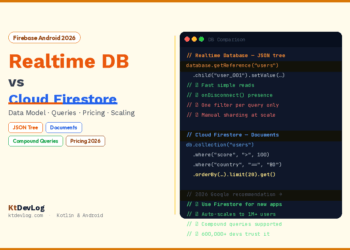
Firestore stores data in Google’s cloud — synchronized across every device the user logs into, accessible from your server, and updated in real time across all connected users. Perfect for shared data, multi-device sync, social features, and anything that needs to live beyond a single device.
| Room | Firestore | |
|---|---|---|
| Storage | Device only | Google Cloud |
| Works offline | ✅ Always | ✅ With caching |
| Multi-device sync | ❌ No | ✅ Yes |
| Real-time updates | ✅ Via Flow | ✅ Via Snapshot Listener |
| Internet required | ❌ No | ✅ For initial load |
| Cost | Free | Free tier then pay-per-use |
Most real-world apps use both — Room for local caching and offline support, Firestore for cloud sync and shared data.
Step 1 — Firestore Setup
Enable Firestore in Firebase Console
Firebase Console → Build → Firestore Database → Create DatabaseChoose Start in production mode — you’ll configure Security Rules next. Select your closest region (e.g. asia-south1 for Bangladesh, us-central1 for the US).
Add the Dependency
In your app-level build.gradle.kts:
dependencies {
    // Firebase BoM — manages all Firebase library versions
    implementation(platform("com.google.firebase:firebase-bom:34.12.0"))
    implementation("com.google.firebase:firebase-firestore")

    // Coroutines — required for .await() on Firebase Tasks
    implementation("org.jetbrains.kotlinx:kotlinx-coroutines-android:1.8.1")
    implementation("org.jetbrains.kotlinx:kotlinx-coroutines-play-services:1.8.1")
}No version number needed for firebase-firestore when using the BoM — it manages compatibility automatically.
Configure Basic Security Rules
In Firebase Console → Firestore → Rules:
rules_version = '2';
service cloud.firestore {
  match /databases/{database}/documents {

    // Users can only read and write their own data
    match /users/{userId} {
      allow read, write: if request.auth != null
                         && request.auth.uid == userId;
    }

    // Users can read and write their own posts
    match /posts/{postId} {
      allow read: if request.auth != null;
      allow write: if request.auth != null
                   && request.resource.data.authorId == request.auth.uid;
    }
  }
}Security Rules are non-negotiable for production apps. The rule above ensures each user can only access their own users document, and can only create posts where they’re the author. According to the official Firestore documentation, never deploy to production with allow read, write: if true — that makes your database public to anyone on the internet.
Step 2 — Data Model
Define your Kotlin data class. Firestore maps documents to data classes automatically — but there are two important annotations:
// UserProfile.kt
import com.google.firebase.firestore.DocumentId
import com.google.firebase.firestore.ServerTimestamp
import java.util.Date

data class UserProfile(
    @DocumentId
    val uid: String = "",           // Auto-populated from Firestore document ID
    val displayName: String = "",
    val email: String = "",
    val bio: String = "",
    val photoUrl: String = "",
    @ServerTimestamp
    val createdAt: Date? = null,    // Firebase sets this on the server
    val postCount: Int = 0
)@DocumentId — tells Firestore to automatically populate this field with the document ID when reading. You don’t have to manually extract and assign the ID from the DocumentSnapshot.
@ServerTimestamp — tells Firestore to set this field to the server’s current timestamp on write. This is far more reliable than using System.currentTimeMillis() on the client — server timestamps are consistent regardless of what clock the user’s device shows.
Critical: every field must have a default value. Firestore uses reflection to deserialize documents into your data class — it calls the no-argument constructor. Without default values, deserialization crashes at runtime with a RuntimeException: no suitable constructor.
Step 3 — Firestore Repository
All Firestore operations belong in a repository — never directly in a ViewModel or composable. This keeps your UI layer clean and makes testing straightforward:
// UserRepository.kt
import com.google.firebase.firestore.FirebaseFirestore
import com.google.firebase.firestore.ktx.toObject
import com.google.firebase.firestore.ktx.toObjects
import kotlinx.coroutines.channels.awaitClose
import kotlinx.coroutines.flow.Flow
import kotlinx.coroutines.flow.callbackFlow
import kotlinx.coroutines.tasks.await

class UserRepository {

    private val db = FirebaseFirestore.getInstance()
    private val usersCollection = db.collection("users")
}Step 4 — CREATE: Save a Document
There are two ways to create a document in Firestore. Choosing the right one matters:
// CREATE — Option 1: set() with a specific document ID
// Use when you want the document ID to match the user's Firebase Auth UID
suspend fun createUserProfile(profile: UserProfile): Result<Unit> {
    return try {
        usersCollection
            .document(profile.uid)      // Document ID = user's UID
            .set(profile)
            .await()
        Result.success(Unit)
    } catch (e: Exception) {
        Result.failure(e)
    }
}

// CREATE — Option 2: add() with auto-generated ID
// Use for posts, comments, messages — anything that doesn't need a predictable ID
suspend fun createPost(post: Post): Result<String> {
    return try {
        val documentRef = db.collection("posts")
            .add(post)
            .await()
        Result.success(documentRef.id)  // Returns the auto-generated document ID
    } catch (e: Exception) {
        Result.failure(e)
    }
}Use set() when you know what the document ID should be — like using the Firebase Auth UID for user profiles. Use add() when you want Firestore to generate a random, unique ID — like for posts, comments, or messages.
set() with SetOptions.merge() — important variant worth knowing. If the document already exists, set() by default replaces the entire document. To only update specific fields without affecting others, use merge:
// Merge — updates only the specified fields, keeps everything else
suspend fun updateProfilePhoto(userId: String, photoUrl: String) {
    usersCollection
        .document(userId)
        .set(mapOf("photoUrl" to photoUrl), SetOptions.merge())
        .await()
}Step 5 — READ: Get a Document and Listen in Real Time
One-Time Read
// READ — get a single document once
suspend fun getUserProfile(userId: String): Result<UserProfile?> {
    return try {
        val snapshot = usersCollection
            .document(userId)
            .get()
            .await()

        if (snapshot.exists()) {
            val profile = snapshot.toObject<UserProfile>()
            Result.success(profile)
        } else {
            Result.success(null)   // Document doesn't exist — not an error
        }
    } catch (e: Exception) {
        Result.failure(e)
    }
}snapshot.toObject<UserProfile>() — the KTX extension function that deserializes the Firestore document into your data class using reflection. This is why every field needs a default value.
Real-Time Listener — The Power of Firestore
This is Firestore’s most distinctive feature. Unlike a one-time read, a real-time listener fires every time the data changes — immediately. No polling, no refresh button, no manual re-fetching:
// READ — real-time listener as a Kotlin Flow
fun getUserProfileFlow(userId: String): Flow<UserProfile?> = callbackFlow {

    val listener = usersCollection
        .document(userId)
        .addSnapshotListener { snapshot, error ->

            if (error != null) {
                close(error)   // Close the Flow with the error
                return@addSnapshotListener
            }

            val profile = if (snapshot != null && snapshot.exists()) {
                snapshot.toObject<UserProfile>()
            } else {
                null
            }

            trySend(profile)   // Emit to the Flow
        }

    // Clean up the listener when the Flow is cancelled
    awaitClose { listener.remove() }
}

// READ — real-time listener for a collection (list of documents)
fun getAllPostsFlow(): Flow<List<Post>> = callbackFlow {

    val listener = db.collection("posts")
        .orderBy("createdAt", Query.Direction.DESCENDING)
        .addSnapshotListener { snapshots, error ->

            if (error != null) {
                close(error)
                return@addSnapshotListener
            }

            val posts = snapshots?.toObjects<Post>() ?: emptyList()
            trySend(posts)
        }

    awaitClose { listener.remove() }
}callbackFlow converts Firestore’s callback-based listener into a Kotlin Flow. The key detail: awaitClose { listener.remove() } — this removes the Firestore listener when the Flow’s collector (your ViewModel or composable) stops collecting. Without this, the listener stays active and leaks memory even after the user navigates away.
Step 6 — UPDATE: Modify Specific Fields
Firestore gives you two update mechanisms — each for a different use case:
// UPDATE — modify specific fields only (document must exist)
suspend fun updateUserBio(userId: String, newBio: String): Result<Unit> {
    return try {
        usersCollection
            .document(userId)
            .update("bio", newBio)
            .await()
        Result.success(Unit)
    } catch (e: Exception) {
        Result.failure(e)
    }
}

// UPDATE — multiple fields at once
suspend fun updateUserProfile(
    userId: String,
    displayName: String,
    bio: String
): Result<Unit> {
    return try {
        usersCollection
            .document(userId)
            .update(
                mapOf(
                    "displayName" to displayName,
                    "bio"         to bio
                )
            )
            .await()
        Result.success(Unit)
    } catch (e: Exception) {
        Result.failure(e)
    }
}

// UPDATE — atomic increment (no race conditions)
suspend fun incrementPostCount(userId: String): Result<Unit> {
    return try {
        usersCollection
            .document(userId)
            .update("postCount", FieldValue.increment(1))
            .await()
        Result.success(Unit)
    } catch (e: Exception) {
        Result.failure(e)
    }
}FieldValue.increment(1) is one of the most important Firestore features most beginner guides skip entirely. If two users try to increment a counter at the same time, a regular update("count", currentCount + 1) creates a race condition — both read currentCount as 5, both write 6, and one increment is lost. FieldValue.increment() is atomic — Firestore handles the increment safely at the server level. Always use it for counters, scores, and counts.
Step 7 — DELETE: Remove Documents and Fields
// DELETE — entire document
suspend fun deleteUserProfile(userId: String): Result<Unit> {
    return try {
        usersCollection
            .document(userId)
            .delete()
            .await()
        Result.success(Unit)
    } catch (e: Exception) {
        Result.failure(e)
    }
}

// DELETE — a specific field (set to null equivalent in Firestore)
suspend fun removeProfilePhoto(userId: String): Result<Unit> {
    return try {
        usersCollection
            .document(userId)
            .update("photoUrl", FieldValue.delete())
            .await()
        Result.success(Unit)
    } catch (e: Exception) {
        Result.failure(e)
    }
}FieldValue.delete() removes a specific field from a document without touching other fields. It’s the Firestore equivalent of setting a column to null in SQL — but since Firestore is NoSQL, the field is completely removed from the document rather than set to a null value.
Important: deleting a document does not delete its subcollections. If your users/{userId} document has a subcollection users/{userId}/posts, deleting the user document leaves all the posts documents orphaned. You must delete subcollections manually or use a Cloud Function.
Step 8 — Batch Writes and Transactions
Real apps often need to update multiple documents atomically — either all succeed or none do. Firestore handles this with batch writes and transactions.
Batch Write — Multiple Writes Together
// Batch write — create a post AND increment user's post count atomically
suspend fun createPostAndUpdateCount(
    userId: String,
    post: Post
): Result<Unit> {
    return try {
        val batch = db.batch()

        // Operation 1 — create the post document
        val postRef = db.collection("posts").document()
        batch.set(postRef, post)

        // Operation 2 — increment the user's post count
        val userRef = usersCollection.document(userId)
        batch.update(userRef, "postCount", FieldValue.increment(1))

        // Commit both operations together
        batch.commit().await()
        Result.success(Unit)
    } catch (e: Exception) {
        Result.failure(e)
    }
}Both operations either both succeed or both fail. If the post creation fails, the count doesn’t increment. If the count update fails, the post isn’t created. This consistency is exactly what you need for related data updates.
Step 9 — ViewModel
// UserViewModel.kt
class UserViewModel : ViewModel() {

    private val repository = UserRepository()

    // Real-time profile — updates automatically when Firestore data changes
    private val _profile = MutableStateFlow<UserProfile?>(null)
    val profile: StateFlow<UserProfile?> = _profile

    private val _uiState = MutableStateFlow<FirestoreUiState>(FirestoreUiState.Idle)
    val uiState: StateFlow<FirestoreUiState> = _uiState

    fun loadProfile(userId: String) {
        viewModelScope.launch {
            repository.getUserProfileFlow(userId)
                .collect { profile ->
                    _profile.value = profile
                }
        }
    }

    fun saveProfile(profile: UserProfile) {
        _uiState.value = FirestoreUiState.Loading
        viewModelScope.launch {
            val result = repository.createUserProfile(profile)
            _uiState.value = if (result.isSuccess) {
                FirestoreUiState.Success("Profile saved!")
            } else {
                FirestoreUiState.Error(result.exceptionOrNull()?.message ?: "Save failed")
            }
        }
    }

    fun updateBio(userId: String, bio: String) {
        viewModelScope.launch {
            repository.updateUserBio(userId, bio)
        }
    }

    fun deleteProfile(userId: String) {
        viewModelScope.launch {
            repository.deleteUserProfile(userId)
        }
    }
}

sealed class FirestoreUiState {
    object Idle    : FirestoreUiState()
    object Loading : FirestoreUiState()
    data class Success(val message: String) : FirestoreUiState()
    data class Error(val message: String)   : FirestoreUiState()
}Common Firestore Mistakes in 2026
Missing default values on data class fields. Firestore uses your data class’s no-argument constructor when deserializing documents. Without default values on every field, it throws RuntimeException at runtime — not compile time. You’ll only discover this when you try to read data.
Not removing snapshot listeners. Every addSnapshotListener call creates an active connection to Firestore that counts against your billing. Using callbackFlow with awaitClose { listener.remove() } handles cleanup automatically. If you manually attach listeners without removing them, you leak both memory and Firestore connections.
Using client-side timestamps. System.currentTimeMillis() uses the device’s clock — which users can change manually. Always use @ServerTimestamp or FieldValue.serverTimestamp() for timestamp fields that matter.
Not using FieldValue.increment() for counters. Manual read-then-write patterns for counters create race conditions in multi-user environments. Always use FieldValue.increment() for any numeric field that multiple users might update simultaneously.
Testing in production mode without Security Rules. Start in production mode from day one and write proper rules. Test mode makes your database publicly readable and writable — a serious security risk for any data with real users.
Frequently Asked Questions
Firestore Basics
What is the difference between Firestore set() and update()?
set() creates or completely replaces a document. If the document exists, set() overwrites all its fields with the new data — fields in the old document that aren’t in the new data are deleted. update() only modifies the specific fields you pass — all other fields remain unchanged. Use set() when creating a new document or replacing it entirely. Use update() for partial updates. Use set() with SetOptions.merge() as a flexible middle ground — it creates the document if it doesn’t exist, or merges fields if it does.
How do I get real-time updates from Firestore in Kotlin?
Use addSnapshotListener on a document or collection reference. For use with Kotlin coroutines and Jetpack Compose, wrap it in callbackFlow — this converts the callback-based listener into a Kotlin Flow that your ViewModel can collect as a StateFlow. Always clean up the listener using awaitClose { listener.remove() } inside callbackFlow to prevent memory leaks and unnecessary Firestore reads.
Data Modeling
Why must every field in a Firestore data class have a default value?
Firestore’s Kotlin deserialisation uses reflection to call the no-argument constructor of your data class. If any field lacks a default value, the no-argument constructor doesn’t exist (Kotlin data classes require all fields without defaults to be passed in the constructor), and Firestore throws a RuntimeException at runtime when reading data. Every field must have a sensible default — empty string for text, 0 for numbers, null for optional references, and false for booleans.
What does the @DocumentId annotation do in Firestore?
@DocumentId marks a field in your data class that should be automatically populated with the Firestore document’s ID when the document is read. Without it, you’d have to manually extract the ID from the DocumentSnapshot and assign it yourself. When writing a document, @DocumentId fields are ignored — Firestore doesn’t try to write them as document fields.
What is FieldValue.increment() and when should I use it?
FieldValue.increment(n) atomically increments a numeric field in Firestore by n at the server level — no read operation required. Use it any time you need to increment a counter that multiple users or devices might update simultaneously. Manual read-then-write patterns (currentCount + 1) create race conditions — two concurrent reads both get the same value, both add 1, and one increment is silently lost. FieldValue.increment() eliminates this problem entirely.
Conclusion
Firestore CRUD operations in Android form the foundation of any cloud-connected Kotlin app. The pattern is consistent: set() to create, addSnapshotListener for real-time reads, update() for partial changes, delete() for removal, and batch writes when multiple operations must succeed together.
The key habits that separate a production-quality Firestore implementation from a fragile one: default values on every data class field, callbackFlow with awaitClose for all listeners, @ServerTimestamp for time fields, FieldValue.increment() for counters, and Security Rules that protect your data from day one.
From here, combine what you’ve built with the auth layer from Firebase Authentication in Android Kotlin — storing user-specific Firestore data under each user’s UID gives you a complete, secure, multi-user data architecture with minimal boilerplate.
Firestore is your cloud — structure it well, listen to it reactively, and it keeps every device in sync without you thinking about it.