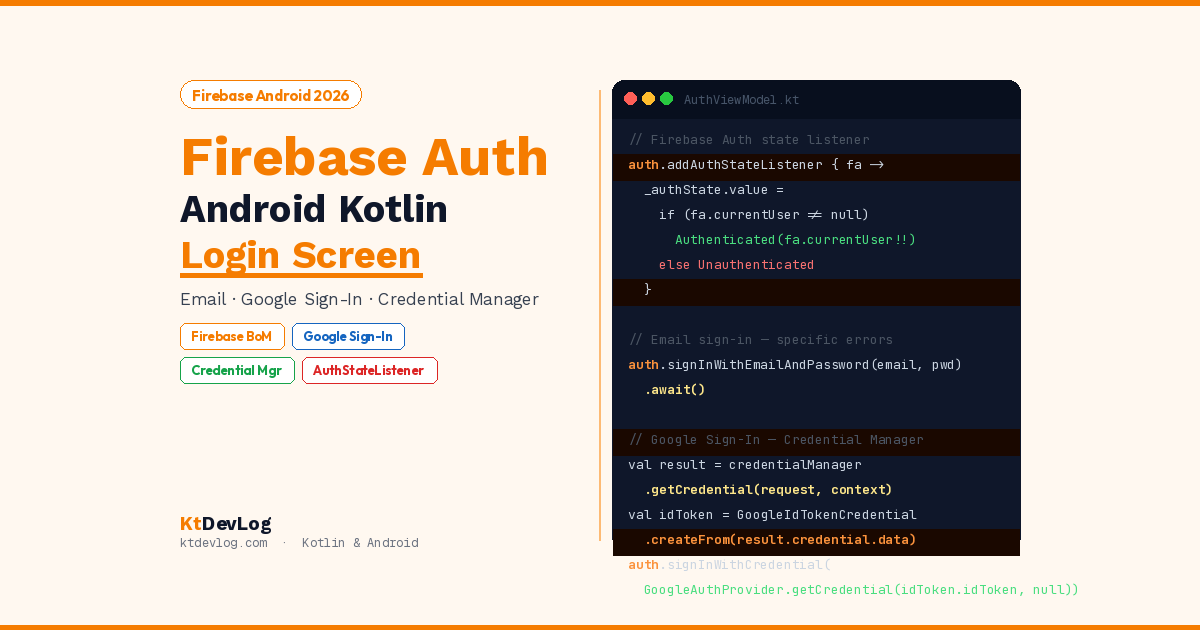

User authentication is almost always the first real challenge you face when building a production Android app. You can build beautiful screens, connect to APIs, and store local data — but the moment your app needs to know who is using it, you need authentication.
Firebase Authentication is the right answer for most Android developers. It handles the hard parts — secure password hashing, token management, session persistence, OAuth flows — while giving you a clean Kotlin API to work with. You focus on your app. Firebase handles the auth infrastructure.
In this guide, you’ll implement firebase authentication android kotlin with both Email/Password and Google Sign-In — the two most common authentication methods in modern Android apps. You’ll build a complete auth flow: sign-up, sign-in, sign-out, and persistent auth state — using Firebase BoM 34.12.0 (April 2026), the Credential Manager API for Google Sign-In (which replaces the deprecated GoogleSignInClient), and a clean MVVM architecture with StateFlow.


Table of Contents
What You’ll Build
A complete Firebase authentication flow with:
- Email/Password sign-up and sign-in — create accounts and log in existing users
- Google Sign-In with the 2026 Credential Manager API
- Auth state persistence — users stay logged in after app restarts
- Sign-out — cleanly ends the session
- MVVM architecture — ViewModel + StateFlow + sealed class auth state
- Jetpack Compose UI — login screen and home screen
Step 1 — Firebase Project Setup
Before writing code, you need a Firebase project connected to your Android app.
Create a Firebase Project:
- Go to console.firebase.google.com
- Click Add Project — follow the wizard
- Once created, click Add App → select the Android icon
- Enter your app’s package name (e.g.
com.yourname.authapp) - Download the
google-services.jsonfile - Place it in your
app/directory (same level asbuild.gradle.kts)
Enable Authentication Providers:
In the Firebase Console:
Authentication → Sign-in method → Email/Password → Enable → Save
Authentication → Sign-in method → Google → Enable → Set project email → Save
Add SHA-1 fingerprint (required for Google Sign-In):
In Android Studio Terminal:
./gradlew signingReportCopy the SHA-1 from the debug output. In Firebase Console:
Project Settings → Your Android App → Add fingerprint → Paste SHA-1 → SaveWithout the SHA-1, Google Sign-In silently fails. This is the most common setup mistake.
Step 2 — Dependencies
In your project-level build.gradle.kts, add the Google services plugin:
plugins {
    id("com.google.gms.google-services") version "4.4.2" apply false
}In your app-level build.gradle.kts:
plugins {
    id("com.google.gms.google-services") // Apply here too
}

dependencies {
    // Firebase BoM — manages all Firebase library versions automatically
    implementation(platform("com.google.firebase:firebase-bom:34.12.0"))
    implementation("com.google.firebase:firebase-auth")

    // Credential Manager — 2026 Google Sign-In API (replaces deprecated GoogleSignInClient)
    implementation("androidx.credentials:credentials:1.3.0")
    implementation("androidx.credentials:credentials-play-services-auth:1.3.0")
    implementation("com.google.android.libraries.identity.googleid:googleid:1.1.1")

    // Coroutines — .await() on Firebase Tasks
    implementation("org.jetbrains.kotlinx:kotlinx-coroutines-android:1.8.1")
    implementation("org.jetbrains.kotlinx:kotlinx-coroutines-play-services:1.8.1")

    // ViewModel + Compose
    implementation("androidx.lifecycle:lifecycle-viewmodel-compose:2.8.7")
}The Firebase BoM (Bill of Materials) is critical. It ensures all Firebase libraries use compatible versions automatically — you never specify version numbers for individual Firebase dependencies when using the BoM. According to the official Firebase Android documentation, using the BoM is the strongly recommended approach for all new projects in 2026.
Step 3 — Auth State Sealed Class
Before writing the ViewModel, define your authentication states:
// AuthState.kt
sealed class AuthState {
    object Unauthenticated : AuthState()
    object Loading         : AuthState()
    data class Authenticated(val user: FirebaseUser) : AuthState()
    data class Error(val message: String)             : AuthState()
}Unauthenticated — no user signed in, show login screen. Loading — auth operation in progress, show spinner. Authenticated — user is signed in, carries the FirebaseUser. Error — something went wrong, carries the message to display.
Step 4 — AuthViewModel
// AuthViewModel.kt
class AuthViewModel : ViewModel() {

    private val auth = FirebaseAuth.getInstance()

    private val _authState = MutableStateFlow<AuthState>(AuthState.Unauthenticated)
    val authState: StateFlow<AuthState> = _authState

    init {
        // Listen for auth state changes — handles app restarts and session persistence
        auth.addAuthStateListener { firebaseAuth ->
            _authState.value = if (firebaseAuth.currentUser != null) {
                AuthState.Authenticated(firebaseAuth.currentUser!!)
            } else {
                AuthState.Unauthenticated
            }
        }
    }

    // ── Email/Password Sign-Up ──────────────────────────────────
    fun signUpWithEmail(email: String, password: String) {
        if (!validateInput(email, password)) return
        _authState.value = AuthState.Loading

        viewModelScope.launch {
            try {
                auth.createUserWithEmailAndPassword(email, password).await()
                // Auth listener above handles success state update
            } catch (e: FirebaseAuthUserCollisionException) {
                _authState.value = AuthState.Error("This email is already registered")
            } catch (e: FirebaseAuthWeakPasswordException) {
                _authState.value = AuthState.Error("Password must be at least 6 characters")
            } catch (e: Exception) {
                _authState.value = AuthState.Error(e.message ?: "Sign-up failed")
            }
        }
    }

    // ── Email/Password Sign-In ──────────────────────────────────
    fun signInWithEmail(email: String, password: String) {
        if (!validateInput(email, password)) return
        _authState.value = AuthState.Loading

        viewModelScope.launch {
            try {
                auth.signInWithEmailAndPassword(email, password).await()
            } catch (e: FirebaseAuthInvalidCredentialsException) {
                _authState.value = AuthState.Error("Invalid email or password")
            } catch (e: FirebaseAuthInvalidUserException) {
                _authState.value = AuthState.Error("No account found with this email")
            } catch (e: Exception) {
                _authState.value = AuthState.Error(e.message ?: "Sign-in failed")
            }
        }
    }

    // ── Google Sign-In with Credential Manager ──────────────────
    fun signInWithGoogle(context: Context, webClientId: String) {
        _authState.value = AuthState.Loading

        viewModelScope.launch {
            try {
                val credentialManager = CredentialManager.create(context)

                val googleIdOption = GetGoogleIdOption.Builder()
                    .setFilterByAuthorizedAccounts(false)  // Show all accounts, not just previously used
                    .setServerClientId(webClientId)
                    .setAutoSelectEnabled(false)            // Don't auto-select — let user choose
                    .build()

                val request = GetCredentialRequest.Builder()
                    .addCredentialOption(googleIdOption)
                    .build()

                val result = credentialManager.getCredential(
                    request = request,
                    context = context
                )

                val googleIdTokenCredential = GoogleIdTokenCredential
                    .createFrom(result.credential.data)

                val firebaseCredential = GoogleAuthProvider
                    .getCredential(googleIdTokenCredential.idToken, null)

                auth.signInWithCredential(firebaseCredential).await()
                // Auth listener handles success state

            } catch (e: GetCredentialCancellationException) {
                _authState.value = AuthState.Unauthenticated // User cancelled — not an error
            } catch (e: Exception) {
                _authState.value = AuthState.Error("Google Sign-In failed: ${e.message}")
            }
        }
    }

    // ── Sign Out ────────────────────────────────────────────────
    fun signOut() {
        auth.signOut()
        // Auth listener handles state update to Unauthenticated
    }

    // ── Input Validation ────────────────────────────────────────
    private fun validateInput(email: String, password: String): Boolean {
        return when {
            email.isBlank() -> {
                _authState.value = AuthState.Error("Email cannot be empty")
                false
            }
            !android.util.Patterns.EMAIL_ADDRESS.matcher(email).matches() -> {
                _authState.value = AuthState.Error("Please enter a valid email address")
                false
            }
            password.length < 6 -> {
                _authState.value = AuthState.Error("Password must be at least 6 characters")
                false
            }
            else -> true
        }
    }
}Three things make this ViewModel production-quality:
addAuthStateListener in init — This is the key to persistent auth across app restarts. Firebase automatically restores the user session when the app launches, and the listener fires immediately with the current state. You never have to manually check getCurrentUser() at startup — the listener handles it automatically.
Specific Firebase exception types — FirebaseAuthUserCollisionException, FirebaseAuthInvalidCredentialsException, FirebaseAuthInvalidUserException give you precise error messages. Users immediately know whether their password is wrong, their account doesn’t exist, or the email is already taken.
GetCredentialCancellationException handled separately — when a user taps the back button on the Google account picker, it’s not an error. Resetting to Unauthenticated (not Error) means no error message is shown.
Step 5 — Get the Web Client ID
Google Sign-In with Credential Manager requires your Firebase project’s Web Client ID — not your Android client ID.
Find it in Firebase Console:
Project Settings → General → Your Apps → Web API KeyOr more specifically:
Authentication → Sign-in method → Google → Web SDK configuration → Web client IDIt looks like: 1234567890-abcdefghijklmnopqrstuvwxyz.apps.googleusercontent.com
Add it to your strings.xml:
<!-- res/values/strings.xml -->
<resources>
    <string name="default_web_client_id">YOUR_WEB_CLIENT_ID_HERE</string>
</resources>Access it in code as stringResource(R.string.default_web_client_id) or context.getString(R.string.default_web_client_id).
Step 6 — Login Screen UI
@Composable
fun LoginScreen(
    viewModel: AuthViewModel,
    onNavigateToHome: () -> Unit
) {
    val authState by viewModel.authState.collectAsStateWithLifecycle()
    val context = LocalContext.current
    val webClientId = stringResource(R.string.default_web_client_id)

    var email       by rememberSaveable { mutableStateOf("") }
    var password    by rememberSaveable { mutableStateOf("") }
    var isSignUpMode by rememberSaveable { mutableStateOf(false) }
    var passwordVisible by remember { mutableStateOf(false) }

    // Navigate to home when authenticated
    LaunchedEffect(authState) {
        if (authState is AuthState.Authenticated) {
            onNavigateToHome()
        }
    }

    Column(
        modifier = Modifier
            .fillMaxSize()
            .padding(24.dp),
        verticalArrangement = Arrangement.Center,
        horizontalAlignment = Alignment.CenterHorizontally
    ) {
        // Header
        Text(
            text = if (isSignUpMode) "Create Account" else "Welcome Back",
            fontSize = 28.sp,
            fontWeight = FontWeight.Bold,
            color = Color(0xFF1E293B)
        )
        Text(
            text = if (isSignUpMode) "Sign up to get started" else "Sign in to continue",
            fontSize = 14.sp,
            color = Color(0xFF64748B),
            modifier = Modifier.padding(bottom = 32.dp, top = 4.dp)
        )

        // Email field
        OutlinedTextField(
            value = email,
            onValueChange = { email = it },
            label = { Text("Email Address") },
            singleLine = true,
            modifier = Modifier.fillMaxWidth(),
            shape = RoundedCornerShape(12.dp),
            keyboardOptions = KeyboardOptions(
                keyboardType = KeyboardType.Email,
                imeAction    = ImeAction.Next
            )
        )

        Spacer(modifier = Modifier.height(12.dp))

        // Password field
        OutlinedTextField(
            value = password,
            onValueChange = { password = it },
            label = { Text("Password") },
            singleLine = true,
            modifier = Modifier.fillMaxWidth(),
            shape = RoundedCornerShape(12.dp),
            visualTransformation = if (passwordVisible)
                VisualTransformation.None else PasswordVisualTransformation(),
            trailingIcon = {
                IconButton(onClick = { passwordVisible = !passwordVisible }) {
                    Icon(
                        imageVector = if (passwordVisible)
                            Icons.Default.Visibility else Icons.Default.VisibilityOff,
                        contentDescription = null
                    )
                }
            },
            keyboardOptions = KeyboardOptions(
                keyboardType = KeyboardType.Password,
                imeAction    = ImeAction.Done
            )
        )

        Spacer(modifier = Modifier.height(24.dp))

        // Error message
        if (authState is AuthState.Error) {
            Text(
                text = (authState as AuthState.Error).message,
                color = Color(0xFFDC2626),
                fontSize = 14.sp,
                textAlign = TextAlign.Center,
                modifier = Modifier.padding(bottom = 12.dp)
            )
        }

        // Primary action button
        Button(
            onClick = {
                if (isSignUpMode) viewModel.signUpWithEmail(email, password)
                else viewModel.signInWithEmail(email, password)
            },
            modifier = Modifier
                .fillMaxWidth()
                .height(52.dp),
            shape = RoundedCornerShape(12.dp),
            colors = ButtonDefaults.buttonColors(containerColor = Color(0xFF7C3AED)),
            enabled = authState !is AuthState.Loading
        ) {
            if (authState is AuthState.Loading) {
                CircularProgressIndicator(
                    color  = Color.White,
                    modifier = Modifier.size(22.dp),
                    strokeWidth = 2.dp
                )
            } else {
                Text(
                    text = if (isSignUpMode) "Create Account" else "Sign In",
                    fontSize = 16.sp,
                    fontWeight = FontWeight.SemiBold
                )
            }
        }

        Spacer(modifier = Modifier.height(12.dp))

        // Divider
        Row(
            verticalAlignment = Alignment.CenterVertically,
            modifier = Modifier.fillMaxWidth()
        ) {
            Divider(modifier = Modifier.weight(1f))
            Text(
                text = "  or  ",
                fontSize = 12.sp,
                color = Color(0xFF94A3B8)
            )
            Divider(modifier = Modifier.weight(1f))
        }

        Spacer(modifier = Modifier.height(12.dp))

        // Google Sign-In button
        OutlinedButton(
            onClick = { viewModel.signInWithGoogle(context, webClientId) },
            modifier = Modifier
                .fillMaxWidth()
                .height(52.dp),
            shape = RoundedCornerShape(12.dp),
            border = BorderStroke(1.dp, Color(0xFFE2E8F0)),
            enabled = authState !is AuthState.Loading
        ) {
            Row(
                horizontalArrangement = Arrangement.Center,
                verticalAlignment = Alignment.CenterVertically
            ) {
                // Google G icon placeholder — replace with actual Google icon asset
                Text(text = "G", fontSize = 18.sp, fontWeight = FontWeight.Bold, color = Color(0xFF4285F4))
                Spacer(modifier = Modifier.width(8.dp))
                Text(text = "Continue with Google", fontSize = 16.sp, color = Color(0xFF1E293B))
            }
        }

        Spacer(modifier = Modifier.height(20.dp))

        // Toggle sign-up / sign-in
        TextButton(onClick = { isSignUpMode = !isSignUpMode }) {
            Text(
                text = if (isSignUpMode)
                    "Already have an account? Sign In"
                else
                    "Don't have an account? Sign Up",
                color = Color(0xFF7C3AED)
            )
        }
    }
}The LaunchedEffect(authState) block watches the auth state — the moment it becomes Authenticated, navigation to the home screen fires automatically. This handles both the login flow and the app-restart case where the addAuthStateListener immediately emits Authenticated.
Step 7 — Home Screen and Navigation
@Composable
fun HomeScreen(viewModel: AuthViewModel) {
    val authState by viewModel.authState.collectAsStateWithLifecycle()
    val user = (authState as? AuthState.Authenticated)?.user

    Column(
        modifier = Modifier
            .fillMaxSize()
            .padding(24.dp),
        verticalArrangement = Arrangement.Center,
        horizontalAlignment = Alignment.CenterHorizontally
    ) {
        Text(
            text = "Welcome!",
            fontSize = 32.sp,
            fontWeight = FontWeight.Bold
        )
        Spacer(modifier = Modifier.height(8.dp))
        Text(
            text = user?.email ?: user?.displayName ?: "Unknown user",
            fontSize = 16.sp,
            color = Color(0xFF64748B)
        )
        Spacer(modifier = Modifier.height(32.dp))
        Button(
            onClick = { viewModel.signOut() },
            colors = ButtonDefaults.buttonColors(containerColor = Color(0xFFEF5350))
        ) {
            Text("Sign Out")
        }
    }
}Wire it in MainActivity with navigation:
class MainActivity : ComponentActivity() {
    private val viewModel: AuthViewModel by viewModels()

    override fun onCreate(savedInstanceState: Bundle?) {
        super.onCreate(savedInstanceState)
        setContent {
            val navController = rememberNavController()
            val authState by viewModel.authState.collectAsStateWithLifecycle()

            MaterialTheme {
                NavHost(
                    navController = navController,
                    startDestination = "login"
                ) {
                    composable("login") {
                        LoginScreen(
                            viewModel = viewModel,
                            onNavigateToHome = {
                                navController.navigate("home") {
                                    popUpTo("login") { inclusive = true }
                                }
                            }
                        )
                    }
                    composable("home") {
                        // Guard — if state becomes Unauthenticated, navigate back to login
                        LaunchedEffect(authState) {
                            if (authState is AuthState.Unauthenticated) {
                                navController.navigate("login") {
                                    popUpTo("home") { inclusive = true }
                                }
                            }
                        }
                        HomeScreen(viewModel = viewModel)
                    }
                }
            }
        }
    }
}The popUpTo("login") { inclusive = true } after navigating to home ensures the user cannot press back to return to the login screen — the back button exits the app instead. This is the standard pattern for post-authentication navigation covered in Jetpack Compose Navigation.
Common Firebase Auth Mistakes in 2026
Using deprecated GoogleSignInClient instead of Credential Manager. As of 2026, the GoogleSignInClient and GoogleSignIn APIs from play-services-auth are deprecated. The new approach is the Credential Manager API (androidx.credentials) — which is what this guide implements. If you copy auth code from a pre-2025 tutorial, you’ll likely get deprecation warnings and may encounter compatibility issues.
Forgetting the SHA-1 fingerprint. Google Sign-In fails silently without the SHA-1 fingerprint registered in Firebase Console. If clicking “Continue with Google” does nothing or shows a generic error, missing SHA-1 is almost always the cause. Add both debug and release SHA-1 fingerprints.
Using tasks.await() without the coroutines-play-services dependency. The .await() extension function on Firebase Tasks requires kotlinx-coroutines-play-services as a dependency. Without it, your code won’t compile. It’s a separate dependency from kotlinx-coroutines-android.
Not handling GetCredentialCancellationException. When the user dismisses the Google account picker, Credential Manager throws this exception. If you catch it as a generic Exception and show an error message, your UI erroneously shows “Google Sign-In failed” to a user who simply changed their mind. Handle it separately and reset to Unauthenticated.
Frequently Asked Questions
Firebase Setup
How do I add Firebase Authentication to an Android Kotlin project?
Create a Firebase project at console.firebase.google.com, add your Android app to it, download google-services.json and place it in your app/ directory. Add the Google services plugin to both build.gradle.kts files, then add Firebase BoM and firebase-auth dependencies. Enable your desired sign-in providers in the Firebase Console under Authentication → Sign-in method. For Google Sign-In, you must also add your SHA-1 fingerprint to the Firebase project settings.
Why does Google Sign-In fail with no error message?
The most common cause is a missing SHA-1 fingerprint. Go to Android Studio Terminal, run ./gradlew signingReport, copy the debug SHA-1, and add it to Firebase Console under Project Settings → Your Android App → Add fingerprint. Another common cause is using the Android Client ID instead of the Web Client ID for setServerClientId() — make sure you copy the Web client ID from Authentication → Sign-in method → Google → Web SDK configuration.
Authentication and State
What is addAuthStateListener and why is it important?
addAuthStateListener registers a callback that fires every time the Firebase authentication state changes — when a user signs in, signs out, or when the app restarts with an active session. Adding it in the ViewModel’s init block means your app automatically detects the restored session on startup without any manual getCurrentUser() check. It’s the correct way to drive auth-based navigation in a reactive architecture.
How do I keep users logged in after the app restarts?
Firebase Authentication automatically persists the user session to device storage. When the app relaunches, Firebase restores the session and addAuthStateListener fires immediately with Authenticated state. You don’t need to write any persistence code — Firebase handles it. The only thing you need is the addAuthStateListener in your ViewModel’s init block to react to the restored state.
What is the difference between GoogleSignInClient and Credential Manager for Google Sign-In?
GoogleSignInClient is the older API from play-services-auth — deprecated as of 2025. The new approach is the Credential Manager API (androidx.credentials), which Google introduced as part of their unified credential management system. Credential Manager supports Google Sign-In, passkeys, and saved passwords through a single consistent API. All new projects in 2026 should use Credential Manager — it’s what this guide implements.
Conclusion
Firebase Authentication in Android Kotlin removes one of the most complex parts of app development — building a secure auth system — and replaces it with a clean, well-maintained API that handles email/password auth, Google Sign-In, session persistence, and error handling out of the box.
The two key architectural decisions that make this implementation solid: addAuthStateListener drives all auth state reactively — no manual state management needed. And specific Firebase exception types give your users precise, helpful error messages instead of generic failures.
From here, you can extend this auth system by adding email verification (user.sendEmailVerification()), password reset (auth.sendPasswordResetEmail(email)), or additional providers like Phone Auth. Each one follows the same pattern you’ve already built.
Once your users are authenticated, connect their data to a local database — the simple to-do list app with Room Database guide shows how to build the kind of persistent, user-owned data layer that works perfectly alongside Firebase Auth.
Authentication is the first gate every real app needs. You’ve just built it the right way.