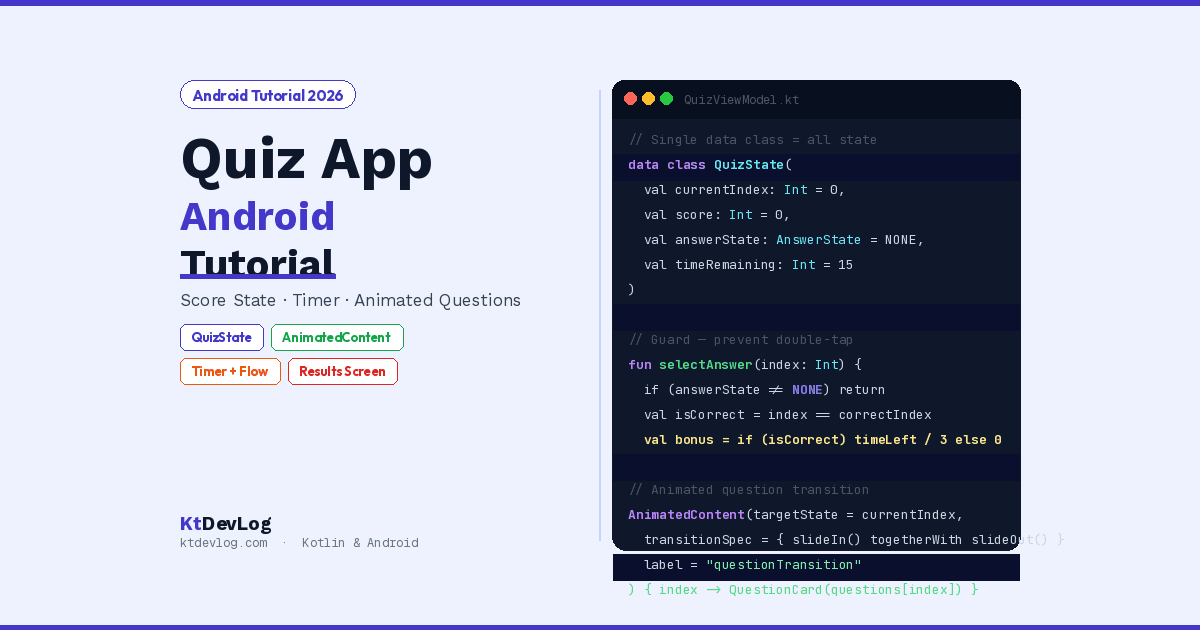

State management is one of those concepts that sounds abstract until you build something that actually depends on it. A quiz app makes it concrete.
Think about everything that has to stay in sync during a single quiz session: the current question index, the user’s selected answer, whether that answer was correct, the current score, the time remaining on each question, and whether the quiz is in progress, showing feedback, or on the results screen. Every user tap affects multiple pieces of state simultaneously. Get one of them wrong and the whole app breaks.
This android quiz app tutorial builds exactly that — a complete multiple-choice quiz game in Kotlin with Jetpack Compose, animated question transitions, a per-question countdown timer, instant right/wrong feedback, streak tracking, and a polished results screen. No database needed — the focus is entirely on state management logic, the part most tutorials gloss over.


Table of Contents
What You’ll Build
A fully playable quiz game with:
- Welcome screen — topic intro with quiz metadata
- Question screen — multiple choice answers with instant color feedback
- Animated transitions — questions slide in as the previous one slides out
- Countdown timer — 15 seconds per question, auto-advances on timeout
- Score tracking — total score, current streak, and time-bonus points
- Results screen — score percentage, grade, performance breakdown, and replay
- Pure Compose state — no database, no network — clean state management focus
Step 1 — Dependencies
This project keeps dependencies minimal — it’s all about state logic, not library integration:
// app/build.gradle.kts
dependencies {
    // ViewModel + StateFlow
    implementation("androidx.lifecycle:lifecycle-viewmodel-compose:2.8.7")
    implementation("androidx.lifecycle:lifecycle-runtime-ktx:2.8.7")

    // Navigation Compose
    implementation("androidx.navigation:navigation-compose:2.9.0")

    // Coroutines — for the countdown timer
    implementation("org.jetbrains.kotlinx:kotlinx-coroutines-android:1.8.1")
}According to the official Jetpack Compose state documentation, the ViewModel + StateFlow pattern is the recommended approach for managing state that survives configuration changes — which matters enormously for a quiz app where the user mustn’t lose their progress on screen rotation.
Step 2 — Question Data Model
// QuizData.kt

data class Question(
    val id: Int,
    val text: String,
    val options: List<String>,
    val correctAnswerIndex: Int,
    val explanation: String = ""   // Shown after answering — great for learning apps
)

// Sample quiz — Kotlin knowledge test
val kotlinQuiz = listOf(
    Question(
        id = 1,
        text = "Which keyword in Kotlin makes a variable immutable?",
        options = listOf("var", "val", "const", "final"),
        correctAnswerIndex = 1,
        explanation = "val declares a read-only (immutable) variable. Its reference cannot be reassigned."
    ),
    Question(
        id = 2,
        text = "What does the ?: operator do in Kotlin?",
        options = listOf("Safe call", "Elvis operator", "Not-null assertion", "Spread operator"),
        correctAnswerIndex = 1,
        explanation = "The Elvis operator ?: provides a default value when the left-hand expression is null."
    ),
    Question(
        id = 3,
        text = "Which Kotlin class cannot be subclassed?",
        options = listOf("abstract class", "open class", "sealed class", "final class"),
        correctAnswerIndex = 2,
        explanation = "Sealed classes restrict inheritance to the same file, not the entire hierarchy."
    ),
    Question(
        id = 4,
        text = "What does 'data class' auto-generate in Kotlin?",
        options = listOf("toString() only", "equals(), hashCode(), toString(), copy()", "Serializable only", "Nothing"),
        correctAnswerIndex = 1,
        explanation = "Data classes auto-generate equals(), hashCode(), toString(), copy(), and componentN() functions."
    ),
    Question(
        id = 5,
        text = "Which collection function in Kotlin transforms each element?",
        options = listOf("filter()", "map()", "reduce()", "forEach()"),
        correctAnswerIndex = 1,
        explanation = "map() transforms each element of a collection and returns a new collection of the same size."
    ),
    Question(
        id = 6,
        text = "What is the default visibility modifier in Kotlin?",
        options = listOf("private", "protected", "internal", "public"),
        correctAnswerIndex = 3,
        explanation = "public is the default visibility in Kotlin — declarations are visible everywhere."
    ),
    Question(
        id = 7,
        text = "How do you declare a nullable String in Kotlin?",
        options = listOf("String?", "nullable String", "String!", "Optional<String>"),
        correctAnswerIndex = 0,
        explanation = "Appending ? to any type makes it nullable. String? can hold a String value or null."
    ),
    Question(
        id = 8,
        text = "Which scope function returns the receiver object itself?",
        options = listOf("let", "run", "apply", "also"),
        correctAnswerIndex = 2,
        explanation = "apply returns the context object (receiver). also returns the context object too, but uses 'it' instead of 'this'."
    ),
    Question(
        id = 9,
        text = "What is 'suspend' used for in Kotlin?",
        options = listOf("Stopping a thread", "Marking a coroutine function", "Making a variable final", "Pausing the UI"),
        correctAnswerIndex = 1,
        explanation = "suspend marks a function that can be paused and resumed — it can only be called from a coroutine or another suspend function."
    ),
    Question(
        id = 10,
        text = "Which function lets you execute code only if an object is non-null?",
        options = listOf("?.let { }", "?? { }", "ifNotNull { }", "safe { }"),
        correctAnswerIndex = 0,
        explanation = "?.let { } is a safe call combined with the let scope function — the block runs only if the object is non-null."
    )
)Ten questions about Kotlin itself — perfectly aligned with KtDevLog’s audience. Each question has an explanation field that shows after answering — a learning feature that no other beginner quiz tutorial includes.
Step 3 — Quiz State Model
This is the most important design decision in the entire app. Define every piece of state the quiz needs in a single data class:
// QuizState.kt

enum class QuizScreen { WELCOME, QUIZ, RESULTS }

enum class AnswerState { NONE, CORRECT, WRONG }

data class QuizState(
    val screen: QuizScreen           = QuizScreen.WELCOME,
    val questions: List<Question>    = kotlinQuiz.shuffled(),   // Shuffled for replay variety
    val currentIndex: Int            = 0,
    val selectedAnswerIndex: Int?    = null,                    // null = not yet answered
    val answerState: AnswerState     = AnswerState.NONE,
    val score: Int                   = 0,
    val streak: Int                  = 0,                       // Consecutive correct answers
    val maxStreak: Int               = 0,
    val timeRemainingSeconds: Int    = 15,
    val isTimerRunning: Boolean      = true
) {
    val currentQuestion: Question
        get() = questions[currentIndex]

    val isLastQuestion: Boolean
        get() = currentIndex == questions.size - 1

    val progressFraction: Float
        get() = (currentIndex + 1).toFloat() / questions.size.toFloat()

    val scorePercentage: Int
        get() = (score * 100) / questions.size

    val grade: String
        get() = when {
            scorePercentage >= 90 -> "A+"
            scorePercentage >= 80 -> "A"
            scorePercentage >= 70 -> "B"
            scorePercentage >= 60 -> "C"
            else                  -> "D"
        }
}Putting all quiz state in one data class has three major advantages that most tutorials miss explaining.
First — data class gives you copy() for free. Every state update is _state.update { it.copy(score = it.score + 1) } — immutable, predictable, no mutations. Second — derived properties like currentQuestion, isLastQuestion, progressFraction, grade — these live as computed properties on the data class rather than as separate StateFlows or ViewModel functions. Compute once per state change, always consistent. Third — the entire quiz state can be passed as a single parameter wherever it’s needed, keeping composable signatures clean.
Step 4 — QuizViewModel
// QuizViewModel.kt
import androidx.lifecycle.ViewModel
import androidx.lifecycle.viewModelScope
import kotlinx.coroutines.*
import kotlinx.coroutines.flow.*

class QuizViewModel : ViewModel() {

    private val _state = MutableStateFlow(QuizState())
    val state: StateFlow<QuizState> = _state

    private var timerJob: Job? = null

    // ── Start Quiz ──────────────────────────────────────────────
    fun startQuiz() {
        _state.update { it.copy(screen = QuizScreen.QUIZ) }
        startTimer()
    }

    // ── Handle Answer Selection ─────────────────────────────────
    fun selectAnswer(selectedIndex: Int) {
        val current = _state.value
        if (current.answerState != AnswerState.NONE) return  // Already answered
        if (!current.isTimerRunning) return                   // Timer expired

        timerJob?.cancel()

        val isCorrect = selectedIndex == current.currentQuestion.correctAnswerIndex
        val timeBonus  = if (isCorrect) current.timeRemainingSeconds / 3 else 0
        val newScore   = if (isCorrect) current.score + 1 + timeBonus else current.score
        val newStreak  = if (isCorrect) current.streak + 1 else 0

        _state.update {
            it.copy(
                selectedAnswerIndex = selectedIndex,
                answerState = if (isCorrect) AnswerState.CORRECT else AnswerState.WRONG,
                score       = newScore,
                streak      = newStreak,
                maxStreak   = maxOf(it.maxStreak, newStreak),
                isTimerRunning = false
            )
        }

        // Auto-advance after showing feedback
        viewModelScope.launch {
            delay(1_800)    // Show correct/wrong for 1.8 seconds
            moveToNext()
        }
    }

    // ── Timer Expired — No Answer Selected ─────────────────────
    private fun onTimerExpired() {
        _state.update {
            it.copy(
                answerState    = AnswerState.WRONG,     // No answer = wrong
                streak         = 0,
                isTimerRunning = false
            )
        }
        viewModelScope.launch {
            delay(1_800)
            moveToNext()
        }
    }

    // ── Move to Next Question or Results ────────────────────────
    private fun moveToNext() {
        val current = _state.value
        if (current.isLastQuestion) {
            _state.update { it.copy(screen = QuizScreen.RESULTS) }
        } else {
            _state.update {
                it.copy(
                    currentIndex        = it.currentIndex + 1,
                    selectedAnswerIndex = null,
                    answerState         = AnswerState.NONE,
                    timeRemainingSeconds = 15,
                    isTimerRunning      = true
                )
            }
            startTimer()
        }
    }

    // ── Countdown Timer ─────────────────────────────────────────
    private fun startTimer() {
        timerJob?.cancel()
        timerJob = viewModelScope.launch {
            repeat(15) { second ->
                delay(1_000)
                val remaining = 14 - second
                _state.update { it.copy(timeRemainingSeconds = remaining) }
                if (remaining == 0) {
                    onTimerExpired()
                    return@launch
                }
            }
        }
    }

    // ── Restart Quiz ────────────────────────────────────────────
    fun restartQuiz() {
        timerJob?.cancel()
        _state.value = QuizState()  // Full reset to initial state
    }

    override fun onCleared() {
        super.onCleared()
        timerJob?.cancel()
    }
}Three architectural decisions in this ViewModel worth understanding:
if (current.answerState != AnswerState.NONE) return — the guard at the top of selectAnswer(). Without it, tapping an option while the 1.8-second feedback delay is running would apply a second answer. This one line prevents a whole class of UI bugs.
timeBonus = timeRemainingSeconds / 3 — answering in 1 second gives 5 bonus points. Answering in 10 seconds gives 1. This single line transforms a quiz into a game — speed matters.
timerJob?.cancel() in onCleared() — cancels the coroutine when the ViewModel is destroyed. Without this, the timer keeps running even after the user navigates away, causing state updates on a dead ViewModel.
Step 5 — Welcome Screen
@Composable
fun WelcomeScreen(onStartClick: () -> Unit) {
    Column(
        modifier = Modifier
            .fillMaxSize()
            .background(Color(0xFF1E1B4B))
            .padding(32.dp),
        verticalArrangement   = Arrangement.Center,
        horizontalAlignment   = Alignment.CenterHorizontally
    ) {
        Text(text = "🧠", fontSize = 72.sp)
        Spacer(modifier = Modifier.height(24.dp))
        Text(
            text = "Kotlin Quiz",
            fontSize   = 36.sp,
            fontWeight = FontWeight.Bold,
            color      = Color.White
        )
        Text(
            text = "Test your Kotlin knowledge",
            fontSize = 16.sp,
            color    = Color(0xFF818CF8),
            modifier = Modifier.padding(top = 8.dp, bottom = 32.dp)
        )

        // Quiz metadata chips
        Row(horizontalArrangement = Arrangement.spacedBy(12.dp)) {
            InfoChip(label = "10 Questions")
            InfoChip(label = "15s per Q")
            InfoChip(label = "Time Bonus")
        }

        Spacer(modifier = Modifier.height(40.dp))

        Button(
            onClick = onStartClick,
            modifier = Modifier.fillMaxWidth().height(56.dp),
            shape  = RoundedCornerShape(16.dp),
            colors = ButtonDefaults.buttonColors(containerColor = Color(0xFF7C3AED))
        ) {
            Text("Start Quiz", fontSize = 18.sp, fontWeight = FontWeight.Bold)
        }
    }
}

@Composable
fun InfoChip(label: String) {
    Surface(
        shape = RoundedCornerShape(20.dp),
        color = Color(0xFF312E81)
    ) {
        Text(
            text     = label,
            fontSize = 12.sp,
            color    = Color(0xFFC7D2FE),
            modifier = Modifier.padding(horizontal = 12.dp, vertical = 6.dp)
        )
    }
}Step 6 — Quiz Screen With AnimatedContent
AnimatedContent handles the question transition animation — the old question slides out to the left while the new question slides in from the right:
@Composable
fun QuizScreen(state: QuizState, onAnswerSelected: (Int) -> Unit) {

    Column(
        modifier = Modifier
            .fillMaxSize()
            .background(Color(0xFF1E1B4B))
            .padding(24.dp)
    ) {
        // Progress and score header
        QuizHeader(state = state)

        Spacer(modifier = Modifier.height(16.dp))

        // Countdown timer bar
        CountdownTimerBar(timeRemaining = state.timeRemainingSeconds)

        Spacer(modifier = Modifier.height(24.dp))

        // Animated question transition
        AnimatedContent(
            targetState = state.currentIndex,
            transitionSpec = {
                (slideInHorizontally { width -> width } + fadeIn())
                    .togetherWith(slideOutHorizontally { width -> -width } + fadeOut())
            },
            label = "questionTransition"
        ) { questionIndex ->
            QuestionCard(
                question       = state.questions[questionIndex],
                selectedIndex  = state.selectedAnswerIndex,
                answerState    = state.answerState,
                onOptionClick  = onAnswerSelected
            )
        }

        // Explanation — shown after answering
        if (state.answerState != AnswerState.NONE) {
            Spacer(modifier = Modifier.height(16.dp))
            ExplanationCard(
                explanation  = state.currentQuestion.explanation,
                answerState  = state.answerState
            )
        }
    }
}AnimatedContent(targetState = state.currentIndex) — every time currentIndex changes (when moving to the next question), AnimatedContent triggers the transition. The content parameter receives the questionIndex at the moment of transition — so even if state updates again during the animation, the outgoing question shows the correct content.
@Composable
fun QuizHeader(state: QuizState) {
    Column {
        Row(
            modifier = Modifier.fillMaxWidth(),
            horizontalArrangement = Arrangement.SpaceBetween,
            verticalAlignment     = Alignment.CenterVertically
        ) {
            Text(
                text   = "${state.currentIndex + 1} / ${state.questions.size}",
                color  = Color(0xFF818CF8),
                fontSize = 14.sp
            )
            // Score display
            Text(
                text   = "Score: ${state.score}",
                color  = Color.White,
                fontSize = 14.sp,
                fontWeight = FontWeight.Bold
            )
            // Streak fire indicator
            if (state.streak >= 2) {
                Text(
                    text   = "🔥 ${state.streak}",
                    fontSize = 14.sp,
                    color  = Color(0xFFFB923C)
                )
            }
        }

        Spacer(modifier = Modifier.height(8.dp))

        // Progress bar
        LinearProgressIndicator(
            progress  = { state.progressFraction },
            modifier  = Modifier.fillMaxWidth().height(6.dp).clip(RoundedCornerShape(3.dp)),
            color     = Color(0xFF7C3AED),
            trackColor = Color(0xFF312E81)
        )
    }
}Step 7 — Answer Option Buttons With Color Feedback
This is the section that makes or breaks a quiz app’s feel. The instant colour change on selection — green for correct, red for wrong — is what makes the feedback feel immediate and satisfying:
@Composable
fun QuestionCard(
    question: Question,
    selectedIndex: Int?,
    answerState: AnswerState,
    onOptionClick: (Int) -> Unit
) {
    Column {
        // Question text
        Text(
            text       = question.text,
            fontSize   = 20.sp,
            fontWeight = FontWeight.Bold,
            color      = Color.White,
            lineHeight = 28.sp,
            modifier   = Modifier.padding(bottom = 24.dp)
        )

        // Answer options
        question.options.forEachIndexed { index, option ->
            AnswerOptionButton(
                text          = option,
                index         = index,
                selectedIndex = selectedIndex,
                correctIndex  = question.correctAnswerIndex,
                answerState   = answerState,
                onClick       = { onOptionClick(index) }
            )
            Spacer(modifier = Modifier.height(10.dp))
        }
    }
}

@Composable
fun AnswerOptionButton(
    text: String,
    index: Int,
    selectedIndex: Int?,
    correctIndex: Int,
    answerState: AnswerState,
    onClick: () -> Unit
) {
    val isSelected = index == selectedIndex
    val isCorrect  = index == correctIndex
    val hasAnswered = answerState != AnswerState.NONE

    // Animate background color based on answer state
    val backgroundColor by animateColorAsState(
        targetValue = when {
            !hasAnswered         -> Color(0xFF312E81)   // Unanswered — dark purple
            isCorrect            -> Color(0xFF15803D)   // Correct answer — green
            isSelected && !isCorrect -> Color(0xFFB91C1C) // Wrong selection — red
            else                 -> Color(0xFF312E81)   // Other options — dim
        },
        animationSpec = tween(durationMillis = 300),
        label = "optionBgColor"
    )

    val borderColor by animateColorAsState(
        targetValue = when {
            !hasAnswered && !isSelected -> Color(0xFF4338CA)
            !hasAnswered && isSelected  -> Color(0xFF7C3AED)
            isCorrect                   -> Color(0xFF16A34A)
            isSelected && !isCorrect    -> Color(0xFFDC2626)
            else                        -> Color(0xFF312E81)
        },
        animationSpec = tween(durationMillis = 300),
        label = "optionBorderColor"
    )

    Surface(
        modifier = Modifier
            .fillMaxWidth()
            .clickable(enabled = !hasAnswered) { onClick() },
        shape  = RoundedCornerShape(12.dp),
        color  = backgroundColor,
        border = BorderStroke(1.5.dp, borderColor)
    ) {
        Row(
            modifier = Modifier.padding(horizontal = 16.dp, vertical = 14.dp),
            verticalAlignment = Alignment.CenterVertically
        ) {
            // Option letter badge
            Surface(
                shape = CircleShape,
                color = borderColor.copy(alpha = 0.3f),
                modifier = Modifier.size(28.dp)
            ) {
                Box(contentAlignment = Alignment.Center) {
                    Text(
                        text = ('A' + index).toString(),
                        fontSize   = 12.sp,
                        fontWeight = FontWeight.Bold,
                        color      = Color.White
                    )
                }
            }
            Spacer(modifier = Modifier.width(12.dp))
            Text(
                text     = text,
                fontSize = 15.sp,
                color    = Color.White,
                modifier = Modifier.weight(1f)
            )
            // Result icon
            if (hasAnswered) {
                Text(
                    text = when {
                        isCorrect -> "✓"
                        isSelected && !isCorrect -> "✗"
                        else -> ""
                    },
                    fontSize   = 18.sp,
                    color      = if (isCorrect) Color(0xFF4ADE80) else Color(0xFFF87171),
                    fontWeight = FontWeight.Bold
                )
            }
        }
    }
}The clickable(enabled = !hasAnswered) disables all buttons once an answer is selected — critical for preventing the user from changing their mind during the 1.8-second feedback window.
animateColorAsState for both backgroundColor and borderColor makes the correct/wrong reveal feel smooth and satisfying rather than jarring. The 300ms animation gives the brain just enough time to register the transition.
Step 8 — Countdown Timer Bar
@Composable
fun CountdownTimerBar(timeRemaining: Int) {
    val timerColor by animateColorAsState(
        targetValue = when {
            timeRemaining > 10 -> Color(0xFF22C55E)   // Green — plenty of time
            timeRemaining > 5  -> Color(0xFFF59E0B)   // Amber — getting close
            else               -> Color(0xFFEF4444)   // Red — urgent
        },
        label = "timerColor"
    )

    Column {
        Row(
            modifier = Modifier.fillMaxWidth(),
            horizontalArrangement = Arrangement.SpaceBetween
        ) {
            Text(text = "⏱ Time", fontSize = 12.sp, color = Color(0xFF818CF8))
            Text(
                text = "${timeRemaining}s",
                fontSize   = 12.sp,
                fontWeight = FontWeight.Bold,
                color      = timerColor
            )
        }
        Spacer(modifier = Modifier.height(4.dp))
        LinearProgressIndicator(
            progress      = { timeRemaining / 15f },
            modifier      = Modifier.fillMaxWidth().height(6.dp).clip(RoundedCornerShape(3.dp)),
            color         = timerColor,
            trackColor    = Color(0xFF312E81)
        )
    }
}The timer bar changes colour: green above 10 seconds, amber from 6–10, red from 1–5. Combined with the number shrinking to 0, it creates urgency without any additional animation code.
Step 9 — Explanation Card
@Composable
fun ExplanationCard(explanation: String, answerState: AnswerState) {
    val bgColor    = if (answerState == AnswerState.CORRECT) Color(0xFF14532D) else Color(0xFF7F1D1D)
    val borderColor = if (answerState == AnswerState.CORRECT) Color(0xFF16A34A) else Color(0xFFDC2626)
    val icon       = if (answerState == AnswerState.CORRECT) "✓" else "✗"

    AnimatedVisibility(
        visible    = true,
        enter      = fadeIn(tween(400)) + slideInVertically { it / 2 }
    ) {
        Surface(
            shape  = RoundedCornerShape(12.dp),
            color  = bgColor,
            border = BorderStroke(1.dp, borderColor),
            modifier = Modifier.fillMaxWidth()
        ) {
            Row(
                modifier = Modifier.padding(14.dp),
                horizontalArrangement = Arrangement.spacedBy(10.dp)
            ) {
                Text(text = icon, fontSize = 18.sp, color = borderColor)
                Text(
                    text     = explanation,
                    fontSize = 13.sp,
                    color    = Color(0xFFD1FAE5),
                    lineHeight = 20.sp
                )
            }
        }
    }
}The explanation card slides up from below when it appears — AnimatedVisibility with slideInVertically { it / 2 } gives it a subtle lift rather than a jarring snap. This is the learning feature that makes this quiz app genuinely educational, not just a game.
Step 10 — Results Screen
@Composable
fun ResultsScreen(state: QuizState, onRestart: () -> Unit) {
    val percentage = state.scorePercentage

    Column(
        modifier = Modifier
            .fillMaxSize()
            .background(Color(0xFF1E1B4B))
            .padding(32.dp),
        verticalArrangement   = Arrangement.Center,
        horizontalAlignment   = Alignment.CenterHorizontally
    ) {
        // Grade circle
        Box(
            modifier = Modifier
                .size(120.dp)
                .clip(CircleShape)
                .background(
                    when {
                        percentage >= 80 -> Color(0xFF15803D)
                        percentage >= 60 -> Color(0xFFB45309)
                        else             -> Color(0xFFB91C1C)
                    }
                ),
            contentAlignment = Alignment.Center
        ) {
            Column(horizontalAlignment = Alignment.CenterHorizontally) {
                Text(
                    text       = state.grade,
                    fontSize   = 40.sp,
                    fontWeight = FontWeight.Bold,
                    color      = Color.White
                )
                Text(
                    text   = "$percentage%",
                    fontSize = 14.sp,
                    color  = Color.White.copy(alpha = 0.8f)
                )
            }
        }

        Spacer(modifier = Modifier.height(24.dp))

        Text(
            text = when {
                percentage >= 90 -> "Outstanding! 🎉"
                percentage >= 70 -> "Great Work! 👏"
                percentage >= 50 -> "Good Effort! 💪"
                else             -> "Keep Practicing! 📚"
            },
            fontSize   = 24.sp,
            fontWeight = FontWeight.Bold,
            color      = Color.White
        )

        Spacer(modifier = Modifier.height(32.dp))

        // Stats grid
        Row(
            modifier = Modifier.fillMaxWidth(),
            horizontalArrangement = Arrangement.SpaceEvenly
        ) {
            StatItem(label = "Score",      value = "${state.score} pts")
            StatItem(label = "Correct",    value = "${state.score.coerceAtMost(10)} / ${state.questions.size}")
            StatItem(label = "Best Streak", value = "🔥 ${state.maxStreak}")
        }

        Spacer(modifier = Modifier.height(40.dp))

        Button(
            onClick  = onRestart,
            modifier = Modifier.fillMaxWidth().height(52.dp),
            shape    = RoundedCornerShape(14.dp),
            colors   = ButtonDefaults.buttonColors(containerColor = Color(0xFF7C3AED))
        ) {
            Text("Play Again", fontSize = 16.sp, fontWeight = FontWeight.Bold)
        }
    }
}

@Composable
fun StatItem(label: String, value: String) {
    Column(horizontalAlignment = Alignment.CenterHorizontally) {
        Text(text = value,  fontSize = 20.sp, fontWeight = FontWeight.Bold, color = Color.White)
        Text(text = label,  fontSize = 12.sp, color = Color(0xFF818CF8))
    }
}Step 11 — Wire Everything Together
@Composable
fun QuizApp(viewModel: QuizViewModel = viewModel()) {
    val state by viewModel.state.collectAsStateWithLifecycle()

    when (state.screen) {
        QuizScreen.WELCOME -> WelcomeScreen(onStartClick = viewModel::startQuiz)
        QuizScreen.QUIZ    -> QuizScreen(
            state            = state,
            onAnswerSelected = viewModel::selectAnswer
        )
        QuizScreen.RESULTS -> ResultsScreen(
            state     = state,
            onRestart = viewModel::restartQuiz
        )
    }
}

class MainActivity : ComponentActivity() {
    override fun onCreate(savedInstanceState: Bundle?) {
        super.onCreate(savedInstanceState)
        enableEdgeToEdge()
        setContent {
            MaterialTheme {
                QuizApp()
            }
        }
    }
}The when (state.screen) switch on a QuizScreen enum is the clean navigation pattern for a linear flow like a quiz — no NavController needed. The three screens are entirely sequential: Welcome → Quiz → Results → Welcome (restart). Compose handles the recomposition when screen changes.
The State Management Patterns That Make This Work
Here’s the explicit breakdown of every state challenge in a quiz app and how this implementation solves each one:
“How do I prevent double-tapping an answer?” — if (current.answerState != AnswerState.NONE) return at the top of selectAnswer().
“How do I show feedback for 1.8 seconds and then move on?” — delay(1_800) inside a viewModelScope.launch after updating answer state.
“How do I auto-advance when the timer expires?” — onTimerExpired() sets answerState = WRONG and calls the same delayed moveToNext().
“How do I handle the last question?” — if (current.isLastQuestion) inside moveToNext() navigates to QuizScreen.RESULTS instead of incrementing the index.
“How do I reset everything for replay?” — _state.value = QuizState() — the no-argument constructor gives you the entire initial state in one line.
“How does screen rotation not break the quiz?” — QuizViewModel : ViewModel() — the ViewModel survives configuration changes automatically.
Frequently Asked Questions
State Management
How do I manage quiz state in an Android quiz app?
Use a single data class that holds all quiz state — current question index, selected answer, score, timer, and screen. Expose it as a StateFlow<QuizState> from a ViewModel. Update state using _state.update { it.copy(...) } — the copy() method from data class creates a new immutable state object with specific fields changed. Compose automatically recomposes when the StateFlow emits a new value.
How do I prevent the user from selecting multiple answers?
Add a guard at the start of your answer selection function: if (current.answerState != AnswerState.NONE) return. This exits immediately if an answer has already been selected. In the UI, add clickable(enabled = !hasAnswered) to each option button — this both prevents click events and provides a visual disabled state. Both guards together are necessary — one prevents logic execution, the other prevents UI interaction.
Animation and UI
How does AnimatedContent work for question transitions?
AnimatedContent(targetState = currentIndex) watches the currentIndex value. When it changes, AnimatedContent triggers the transition defined in transitionSpec — sliding the old question out to the left while sliding the new one in from the right. The targetState value is passed to the content lambda, ensuring each transition displays the correct question even if state changes again during the animation.
How do I make answer buttons change color instantly on selection?
Use animateColorAsState() with the answer’s current state as the target value. Define colors for each state: unanswered, correct, wrong selection, and other options after answering. When answerState changes, animateColorAsState smoothly interpolates from the old color to the new one over the specified duration. Combining this with the AnswerState enum gives you a clean, type-safe way to drive all color logic from a single source of truth.
Conclusion
An android quiz app tutorial that focuses on state management teaches more than just quiz logic — it teaches you how to think about reactive state in any Compose app. The principles you’ve applied here — a single data class holding all UI state, derived properties for computed values, guard clauses preventing invalid state transitions, AnimatedContent for smooth screen changes, and coroutine-based timers tied to the ViewModel lifecycle — appear in production apps far beyond quiz games.
The feature that separates this from other quiz tutorials: the explanation card. Every answer teaches something. That one addition transforms a throwaway game into a genuine learning tool — and that’s the kind of thoughtful UX detail that makes a portfolio project memorable.
Add your own question sets, style the dark theme to match your personal brand, and consider wiring the score history into a Room Database for persistence across sessions.
The best quiz app is the one that makes you smarter for playing it.