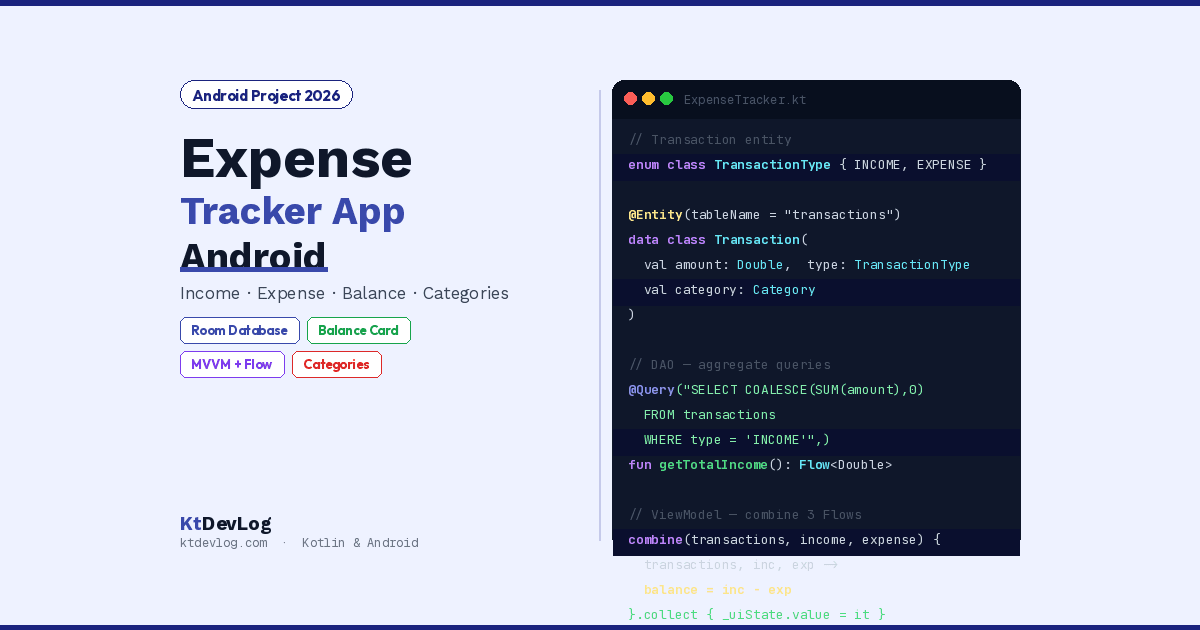

Here’s a truth about Android app tutorials that most developers discover too late: the apps that teach you the most aren’t the ones with the most features. They’re the ones where every feature matters.
An expense tracker app Android project is the perfect example. At first glance it’s simple — add a transaction, see your balance. But under the surface it touches every skill that employers and clients actually care about: data modelling with multiple fields, category-based filtering, calculated aggregates from a database, a summary dashboard, and a form with real input validation. Build this well and you have a genuine portfolio piece, not just another to-do list.
This guide builds a complete expense tracker from scratch in Android Studio using Kotlin — Room Database 2.6.1 with KSP, MVVM with StateFlow, and Jetpack Compose for a clean Material 3 UI. Every line of code is production-ready and ready to extend.



Table of Contents
What You’ll Build
A fully functional personal finance tracker with:
- Add transactions — amount, title, category, type (Income or Expense), and date
- Balance dashboard — total balance, total income, total expense calculated live
- Transaction list — all transactions sorted by date, newest first
- Category system — Food, Transport, Shopping, Salary, Health, and more
- Delete transactions — with balance auto-recalculated
- Persistent local storage — Room Database, works completely offline
- MVVM + StateFlow — reactive architecture, no manual refresh
- Jetpack Compose + Material 3 — clean, modern financial UI
Step 1 — Project Setup and Dependencies
Create a new Android project with Kotlin and Jetpack Compose. Then update your app-level build.gradle.kts:
plugins {
    id("com.android.application")
    id("org.jetbrains.kotlin.android")
    id("com.google.devtools.ksp") version "2.1.0-1.0.29"
}

dependencies {
    // Room 2.6.1 with KSP (replaces deprecated kapt)
    implementation("androidx.room:room-runtime:2.6.1")
    implementation("androidx.room:room-ktx:2.6.1")
    ksp("androidx.room:room-compiler:2.6.1")

    // ViewModel + StateFlow
    implementation("androidx.lifecycle:lifecycle-viewmodel-compose:2.8.7")
    implementation("androidx.lifecycle:lifecycle-runtime-ktx:2.8.7")

    // Coroutines
    implementation("org.jetbrains.kotlinx:kotlinx-coroutines-android:1.8.1")
}Step 2 — Data Model: The Transaction Entity
The Transaction data class is the heart of the entire app. Every design decision here affects everything downstream — the DAO queries, the UI calculations, the category filtering:
// Transaction.kt
import androidx.room.Entity
import androidx.room.PrimaryKey

enum class TransactionType { INCOME, EXPENSE }

enum class Category(val label: String, val emoji: String) {
    FOOD("Food & Dining", "🍔"),
    TRANSPORT("Transport", "🚗"),
    SHOPPING("Shopping", "🛍️"),
    SALARY("Salary", "💼"),
    HEALTH("Health", "💊"),
    ENTERTAINMENT("Entertainment", "🎬"),
    UTILITIES("Bills & Utilities", "🏠"),
    OTHER("Other", "📦")
}

@Entity(tableName = "transactions")
data class Transaction(
    @PrimaryKey(autoGenerate = true)
    val id: Int = 0,
    val title: String,
    val amount: Double,
    val type: TransactionType,
    val category: Category,
    val note: String = "",
    val date: Long = System.currentTimeMillis()  // Stored as timestamp, displayed formatted
)The Category enum with label and emoji is the detail that makes this app feel genuinely polished — category chips in the UI show both the emoji and the label, making transactions scannable at a glance. The TransactionType enum cleanly separates income from expenses for all balance calculations.
Room and Enums: Room stores enums as their name string by default. No type converters needed for simple enums — Room handles TransactionType and Category automatically.
Step 3 — DAO With Summary Queries
The DAO is where the real power of Room’s SQL integration shows. Beyond basic CRUD, financial apps need aggregate queries — total income, total expenses, balance:
// TransactionDao.kt
import androidx.room.*
import kotlinx.coroutines.flow.Flow

@Dao
interface TransactionDao {

    // READ — all transactions, newest first
    @Query("SELECT * FROM transactions ORDER BY date DESC")
    fun getAllTransactions(): Flow<List<Transaction>>

    // READ — transactions by type (for filtering Income vs Expense)
    @Query("SELECT * FROM transactions WHERE type = :type ORDER BY date DESC")
    fun getTransactionsByType(type: String): Flow<List<Transaction>>

    // READ — transactions by category
    @Query("SELECT * FROM transactions WHERE category = :category ORDER BY date DESC")
    fun getTransactionsByCategory(category: String): Flow<List<Transaction>>

    // AGGREGATE — total income
    @Query("SELECT COALESCE(SUM(amount), 0.0) FROM transactions WHERE type = 'INCOME'")
    fun getTotalIncome(): Flow<Double>

    // AGGREGATE — total expense
    @Query("SELECT COALESCE(SUM(amount), 0.0) FROM transactions WHERE type = 'EXPENSE'")
    fun getTotalExpense(): Flow<Double>

    // CREATE
    @Insert(onConflict = OnConflictStrategy.REPLACE)
    suspend fun insertTransaction(transaction: Transaction)

    // DELETE
    @Delete
    suspend fun deleteTransaction(transaction: Transaction)

    // DELETE — clear all (useful for testing or reset feature)
    @Query("DELETE FROM transactions")
    suspend fun deleteAllTransactions()
}COALESCE(SUM(amount), 0.0) — critical SQL detail. SUM() on an empty table returns NULL in SQLite, not 0. COALESCE replaces NULL with 0.0 — without this, your balance card shows blank when there are no transactions. This is the kind of database edge case that causes silent crashes in production apps when a new user opens the app for the first time.
Step 4 — Room Database and Repository
// AppDatabase.kt
import androidx.room.Database
import androidx.room.Room
import androidx.room.RoomDatabase
import android.content.Context

@Database(
    entities = [Transaction::class],
    version = 1,
    exportSchema = false
)
abstract class AppDatabase : RoomDatabase() {
    abstract fun transactionDao(): TransactionDao

    companion object {
        @Volatile private var INSTANCE: AppDatabase? = null

        fun getInstance(context: Context): AppDatabase {
            return INSTANCE ?: synchronized(this) {
                Room.databaseBuilder(
                    context.applicationContext,
                    AppDatabase::class.java,
                    "expense_tracker_db"
                ).build().also { INSTANCE = it }
            }
        }
    }
}
// TransactionRepository.kt
import kotlinx.coroutines.flow.Flow
class TransactionRepository(private val dao: TransactionDao) {
val allTransactions: Flow<List<Transaction>> = dao.getAllTransactions()
val totalIncome: Flow<Double> = dao.getTotalIncome()
val totalExpense: Flow<Double> = dao.getTotalExpense()
suspend fun insert(transaction: Transaction) = dao.insertTransaction(transaction)
suspend fun delete(transaction: Transaction) = dao.deleteTransaction(transaction)
}Step 5 — UI State and ViewModel
// ExpenseViewModel.kt
import androidx.lifecycle.*
import kotlinx.coroutines.flow.*
import kotlinx.coroutines.launch

data class ExpenseUiState(
    val transactions: List<Transaction> = emptyList(),
    val totalIncome: Double  = 0.0,
    val totalExpense: Double = 0.0,
    val balance: Double      = 0.0,   // Calculated: income - expense
    val isAddDialogOpen: Boolean = false,
    val errorMessage: String?    = null
)

class ExpenseViewModel(private val repository: TransactionRepository) : ViewModel() {

    private val _uiState = MutableStateFlow(ExpenseUiState())
    val uiState: StateFlow<ExpenseUiState> = _uiState

    init {
        // Combine all three Flows into a single UI state update
        viewModelScope.launch {
            combine(
                repository.allTransactions,
                repository.totalIncome,
                repository.totalExpense
            ) { transactions, income, expense ->
                ExpenseUiState(
                    transactions  = transactions,
                    totalIncome   = income,
                    totalExpense  = expense,
                    balance       = income - expense
                )
            }.collect { state ->
                _uiState.value = state
            }
        }
    }

    fun openAddDialog()  { _uiState.update { it.copy(isAddDialogOpen = true) } }
    fun closeAddDialog() { _uiState.update { it.copy(isAddDialogOpen = false) } }

    fun addTransaction(
        title: String,
        amount: String,
        type: TransactionType,
        category: Category,
        note: String
    ) {
        // Validate input
        if (title.isBlank()) {
            _uiState.update { it.copy(errorMessage = "Please enter a title") }
            return
        }
        val amountDouble = amount.toDoubleOrNull()
        if (amountDouble == null || amountDouble <= 0) {
            _uiState.update { it.copy(errorMessage = "Please enter a valid amount") }
            return
        }

        viewModelScope.launch {
            repository.insert(
                Transaction(
                    title    = title.trim(),
                    amount   = amountDouble,
                    type     = type,
                    category = category,
                    note     = note.trim()
                )
            )
            _uiState.update { it.copy(isAddDialogOpen = false, errorMessage = null) }
        }
    }

    fun deleteTransaction(transaction: Transaction) {
        viewModelScope.launch { repository.delete(transaction) }
    }

    fun clearError() { _uiState.update { it.copy(errorMessage = null) } }
}The combine() operator is the architectural highlight of this ViewModel. It subscribes to three separate Flows simultaneously — transactions, income, and expense — and emits a new ExpenseUiState whenever any of them changes. Add a transaction → Room updates the transactions Flow and the totalIncome or totalExpense Flow → combine fires → uiState updates → UI recomposes with the new balance. One operation. Zero manual refresh code.
Step 6 — Balance Summary Card
This is the UI element that makes the app feel like a real financial app. The summary card at the top shows total balance, income, and expenses in a clean dashboard format:
@Composable
fun BalanceSummaryCard(
    balance: Double,
    totalIncome: Double,
    totalExpense: Double
) {
    Card(
        modifier = Modifier
            .fillMaxWidth()
            .padding(16.dp),
        shape = RoundedCornerShape(20.dp),
        colors = CardDefaults.cardColors(containerColor = Color(0xFF1A237E))
    ) {
        Column(
            modifier = Modifier
                .fillMaxWidth()
                .padding(24.dp),
            horizontalAlignment = Alignment.CenterHorizontally
        ) {
            Text(
                text = "Total Balance",
                fontSize = 14.sp,
                color = Color(0xFFB0BEC5)
            )
            Spacer(modifier = Modifier.height(8.dp))
            Text(
                text = formatAmount(balance),
                fontSize = 40.sp,
                fontWeight = FontWeight.Bold,
                color = if (balance >= 0) Color.White else Color(0xFFEF9A9A)
            )

            Spacer(modifier = Modifier.height(24.dp))

            Row(
                modifier = Modifier.fillMaxWidth(),
                horizontalArrangement = Arrangement.SpaceEvenly
            ) {
                SummaryItem(
                    label  = "Income",
                    amount = totalIncome,
                    color  = Color(0xFF69F0AE),
                    prefix = "▲"
                )
                // Vertical divider
                Box(
                    modifier = Modifier
                        .width(1.dp)
                        .height(48.dp)
                        .background(Color(0xFF37474F))
                )
                SummaryItem(
                    label  = "Expenses",
                    amount = totalExpense,
                    color  = Color(0xFFFF5252),
                    prefix = "▼"
                )
            }
        }
    }
}

@Composable
fun SummaryItem(label: String, amount: Double, color: Color, prefix: String) {
    Column(horizontalAlignment = Alignment.CenterHorizontally) {
        Text(text = label, fontSize = 12.sp, color = Color(0xFFB0BEC5))
        Spacer(modifier = Modifier.height(4.dp))
        Text(
            text = "$prefix ${formatAmount(amount)}",
            fontSize = 18.sp,
            fontWeight = FontWeight.Bold,
            color = color
        )
    }
}

fun formatAmount(amount: Double): String {
    return "৳${String.format("%,.2f", amount)}"   // BDT — change currency symbol as needed
}The balance text turns red when negative — a subtle but powerful visual signal that the user is spending more than they earn. Green income ▲ and red expense ▼ arrows make the two columns immediately distinguishable without reading the labels.
Step 7 — Transaction List Item
@Composable
fun TransactionItem(
    transaction: Transaction,
    onDelete: () -> Unit
) {
    val isExpense = transaction.type == TransactionType.EXPENSE

    Card(
        modifier = Modifier
            .fillMaxWidth()
            .padding(horizontal = 16.dp, vertical = 4.dp),
        shape = RoundedCornerShape(12.dp),
        elevation = CardDefaults.cardElevation(defaultElevation = 1.dp)
    ) {
        Row(
            modifier = Modifier
                .fillMaxWidth()
                .padding(16.dp),
            verticalAlignment = Alignment.CenterVertically,
            horizontalArrangement = Arrangement.spacedBy(12.dp)
        ) {
            // Category emoji badge
            Box(
                modifier = Modifier
                    .size(48.dp)
                    .clip(CircleShape)
                    .background(
                        if (isExpense) Color(0xFFFFEBEE) else Color(0xFFE8F5E9)
                    ),
                contentAlignment = Alignment.Center
            ) {
                Text(text = transaction.category.emoji, fontSize = 22.sp)
            }

            // Transaction details
            Column(modifier = Modifier.weight(1f)) {
                Text(
                    text = transaction.title,
                    fontSize = 15.sp,
                    fontWeight = FontWeight.SemiBold,
                    color = Color(0xFF1E293B)
                )
                Text(
                    text = transaction.category.label,
                    fontSize = 12.sp,
                    color = Color(0xFF94A3B8)
                )
            }

            // Amount + delete column
            Column(horizontalAlignment = Alignment.End) {
                Text(
                    text = "${if (isExpense) "-" else "+"}${formatAmount(transaction.amount)}",
                    fontSize = 16.sp,
                    fontWeight = FontWeight.Bold,
                    color = if (isExpense) Color(0xFFEF5350) else Color(0xFF4CAF50)
                )
                Spacer(modifier = Modifier.height(4.dp))
                IconButton(
                    onClick = onDelete,
                    modifier = Modifier.size(20.dp)
                ) {
                    Icon(
                        imageVector = Icons.Default.Delete,
                        contentDescription = "Delete",
                        tint = Color(0xFFCFD8DC),
                        modifier = Modifier.size(16.dp)
                    )
                }
            }
        }
    }
}Step 8 — Add Transaction Dialog
@Composable
fun AddTransactionDialog(
    onDismiss: () -> Unit,
    onConfirm: (title: String, amount: String, type: TransactionType, category: Category, note: String) -> Unit,
    errorMessage: String?
) {
    var title    by remember { mutableStateOf("") }
    var amount   by remember { mutableStateOf("") }
    var note     by remember { mutableStateOf("") }
    var type     by remember { mutableStateOf(TransactionType.EXPENSE) }
    var category by remember { mutableStateOf(Category.FOOD) }

    AlertDialog(
        onDismissRequest = onDismiss,
        title = { Text("New Transaction", fontWeight = FontWeight.Bold) },
        text = {
            Column(verticalArrangement = Arrangement.spacedBy(12.dp)) {

                // Income / Expense toggle
                Row(
                    modifier = Modifier.fillMaxWidth(),
                    horizontalArrangement = Arrangement.spacedBy(8.dp)
                ) {
                    TransactionType.entries.forEach { t ->
                        FilterChip(
                            selected = type == t,
                            onClick  = { type = t },
                            label    = { Text(t.name.lowercase().replaceFirstChar { it.uppercase() }) },
                            colors   = FilterChipDefaults.filterChipColors(
                                selectedContainerColor = if (t == TransactionType.INCOME)
                                    Color(0xFF4CAF50) else Color(0xFFEF5350),
                                selectedLabelColor = Color.White
                            ),
                            modifier = Modifier.weight(1f)
                        )
                    }
                }

                // Title
                OutlinedTextField(
                    value = title,
                    onValueChange = { title = it },
                    label = { Text("Title") },
                    singleLine = true,
                    modifier = Modifier.fillMaxWidth()
                )

                // Amount
                OutlinedTextField(
                    value = amount,
                    onValueChange = { amount = it },
                    label = { Text("Amount") },
                    singleLine = true,
                    modifier = Modifier.fillMaxWidth(),
                    keyboardOptions = KeyboardOptions(keyboardType = KeyboardType.Decimal)
                )

                // Category selector
                Text("Category", fontSize = 13.sp, color = Color.Gray)
                LazyRow(horizontalArrangement = Arrangement.spacedBy(8.dp)) {
                    items(Category.entries) { cat ->
                        FilterChip(
                            selected = category == cat,
                            onClick  = { category = cat },
                            label    = { Text("${cat.emoji} ${cat.label}") },
                            colors   = FilterChipDefaults.filterChipColors(
                                selectedContainerColor = Color(0xFF7C3AED),
                                selectedLabelColor     = Color.White
                            )
                        )
                    }
                }

                // Optional note
                OutlinedTextField(
                    value = note,
                    onValueChange = { note = it },
                    label = { Text("Note (optional)") },
                    maxLines = 2,
                    modifier = Modifier.fillMaxWidth()
                )

                // Error message
                if (errorMessage != null) {
                    Text(
                        text = errorMessage,
                        color = Color(0xFFDC2626),
                        fontSize = 13.sp
                    )
                }
            }
        },
        confirmButton = {
            TextButton(
                onClick = { onConfirm(title, amount, type, category, note) },
                enabled = title.isNotBlank() && amount.isNotBlank()
            ) {
                Text("Add", fontWeight = FontWeight.Bold)
            }
        },
        dismissButton = {
            TextButton(onClick = onDismiss) { Text("Cancel") }
        }
    )
}Step 9 — Main Screen and Wiring
@Composable
fun ExpenseTrackerScreen(viewModel: ExpenseViewModel) {
    val uiState by viewModel.uiState.collectAsStateWithLifecycle()

    Scaffold(
        topBar = {
            TopAppBar(
                title = { Text("Expense Tracker", fontWeight = FontWeight.Bold) },
                colors = TopAppBarDefaults.topAppBarColors(
                    containerColor    = Color(0xFF1A237E),
                    titleContentColor = Color.White
                )
            )
        },
        floatingActionButton = {
            FloatingActionButton(
                onClick         = { viewModel.openAddDialog() },
                containerColor  = Color(0xFF7C3AED),
                contentColor    = Color.White
            ) {
                Icon(Icons.Default.Add, contentDescription = "Add transaction")
            }
        }
    ) { innerPadding ->
        LazyColumn(
            modifier = Modifier
                .fillMaxSize()
                .padding(innerPadding),
            contentPadding = PaddingValues(bottom = 80.dp)
        ) {
            // Balance summary card
            item {
                BalanceSummaryCard(
                    balance      = uiState.balance,
                    totalIncome  = uiState.totalIncome,
                    totalExpense = uiState.totalExpense
                )
            }

            // Section header
            item {
                Text(
                    text = "Transactions (${uiState.transactions.size})",
                    fontSize = 16.sp,
                    fontWeight = FontWeight.Bold,
                    modifier = Modifier.padding(horizontal = 16.dp, vertical = 8.dp)
                )
            }

            // Empty state
            if (uiState.transactions.isEmpty()) {
                item {
                    Box(
                        modifier = Modifier
                            .fillMaxWidth()
                            .height(200.dp),
                        contentAlignment = Alignment.Center
                    ) {
                        Column(horizontalAlignment = Alignment.CenterHorizontally) {
                            Text("💰", fontSize = 48.sp)
                            Spacer(modifier = Modifier.height(8.dp))
                            Text("No transactions yet", fontSize = 16.sp, color = Color.Gray)
                            Text("Tap + to add your first one", fontSize = 13.sp, color = Color.LightGray)
                        }
                    }
                }
            }

            // Transaction list
            items(
                items = uiState.transactions,
                key   = { it.id }
            ) { transaction ->
                TransactionItem(
                    transaction = transaction,
                    onDelete    = { viewModel.deleteTransaction(transaction) }
                )
            }
        }

        // Add transaction dialog
        if (uiState.isAddDialogOpen) {
            AddTransactionDialog(
                onDismiss     = { viewModel.closeAddDialog() },
                onConfirm     = { title, amount, type, category, note ->
                    viewModel.addTransaction(title, amount, type, category, note)
                },
                errorMessage  = uiState.errorMessage
            )
        }
    }
}Wire it in MainActivity:
class MainActivity : ComponentActivity() {
    private val database by lazy { AppDatabase.getInstance(this) }
    private val repository by lazy { TransactionRepository(database.transactionDao()) }
    private val viewModel: ExpenseViewModel by viewModels {
        object : ViewModelProvider.Factory {
            override fun <T : ViewModel> create(modelClass: Class<T>): T {
                @Suppress("UNCHECKED_CAST")
                return ExpenseViewModel(repository) as T
            }
        }
    }

    override fun onCreate(savedInstanceState: Bundle?) {
        super.onCreate(savedInstanceState)
        enableEdgeToEdge()
        setContent {
            MaterialTheme {
                ExpenseTrackerScreen(viewModel = viewModel)
            }
        }
    }
}Why This App Teaches You More Than a To-Do List
Every feature in an expense tracker maps to a skill interviewers and clients test for:
Income vs Expense enum → handling multiple states with type safety. Category system → designing extensible data models that don’t require database migrations to add new values. COALESCE(SUM(), 0.0) SQL → production-aware query writing. combine() on multiple Flows → reactive state management with multiple data sources. Balance calculation → derived state from raw data, not stored redundantly. Currency formatting → internationalisation awareness.
This is also why financial app tutorials attract some of the highest-paying AdSense ads in the tech category — the audience building these apps is serious developers working on production projects, and the ads served match that intent.
Extending the App — What to Build Next
Once the core works, these extensions take it from demo to portfolio piece:
Monthly budget limits — add a Budget entity with category and limit amount, query the total spent per category, show a progress bar. Date range filtering — add a date picker and filter transactions by week, month, or custom range. CSV export — use FileOutputStream and Android’s file system APIs to export transactions as a spreadsheet. Charts — integrate the MPAndroidChart library or Compose Charts to show spending by category as a pie chart. Notifications — use WorkManager to send a daily “you’ve spent ৳X today” reminder.
For the database patterns powering all of these extensions, the simple to-do list app with Room Database covers the Room foundations — entities, DAOs, and the @Database class — that this expense tracker builds directly on top of.
Frequently Asked Questions
Project Setup
How do I store enum values in Room Database?
Room stores enum values as their name string by default — no custom type converters needed for standard Kotlin enums. TransactionType.EXPENSE is stored as the string "EXPENSE" and retrieved back as the EXPENSE enum constant automatically. If you have a complex custom type that Room doesn’t recognise, you’d write a @TypeConverter — but for standard Kotlin enums, Room handles the conversion out of the box.
Why use COALESCE(SUM(amount), 0.0) instead of just SUM(amount) in Room?
SQLite’s SUM() function returns NULL when called on an empty table or with no matching rows — not 0. Without COALESCE, your totalIncome and totalExpense Flows emit null when there are no transactions, which causes a crash when you try to use the value in balance calculations. COALESCE(SUM(amount), 0.0) replaces any NULL result with 0.0, making new-user state safe without any special null handling in Kotlin.
Architecture
What is the combine() operator and why use it in a financial app ViewModel?
combine() is a Kotlin Flow operator that subscribes to multiple Flows simultaneously and emits a new value whenever any of them change. In the expense tracker ViewModel, combine(transactions, totalIncome, totalExpense) means that whenever a transaction is added or deleted, the ExpenseUiState updates with the new transaction list AND the new income/expense totals AND the new balance — all in a single recomposition. Without combine, you’d need three separate collect calls and manual state merging.
How should I store money amounts in the database — Double or Int?
For a beginner expense tracker app, Double is acceptable and straightforward. For a production financial app, store monetary amounts as Long integers representing the smallest currency unit — for BDT, store paisa (1 taka = 100 paisa). Integer arithmetic eliminates floating-point precision errors that can cause ৳10.00 - ৳3.33 = ৳6.669999... display issues. For this project, Double works well — just format display values with String.format("%.2f", amount) to control decimal places.
Conclusion
An expense tracker app Android project teaches more Android development skills per line of code than almost any other beginner project. The combination of enum-based type safety, aggregate SQL queries, multi-Flow reactive state, and a real financial UI makes it genuinely portfolio-worthy.
Build the core first: balance card, add transaction dialog, transaction list. Then extend one feature at a time. Each extension reinforces the skills you’ve used here — and gives you talking points in interviews that go far beyond “I built a to-do list.”
The architecture decisions that matter most for extending this app — combine() for multiple reactive sources, COALESCE for safe aggregates, and the repository pattern keeping Room logic out of the ViewModel — are exactly the same patterns used in every professional Android financial app.
The best financial app is the one that makes money feel manageable. Build this one — and then build something better with what you’ve learned.