
You’ve built your first Android app. You’re ready to put it on the Play Store. You open Android Studio and find the “Generate Signed Bundle / APK” option — and immediately face a choice between two file formats you’ve never had to think about before.
AAB or APK? What’s the difference? Which one does Google want? And what exactly does “signed” mean?
Understanding Android App Bundle vs APK is one of those concepts that feels confusing until someone explains it clearly — and then it makes complete sense. This guide gives you that clear explanation, plus the exact step-by-step process to generate a signed AAB and get it ready for the Play Store in 2026.
Table of Contents
Android App Bundle vs APK: The Core Difference
Let’s start with what each file format actually is.
APK (Android Package) is the traditional Android app format — essentially a zip file containing your app’s compiled code, resources, images, layouts, and everything else needed to install and run the app. One APK file contains everything for every possible device — high-density screens, low-density screens, 32-bit processors, 64-bit processors, every language you support. The user downloads all of it, even the parts their specific device will never use.
AAB (Android App Bundle) is a publishing format introduced by Google in 2018 and now mandatory for new Play Store apps. Instead of bundling everything into one file, the AAB contains all your app’s resources and lets Google’s servers build the right APK for each specific user. A user on a high-density screen gets only the high-density images. An English speaker gets only the English strings. A 64-bit device gets only the 64-bit native libraries.
The restaurant analogy: an APK is a set menu — everyone gets the same dishes regardless of preferences. An AAB is à la carte — each user gets exactly what they need, nothing more.
According to the official Android App Bundle documentation, apps published as AABs see an average 15% reduction in download size compared to universal APKs — and for large apps with many languages and screen densities, the savings can be significantly higher.
AAB vs APK: What Changed in 2026
Here’s the current 2026 state of Android publishing — clearly stated:
For new apps: Since August 2021, all new apps published to Google Play must use the AAB format. If you’re publishing your first app in 2026, you have no choice — it must be an AAB.
For existing apps: Apps created before August 2021 can still update with APKs. But switching to AAB is always recommended.
For API level: As of August 31, 2026, all new apps and app updates submitted to Google Play must target Android 16 (API level 36) or higher. This is separate from the AAB requirement but equally important.
For sideloading: APKs are still used for installing apps outside the Play Store — directly from a website, shared via file transfer, or from alternative app stores. AABs cannot be installed directly on a device — they’re a publishing format, not an installation format.
| APK | AAB | |
|---|---|---|
| Installable directly on device | ✅ Yes | ❌ No |
| Required for Play Store (new apps) | ❌ No | ✅ Yes |
| Size optimised per device | ❌ No | ✅ Yes |
| Used for sideloading | ✅ Yes | ❌ No |
| Play App Signing required | Optional | ✅ Mandatory |
Understanding App Signing — Two Keys, Two Jobs
Before generating your release build, you need to understand app signing — because it confuses almost every beginner, and getting it wrong can cause serious problems later.
Android requires that all APKs be signed with a cryptographic key before installation. For Play Store publishing in 2026, there are two separate keys involved:
Upload Key — the key you create and control. You use this to sign your AAB before uploading it to the Play Console. This is the key you’ll generate in this guide. Keep it safe — if you lose it, you’ll need to contact Google to reset it.
App Signing Key — managed by Google through Play App Signing. After you upload your signed AAB, Google strips your upload signature and re-signs the generated APKs with Google’s own App Signing Key before delivering them to users. This key lives on Google’s secure servers and you never directly access it.
This two-key system means if your upload key is ever compromised, Google can issue you a new one. The app signing key — the one that actually reaches users’ devices — is protected by Google’s infrastructure. Over 90% of new apps in 2026 use a Google-generated app signing key for maximum security.
How Dynamic Delivery Works
The mechanism that makes AABs smaller is called Dynamic Delivery. When you upload an AAB to the Play Console, Google’s servers process it using a tool called bundletool. For each user who downloads your app, the Play Store generates a customised set of APKs — called “split APKs” — containing only what that device needs:
- Base APK — core code that always installs
- Configuration APKs — device-specific resources (screen density, CPU architecture, language)
- Feature APKs — optional modules that can be downloaded on demand (if you use Play Feature Delivery)
The user’s device receives and installs these split APKs seamlessly — from the user’s perspective, they just installed your app. The complexity all happens on Google’s side. You publish one AAB and Google handles the rest.
Step-by-Step: Generate a Signed AAB in Android Studio
Here’s the complete process for generating your signed release AAB. This is the standard path for publishing a new app in 2026.
Step 1 — Open Generate Signed Bundle Dialog
In Android Studio, go to:
Build → Generate Signed Bundle / APK...A dialog appears with two options. Select Android App Bundle and click Next.
Step 2 — Create Your Keystore
If this is your first release, you don’t have a keystore yet. Click Create new… next to the Key store path field.
Fill in the keystore details:
Key store path:   /Users/yourname/keystores/myapp-upload.jks
Password:         [strong password — write this down]
Confirm:          [same password]

Key alias:        upload
Key password:     [another strong password]
Validity (years): 25
For Certificate fields, at minimum fill in First and Last Name and Country Code (e.g. BD for Bangladesh). The others are optional.
Click OK. Your keystore file is now created at the path you specified.
Critical warning: Back up this keystore file immediately. Copy it to a secure cloud location, an external drive, or a password manager that supports file attachments. If you lose this file, you cannot upload new versions of your app to the Play Store. You’ll have to contact Google to reset your upload key, which is a slow process. Treat it like a passport.
Step 3 — Configure the Build
Back in the Generate Signed Bundle dialog, your keystore details should now be populated. Verify:
- Key store path — shows your
.jksfile - Key alias —
upload(or whatever you named it) - Key password — filled in
Click Next.
Step 4 — Select Build Variant
In the next screen:
- Destination folder — where Android Studio saves the AAB (default is fine)
- Build variants — select release
Click Create.
Android Studio builds your release AAB. This may take a minute or two for the first signed build. When it finishes, a notification appears at the bottom with a link to locate the file.
Your signed AAB is in:
app/release/app-release.aabThis is the file you upload to the Play Console.
Configuring Your build.gradle.kts for Release
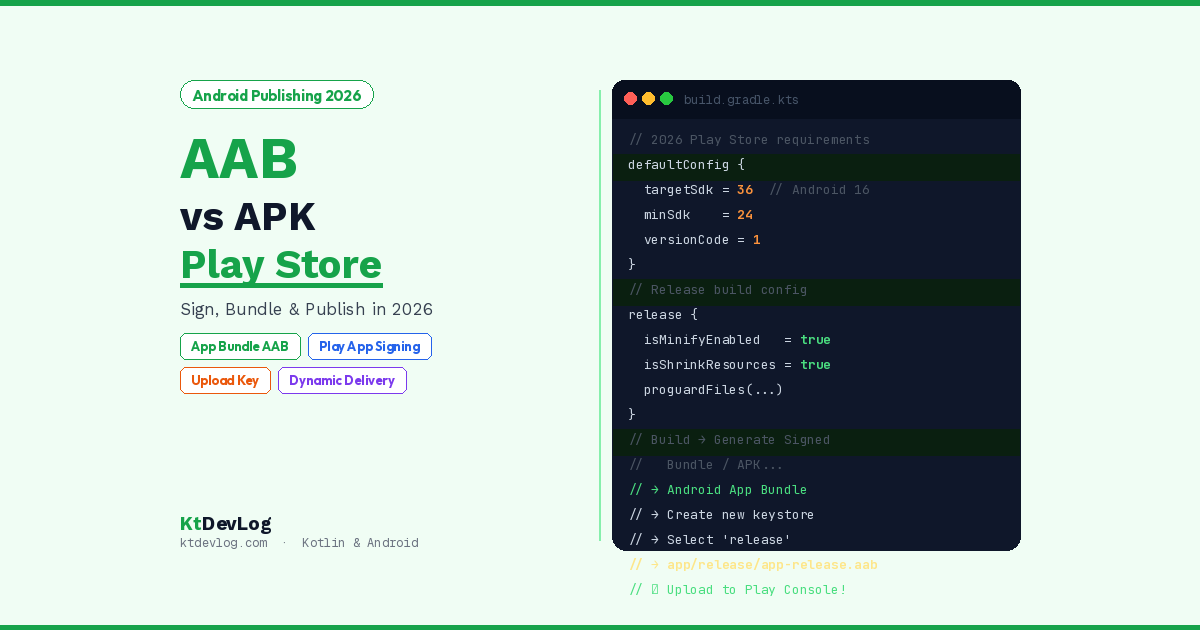
Before generating a signed build, make sure your app-level build.gradle.kts has proper release configuration. Most importantly — ProGuard/R8 should be enabled for your release build to shrink, obfuscate, and optimise the code:
// app/build.gradle.kts
android {
    compileSdk = 36   // Android 16 — required from August 2026

    defaultConfig {
        applicationId = "com.ktdevlog.myapp"
        minSdk         = 24
        targetSdk      = 36   // Must be 36 for Play Store submissions in 2026
        versionCode    = 1
        versionName    = "1.0.0"
    }

    buildTypes {
        release {
            isMinifyEnabled   = true    // Enable R8 code shrinking
            isShrinkResources = true    // Remove unused resources
            proguardFiles(
                getDefaultProguardFile("proguard-android-optimize.txt"),
                "proguard-rules.pro"
            )
        }
    }
}isMinifyEnabled = true enables R8 — Kotlin and Android’s built-in code shrinker. It removes unused code, renames classes and methods to short names, and can significantly reduce your AAB size. isShrinkResources = true removes unused drawable, layout, and string resources.
Both should always be enabled for release builds. They’re disabled by default for debug builds (because the renaming makes stack traces unreadable during development).
Signing Config in build.gradle.kts (Optional but Recommended)
For teams and CI/CD pipelines, you can store your signing configuration in build.gradle.kts so Android Studio doesn’t need the interactive dialog:
// Store signing data in local.properties — never in build.gradle.kts directly
// local.properties (never commit this file to Git)
// KEYSTORE_PATH=/Users/yourname/keystores/myapp-upload.jks
// KEYSTORE_PASSWORD=your_password
// KEY_ALIAS=upload
// KEY_PASSWORD=your_key_password

android {
    signingConfigs {
        create("release") {
            val props = java.util.Properties()
            props.load(file("../local.properties").inputStream())
            storeFile     = file(props["KEYSTORE_PATH"] as String)
            storePassword = props["KEYSTORE_PASSWORD"] as String
            keyAlias      = props["KEY_ALIAS"] as String
            keyPassword   = props["KEY_PASSWORD"] as String
        }
    }

    buildTypes {
        release {
            signingConfig    = signingConfigs.getByName("release")
            isMinifyEnabled  = true
            isShrinkResources = true
            proguardFiles(
                getDefaultProguardFile("proguard-android-optimize.txt"),
                "proguard-rules.pro"
            )
        }
    }
}This approach reads signing credentials from local.properties — which is excluded from Git — keeping your passwords out of source control entirely.
When to Still Use APK
Given that AAB is mandatory for the Play Store, when would you still generate an APK? Three situations:
Testing before release — APKs are still the format you use for installing your app during development and QA testing. Debug builds are APKs. Build → Build APK(s) produces a debug APK you can share with testers or install directly on a device.
Sideloading and alternative stores — If you’re distributing your app outside Google Play — directly from your website, Samsung Galaxy Store, Amazon Appstore, or another channel — you still need to sign and distribute an APK. When using Play App Signing, you can download device-specific APKs from the Play Console’s App Bundle Explorer for this purpose.
Enterprise internal apps — Private apps distributed within a company via managed Google Play or direct installation still support APKs in some configurations.
Frequently Asked Questions
AAB vs APK Basics
What is the difference between Android App Bundle and APK?
An APK (Android Package) is a single file containing everything needed to install your app — code, resources, images, and libraries for all possible device configurations. An AAB (Android App Bundle) is a publishing format that contains all your app’s resources but defers APK generation to Google Play. Google’s servers then build optimised, device-specific APKs for each user — delivering smaller downloads by including only the resources that device actually needs. The average size saving is 15% compared to a universal APK.
Is AAB required for the Google Play Store in 2026?
Yes. Since August 2021, all new apps published to Google Play must use the Android App Bundle (AAB) format. Existing apps created before August 2021 can still publish APK updates. Additionally, as of August 31, 2026, all new apps and updates must target Android 16 (API level 36) or higher. If you’re publishing a new app today, both requirements apply.
Signing and Security
What is Play App Signing and is it required?
Play App Signing is Google’s key management service that stores and manages your app’s signing key on Google’s secure infrastructure. When you upload an AAB, Google strips your upload signature and re-signs the generated APKs with a key managed by Google before delivering them to users. It is mandatory for all AAB uploads. Over 90% of new apps use a Google-generated app signing key — the recommended option for most developers.
What is the difference between the upload key and the app signing key?
The upload key is your private key that you use to sign the AAB before uploading to the Play Console. Google verifies your identity with this key. The app signing key is managed by Google and used to sign the APKs actually delivered to users. If your upload key is lost or compromised, Google can reset it. If the app signing key were compromised, the impact would be far greater — which is why Google manages and protects it on secure infrastructure.
What happens if I lose my keystore file?
If you lose your upload keystore, you need to contact Google Play support to request an upload key reset — a process that can take several days. Your app will not be blocked from updates during this time, but you won’t be able to submit new releases until the key is reset. This is why backing up your keystore file immediately after creation is critical — store it in at least two secure locations.
Conclusion
Android App Bundle vs APK is one of those topics that seems confusing until the logic clicks — and then it feels obvious. AAB is the publishing format: you upload it to Google, Google builds the right APK for each user. APK is the installation format: it goes directly onto a device.
For the Play Store in 2026, AAB is the only option for new apps. The signing process — creating your keystore, generating the signed bundle, and enrolling in Play App Signing — happens once per app. After that, every update is the same process: generate signed AAB, upload to Play Console.
Back up your keystore. Enable isMinifyEnabled and isShrinkResources for every release build. Set targetSdk = 36 before the August 2026 deadline. And when you upload your first AAB to the Play Console, let Google generate and manage the app signing key — it’s the most secure option and the one over 90% of developers choose.
Once your signed AAB is uploaded and your app is live, the next step is making sure you can debug any issues quickly — the Android Studio Logcat filter guide shows you exactly how to find crashes and API errors in real time.
Shipping your first app is a milestone. The signing process is the last gate — and now you know exactly how to open it.