
You run your app. Something goes wrong. You open Logcat — and immediately face a wall of thousands of scrolling lines, most of them from system processes you’ve never heard of, flying past faster than you can read them.
Sound familiar? This is the exact moment most beginners give up on Logcat and go back to guessing.
Here’s what changes when you learn Android Studio Logcat filter properly: you stop seeing noise and start seeing signal. Crashes jump out immediately. API responses appear exactly where you expect them. Log messages from your specific screen show up and nothing else. Debugging goes from frustrating to fast.
The modern Logcat interface — significantly refined in Android Studio Otter 3 in 2026 — has a powerful query-based filter system that most developers never fully learn. This guide teaches you exactly how to use it.
Table of Contents
Android Studio Logcat Filter: Understanding the Interface
Open Logcat in Android Studio by going to:
View → Tool Windows → LogcatOr press Alt + 6 on Windows/Linux, Cmd + 6 on macOS.
According to the official Logcat documentation, the Logcat window shows logs from your device in real time — messages you added with the Log class, messages from Android services, and system messages like garbage collection events.
The interface in 2026 has four key areas you need to know:
The Query Bar — the most important part. This is where you type filter expressions to show only the logs you care about. Press Ctrl + Space (Windows) or Cmd + Space (macOS) inside the query bar to see autocomplete suggestions for all available query keys.
The Log Level Dropdown — quickly filter by VERBOSE, DEBUG, INFO, WARN, ERROR, or ASSERT.
The Toolbar — contains buttons to clear logs, scroll to end, create tabs, and split the panel.
The Log Output — the scrolling area where filtered results appear. Each line is colour-coded by log level, making errors and warnings instantly visible.
The Most Important Filter: package:mine
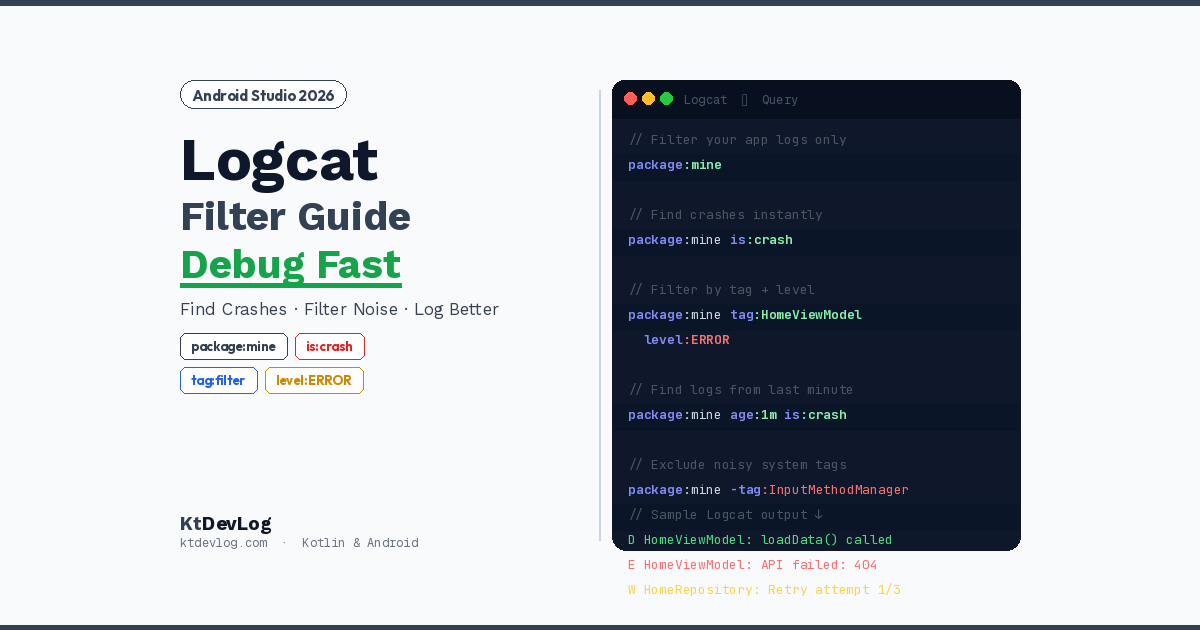
The very first Android Studio Logcat filter every developer should know is package:mine. This single filter cuts 90% of the noise immediately.
package:mineType this into the query bar and press Enter. Logcat immediately shows only logs from your app — filtering out every system process, background service, and third-party component that was flooding your output.
This is the default query Logcat opens with in Android Studio Otter 3. If you ever accidentally clear the query bar and get overwhelmed with noise again, just type package:mine and you’re back to a clean view.
To filter for a specific app by package name — useful when debugging a release build or another app:
package:com.yourcompany.yourappFiltering by Log Level
Android has six log levels, ordered from lowest to highest priority:
| Level | Method | When to use |
|---|---|---|
VERBOSE | Log.v() | Detailed diagnostic info — everything |
DEBUG | Log.d() | Developer debug messages |
INFO | Log.i() | General information |
WARN | Log.w() | Non-critical warnings |
ERROR | Log.e() | Errors that need attention |
ASSERT | Log.wtf() | Conditions that should never happen |
An important detail from the official Logcat documentation that most guides miss: level filters are inclusive upward. level:WARN shows WARN, ERROR, and ASSERT — not just warnings. level:ERROR shows only ERROR and ASSERT.
// Show only warnings and above — removes all debug noise
package:mine level:WARN

// Show only errors — great for production debugging
package:mine level:ERROR

// Show debug and above — most common during development
package:mine level:DEBUG
Filtering by Tag — The Core Skill
Tags are the short strings that identify where a log message came from. Every Log.d() call takes a tag as its first argument:
// Defining tags — best practice is a companion object constant
class HomeViewModel : ViewModel() {
    companion object {
        private const val TAG = "HomeViewModel"
    }

    fun loadData() {
        Log.d(TAG, "loadData() called")
        Log.d(TAG, "Fetching courses from repository")

        viewModelScope.launch {
            try {
                val courses = repository.getCourses()
                Log.d(TAG, "Loaded ${courses.size} courses successfully")
            } catch (e: Exception) {
                Log.e(TAG, "Failed to load courses: ${e.message}")
            }
        }
    }
}To filter Logcat to show only logs from this ViewModel:
package:mine tag:HomeViewModelFiltering Multiple Tags at Once
One of the most powerful Android Studio Logcat filter features — you can combine multiple tags using OR logic. This is invaluable for tracing a complete user flow across multiple components:
// Show logs from both ViewModel and Repository together
package:mine tag:HomeViewModel | tag:HomeRepository

// Show logs from the entire login flow
package:mine tag:LoginViewModel | tag:AuthRepository | tag:LoginScreen
Excluding a Tag With the Minus Operator
Sometimes a tag produces so much noise it buries everything else. Exclude it with -:
// Show all app logs EXCEPT RecyclerView spam
package:mine -tag:RecyclerView

// Exclude multiple noisy tags
package:mine -tag:InputMethodManager -tag:choreographer
The is:crash Filter — Find Crashes Instantly
Here’s the Android Studio Logcat filter feature that most developers don’t know exists — and it’s one of the most valuable in the entire Logcat system.
is:crashThis single query automatically detects and shows only app crashes — Java exceptions, Kotlin exceptions, and ANR (Application Not Responding) events. No more scrolling through thousands of lines searching for the red FATAL EXCEPTION text.
// Show only crashes from your app
package:mine is:crash

// Show stack traces — even non-crash stack trace logs
package:mine is:stacktrace
is:stacktrace is broader than is:crash — it catches anything that looks like a Java/Kotlin stack trace in the log output, even if it’s something you deliberately logged rather than an actual crash. Both are incredibly useful when you need to get to the root cause fast.
Filtering by Message Content
Filter logs by the text content of the message itself using the message: key:
// Find all logs mentioning API
package:mine message:API

// Find logs about a specific user ID
package:mine message:userId_123

// Find all network-related messages
package:mine message:HTTP | message:response | message:retrofit
For message content with spaces, use quotes:
package:mine message:"login successful"
package:mine message:"network error"
Filtering by Time — The age: Key
The age: filter is one of the most underused but powerful tools in the modern Logcat. It shows only logs from the last N minutes, seconds, or hours:
// Show only logs from the last 1 minute
package:mine age:1m

// Show only logs from the last 30 seconds
package:mine age:30s

// Show only logs from the last 5 minutes
package:mine age:5m
Supported time units: s (seconds), m (minutes), h (hours), d (days)
This is incredibly useful after a bug report from a tester. They tell you “the crash happened about 2 minutes ago” — you type package:mine age:3m is:crash and immediately see only what happened in that window.
Combining Filters — Real-World Query Patterns
The real power of the Android Studio Logcat filter system comes from combining queries. Here are the patterns you’ll reach for most in production development:
Debug an API call flow:
package:mine tag:HomeViewModel | tag:HomeRepository level:DEBUGFind all crashes in the last session:
package:mine is:crashTrace a specific feature end to end:
package:mine tag:CartViewModel | tag:CartScreen | tag:OrderRepositoryShow only errors and warnings — production debugging:
package:mine level:WARNFind a specific API response:
package:mine message:response | message:JSON level:DEBUGExclude noisy system tags during UI work:
package:mine -tag:InputMethodManager -tag:ViewRootImpl level:DEBUGWriting Better Log Messages in Kotlin
Filters are only as useful as the log messages they’re filtering. Here’s how to write logs that are actually useful when you need them:
class NetworkRepository {

    companion object {
        private const val TAG = "NetworkRepository"
    }

    suspend fun fetchUser(userId: String): Result<User> {
        Log.d(TAG, "fetchUser() → requesting userId=$userId")

        return try {
            val response = apiService.getUser(userId)

            if (response.isSuccessful) {
                val user = response.body()!!
                Log.d(TAG, "fetchUser() ✓ success → name=${user.name}, email=${user.email}")
                Result.success(user)
            } else {
                Log.w(TAG, "fetchUser() ✗ HTTP ${response.code()} → ${response.message()}")
                Result.failure(Exception("HTTP ${response.code()}"))
            }

        } catch (e: IOException) {
            Log.e(TAG, "fetchUser() ✗ network error → ${e.message}", e)
            Result.failure(e)
        }
    }
}Three rules for useful logs:
- Include the function name —
fetchUser()— so you immediately know where in the code the message came from - Include relevant values —
userId=$userId,response.code()— so you don’t have to guess what the state was - Use the right level — success =
DEBUG, HTTP errors =WARN, exceptions =ERROR
With these logs in place, the filter package:mine tag:NetworkRepository immediately shows you the complete story of every API call: what was requested, what came back, and whether it succeeded or failed.
Saving Queries as Favourites
Once you’ve built a filter query that works well for a particular debugging session, you can save it. In the query bar history (click the clock icon), mark any query as a favourite by clicking the star icon. Favourites appear at the top of the history list — ready to restore instantly in future sessions.
The query history also saves automatically, so you can use the up/down arrow keys while the query bar is focused to cycle through recent queries without retyping them.
Splitting Logcat for Two Devices
If you need to compare logs from two devices simultaneously — for example, debugging a sync issue between a phone and tablet — Logcat supports split panels:
Right-click in the log view → Split Right or Split DownOr click the Split Panels button in the Logcat toolbar. Each panel can have its own device and query filter, making side-by-side comparison straightforward.
Frequently Asked Questions
Android Studio Logcat Filter Basics
What is the Android Studio Logcat filter and how does I open it?
The Logcat filter in Android Studio is a query-based system that lets you show only the log messages you care about — filtering by app package, tag, log level, message content, and time. Open Logcat with View → Tool Windows → Logcat or press Alt + 6 (Windows) or Cmd + 6 (macOS). Type filter expressions directly in the query bar at the top of the Logcat window.
What does package:mine do in Android Studio Logcat?
package:mine filters Logcat to show only logs from your current app — the project open in Android Studio. Without it, Logcat shows logs from every process running on the device, which creates overwhelming noise. It’s the first filter every developer should apply and is now the default query in Android Studio Otter 3.
Finding Specific Logs
How do I filter Logcat by tag in Android Studio?
Use tag:YourTagName in the query bar. For example, package:mine tag:HomeViewModel shows only logs tagged HomeViewModel from your app. You can combine multiple tags with OR: package:mine tag:HomeViewModel | tag:HomeRepository. Exclude noisy tags with the minus operator: package:mine -tag:InputMethodManager.
How do I find crashes quickly in Android Studio Logcat?
Use the is:crash query. Type package:mine is:crash in the Logcat query bar and it automatically finds and shows only crash events — Java exceptions, Kotlin exceptions, and ANR events. For anything that looks like a stack trace (including deliberately-logged ones), use is:stacktrace instead.
How do I filter Logcat to show only errors?
Use package:mine level:ERROR to show only error-level messages. Remember that level filters are inclusive upward — level:WARN shows both warnings and errors, while level:ERROR shows only errors and assertions. During normal development, package:mine level:DEBUG is the most useful level filter as it shows debug messages and everything above them.
Conclusion
The Android Studio Logcat filter system is one of the most powerful debugging tools in your Android development workflow — and one of the least fully understood. Once you move beyond scrolling through raw output and start using package:mine, is:crash, tag:, level:, and age: queries, debugging becomes dramatically faster and less frustrating.
Start with package:mine on every Logcat session — it should be your permanent baseline. Add is:crash when you’re hunting a bug. Add tag:YourViewModel when you’re tracing a specific feature. Combine them with level:ERROR when you want only critical issues.
Save the queries that work well as favourites. Build up your own library of filters for different debugging scenarios — they’re reusable across every project you build.
For the complete Android Studio productivity picture, pair your Logcat skills with Android Studio Gemini AI — when a crash appears in Logcat, the “Explain with Gemini” button reads it directly and suggests a fix in seconds.
The difference between a developer who spends an hour debugging and one who finds the bug in five minutes is almost always the same thing: they know how to use their tools.