
You click the Run button. Android Studio starts building. The emulator boots. And then you wait. And wait. The home screen eventually appears, your app loads, and you tap a button — and the UI responds about half a second late, like it’s wading through thick mud.
If your Android Studio emulator is running slow, you’re not alone. The Android Virtual Device is one of the most powerful tools in Android development — and also one of the most complained about. A misconfigured emulator on a capable machine can feel like it’s running on a ten-year-old laptop. A properly configured one can feel almost like a real device.
This guide covers five actionable fixes for Android Studio emulator running slow. Each one addresses a different root cause — from hardware acceleration being completely disabled, to the emulator being starved of RAM, to boot time that adds up to hours of wasted time each week.

Table of Contents
Android Studio Emulator Running Slow: Understanding Why
Before fixing the problem, it helps to understand what makes the emulator slow in the first place.
The Android emulator runs an entire Android operating system inside a virtual machine on your computer. Without hardware assistance, your CPU has to simulate every instruction the virtual Android device tries to execute — including all the graphics operations, sensor data, network calls, and system processes running in the background. That simulation overhead is enormous.
According to the official Android emulator documentation, hardware acceleration dramatically reduces this overhead by letting the emulator run Android code directly on your CPU and GPU rather than simulating it in software. Without acceleration, the emulator is always going to feel slow no matter how fast your machine is.
The good news: most of the slowness fixes are configuration changes that take less than ten minutes.
Fix 1 — Enable Hardware Acceleration (Most Important)
This is the single most impactful fix for Android Studio emulator running slow. If hardware acceleration isn’t configured correctly, nothing else matters — the emulator will always be sluggish.
Hardware acceleration works differently depending on your operating system and processor.
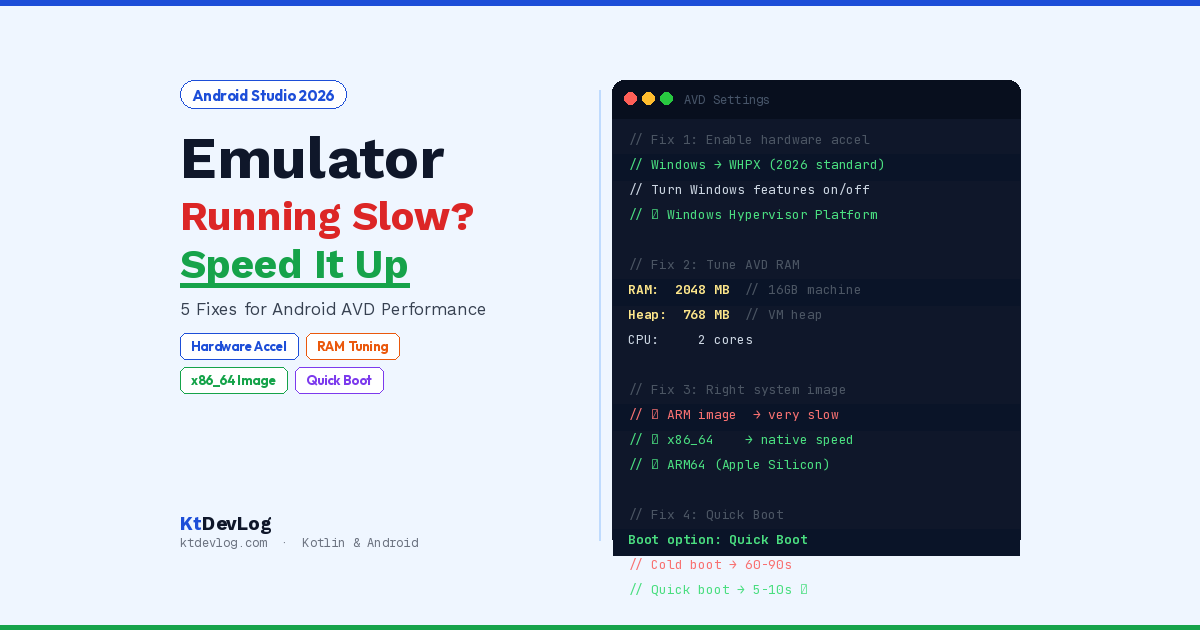
Windows — Enable Windows Hypervisor Platform (WHPX)
In 2026, the standard acceleration path on Windows is Windows Hypervisor Platform (WHPX). The older Android Emulator Hypervisor Driver (AEHD) is being sunset on December 31, 2026 — if you’re still using it, migrate now.
To enable WHPX:
Start Menu → Search "Turn Windows features on or off"
→ Check "Windows Hypervisor Platform"
→ Click OK → Restart your computer
After restarting, Android Studio automatically uses WHPX for emulator acceleration. You can verify it’s working by opening the emulator, then going to:
Extended Controls (⋮ button) → Help → AboutThe acceleration method should show Hyper-V.
Requirements for WHPX:
- Intel: Must support VT-x, EPT, and Unrestricted Guest — enable VT-x in BIOS if needed
- AMD: Ryzen processor recommended, SVM enabled in BIOS
macOS (Apple Silicon — M1/M2/M3/M4)
Apple Silicon Macs have outstanding emulator performance out of the box. The emulator uses ARM-based system images that run natively on the M-series chip — no virtualisation overhead. If your emulator is slow on Apple Silicon, the issue is almost always RAM allocation or an incorrect system image (see fixes 2 and 3).
One 2026 caveat: on Apple Silicon, the emulator uses MoltenVK for Vulkan API rendering. If you see graphical glitches or shader compilation failures, go to the AVD’s settings and change the rendering mode to Software to work around MoltenVK compatibility issues.
macOS (Intel)
Intel Macs use the built-in Hypervisor.Framework automatically — no additional setup needed. If acceleration isn’t working, check that:
Terminal: sysctl kern.hv_support
# Should return: kern.hv_support: 1
If it returns 0, your Mac’s CPU doesn’t support hardware virtualisation — which is very rare on modern Intel Macs.
Linux
On Linux, the emulator uses KVM (Kernel-based Virtual Machine). Verify it’s installed and your user is in the kvm group:
bash
# Check KVM is available
ls /dev/kvm

# Add yourself to the kvm group (if needed)
sudo usermod -aG kvm $USER
# Log out and back in for the group change to take effect
Fix 2 — Tune RAM and CPU Allocation in AVD Settings
Even with hardware acceleration working, the emulator needs enough RAM to run smoothly. The default AVD settings are conservative. Here’s how to tune them:
Android Studio → Device Manager → (select your AVD) → Edit (pencil icon)
→ Show Advanced Settings
RAM Allocation
The sweet spot in 2026:
| Your machine RAM | Emulator RAM to allocate |
|---|---|
| 8GB total | 1,536 MB (1.5GB) |
| 16GB total | 2,048 MB (2GB) |
| 32GB+ total | 3,072 MB (3GB) |
Never allocate more than half your total system RAM to the emulator — you need the rest for Android Studio, Gradle, and your operating system. Allocating too much is actually worse than allocating too little, because it causes your system to start paging memory to disk, which is extremely slow.
VM Heap Size
Also under advanced settings, increase the VM Heap — this is the maximum memory the Android runtime (ART) inside the emulator can use:
VM heap: 512 MB  (for 1.5GB RAM allocation)
VM heap: 768 MB  (for 2GB RAM allocation)
CPU Cores
Set CPU cores to 2 on most machines. More cores don’t always help — the emulator’s performance bottleneck is usually memory and I/O, not raw CPU thread count. Using 4 cores on an 8-core machine can actually compete with Android Studio’s Gradle daemon and cause both to slow down.
Internal Storage
Set internal storage to at least 4 GB if you’re installing large apps or running tests. A full emulator storage disk causes significant slowdown.
Fix 3 — Choose the Right System Image
Here’s a fix that most beginners don’t know about: the system image you choose for your AVD has a massive impact on emulator speed.
In the AVD creation wizard:
Android Studio → Device Manager → Create Virtual Device
→ System Image selection
You’ll see tabs: Recommended, x86 Images, Other Images.
Always use x86_64 images on Intel/AMD machines. Never use ARM images unless you specifically need to test ARM-specific behaviour. x86_64 images run natively on your Intel/AMD processor. ARM images require translation layer emulation that is dramatically slower — we’re talking 5-10x slower in many cases.
On Apple Silicon (M1/M2/M3/M4), use ARM64 images. These run natively on the chip without any translation overhead.
Use Google APIs images only when you need Google Play Services (Maps, Firebase, etc.). The “Google Play” image variant is the heaviest — avoid it unless your app specifically requires it, because it includes additional background services that consume emulator resources.
| Image type | When to use | Speed |
|---|---|---|
| x86_64 (no Google APIs) | General development on Intel/AMD | Fastest |
| x86_64 (Google APIs) | Need Maps, Firebase on Intel/AMD | Fast |
| x86_64 (Google Play) | Need Play Store on Intel/AMD | Slower |
| ARM64 (Apple Silicon) | Development on M-series Mac | Fastest |
Fix 4 — Use Quick Boot Instead of Cold Boot
Every cold boot of the Android emulator loads the entire Android OS from scratch — kernel, system services, launcher, everything. On most machines, this takes 30–90 seconds. If you’re cold booting several times a day, that adds up to significant wasted time.
Quick Boot saves a snapshot of the emulator state when you close it and restores that snapshot when you relaunch — like resuming a paused VM. Boot time goes from 60 seconds to 5–10 seconds.
To ensure Quick Boot is configured:
Android Studio → Device Manager → (AVD) → Edit
→ Show Advanced Settings → Boot Option → Quick Boot
Or when launching from Device Manager, right-click the AVD and ensure you’re using Cold Boot only when you specifically need a fresh state. The default should always be Quick Boot.
One important note: the snapshot file Quick Boot saves can get large — sometimes 4–6GB for a 2GB RAM AVD. Make sure your storage path (usually ~/.android/avd/YourAVD.avd/) has enough free space. A full disk will prevent Quick Boot from saving the snapshot, forcing a cold boot every time.
Fix 5 — Free Up System Resources and Check Background Conflicts
The emulator runs alongside Android Studio, the Gradle daemon, and your entire operating system — all competing for the same CPU, RAM, and disk I/O. Here are the background issues that most often cause Android Studio emulator running slow:
Close Unnecessary Applications
When running the emulator:
- Close your browser (Chrome in particular is a RAM hog)
- Close Slack, Teams, Spotify, or other Electron-based apps
- Close any VM or container software (Docker Desktop is a common offender)
On a 16GB machine, closing Chrome and Docker can free 3–5GB of RAM — immediately available to the emulator.
Antivirus Interference
Antivirus software actively scanning the emulator’s memory and snapshot files causes significant slowdown. According to the official Android emulator troubleshooting documentation, adding the Android Emulator to your antivirus exclusion list can significantly improve performance — particularly for snapshot save and load operations.
Add these directories to your antivirus exclusions:
Windows:
C:\Users\YourName\.android\avd\
C:\Users\YourName\AppData\Local\Android\Sdk\
macOS:
~/.android/avd/
~/Library/Android/sdk/
Android Studio Heap Size
If both Android Studio and the emulator feel slow simultaneously, Android Studio itself may be running out of heap memory. Increase it:
Android Studio → Help → Change Memory Settings
→ Increase IDE Max Heap Size to 2048 MB or 4096 MB
The default is 2048MB — fine for most projects. Large projects with many modules benefit from 4096MB.
Move Your AVD to an SSD
If your ~/.android/avd/ folder is on an HDD, move it to an SSD. The emulator reads and writes constantly — HDD latency is typically 10–15ms, while NVMe SSD latency is under 0.1ms. The difference is enormous for snapshot operations and app installation speed.
Bonus — When to Use a Real Device Instead
Here’s the honest truth about the Android Studio emulator running slow: sometimes the right answer isn’t to make the emulator faster — it’s to use a real device.
A physical Android phone connected via USB cable is:
- Always faster than any emulator for everyday development
- More accurate for performance testing — emulator GPU performance doesn’t represent real-world device performance
- Easier for testing gestures, camera, sensors, and connectivity
Enable Developer Options on your phone (Settings → About Phone → tap Build Number 7 times), then enable USB Debugging. Android Studio detects it instantly. Your app deploys in seconds and runs at full native speed.
For Compose UI development especially, keep the emulator for specific scenarios (multiple screen sizes, API level testing, taking screenshots) and use a physical device for your primary development loop — you’ll be dramatically more productive.
Frequently Asked Questions
Hardware Acceleration
Why is my Android Studio emulator running slow even on a fast computer?
The most common reason is hardware acceleration not being properly configured. Without acceleration, the emulator simulates every CPU instruction in software — which is extremely slow regardless of how fast your machine is. On Windows, enable Windows Hypervisor Platform (WHPX) in Windows Features. On Linux, install and configure KVM. On Intel Mac, the Hypervisor.Framework works automatically. On Apple Silicon, use ARM64 system images for native speed.
What is Windows Hypervisor Platform and do I need it for the Android Emulator?
Windows Hypervisor Platform (WHPX) is Microsoft’s virtualisation API that the Android Emulator uses on Windows for hardware acceleration in 2026. The older Android Emulator Hypervisor Driver (AEHD) is being sunset on December 31, 2026 — all Windows developers should migrate to WHPX before then. Enable it through Turn Windows features on or off in the Start Menu.
AVD Configuration
How much RAM should I give my Android Emulator AVD?
A good rule is to allocate no more than half your total system RAM. For a 16GB machine, 2GB (2048MB) for the emulator is a solid baseline. For 8GB machines, 1.5GB (1536MB) is safer. Allocating too much RAM forces your OS to page memory to disk, which paradoxically makes everything — including the emulator — slower.
Should I use a Cold Boot or Quick Boot for the Android Emulator?
Use Quick Boot for daily development — it restores a saved snapshot of the emulator in 5–10 seconds instead of waiting 30–90 seconds for a full cold boot. Use Cold Boot only when you specifically need a completely fresh Android environment, such as testing first-launch behaviour or after making AVD configuration changes. Set Quick Boot as the default in your AVD’s advanced settings.
Why is the ARM system image so much slower than x86 on my computer?
x86_64 Android images run natively on Intel and AMD processors — no translation needed. ARM images require the emulator to translate every ARM instruction to x86 on the fly, adding significant overhead to every single operation. Always choose x86_64 images on Intel/AMD machines. Apple Silicon (M-series) Macs are the exception — use ARM64 images there, since they run natively on the chip.
Conclusion
A slow Android Studio emulator is almost always a configuration problem — not a hardware problem. Hardware acceleration disabled, too little RAM, the wrong system image, cold booting every session, or antivirus scanning snapshot files — any one of these can make a capable machine feel painfully slow.
Work through these five fixes in order. Hardware acceleration first — it’s the most impactful and the most commonly misconfigured. Then tune RAM and VM heap. Switch to an x86_64 system image if you haven’t already. Enable Quick Boot. And clear the background resource conflicts that compete with the emulator for memory.
Once your emulator is running smoothly, pair it with good debugging tools. The Android Studio Logcat filter guide shows you how to filter the emulator’s log output to find exactly the crash or API response you’re looking for — no more scrolling through thousands of irrelevant lines.
The best emulator is the one you forget is running — because it’s fast enough to feel like a real device.