
Think about the last app you used on your phone. You tapped a product — it opened a detail screen. You tapped back — you were back on the list. You tapped a notification — it took you straight to a specific message. Every one of those screen transitions is navigation.
Building that in Jetpack Compose is what this guide is all about.
Jetpack Compose navigation tutorial is one of the most searched topics for Android developers getting into Compose — and for good reason. Navigation is where multi-screen apps live or die. Get it right and your app flows naturally. Get it wrong and you’re fighting a tangled mess of callbacks and state management.
By the end of this guide you’ll have a fully working multi-screen Compose app with proper routes, arguments passed between screens, back stack handling, and a clean structure that scales as your app grows. Let’s build it step by step.
Table of Contents
What Is Navigation Compose?
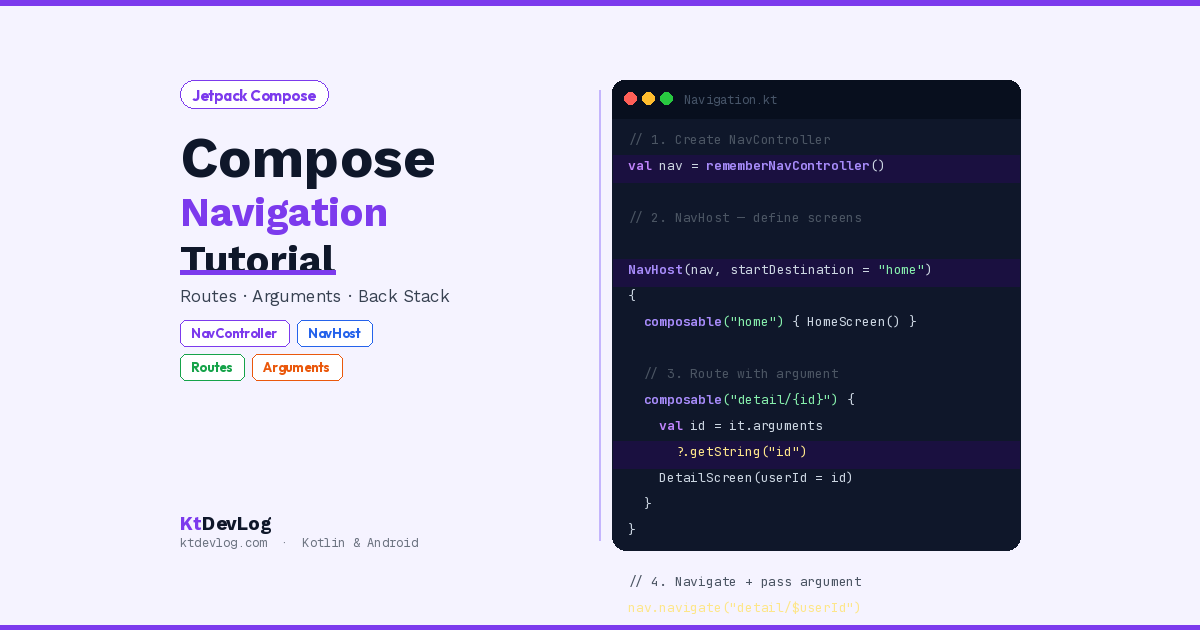
Navigation Compose is the official Jetpack library for navigating between composable screens. It gives you three core components that work together to manage every screen transition in your app.
According to the official Android developer documentation, Navigation Compose provides a consistent and idiomatic way to handle navigation while staying fully within the Compose world.
The three components you’ll use in every project:
NavController — The brain. It tracks where your app currently is, manages the back stack, and handles all navigation actions. You create one per app and share it across your screen hierarchy.
NavHost — The container. It’s a composable that displays whichever screen matches the current route. Think of it as the viewport through which your routes appear.
NavGraph — The map. Defined inside NavHost, it lists all your screens (destinations) and the routes that identify each one.
Step 1 — Add the Dependency
Before writing any code, add the Navigation Compose library to your app’s build.gradle.kts:
dependencies {
    implementation("androidx.navigation:navigation-compose:2.9.0")
}Sync your project. That’s all the setup you need.
If you’re starting a brand new project, check out how to create your first Android project with Kotlin first — it walks you through project setup from scratch, which makes everything here much easier to follow.
Step 2 — Define Your Routes
Routes are string identifiers for each screen in your app. Every screen needs a unique route — it’s the address Navigation Compose uses to find and display the right composable.
The cleanest approach is to define your routes as constants so you never mistype a string:
// Routes.kt
object Routes {
    const val HOME    = "home"
    const val PROFILE = "profile"
    const val DETAIL  = "detail/{userId}"  // Route with argument
}Using an object for routes keeps everything in one place. No magic strings scattered across your files. No typos causing silent navigation failures. When a route changes, you update it in one place and every reference updates automatically.
Step 3 — Create Your Screen Composables
Let’s build two simple screens — a Home screen and a Profile screen — that we’ll connect with navigation:
// HomeScreen.kt
@Composable
fun HomeScreen(onNavigateToProfile: () -> Unit) {
    Column(
        modifier = Modifier
            .fillMaxSize()
            .padding(24.dp),
        verticalArrangement = Arrangement.Center,
        horizontalAlignment = Alignment.CenterHorizontally
    ) {
        Text(
            text = "Welcome to KtDevLog",
            fontSize = 24.sp,
            fontWeight = FontWeight.Bold
        )
        Spacer(modifier = Modifier.height(24.dp))
        Button(onClick = onNavigateToProfile) {
            Text("Go to Profile")
        }
    }
}

// ProfileScreen.kt
@Composable
fun ProfileScreen(onNavigateBack: () -> Unit) {
    Column(
        modifier = Modifier
            .fillMaxSize()
            .padding(24.dp),
        verticalArrangement = Arrangement.Center,
        horizontalAlignment = Alignment.CenterHorizontally
    ) {
        Text(
            text = "Profile Screen",
            fontSize = 24.sp,
            fontWeight = FontWeight.Bold
        )
        Spacer(modifier = Modifier.height(24.dp))
        Button(onClick = onNavigateBack) {
            Text("Go Back")
        }
    }
}Notice something important: neither screen knows anything about NavController. They receive navigation actions as lambda parameters — onNavigateToProfile: () -> Unit and onNavigateBack: () -> Unit. This keeps your composables clean, testable, and completely decoupled from the navigation system.
Step 4 — Set Up NavController and NavHost
Now connect everything in your MainActivity:
// MainActivity.kt
class MainActivity : ComponentActivity() {
    override fun onCreate(savedInstanceState: Bundle?) {
        super.onCreate(savedInstanceState)
        setContent {
            AppNavigation()
        }
    }
}

@Composable
fun AppNavigation() {
    // Create the NavController — one per app
    val navController = rememberNavController()

    NavHost(
        navController = navController,
        startDestination = Routes.HOME
    ) {
        // Define each screen destination
        composable(Routes.HOME) {
            HomeScreen(
                onNavigateToProfile = {
                    navController.navigate(Routes.PROFILE)
                }
            )
        }
        composable(Routes.PROFILE) {
            ProfileScreen(
                onNavigateBack = {
                    navController.popBackStack()
                }
            )
        }
    }
}Let’s break down what’s happening:
rememberNavController() creates and remembers the controller across recompositions. Call this once at the top level — never create it inside individual screens.
NavHost takes the controller and a startDestination — the first screen your app shows when it launches.
Inside NavHost, each composable() block maps a route string to a screen composable. When navController.navigate(Routes.PROFILE) is called, Navigation Compose finds the composable(Routes.PROFILE) block and shows ProfileScreen.
navController.popBackStack() removes the current screen from the back stack and returns to the previous one — exactly what the back button does.
Step 5 — Pass Arguments Between Screens
Here’s where most beginner tutorials fall short — passing data from one screen to another. This is one of the most common real-world requirements, and Navigation Compose handles it with route arguments.
Passing Simple Arguments
Arguments are embedded directly in the route string using {argumentName} syntax:
// Routes with argument
object Routes {
    const val HOME        = "home"
    const val USER_DETAIL = "user/{userId}"  // {userId} is the argument
}In your NavHost, declare the expected argument type:
composable(
    route = Routes.USER_DETAIL,
    arguments = listOf(
        navArgument("userId") { type = NavType.StringType }
    )
) { backStackEntry ->
    // Extract the argument from the back stack entry
    val userId = backStackEntry.arguments?.getString("userId") ?: ""
    UserDetailScreen(userId = userId)
}To navigate to this screen and pass the argument, build the route dynamically:
// In HomeScreen — navigate and pass userId
onNavigateToDetail = { userId ->
    navController.navigate("user/$userId")
}

// Example call
onNavigateToDetail("usr_sharif_001")
// This navigates to route: "user/usr_sharif_001"The full working example:
// UserDetailScreen.kt
@Composable
fun UserDetailScreen(
    userId: String,
    onNavigateBack: () -> Unit
) {
    Column(
        modifier = Modifier
            .fillMaxSize()
            .padding(24.dp),
        verticalArrangement = Arrangement.Center,
        horizontalAlignment = Alignment.CenterHorizontally
    ) {
        Text(
            text = "User Profile",
            fontSize = 24.sp,
            fontWeight = FontWeight.Bold
        )
        Spacer(modifier = Modifier.height(8.dp))
        Text(
            text = "ID: $userId",
            fontSize = 16.sp,
            color = Color.Gray
        )
        Spacer(modifier = Modifier.height(24.dp))
        Button(onClick = onNavigateBack) {
            Text("Back")
        }
    }
}Optional Arguments
Some arguments might not always be provided — like a filter parameter on a search screen. Handle these with optional arguments using ? in the route:
object Routes {
    const val SEARCH = "search?query={query}"  // Optional argument
}

composable(
    route = Routes.SEARCH,
    arguments = listOf(
        navArgument("query") {
            type = NavType.StringType
            defaultValue = ""   // Default when not provided
            nullable = true
        }
    )
) { backStackEntry ->
    val query = backStackEntry.arguments?.getString("query") ?: ""
    SearchScreen(initialQuery = query)
}

// Navigate without argument
navController.navigate("search")

// Navigate with argument
navController.navigate("search?query=kotlin")Step 6 — Understanding the Back Stack
The back stack is the list of screens your user has visited, in order. Every time you call navController.navigate(), the new screen gets pushed onto the stack. Every time you call popBackStack(), the top screen is removed and the user sees the screen below.
Here’s where a critical mistake trips up most beginners — avoid passing NavController into your screen composables directly:
// ❌ Wrong — NavController leaked into screen composable
@Composable
fun HomeScreen(navController: NavController) {
    Button(onClick = { navController.navigate(Routes.PROFILE) }) {
        Text("Go to Profile")
    }
}

// ✅ Correct — Lambda callback keeps screen independent
@Composable
fun HomeScreen(onNavigateToProfile: () -> Unit) {
    Button(onClick = onNavigateToProfile) {
        Text("Go to Profile")
    }
}The lambda approach means HomeScreen can be rendered, previewed, and tested completely independently of navigation. The NavController stays where it belongs — at the top-level AppNavigation composable. This is the pattern used in every production-quality Android codebase.
Navigating and Clearing the Back Stack
Sometimes you want to navigate to a new screen and remove previous screens from the stack entirely — for example, after a successful login, you navigate to Home and you never want the user to press back and return to the Login screen:
// Navigate to Home and clear everything below it
navController.navigate(Routes.HOME) {
    popUpTo(Routes.LOGIN) {
        inclusive = true  // Remove LOGIN from stack too
    }
}popUpTo removes all screens in the back stack up to and including the specified route. This is the clean way to handle post-login navigation, onboarding completion, and any flow where going back would create a confusing user experience.
Step 7 — Passing Data the Right Way (Important)
Here’s the insight most Jetpack Compose navigation tutorials skip — and it’s one of the most important rules in Android development.
Only pass simple, primitive data as navigation arguments. Strings, integers, booleans — these are safe. Never pass complex objects like User or Product data classes through navigation arguments.
Why? Because navigation routes are essentially URLs. Serializing a whole object into a URL string is fragile, hard to maintain, and breaks easily when your model changes.
The correct pattern for complex data:
// ❌ Wrong — passing the whole object
navController.navigate("detail/$userObject") // Fragile and messy

// ✅ Correct — pass only the ID
navController.navigate("detail/$userId")

// In DetailScreen's ViewModel, fetch the full object using the ID
class DetailViewModel(private val repository: UserRepository) : ViewModel() {
    fun loadUser(userId: String) {
        viewModelScope.launch {
            _uiState.value = repository.getUser(userId)
        }
    }
}Pass the ID. Fetch the data. This pattern keeps navigation arguments simple, makes your code testable, and means your screens always show fresh data rather than potentially stale objects that were created before navigation happened.
This connects directly to how Kotlin StateFlow and SharedFlow power the ViewModel state in screens like DetailScreen, and how Kotlin sealed classes represent the loading/success/error states cleanly when fetching that data.
Complete Navigation Setup — Full Working Example
Here’s the complete AppNavigation composable with all three screens, arguments, and back stack control:
@Composable
fun AppNavigation() {
    val navController = rememberNavController()

    NavHost(
        navController = navController,
        startDestination = Routes.HOME
    ) {
        composable(Routes.HOME) {
            HomeScreen(
                onNavigateToProfile = {
                    navController.navigate(Routes.PROFILE)
                },
                onNavigateToDetail = { userId ->
                    navController.navigate("user/$userId")
                }
            )
        }

        composable(Routes.PROFILE) {
            ProfileScreen(
                onNavigateBack = {
                    navController.popBackStack()
                }
            )
        }

        composable(
            route = Routes.USER_DETAIL,
            arguments = listOf(
                navArgument("userId") {
                    type = NavType.StringType
                }
            )
        ) { backStackEntry ->
            val userId = backStackEntry.arguments
                ?.getString("userId") ?: return@composable
            UserDetailScreen(
                userId = userId,
                onNavigateBack = {
                    navController.popBackStack()
                }
            )
        }
    }
}Clean. Readable. Every screen gets exactly what it needs through its parameters. The NavController stays at the top. Routes are constants. Arguments are primitive values.
What’s New — Jetpack Navigation 3 (2025)
Here’s something most navigation tutorials currently don’t mention at all. At Google I/O 2025, Google announced Jetpack Navigation 3 — a completely new navigation library rebuilt from the ground up specifically for Compose.
Navigation 3 gives developers direct control over the back stack as a simple SnapshotStateList, replaces string routes with type-safe Kotlin objects, and is designed to be fully open and extensible.
For beginners right now, Navigation Compose 2 (what this guide teaches) is still the right starting point. It’s stable, widely documented, and powers thousands of production apps. But knowing that Navigation 3 exists — and is coming — means you should build habits around the clean patterns: lambda callbacks, simple arguments, and ViewModel-based data fetching. Those patterns translate directly to Navigation 3 when you’re ready to migrate.
Frequently Asked Questions
What is NavController in Jetpack Compose?
NavController is the central component of Navigation Compose. It manages the back stack of screens, handles all navigation actions, and tracks which screen is currently displayed. You create one using rememberNavController() and should keep it at the top level of your composable hierarchy — never pass it directly into individual screen composables.
How do I pass data between screens in Jetpack Compose navigation?
Pass data as route arguments embedded in the navigation route string. Define the argument in your route as "screen/{argumentName}", declare the argument type in your composable() block using navArgument(), and extract it from backStackEntry.arguments inside that block. Only pass primitive types — Strings, Ints, Booleans. For complex objects, pass only the ID and fetch the full data in the destination screen’s ViewModel.
What is NavHost in Jetpack Compose?
NavHost is a composable that acts as the container for your navigation graph. It displays the composable screen that matches the current navigation route. You provide it with a NavController and a startDestination, then define all your screen destinations inside it using composable() blocks. NavHost handles switching between screens automatically as NavController navigates.
How do I go back to the previous screen in Jetpack Compose?
Call navController.popBackStack() to remove the current screen from the back stack and return to the previous one. For more control, use navController.navigate(route) { popUpTo(targetRoute) { inclusive = true } } to navigate to a new screen while clearing specific screens from the back stack — this is the pattern for post-login navigation where you don’t want users pressing back to reach the login screen.
Should I pass NavController directly into screen composables?
No. Passing NavController directly into screen composables couples them to the navigation system, making them harder to test and preview. Instead, pass navigation actions as simple lambda parameters — onNavigateToProfile: () -> Unit. The NavController stays in your top-level AppNavigation composable, and screens remain pure, independent composables that can be tested and previewed in isolation.
Conclusion
Jetpack Compose navigation tutorial covers the skill that transforms a collection of individual screens into a real, cohesive Android app. Once navigation clicks, your app starts feeling alive — screens connect, data flows between them, and the back button works exactly as users expect.
The mental model is simple: one NavController at the top, NavHost as the viewport, string routes as addresses, and lambda callbacks keeping your screens clean. Add route arguments for simple data transfer, and ViewModel-based fetching for complex data.
Start with two screens. Get navigation working between them. Then add a third with an argument. Build from there. Every production Android app you’ll ever work on uses exactly this foundation — the only thing that changes is scale.
From here, connect your navigated screens to Kotlin StateFlow for reactive state management, use Kotlin sealed classes to represent screen states cleanly, and apply Kotlin null safety patterns when extracting navigation arguments that might be missing.
And if you want to see what navigation looks like inside a real layout, Row in Jetpack Compose shows how navigation bar items are typically laid out horizontally at the bottom of your screen.
Every great Android app is really just a collection of screens that trust each other enough to share data. Navigation is what makes that trust work.