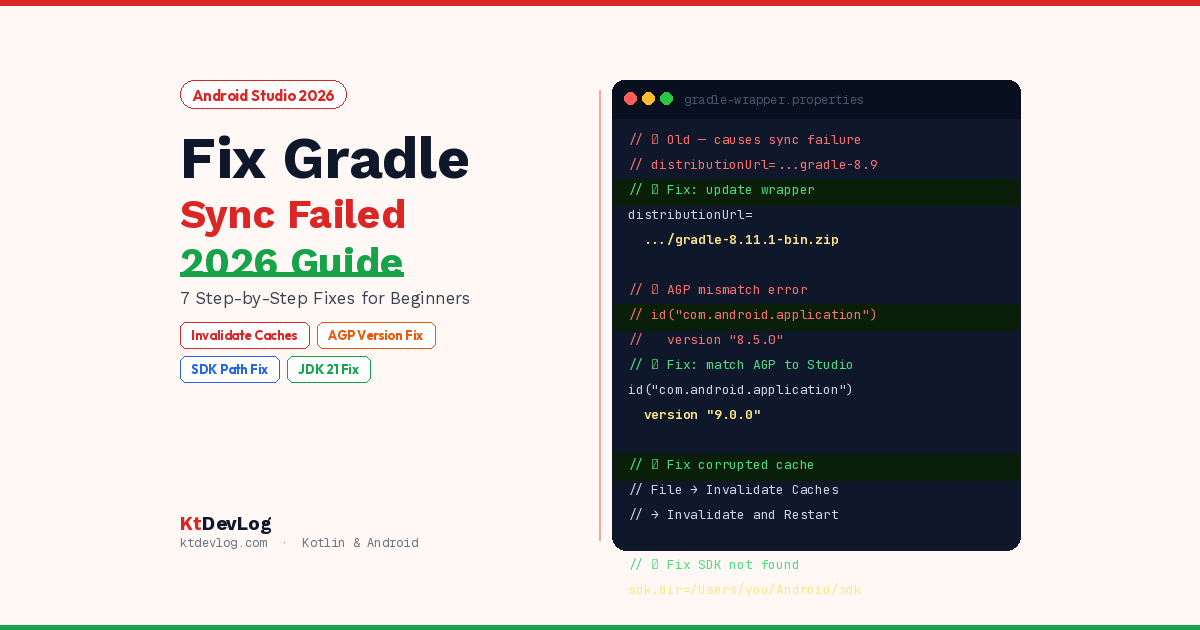

You open Android Studio. You wait for the project to load. And then it hits you — the red banner at the top of the screen:
“Fix Gradle Sync Failed in Android Studio: 2026 Guide. Please fix your project and try again.”
Every Android developer has seen this message. Most have seen it multiple times. And if you’re reading this right now, you’re probably staring at it right now wondering where to even start.
Here’s the good news: “Gradle sync failed” is almost always fixable. The error looks scary, but it almost always falls into one of a handful of categories — and each one has a clear, step-by-step solution. This guide walks through the 7 most common Gradle sync failures beginners face in Android Studio in 2026, with exact steps to fix each one.
Before anything else — open your Build panel and Event Log in Android Studio. Find the first red error line and any “Caused by:” lines underneath it. That message is your map. It tells you exactly which fix from this guide applies to your situation.
Table of Contents
Fix Gradle Sync Failed: Start With These 3 Quick Fixes
Before diving into specific errors, try these three quick fixes first. They solve roughly 60% of all Gradle sync failures without any configuration changes.
Quick Fix 1 — Invalidate Caches and Restart
Android Studio keeps a cache of your project’s build data. If that cache gets corrupted — which happens after IDE updates, plugin changes, or interrupted builds — Gradle sync will fail on every attempt until the cache is cleared.
File → Invalidate Caches → Invalidate and RestartAfter Android Studio restarts, click Sync Project with Gradle Files (the elephant icon in the toolbar). This is the single most effective first step for any Gradle sync error and resolves the majority of cases immediately.
Quick Fix 2 — Check Your Internet Connection
Gradle’s primary job is downloading dependencies from the internet. If your connection is slow, unstable, or blocked by a firewall or VPN — sync will fail partway through. Disable your VPN temporarily, connect to a stable network, and try syncing again.
Quick Fix 3 — Clean and Rebuild
Build → Clean Project
Build → Rebuild Project
This forces Android Studio to discard all compiled output and start fresh. Many sync failures are actually stale build artifact issues that a clean rebuild resolves completely.
Fix 1 — Gradle Version Mismatch (Most Common Error in 2026)
The most common Gradle sync error in 2026 — especially after updating Android Studio Otter 3 — is a version mismatch between the Android Gradle Plugin (AGP) and the Gradle wrapper version.
The error looks like this in your Build panel:
The project is using an incompatible version (AGP 9.0) of the
Android Gradle plugin.
or:
Minimum supported Gradle version is 8.11.1. Current version is 8.9.The fix: Open gradle/wrapper/gradle-wrapper.properties and update the distribution URL:
properties
# gradle/wrapper/gradle-wrapper.properties
distributionUrl=https\://services.gradle.org/distributions/gradle-8.11.1-bin.zip
Then open your project-level build.gradle.kts and ensure the AGP version matches:
// build.gradle.kts (project level)
plugins {
    id("com.android.application") version "9.0.0" apply false
    id("org.jetbrains.kotlin.android") version "2.1.0" apply false
}Compatible versions for Android Studio Otter 3 in 2026:
| Android Studio | AGP Version | Gradle Version |
|---|---|---|
| Otter 3 (2025.2.3) | 9.0.x | 8.11.1+ |
| Narwhal (2025.1.1) | 8.9.x | 8.10+ |
| Meerkat (2024.3.1) | 8.7.x | 8.9+ |
According to the official Android developer documentation, each AGP version requires a minimum Gradle version. Always check this table when updating Android Studio or adding a new library that bumps the AGP version.
Fix 2 — SDK Not Found or SDK Path Missing
The error looks like:
SDK location not found. Define location with an ANDROID_SDK_ROOT
environment variable or by adding a sdk.dir=<path> to the
local.properties file.
This happens when you clone a project from GitHub, move it to a different machine, or your local.properties file is missing or has the wrong SDK path.
The fix:
Step 1 — Find your Android SDK path. In Android Studio, go to:
File → Project Structure → SDK LocationCopy the path shown there.
Step 2 — Open or create local.properties in your project root and add:
properties
# local.properties (Windows)
sdk.dir=C\:\\Users\\YourName\\AppData\\Local\\Android\\Sdk

# local.properties (macOS/Linux)
sdk.dir=/Users/YourName/Library/Android/sdk
Step 3 — Sync the project again.
Important: local.properties should never be committed to Git. It contains machine-specific paths. Add it to your .gitignore:
# .gitignore
local.properties
This is why it goes missing when you clone — whoever committed the project correctly didn’t include it.
Fix 3 — Dependency Resolution Failed
The error looks like:
Could not resolve com.squareup.retrofit2:retrofit:2.9.0
Could not find androidx.core:core-ktx:1.14.0
This means Gradle found a dependency declaration in your build.gradle.kts but couldn’t download it. Three common causes:
Cause A — Wrong repository: Your project needs to declare where to find dependencies. Open your project-level settings.gradle.kts:
// settings.gradle.kts
dependencyResolutionManagement {
    repositories {
        google()       // Required for all AndroidX and Google libraries
        mavenCentral() // Required for most open-source libraries
    }
}If google() or mavenCentral() is missing, add them.
Cause B — Typo in dependency name: Check your app-level build.gradle.kts:
// build.gradle.kts (app level)
dependencies {
    // ❌ Wrong — typo in group ID
    implementation("com.squareup.retorfit2:retrofit:2.9.0")

    // ✅ Correct
    implementation("com.squareup.retrofit2:retrofit:2.9.0")
}Copy dependency declarations directly from the library’s official documentation or Maven Central rather than typing them manually.
Cause C — Version doesn’t exist: The version number you specified was never released. Check Maven Central or Google Maven to confirm the version exists.
Fix 4 — Corrupted .gradle Cache
The error looks like:
Gradle sync failed: Could not install Gradle distribution from
'https://services.gradle.org/distributions/gradle-8.11.1-bin.zip'
Or Android Studio hangs on “Downloading Gradle” indefinitely — then fails.
The fix: Delete the corrupted Gradle cache and let it re-download fresh.
On macOS/Linux:
bash
rm -rf ~/.gradle/caches
rm -rf ~/.gradle/wrapper/dists
On Windows:
Navigate to: C:\Users\YourName\.gradle\
Delete the: caches folder
Delete the: wrapper\dists folder
After deleting, reopen Android Studio and sync. It will re-download the Gradle distribution from scratch. Make sure you have a stable internet connection — the download is around 100–200MB depending on the Gradle version.
Fix 5 — .idea Folder Corruption (Android Studio Otter 3 Specific)
In 2026, this error became much more common after developers updated from Android Studio Narwhal to Otter 3. The error message is:
Gradle sync failed: Already disposed.The root cause: Android Studio’s internal project model components get garbage-collected prematurely, usually because the .idea folder — which stores IDE-specific project configuration — is corrupted or incompatible with the new IDE version.
The fix:
Step 1 — Close Android Studio completely.
Step 2 — Navigate to your project root folder and delete the .idea folder entirely:
YourProject/
├── .idea/          ← Delete this entire folder
├── app/
├── gradle/
└── build.gradle.kts
Step 3 — Reopen the project in Android Studio. It will recreate the .idea folder from scratch during sync.
Step 4 — If the error persists, also run Invalidate Caches and Restart after reopening.
The .idea folder only contains IDE preferences — deleting it never affects your actual code, layouts, or project logic. It’s always safe to delete.
Fix 6 — JDK Version Mismatch
The error looks like:
Unsupported class file major version 65
No matching toolchain found for requested specification:
{languageVersion=17}
Android Studio Otter 3 requires JDK 17 for AGP 8.x and JDK 21 for AGP 9.x. If the wrong JDK is configured, Gradle fails immediately.
The fix:
In Android Studio, go to:
File → Project Structure → SDK Location → Gradle JDKSet it to the JDK bundled with Android Studio — always labeled as “Android Studio Default JDK”. This is the safest option and is always compatible with the current Android Studio version.
If you need to verify what’s installed, open Terminal inside Android Studio:
bash
java -version
# Should show: openjdk 17 or openjdk 21
To install the correct JDK through Android Studio’s built-in JDK manager:
File → Project Structure → SDK Location → Gradle JDK → Download JDKSelect JetBrains Runtime (JBR) 21 — this is the recommended JDK for Android Studio Otter 3 in 2026.
Fix 7 — Proxy or Firewall Blocking Gradle Downloads
The error looks like:
Connection refused: connect
Could not GET 'https://dl.google.com/dl/android/maven2/...'
This is common in corporate networks, university networks, or when a VPN is active.
Fix A — Disable proxy temporarily:
In Android Studio:
File → Settings → Appearance & Behavior → System Settings → HTTP ProxySelect “No proxy” and try syncing again.
Fix B — Add IPv4 preference to gradle.properties:
According to the official Android Studio troubleshooting documentation, adding this property to your gradle.properties file resolves many network connectivity issues:
properties
# gradle.properties
org.gradle.jvmargs=-Djava.net.preferIPv4Stack=true
Restart Android Studio and sync again.
Fix C — Enable offline mode temporarily:
If you’ve previously built the project successfully and all dependencies are cached, you can build without internet:
File → Settings → Build, Execution, Deployment → Gradle → Enable offline modeThis tells Gradle to use only cached dependencies — no downloads attempted. Useful when syncing on a restricted network.
Gradle Sync Failed — Quick Diagnosis Checklist
Use this checklist to narrow down your specific error:
□ Error mentions "incompatible version" or "minimum supported"
  → Fix 1: Update AGP and Gradle wrapper versions

□ Error mentions "SDK location not found"
  → Fix 2: Create/update local.properties with correct SDK path

□ Error mentions "Could not resolve" or "Could not find"
  → Fix 3: Check repositories and dependency spelling/version

□ Hangs on "Downloading Gradle" or corrupted distribution
  → Fix 4: Delete ~/.gradle/caches and wrapper/dists

□ Error says "Already disposed"
  → Fix 5: Delete .idea folder and invalidate caches

□ Error mentions "class file major version" or "toolchain"
  → Fix 6: Update Gradle JDK to JBR 21 in Project Structure

□ Error mentions "Connection refused" or network failure
  → Fix 7: Disable proxy or add IPv4Stack property
Frequently Asked Questions
Understanding Gradle Sync Failed
What does “Gradle sync failed” mean in Android Studio?
“Gradle sync failed” means Android Studio was unable to read your project configuration and download the required build dependencies. Gradle is the build system that manages dependencies, compiles your code, and produces your APK. When it fails to sync, Android Studio can’t understand your project structure — so no code runs until the sync succeeds. The error is almost always caused by a version mismatch, missing SDK, network issue, or corrupted cache.
Why does Gradle sync fail after updating Android Studio?
Updating Android Studio often bumps the required Android Gradle Plugin (AGP) and Gradle wrapper versions. If your project’s build.gradle.kts and gradle-wrapper.properties files still reference older versions, they’ll be incompatible with the new IDE. Fix it by updating your AGP version and Gradle wrapper distribution URL to the versions compatible with your new Android Studio version. In Android Studio Otter 3 (2026), that means AGP 9.0.x with Gradle 8.11.1+.
Common Errors
How do I fix “SDK location not found” in Android Studio?
Create a local.properties file in your project root directory with one line: sdk.dir=<path to your Android SDK>. Find your SDK path in File → Project Structure → SDK Location. This error is most common when cloning a project from GitHub because local.properties is correctly excluded from version control — you need to create it fresh on each machine.
How do I fix Gradle version mismatch in Android Studio?
Open gradle/wrapper/gradle-wrapper.properties and update distributionUrl to a compatible Gradle version. Then check your project-level build.gradle.kts and ensure the AGP version matches. For Android Studio Otter 3 in 2026, use AGP 9.0.x with Gradle 8.11.1 or higher. The official AGP release notes always list the minimum required Gradle version.
What should I do if Gradle sync is stuck downloading?
Delete the Gradle wrapper cache — on macOS/Linux, delete ~/.gradle/wrapper/dists and ~/.gradle/caches. On Windows, delete the same folders under C:\Users\YourName\.gradle\. This forces Gradle to re-download a fresh distribution. Ensure you have a stable internet connection without VPN or proxy interference before trying again.
Conclusion
Fixing Gradle sync failed in Android Studio is almost always about finding the right error message and matching it to the right fix. Open your Build panel, read the first red error line, and work through this guide from there.
The fix you’ll need most often is updating your AGP and Gradle wrapper versions when Android Studio updates — that single change resolves the majority of sync failures in 2026. The second most common fix is invalidating caches and deleting the .idea folder after a major IDE update.
Bookmark this guide. Gradle errors are a recurring part of Android development — not a sign something is fundamentally broken with your project. They’re configuration issues, and every one has a solution.
Once your Gradle sync is working and your project is building cleanly, the next step is using Android Studio Gemini AI to let the built-in AI assistant help you fix future build errors even faster — it reads your Gradle error output directly and suggests fixes in seconds.
A Gradle error doesn’t mean your project is broken. It means one configuration file needs one small change. Find the message, apply the fix, and get back to building.