
The little update bubble appears at the bottom of Android Studio. You click it. Android Studio starts downloading. The progress bar inches forward. One hour later — it’s still at 23%.
If you’re on a slow connection, a metered mobile hotspot, or a network where large downloads frequently time out, the built-in Android Studio updater is genuinely painful. It often fails halfway, forces you to start over, and sometimes leaves your installation in a broken half-updated state.
Here’s what most developers don’t know: you can update android studio offline completely. Download the full installer or patch file once, on whatever connection you have — from a café, a friend’s internet, your phone on Wi-Fi — and apply it on any machine. No live connection needed during the actual update.

This guide covers every method: the patch file approach for minor updates, the full offline installer for major version jumps, and how to update your SDK components separately. All step-by-step, all tested for 2026.
Table of Contents
Update Android Studio Offline: Understanding Your Options
Before downloading anything, it helps to know what kind of update you’re dealing with. Android Studio has two types:
Patch updates — small incremental updates within the same major version. For example, going from Android Studio Panda 4 to Panda 4 Patch 1. These are typically 50–200MB and apply on top of your existing installation. This is the fastest offline update method.
Full version updates — major version jumps, like going from Otter 3 to Panda 4. These require downloading the full installer — typically 1–2GB. Still doable offline, just a larger download.
According to the official Android Studio update documentation, Android Studio releases through four channels: Stable (recommended for production), Beta, Release Candidate, and Canary (bleeding-edge, weekly). For offline updates, always target the Stable channel unless you specifically need newer features.
The current stable release as of May 2026 is Android Studio Panda 4 (2025.3.4).
Method 1 — Apply a Patch File (Best for Minor Updates)
This is the fastest method when you’re updating within the same major version. Android Studio ships patch files specifically designed for offline application.
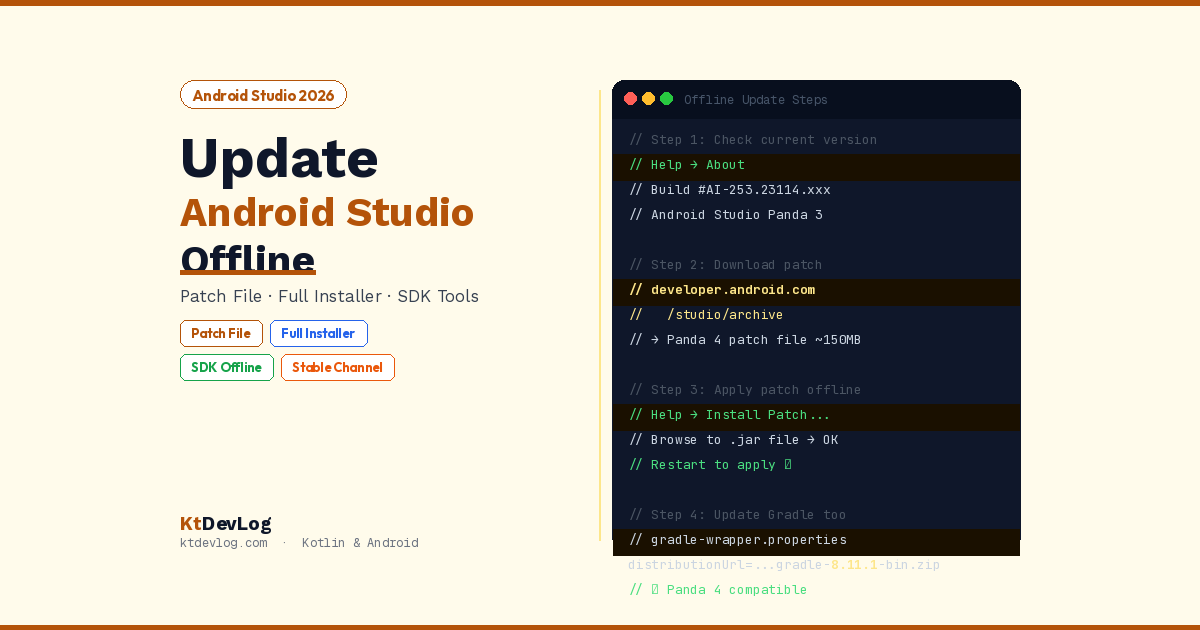
Step 1 — Find Your Current Version
In Android Studio:
Help → AboutNote the full version name — for example:
Android Studio Panda 3 | 2025.3.3
Build #AI-253.23114.392.2533.13360003
You need both the name and the build number.
Step 2 — Download the Patch File From the Archive
Open the Android Studio archive page on any device with a good connection. This page lists every Android Studio release with direct download links.
Find the version you want to update to — for example, Android Studio Panda 4. Look for the patch file, not the full installer:
Patch files are named like:
AI-253.xxxxx.xxxxx-to-AI-253.xxxxx.xxxxx-patch-windows.jar
AI-253.xxxxx.xxxxx-to-AI-253.xxxxx.xxxxx-patch-mac.zip
AI-253.xxxxx.xxxxx-to-AI-253.xxxxx.xxxxx-patch-unix.jar
The patch file contains only the differences between your current version and the new one — much smaller than a full installer.
If no patch file is listed for your exact current build, use Method 2 (full installer) instead. Patch files only work between specific build pairs.
Step 3 — Transfer the Patch File to Your Development Machine
Move the downloaded patch file to your development machine using whatever method works — USB drive, local network transfer, Bluetooth, or even splitting with a file manager app if needed.
Save it somewhere memorable:
Windows: C:\Users\YourName\Downloads\studio-patch.jar
macOS:   ~/Downloads/studio-patch.zip
Linux:   ~/Downloads/studio-patch.jar
Step 4 — Apply the Patch
Windows and Linux (.jar file):
Open Android Studio. Go to:
Help → Install Patch...Browse to your downloaded .jar file and click OK. Android Studio validates the patch, confirms it matches your installation, and asks you to restart to apply it.
macOS (.zip file):
The macOS patch is a zip archive containing a replacement Android Studio.app. Extract it, then:
Close Android Studio completely
Copy the extracted Android Studio.app to /Applications/
Replace the existing installation when prompted
Relaunch Android Studio
Step 5 — Verify the Update
After restarting:
Help → AboutConfirm the version number now shows the updated version. If it does — you’re done.
Method 2 — Full Offline Installer (For Major Version Jumps)
If you’re jumping a major version — for example from Ladybug to Panda, or Otter to Panda — there’s no patch file available. You need the full installer. Same process: download on a good connection, transfer, install.
Step 1 — Download the Full Installer
Go to developer.android.com/studio/archive and find the full installer for your target version.
Current stable (May 2026): Android Studio Panda 4 (2025.3.4)
| Platform | File | Size |
|---|---|---|
| Windows | android-studio-2025.3.4.xx-windows.exe | ~1.2GB |
| macOS (Apple Silicon) | android-studio-2025.3.4.xx-mac_arm.dmg | ~1.1GB |
| macOS (Intel) | android-studio-2025.3.4.xx-mac.dmg | ~1.1GB |
| Linux | android-studio-2025.3.4.xx-linux.tar.gz | ~1.2GB |
Download the file matching your OS and processor architecture. If you’re on an Apple Silicon Mac — M1, M2, M3, or M4 — always choose the mac_arm version for native performance.
Step 2 — Verify the Download Integrity
Before transferring the file, verify its checksum. The archive page lists the SHA-256 hash for each download:
Windows (PowerShell):
powershell
Get-FileHash .\android-studio-2025.3.4.xx-windows.exe -Algorithm SHA256macOS / Linux (Terminal):
bash
shasum -a 256 android-studio-2025.3.4.xx-mac_arm.dmgCompare the output with the hash shown on the download page. If they match — the file is intact and safe to use.
Step 3 — Transfer and Install
Transfer the installer to your development machine and run it:
Windows: Double-click the .exe installer. It detects your existing installation and offers to update in place. Choose Update rather than installing to a new location.
macOS: Open the .dmg, drag Android Studio.app to /Applications/. When prompted about replacing the existing version — click Replace.
Linux:
bash
# Extract the archive
tar -xzf android-studio-2025.3.4.xx-linux.tar.gz

# Move to your preferred location (replacing existing installation)
sudo mv android-studio /opt/android-studio

# Launch to verify
/opt/android-studio/bin/studio.sh
Method 3 — Update SDK Components Offline
Even after updating the IDE itself, your SDK components — build tools, platform APIs, system images — may be outdated. Updating these through the built-in SDK Manager requires internet. Here’s how to do it offline.
Download SDK Components via Command Line on Another Machine
Android Studio’s command-line sdkmanager can download components without the full IDE. On a machine with a good connection, run:
bash
# Navigate to your SDK tools directory
# Windows: C:\Users\YourName\AppData\Local\Android\Sdk\cmdline-tools\latest\bin\
# macOS/Linux: ~/Library/Android/sdk/cmdline-tools/latest/bin/

# List all available packages
./sdkmanager --list

# Download specific packages
./sdkmanager "platform-tools"
./sdkmanager "build-tools;35.0.0"
./sdkmanager "platforms;android-35"
./sdkmanager "system-images;android-35;google_apis;x86_64"
The downloaded files go into your Android SDK directory. Zip that entire SDK directory and transfer it to your offline machine.
Apply SDK Components on Your Offline Machine
On your development machine, unzip the downloaded SDK and place it at the correct SDK path. Then in Android Studio:
File → Project Structure → SDK LocationPoint Android Studio to the transferred SDK directory. It automatically recognises the components inside without needing to download them again.
Method 4 — Change Update Channel and Defer Updates
If slow downloads are a recurring problem, consider changing which update channel Android Studio checks — and scheduling large downloads for off-peak hours when you have better connectivity.
Switch to Stable Channel Only
File → Settings → Appearance & Behavior → System Settings → UpdatesSet Automatically check updates for to:
- Stable Channel — releases every 4–8 weeks, well-tested, smaller patch files between versions
- Do not check — completely disable automatic update checks if you prefer to update manually
Avoid Canary or Beta channels on a slow connection — these update weekly with large files and are not production-ready.
Download Updates During Off-Peak Hours
Android Studio’s built-in updater runs in the background. You can let it download overnight or during weekends when your connection is less congested — then apply the update manually at your convenience.
Once the download completes:
Help → Restart and Install Updated PluginThe installation itself is near-instant — it’s only the download that takes time.
Troubleshooting Common Offline Update Issues
“Patch file is not applicable” — The patch file doesn’t match your current build exactly. Download the full installer instead.
“Failed to apply patch” — Your current installation may have corrupted files. Try running:
Help → Invalidate Caches → Invalidate and RestartThen attempt the patch again. If it still fails, use the full installer.
Gradle and plugin versions still outdated after IDE update — The IDE update doesn’t automatically update Gradle or your project’s Android Gradle Plugin. Update your project manually:
kotlin
// gradle/wrapper/gradle-wrapper.properties
distributionUrl=https\://services.gradle.org/distributions/gradle-8.11.1-bin.zip
kotlin
// build.gradle.kts (project level)
plugins {
    id("com.android.application") version "9.0.0" apply false
}
These changes require Gradle to download the new distribution on next sync. If you’re fully offline, use the sdkmanager approach from Method 3 to pre-download the Gradle distribution as well.
macOS security warning on unsigned installer — If macOS blocks the installer with “unidentified developer”:
System Preferences → Security & Privacy → Open AnywayOfficial Android Studio installers from developer.android.com are always signed by Google and safe to run.
Frequently Asked Questions
Offline Update Basics
Can I update Android Studio without internet?
Yes. Download the patch file or full installer from the Android Studio archive on any device with internet access, transfer it to your development machine via USB or local network, and apply it through Help → Install Patch... for patch files, or by running the full installer directly. The entire update process after the download requires no internet connection.
Where do I download Android Studio patch files?
Go to developer.android.com/studio/archive — this is the official Android Studio archive page maintained by Google. It lists every release with direct download links for full installers and patch files. Always download from this official page, never from third-party sites. Verify the SHA-256 checksum after downloading to ensure the file is intact.
Version and Channel Questions
What is the current stable version of Android Studio in 2026?
As of May 2026, the current stable release is Android Studio Panda 4 (2025.3.4), released on April 28, 2026. Android Studio releases use animal names for major versions and follow a quarterly release cycle for stable versions. Check the official Android Studio blog at androidstudio.googleblog.com for the latest release announcements.
What is the difference between Stable, Beta, and Canary channels?
Stable is the production-ready channel, updated every 4–8 weeks with thoroughly tested releases. Beta and RC (Release Candidate) are pre-release versions for early testing. Canary is the bleeding-edge channel updated roughly weekly with the latest features, subject to more bugs. For offline updates on slow connections, always use the Stable channel — updates are less frequent and patch files are smaller relative to the changes included.
Do I need to update Gradle separately after updating Android Studio?
Yes. Updating the Android Studio IDE does not automatically update your project’s Gradle wrapper version or Android Gradle Plugin version. After updating Android Studio, check your gradle/wrapper/gradle-wrapper.properties and project-level build.gradle.kts to ensure compatible versions. For Android Studio Panda 4 in 2026, use AGP 9.0.x with Gradle 8.11.1 or higher.
Conclusion
Updating Android Studio offline is a straightforward process once you know where to look. The Android Studio archive page has every release ever shipped — full installers and patch files — available for direct download. Download once on any connection, transfer to your machine, apply in seconds.
For minor updates within the same major version, the patch file approach is the fastest — typically 50–200MB and applied through Help → Install Patch... without touching the rest of your installation. For major version jumps, the full installer takes more bandwidth but installs cleanly and reliably.
The two things that trip up most developers: patch files only work between specific build pairs (so check your exact current build first), and the IDE update doesn’t touch your Gradle wrapper or AGP versions (update those in your project files separately).
Once your IDE is current, make sure your Android Studio is configured for maximum productivity — the Android Studio Gemini AI guide shows how to activate the built-in AI assistant that generates boilerplate, explains crashes, and fixes Gradle errors directly inside the IDE.
A slow connection shouldn’t keep you from the latest tools. Download once, install anywhere, keep building.