

You’ve got your KMP project making API calls. Data is flowing in from the server. Everything works — until the user goes offline.
That’s the moment you realize you need local storage. And this is where most Android developers hit their first real KMP wall. Room, the library you’ve used for local databases on Android for years, doesn’t work in commonMain. It’s Android-only. So what do you use instead?
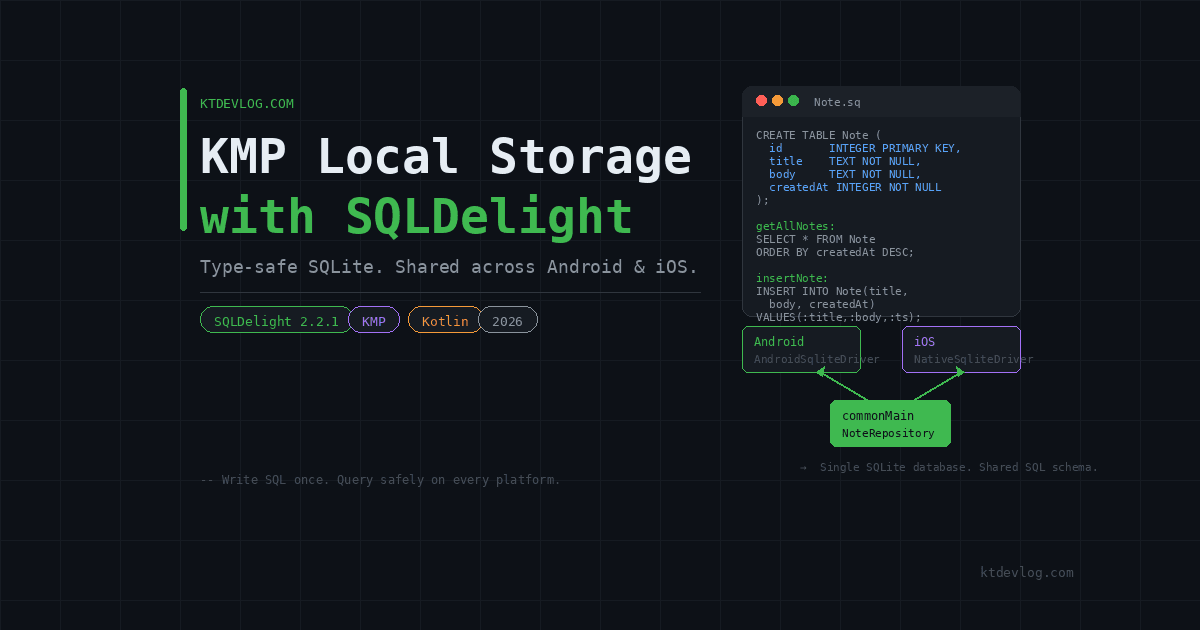
The answer is SQLDelight — the cross-platform local database library built specifically for Kotlin Multiplatform. It generates fully type-safe Kotlin APIs from plain SQL queries, runs natively on both Android and iOS, and lives entirely in your shared module. This guide walks you through the complete 2026 setup — from Gradle configuration to writing your first real query — with production-ready code at every step.

Table of Contents
What Is SQLDelight and Why Does It Work in KMP
Before touching any code, it helps to understand what SQLDelight actually does — because it’s genuinely different from Room.
Room generates Kotlin code from annotations. SQLDelight generates Kotlin code from SQL files. You write real SQL in a .sq file, SQLDelight reads it at compile time, validates it against your schema, and generates a type-safe Kotlin API you call directly from commonMain.
That compile-time validation is the part most developers love after the first week. Renamed a column? The build fails immediately — no runtime crash at 2am. Changed a query? The generated function signature changes automatically. It’s the closest thing to a compiler for your database layer.
SQLDelight is maintained by Cash App (Block Inc.) and is used in production at scale across some of the highest-traffic mobile apps in the world. The current stable version in 2026 is 2.2.1, with full support for Android, iOS, JVM, and JS targets.
Here’s the key difference from Room in one line: Room works only on Android. SQLDelight works in commonMain — shared across every platform your KMP app targets.
Step 1 — Add SQLDelight to Your Gradle Setup
Open gradle/libs.versions.toml and add the version and all required library references:
[versions]
sqldelight = "2.2.1"

[libraries]
sqldelight-runtime          = { module = "app.cash.sqldelight:runtime", version.ref = "sqldelight" }
sqldelight-coroutines       = { module = "app.cash.sqldelight:coroutines-extensions", version.ref = "sqldelight" }
sqldelight-android-driver   = { module = "app.cash.sqldelight:android-driver", version.ref = "sqldelight" }
sqldelight-native-driver    = { module = "app.cash.sqldelight:native-driver", version.ref = "sqldelight" }

[plugins]
sqldelight = { id = "app.cash.sqldelight", version.ref = "sqldelight" }Now open your root build.gradle.kts and apply the plugin:
plugins {
    alias(libs.plugins.sqldelight) apply false
}Then open your shared module’s build.gradle.kts and do three things — apply the plugin, configure the database, and add the source set dependencies:
plugins {
    alias(libs.plugins.sqldelight)
}

sqldelight {
    databases {
        create("AppDatabase") {
            packageName.set("com.ktdevlog.db")
        }
    }
}

kotlin {
    sourceSets {
        commonMain.dependencies {
            implementation(libs.sqldelight.runtime)
            implementation(libs.sqldelight.coroutines)
        }
        androidMain.dependencies {
            implementation(libs.sqldelight.android.driver)
        }
        iosMain.dependencies {
            implementation(libs.sqldelight.native.driver)
        }
    }
}Important: The packageName you set here must match the folder structure where you’ll place your .sq files. Getting this wrong is the single most common setup mistake — and it produces no error, just silently generates nothing.
Sync Gradle. If it builds clean without errors, you’re ready for the next step.
Step 2 — Create Your .sq Schema File
This is where SQLDelight is completely different from anything you’ve done before. There’s no annotation. No @Entity or @Dao. You write plain SQL in a file with a .sq extension.
Create this folder structure inside your shared module:
shared/src/commonMain/sqldelight/com/ktdevlog/db/The folder path after sqldelight/ must match your packageName exactly — com/ktdevlog/db/ for com.ktdevlog.db.
Inside that folder, create a file called Note.sq:
CREATE TABLE Note (
    id          INTEGER NOT NULL PRIMARY KEY AUTOINCREMENT,
    title       TEXT    NOT NULL,
    body        TEXT    NOT NULL,
    createdAt   INTEGER NOT NULL
);

getAllNotes:
SELECT * FROM Note
ORDER BY createdAt DESC;

getNoteById:
SELECT * FROM Note
WHERE id = :id;

insertNote:
INSERT INTO Note (title, body, createdAt)
VALUES (:title, :body, :createdAt);

updateNote:
UPDATE Note
SET title = :title, body = :body
WHERE id = :id;

deleteNote:
DELETE FROM Note
WHERE id = :id;

deleteAllNotes:
DELETE FROM Note;The labels before each statement — getAllNotes:, insertNote:, and so on — become the exact function names on your generated Kotlin API. SQLDelight reads this file, validates every statement against the schema at compile time, and generates a NoteQueries class in com.ktdevlog.db.
Pro tip: Install the SQLDelight plugin from the Android Studio plugin marketplace. It gives you SQL syntax highlighting, autocomplete, and real-time query validation directly inside your .sq files. It’s free and makes the experience significantly smoother.
Step 3 — Create the DatabaseDriverFactory with expect/actual
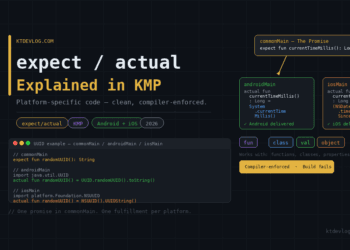
SQLDelight needs a platform-specific driver to talk to SQLite. On Android it uses AndroidSqliteDriver. On iOS it uses NativeSqliteDriver. The expect/actual pattern wires this cleanly from commonMain.
First, declare the expect class in commonMain:
// shared/src/commonMain/kotlin/com/ktdevlog/db/DatabaseDriverFactory.kt

import app.cash.sqldelight.db.SqlDriver

expect class DatabaseDriverFactory {
    fun createDriver(): SqlDriver
}

fun createDatabase(factory: DatabaseDriverFactory): AppDatabase {
    return AppDatabase(factory.createDriver())
}Now provide the actual implementation for Android:
// shared/src/androidMain/kotlin/com/ktdevlog/db/DatabaseDriverFactory.kt

import android.content.Context
import app.cash.sqldelight.driver.android.AndroidSqliteDriver

actual class DatabaseDriverFactory(private val context: Context) {
    actual fun createDriver(): SqlDriver {
        return AndroidSqliteDriver(
            schema = AppDatabase.Schema,
            context = context,
            name = "ktdevlog.db"
        )
    }
}And for iOS:
// shared/src/iosMain/kotlin/com/ktdevlog/db/DatabaseDriverFactory.kt

import app.cash.sqldelight.driver.native.NativeSqliteDriver

actual class DatabaseDriverFactory {
    actual fun createDriver(): SqlDriver {
        return NativeSqliteDriver(
            schema = AppDatabase.Schema,
            name = "ktdevlog.db"
        )
    }
}Critical iOS note: If your iOS build fails with a linker error about SQLite, open Xcode, go to your iOS target’s Build Settings, find Other Linker Flags, and add -lsqlite3. This links the native SQLite library on iOS and fixes the error immediately.
Step 4 — Build a Repository in commonMain
With the driver wired up, you can now write your full database layer entirely in commonMain. Here’s a clean NoteRepository that wraps the generated NoteQueries and exposes data as Kotlin Flow:
// shared/src/commonMain/kotlin/com/ktdevlog/db/NoteRepository.kt

import app.cash.sqldelight.coroutines.asFlow
import app.cash.sqldelight.coroutines.mapToList
import kotlinx.coroutines.Dispatchers
import kotlinx.coroutines.flow.Flow
import kotlinx.coroutines.withContext
import kotlinx.datetime.Clock

class NoteRepository(database: AppDatabase) {

    private val queries = database.noteQueries

    // Observe all notes as a reactive Flow — auto-updates on every change
    fun getAllNotes(): Flow<List<Note>> {
        return queries.getAllNotes()
            .asFlow()
            .mapToList(Dispatchers.Default)
    }

    // Insert a new note
    suspend fun insertNote(title: String, body: String) {
        withContext(Dispatchers.Default) {
            queries.insertNote(
                title = title,
                body = body,
                createdAt = Clock.System.now().toEpochMilliseconds()
            )
        }
    }

    // Update an existing note
    suspend fun updateNote(id: Long, title: String, body: String) {
        withContext(Dispatchers.Default) {
            queries.updateNote(id = id, title = title, body = body)
        }
    }

    // Delete a single note
    suspend fun deleteNote(id: Long) {
        withContext(Dispatchers.Default) {
            queries.deleteNote(id = id)
        }
    }
}The .asFlow() call is where SQLDelight shines for KMP. It hooks into SQLDelight’s query notification system — whenever any INSERT, UPDATE, or DELETE touches the Note table, the Flow automatically re-emits the updated list. Your UI stays in sync with the database without any manual refresh logic.
This entire file lives in commonMain and runs identically on Android and iOS.
Step 5 — Using the Database in Your ViewModel
The NoteRepository is shared. Now connect it to a ViewModel that both platforms can consume:
// shared/src/commonMain/kotlin/com/ktdevlog/viewmodel/NoteViewModel.kt

import kotlinx.coroutines.CoroutineScope
import kotlinx.coroutines.Dispatchers
import kotlinx.coroutines.flow.SharingStarted
import kotlinx.coroutines.flow.stateIn
import kotlinx.coroutines.launch

class NoteViewModel(private val repository: NoteRepository) {

    private val scope = CoroutineScope(Dispatchers.Default)

    val notes = repository.getAllNotes()
        .stateIn(
            scope = scope,
            started = SharingStarted.WhileSubscribed(5000),
            initialValue = emptyList()
        )

    fun addNote(title: String, body: String) {
        scope.launch { repository.insertNote(title, body) }
    }

    fun removeNote(id: Long) {
        scope.launch { repository.deleteNote(id) }
    }
}On Android, collect notes with collectAsStateWithLifecycle() in your Jetpack Compose screen. On iOS, observe it through a Swift @StateObject wrapper. The ViewModel logic — what gets stored, when it gets deleted, how the list updates — is written once and shared across both platforms.
Room vs SQLDelight in KMP: The Real Comparison
| Feature | Room | SQLDelight |
|---|---|---|
Works in commonMain | ❌ No | ✅ Yes |
| Android support | ✅ Native | ✅ Android driver |
| iOS support | ❌ Not available | ✅ Native driver |
| Query validation | Runtime | ✅ Compile time |
| API generation | From annotations | ✅ From .sq files |
| Flow / coroutines | ✅ Built-in | ✅ Via extensions |
| IDE plugin | ✅ Full support | ✅ SQLDelight plugin |
| Maintained by | Cash App (Block) |
The conclusion here is the same as Retrofit vs Ktor — Room is excellent for Android-only apps. The moment your database layer needs to be shared across platforms in KMP, SQLDelight is the only production-ready choice.
Frequently Asked Questions
Can I use Room alongside SQLDelight in a KMP project?
Yes — in separate source sets. Room works in androidMain and SQLDelight works in commonMain. But maintaining two database layers defeats the purpose of KMP. The standard approach is SQLDelight for all shared data, with Room used only if you have an existing Android codebase you’re migrating incrementally. New KMP projects should use SQLDelight exclusively.
Where exactly do I place my .sq files?
Your .sq files must go inside shared/src/commonMain/sqldelight/ followed by a folder path that exactly matches your packageName. If your packageName is com.ktdevlog.db, the correct path is shared/src/commonMain/sqldelight/com/ktdevlog/db/YourFile.sq. Putting the file in the wrong folder is the most common setup mistake — SQLDelight generates nothing and gives no error.
Why is my generated database class not found after setup?
Two things to check. First, make sure the SQLDelight Gradle plugin is applied in your shared module’s build.gradle.kts. Second, run a full Gradle build — the database class is generated during the build process, not instantly on sync. If the class still doesn’t appear, verify that your .sq file’s folder path matches the packageName exactly, character for character.
How do I handle database migrations in SQLDelight?
SQLDelight handles migrations through numbered .sqm migration files placed in the same sqldelight folder. Increment your version in the database schema and create a file like 1.sqm containing the ALTER TABLE or other migration statements. SQLDelight applies migrations automatically when the app detects a schema version change on the device.
Does SQLDelight support transactions?
Yes, fully. Wrap multiple operations in queries.transaction {} for atomic execution. If any statement inside the block throws, the entire transaction rolls back automatically. This is the correct pattern for bulk inserts or any operation where partial completion would leave your database in an inconsistent state.
Conclusion
Room is a great library. But just like Retrofit, it stops at the Android boundary. SQLDelight crosses that boundary — it runs in commonMain, generates type-safe Kotlin from plain SQL, and gives your KMP app a shared local database that works natively on both Android and iOS.
The setup takes about 20 minutes the first time. After that, every .sq file you add gives you a fully generated, compile-time-validated Kotlin API. No runtime surprises. No manual cursor mapping. No platform-specific duplication.
If you’re also setting up your networking layer in shared code, the KMP networking with Ktor guide shows how to combine Ktor and SQLDelight into a complete offline-first data layer — one of the most powerful architectural patterns in KMP development.
Local storage is the difference between an app and a reliable app. Build it shared, build it once.

Comments 1