
Most AI tutorials stop at text prompts. You type something, the model responds with something — and that’s impressive on its own. But the moment you hand Gemini an actual image and ask it to reason about what it sees, things get genuinely exciting. That is what the Gemini Vision API makes possible, and building it into an Android app is far more straightforward than most developers expect.
I spent a couple of evenings building an image analysis feature for a side project — an app that lets users photograph a plant and get an instant description, care tips, and potential identification. What surprised me most was how little code the actual AI part required once the camera setup was done. The Gemini model does the heavy lifting. Your job as an Android developer is getting a clean Bitmap into its hands.
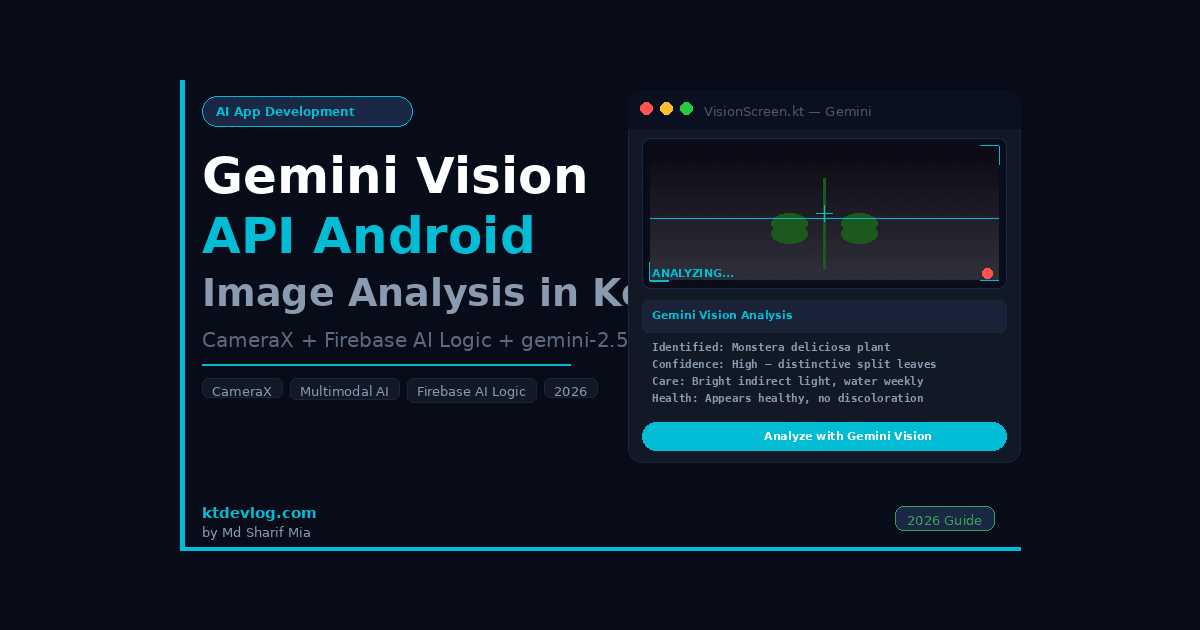
By the end of this tutorial, you’ll have a working Android app that captures a photo using CameraX, converts it to a Bitmap, sends it to gemini-2.5-flash via the Firebase AI Logic SDK, and displays the AI’s analysis in your Jetpack Compose UI. I’m testing everything on Android Studio Meerkat, API 35 emulator, Kotlin 2.0.21.


Table of Contents
What Is the Gemini Vision API — and How Does It Work on Android?
The term “Gemini Vision API” refers to Gemini’s multimodal capability — the ability to process both text and image inputs together in a single prompt. You don’t call a separate vision endpoint. You simply include a Bitmap alongside your text prompt in the same generateContent() call, and the model handles both inputs simultaneously.
This is a fundamentally different approach from older computer vision APIs like ML Kit, which required you to choose a specific task — text recognition, object detection, face detection — and configure it accordingly. Gemini Vision is open-ended. You describe what you want to know in plain language, and the model figures out how to answer it. Ask “What plant is this?” and it identifies the plant. Ask “Are there any safety hazards in this image?” and it evaluates the scene. Ask “What ingredients can I see in this photo?” and it inventories the food.
According to the official Android documentation, Firebase AI Logic provides client Android SDKs to directly integrate and call the Gemini API from client code, eliminating the need for a backend. For image analysis specifically, the SDK accepts a Bitmap object directly — no manual base64 encoding, no multipart form data, no custom HTTP headers. You pass the Bitmap, the SDK handles serialization internally.
One important fact that most tutorials skip: as of June 2026, gemini-2.0-flash and all gemini-1.5 models have been shut down by Google. Any code referencing those model names returns errors. The correct model for image analysis in 2026 is gemini-2.5-flash, which is faster, more capable, and fully supported on the free tier.
This guide doesn’t cover video analysis or audio input — those are multimodal features that deserve dedicated articles. Today we’re focused on getting image analysis right.
Project Setup and Dependencies
If you’ve already followed the Android Gemini API tutorial on KtDevLog, your Firebase project is connected and google-services.json is in place. If not, set that up first — that post walks through the complete Firebase setup from scratch.
Open your app-level build.gradle.kts and add the following:
// app/build.gradle.kts
// Dependencies for Gemini Vision API + CameraX + Jetpack Compose

plugins {
    id("com.android.application")
    id("org.jetbrains.kotlin.android")
    id("com.google.gms.google-services")
}

android {
    compileSdk = 35
    defaultConfig {
        minSdk = 21
        targetSdk = 35
    }
    buildFeatures {
        compose = true
    }
    composeOptions {
        kotlinCompilerExtensionVersion = "1.5.14"
    }
}

dependencies {
    // Firebase BoM — always use this instead of individual version numbers
    // As of June 2026, the current stable BoM is 34.12.0
    implementation(platform("com.google.firebase:firebase-bom:34.12.0"))
    implementation("com.google.firebase:firebase-ai")

    // CameraX — for capturing images from the device camera
    val cameraxVersion = "1.4.1"
    implementation("androidx.camera:camera-core:$cameraxVersion")
    implementation("androidx.camera:camera-camera2:$cameraxVersion")
    implementation("androidx.camera:camera-lifecycle:$cameraxVersion")
    implementation("androidx.camera:camera-view:$cameraxVersion")

    // Kotlin Coroutines
    implementation("org.jetbrains.kotlinx:kotlinx-coroutines-android:1.8.1")

    // ViewModel + Lifecycle
    implementation("androidx.lifecycle:lifecycle-viewmodel-ktx:2.8.7")
    implementation("androidx.lifecycle:lifecycle-runtime-ktx:2.8.7")

    // Jetpack Compose
    implementation(platform("androidx.compose:compose-bom:2024.12.01"))
    implementation("androidx.compose.ui:ui")
    implementation("androidx.compose.material3:material3")
    implementation("androidx.activity:activity-compose:1.9.3")

    // Accompanist Permissions — for requesting camera permission cleanly in Compose
    implementation("com.google.accompanist:accompanist-permissions:0.36.0")
}You also need to declare the camera permission in your AndroidManifest.xml:
<!-- AndroidManifest.xml -->
<!-- Camera permission is required for CameraX image capture -->
<uses-permission android:name="android.permission.CAMERA" />

<uses-feature
    android:name="android.hardware.camera"
android:required="false" />Setting android:required="false" means your app remains installable on devices without a camera — important for maintaining broad Play Store eligibility.
Sync your project. If Gradle completes without errors, you’re ready for the next step.
What you should see: Gradle sync completes cleanly. No unresolved reference errors on any CameraX or Firebase imports. If you see a “Failed to resolve com.google.accompanist” error, verify your settings.gradle.kts includes mavenCentral() in the repositories block.
Setting Up CameraX for Image Capture
CameraX is Google’s recommended camera library for Android as of 2026. It handles the enormous complexity of the Android camera hardware abstraction layer — different manufacturers implement the camera2 API differently, and CameraX papers over those inconsistencies so you don’t have to.
Create a new file called CameraManager.kt:
// CameraManager.kt
// Handles CameraX initialization and image capture
// Returns a Bitmap that can be passed directly to the Gemini Vision API

import android.content.Context
import android.graphics.Bitmap
import android.graphics.BitmapFactory
import android.graphics.Matrix
import androidx.camera.core.*
import androidx.camera.lifecycle.ProcessCameraProvider
import androidx.camera.view.PreviewView
import androidx.core.content.ContextCompat
import androidx.lifecycle.LifecycleOwner
import java.util.concurrent.Executors
import kotlin.coroutines.resume
import kotlin.coroutines.suspendCoroutine

class CameraManager(private val context: Context) {

    private var imageCapture: ImageCapture? = null
    private val cameraExecutor = Executors.newSingleThreadExecutor()

    // Binds the camera preview and capture use cases to the lifecycle
    fun startCamera(
        lifecycleOwner: LifecycleOwner,
        previewView: PreviewView
    ) {
        val cameraProviderFuture = ProcessCameraProvider.getInstance(context)

        cameraProviderFuture.addListener({
            val cameraProvider = cameraProviderFuture.get()

            // Preview use case — shows the live camera feed
            val preview = Preview.Builder()
                .build()
                .also { it.setSurfaceProvider(previewView.surfaceProvider) }

            // ImageCapture use case — used to take still photos
            imageCapture = ImageCapture.Builder()
                .setCaptureMode(ImageCapture.CAPTURE_MODE_MINIMIZE_LATENCY)
                .build()

            // Use the back camera by default
            val cameraSelector = CameraSelector.DEFAULT_BACK_CAMERA

            try {
                cameraProvider.unbindAll()
                cameraProvider.bindToLifecycle(
                    lifecycleOwner,
                    cameraSelector,
                    preview,
                    imageCapture
                )
            } catch (e: Exception) {
                e.printStackTrace()
            }
        }, ContextCompat.getMainExecutor(context))
    }

    // Captures a photo and returns it as a Bitmap
    // This is a suspend function — call it from a coroutine
    suspend fun capturePhoto(): Bitmap? = suspendCoroutine { continuation ->
        val capture = imageCapture ?: run {
            continuation.resume(null)
            return@suspendCoroutine
        }

        capture.takePicture(
            cameraExecutor,
            object : ImageCapture.OnImageCapturedCallback() {
                override fun onCaptureSuccess(image: ImageProxy) {
                    val bitmap = imageProxyToBitmap(image)
                    image.close()
                    continuation.resume(bitmap)
                }

                override fun onError(exception: ImageCaptureException) {
                    continuation.resume(null)
                }
            }
        )
    }

    // Converts an ImageProxy from CameraX to a correctly-oriented Bitmap
    private fun imageProxyToBitmap(image: ImageProxy): Bitmap {
        val buffer = image.planes[0].buffer
        val bytes = ByteArray(buffer.remaining())
        buffer.get(bytes)

        val bitmap = BitmapFactory.decodeByteArray(bytes, 0, bytes.size)

        // Apply rotation correction — CameraX images often arrive rotated
        val matrix = Matrix().apply {
            postRotate(image.imageInfo.rotationDegrees.toFloat())
        }

        return Bitmap.createBitmap(bitmap, 0, 0, bitmap.width, bitmap.height, matrix, true)
    }

    fun shutdown() {
        cameraExecutor.shutdown()
    }
}The rotation correction in imageProxyToBitmap is something I missed the first time I built this, and it cost me two hours of debugging. CameraX delivers images in the sensor’s native orientation, which is often landscape even when the phone is held in portrait. The imageInfo.rotationDegrees value tells you exactly how much to rotate the Bitmap to match what the user actually saw in the preview. Skip this and Gemini receives a sideways image — which it can still analyze, but your UI will look broken.
What you should see: No compilation errors in CameraManager.kt. The class has no dependencies on Android UI components directly — it accepts a LifecycleOwner and a PreviewView, which makes it easy to test and reuse.
Building the Gemini Vision Repository
Create VisionRepository.kt:
// VisionRepository.kt
// Sends a Bitmap + text prompt to Gemini Vision API
// Uses Firebase AI Logic SDK with gemini-2.5-flash

import android.graphics.Bitmap
import com.google.firebase.Firebase
import com.google.firebase.ai.ai
import com.google.firebase.ai.type.GenerativeBackend
import com.google.firebase.ai.type.content
import com.google.firebase.ai.type.generationConfig

class VisionRepository {

    // Initialize the model with gemini-2.5-flash
    // This model supports multimodal input (text + image) natively
    // As of June 2026 — do NOT use gemini-2.0-flash (it was shut down on June 1, 2026)
    private val model = Firebase.ai(backend = GenerativeBackend.googleAI())
        .generativeModel(
            modelName = "gemini-2.5-flash",
            generationConfig = generationConfig {
                temperature = 0.4f   // Lower temperature = more factual, less creative
                maxOutputTokens = 1024
            }
        )

    // Sends a Bitmap and a text prompt to the Gemini Vision API
    // The content {} builder handles image serialization internally
    suspend fun analyzeImage(bitmap: Bitmap, prompt: String): Result<String> {
        return try {
            // Build a multimodal prompt — image first, then text instruction
            val content = content {
                image(bitmap)   // Pass the Bitmap directly — no base64 encoding needed
                text(prompt)
            }

            val response = model.generateContent(content)
            val text = response.text

            if (text != null) {
                Result.success(text)
            } else {
                Result.failure(Exception("No analysis returned from model"))
            }
        } catch (e: Exception) {
            Result.failure(e)
        }
    }
}The content { image(bitmap) text(prompt) } block is the entire multimodal magic. The Firebase AI Logic SDK serializes the Bitmap internally and bundles it with your text prompt into a single API request. You don’t touch base64 encoding, MIME types, or request body construction — the SDK handles all of it.
Notice temperature = 0.4f — lower than the 0.8f I used for the chatbot tutorial. For image analysis tasks, you generally want the model to be more precise and factual rather than creative. A temperature of 0.4f keeps the responses grounded in what the model actually sees rather than extrapolating creatively.
What you should see: No compilation errors. The content {} builder is part of the Firebase AI Logic SDK and imports from com.google.firebase.ai.type.content.
ViewModel and State Management
Create VisionViewModel.kt:
// VisionViewModel.kt
// Coordinates camera capture, image analysis, and UI state

import android.graphics.Bitmap
import androidx.lifecycle.ViewModel
import androidx.lifecycle.viewModelScope
import kotlinx.coroutines.flow.MutableStateFlow
import kotlinx.coroutines.flow.StateFlow
import kotlinx.coroutines.flow.asStateFlow
import kotlinx.coroutines.launch

class VisionViewModel : ViewModel() {

    private val repository = VisionRepository()

    // The captured image — shown as a preview in the UI
    private val _capturedImage = MutableStateFlow<Bitmap?>(null)
    val capturedImage: StateFlow<Bitmap?> = _capturedImage.asStateFlow()

    // The analysis result text returned by Gemini
    private val _analysisResult = MutableStateFlow<String?>(null)
    val analysisResult: StateFlow<String?> = _analysisResult.asStateFlow()

    // Controls loading state while the API call is in flight
    private val _isAnalyzing = MutableStateFlow(false)
    val isAnalyzing: StateFlow<Boolean> = _isAnalyzing.asStateFlow()

    // Error state for surface-level error display
    private val _error = MutableStateFlow<String?>(null)
    val error: StateFlow<String?> = _error.asStateFlow()

    fun onImageCaptured(bitmap: Bitmap) {
        _capturedImage.value = bitmap
        _analysisResult.value = null
        _error.value = null
    }

    fun analyzeImage(prompt: String = "Describe what you see in this image in detail.") {
        val bitmap = _capturedImage.value ?: return

        _isAnalyzing.value = true
        _error.value = null

        viewModelScope.launch {
            val result = repository.analyzeImage(bitmap, prompt)

            result.fold(
                onSuccess = { analysisText ->
                    _analysisResult.value = analysisText
                },
                onFailure = { error ->
                    _error.value = "Analysis failed: ${error.message}"
                }
            )
            _isAnalyzing.value = false
        }
    }

    fun clearImage() {
        _capturedImage.value = null
        _analysisResult.value = null
        _error.value = null
    }
}The analyzeImage function has a default prompt — "Describe what you see in this image in detail." — which works as a general-purpose analysis. But you can pass any prompt from the UI. This is where the power of Gemini Vision over traditional ML APIs really shows: swapping the prompt is all it takes to completely change what the model analyzes. One repository, one model, infinite analysis possibilities.
Building the Image Analysis UI in Jetpack Compose
Create VisionScreen.kt:
// VisionScreen.kt
// Full image capture and analysis UI using Jetpack Compose

import android.graphics.Bitmap
import androidx.camera.view.PreviewView
import androidx.compose.foundation.Image
import androidx.compose.foundation.background
import androidx.compose.foundation.layout.*
import androidx.compose.foundation.rememberScrollState
import androidx.compose.foundation.shape.RoundedCornerShape
import androidx.compose.foundation.verticalScroll
import androidx.compose.material.icons.Icons
import androidx.compose.material.icons.filled.Camera
import androidx.compose.material.icons.filled.Close
import androidx.compose.material3.*
import androidx.compose.runtime.*
import androidx.compose.ui.Alignment
import androidx.compose.ui.Modifier
import androidx.compose.ui.draw.clip
import androidx.compose.ui.graphics.asImageBitmap
import androidx.compose.ui.platform.LocalContext
import androidx.compose.ui.platform.LocalLifecycleOwner
import androidx.compose.ui.unit.dp
import androidx.compose.ui.viewinterop.AndroidView
import androidx.lifecycle.viewmodel.compose.viewModel
import com.google.accompanist.permissions.ExperimentalPermissionsApi
import com.google.accompanist.permissions.isGranted
import com.google.accompanist.permissions.rememberPermissionState
import kotlinx.coroutines.launch

@OptIn(ExperimentalPermissionsApi::class)
@Composable
fun VisionScreen(viewModel: VisionViewModel = viewModel()) {
    val context = LocalContext.current
    val lifecycleOwner = LocalLifecycleOwner.current
    val coroutineScope = rememberCoroutineScope()

    val capturedImage by viewModel.capturedImage.collectAsState()
    val analysisResult by viewModel.analysisResult.collectAsState()
    val isAnalyzing by viewModel.isAnalyzing.collectAsState()
    val error by viewModel.error.collectAsState()

    // Camera permission state — Accompanist handles the request flow cleanly
    val cameraPermission = rememberPermissionState(android.Manifest.permission.CAMERA)

    // CameraManager is remembered so it persists across recompositions
    val cameraManager = remember { CameraManager(context) }
    val previewView = remember { PreviewView(context) }

    // Start camera when permission is granted and no image has been captured yet
    LaunchedEffect(cameraPermission.status.isGranted, capturedImage) {
        if (cameraPermission.status.isGranted && capturedImage == null) {
            cameraManager.startCamera(lifecycleOwner, previewView)
        }
    }

    // Clean up camera executor when the composable leaves the composition
    DisposableEffect(Unit) {
        onDispose { cameraManager.shutdown() }
    }

    Scaffold(
        topBar = {
            TopAppBar(
                title = { Text("Gemini Vision Analysis") },
                colors = TopAppBarDefaults.topAppBarColors(
                    containerColor = MaterialTheme.colorScheme.primaryContainer
                )
            )
        }
    ) { paddingValues ->
        Column(
            modifier = Modifier
                .fillMaxSize()
                .padding(paddingValues)
                .verticalScroll(rememberScrollState()),
            horizontalAlignment = Alignment.CenterHorizontally
        ) {
            if (!cameraPermission.status.isGranted) {
                // Permission not granted — show request UI
                PermissionRequestCard(
                    onRequestPermission = { cameraPermission.launchPermissionRequest() }
                )
            } else if (capturedImage == null) {
                // Camera preview — live feed before capture
                CameraPreviewSection(
                    previewView = previewView,
                    onCapture = {
                        coroutineScope.launch {
                            val bitmap = cameraManager.capturePhoto()
                            if (bitmap != null) {
                                viewModel.onImageCaptured(bitmap)
                            }
                        }
                    }
                )
            } else {
                // Image captured — show preview + analysis
                CapturedImageSection(
                    bitmap = capturedImage!!,
                    analysisResult = analysisResult,
                    isAnalyzing = isAnalyzing,
                    error = error,
                    onAnalyze = { prompt -> viewModel.analyzeImage(prompt) },
                    onClear = { viewModel.clearImage() }
                )
            }
        }
    }
}

@Composable
fun PermissionRequestCard(onRequestPermission: () -> Unit) {
    Card(
        modifier = Modifier
            .fillMaxWidth()
            .padding(16.dp)
    ) {
        Column(
            modifier = Modifier.padding(24.dp),
            horizontalAlignment = Alignment.CenterHorizontally,
            verticalArrangement = Arrangement.spacedBy(12.dp)
        ) {
            Text(
                text = "Camera Permission Required",
                style = MaterialTheme.typography.titleMedium
            )
            Text(
                text = "This app needs camera access to capture images for Gemini AI analysis.",
                style = MaterialTheme.typography.bodyMedium,
                color = MaterialTheme.colorScheme.onSurfaceVariant
            )
            Button(onClick = onRequestPermission) {
                Text("Grant Camera Permission")
            }
        }
    }
}

@Composable
fun CameraPreviewSection(
    previewView: PreviewView,
    onCapture: () -> Unit
) {
    Column(
        horizontalAlignment = Alignment.CenterHorizontally,
        verticalArrangement = Arrangement.spacedBy(12.dp),
        modifier = Modifier.padding(16.dp)
    ) {
        // Live camera preview using AndroidView interop
        AndroidView(
            factory = { previewView },
            modifier = Modifier
                .fillMaxWidth()
                .aspectRatio(4f / 3f)
                .clip(RoundedCornerShape(12.dp))
        )

        Button(
            onClick = onCapture,
            modifier = Modifier.fillMaxWidth()
        ) {
            Icon(Icons.Default.Camera, contentDescription = null)
            Spacer(Modifier.width(8.dp))
            Text("Capture Image")
        }
    }
}

@Composable
fun CapturedImageSection(
    bitmap: Bitmap,
    analysisResult: String?,
    isAnalyzing: Boolean,
    error: String?,
    onAnalyze: (String) -> Unit,
    onClear: () -> Unit
) {
    var customPrompt by remember {
        mutableStateOf("Describe what you see in this image in detail.")
    }

    Column(
        modifier = Modifier
            .fillMaxWidth()
            .padding(16.dp),
        verticalArrangement = Arrangement.spacedBy(12.dp)
    ) {
        // Captured image preview
        Box(modifier = Modifier.fillMaxWidth()) {
            Image(
                bitmap = bitmap.asImageBitmap(),
                contentDescription = "Captured image for Gemini Vision analysis",
                modifier = Modifier
                    .fillMaxWidth()
                    .aspectRatio(4f / 3f)
                    .clip(RoundedCornerShape(12.dp))
            )
            // Retake button — top right corner
            IconButton(
                onClick = onClear,
                modifier = Modifier.align(Alignment.TopEnd)
            ) {
                Icon(
                    Icons.Default.Close,
                    contentDescription = "Retake photo",
                    tint = MaterialTheme.colorScheme.error
                )
            }
        }

        // Custom prompt input
        OutlinedTextField(
            value = customPrompt,
            onValueChange = { customPrompt = it },
            label = { Text("Analysis prompt") },
            modifier = Modifier.fillMaxWidth(),
            minLines = 2,
            enabled = !isAnalyzing
        )

        // Analyze button
        Button(
            onClick = { onAnalyze(customPrompt) },
            modifier = Modifier.fillMaxWidth(),
            enabled = !isAnalyzing
        ) {
            if (isAnalyzing) {
                CircularProgressIndicator(
                    modifier = Modifier.size(18.dp),
                    strokeWidth = 2.dp,
                    color = MaterialTheme.colorScheme.onPrimary
                )
                Spacer(Modifier.width(8.dp))
                Text("Analyzing...")
            } else {
                Text("Analyze with Gemini Vision")
            }
        }

        // Error display
        error?.let {
            Card(
                colors = CardDefaults.cardColors(
                    containerColor = MaterialTheme.colorScheme.errorContainer
                ),
                modifier = Modifier.fillMaxWidth()
            ) {
                Text(
                    text = it,
                    modifier = Modifier.padding(12.dp),
                    color = MaterialTheme.colorScheme.onErrorContainer,
                    style = MaterialTheme.typography.bodySmall
                )
            }
        }

        // Analysis result display
        analysisResult?.let { result ->
            Card(
                modifier = Modifier.fillMaxWidth(),
                colors = CardDefaults.cardColors(
                    containerColor = MaterialTheme.colorScheme.surfaceVariant
                )
            ) {
                Column(modifier = Modifier.padding(16.dp)) {
                    Text(
                        text = "Gemini Vision Analysis",
                        style = MaterialTheme.typography.titleSmall,
                        color = MaterialTheme.colorScheme.primary
                    )
                    Spacer(Modifier.height(8.dp))
                    Text(
                        text = result,
                        style = MaterialTheme.typography.bodyMedium,
                        color = MaterialTheme.colorScheme.onSurfaceVariant
                    )
                }
            }
        }
    }
}Wire it up in MainActivity.kt:
// MainActivity.kt
// Entry point for the Gemini Vision API tutorial app

import android.os.Bundle
import androidx.activity.ComponentActivity
import androidx.activity.compose.setContent
import androidx.activity.enableEdgeToEdge

class MainActivity : ComponentActivity() {
    override fun onCreate(savedInstanceState: Bundle?) {
        super.onCreate(savedInstanceState)
        enableEdgeToEdge()
        setContent {
            MaterialTheme {
                VisionScreen()
            }
        }
    }
}What you should see: The app launches and immediately requests camera permission. After granting it, a live camera preview fills the screen. Tapping “Capture Image” freezes the frame and displays it as a still image. The default analysis prompt is pre-filled. Tapping “Analyze with Gemini Vision” disables the button, shows a loading spinner, and within 2–5 seconds displays a detailed text analysis of the image in a card below. The X button in the top-right corner of the captured image clears everything and returns to the live camera preview.
The Prompt Is the Feature
Here’s the original insight that changes how you think about building with Gemini Vision — and that I wish someone had told me before I started.
With traditional computer vision APIs, the capability is fixed. ML Kit’s object detector detects objects. Its text recognizer recognizes text. You can’t ask ML Kit to “identify the emotion on this person’s face” or “suggest a recipe based on these ingredients.” Each capability requires a different API, different setup, and different output parsing.
With Gemini Vision, the entire capability lives in the prompt. Your VisionRepository doesn’t need to change at all to support completely different analysis tasks. Want to build a food calorie estimator? Change the prompt to "Estimate the calorie count of the food visible in this image." Building a document scanner that extracts key information? Change the prompt to "Extract all text, dates, and monetary amounts from this document." Want a homework helper that explains math problems? "Solve the math problem shown in this image and explain each step."
One repository, one model, one generateContent() call — infinite use cases. That architecture shift is what makes Gemini Vision genuinely different from everything that came before it. I’ve compared both approaches in real projects, and the flexibility of prompt-based vision is something you have to build with to fully appreciate.
Always test in your own environment before using in production.
Common Errors and Fixes
CameraAccessException: CAMERA_DISABLED Camera permission was granted but then revoked in device settings while the app was running. The LaunchedEffect in VisionScreen only fires when cameraPermission.status.isGranted changes — handle this edge case by checking permission status in onResume using a LifecycleEventObserver.
Image appears rotated 90 degrees in the preview or the AI analysis You’re passing the raw ImageProxy bytes to BitmapFactory.decodeByteArray without applying the rotation matrix. Make sure imageProxyToBitmap applies postRotate(image.imageInfo.rotationDegrees.toFloat()) as shown in this tutorial. This is one of the most common CameraX mistakes and it’s completely silent — no crash, just a wrong orientation.
Unresolved reference: image inside the content {} builder You’re missing the import for com.google.firebase.ai.type.content. Make sure the content function is imported correctly — Android Studio sometimes auto-imports the wrong content function from Compose.
GenerateContentException: Request payload too large The Bitmap you’re sending is too large. Resize it before passing to generateContent(). A width of 1024px is more than sufficient for most vision tasks — use Bitmap.createScaledBitmap(original, 1024, (1024 * original.height / original.width), true) before passing to the repository.
Analysis returns empty with no error The model’s safety filters blocked the response. Log the full GenerateContentResponse and check candidates.first().finishReason. A SAFETY finish reason means the content or prompt triggered a filter. Adjust your prompt to be more neutral.
FirebaseApp is not initialized crash on launch Your google-services.json is missing or placed in the wrong directory. It must be inside /app/, not the project root. Switch to the “Project” file view in Android Studio to verify the exact location.
FAQ
Does the Gemini Vision API work on all Android devices?
The Gemini Vision API calls are made to Google’s cloud servers — so any Android device with an internet connection and API 21+ can use it, regardless of the device’s processing power. The on-device hardware only needs to run your app and CameraX. All AI computation happens server-side, which is a significant advantage over on-device models that require specific chipsets.
How large can the image be?
The Firebase AI Logic SDK has a practical limit of 20MB for inline image data. In practice, the Bitmap captured by CameraX on a modern phone can be several megabytes. If you hit size limits, resize the Bitmap to a maximum width of 1024–1280px before passing it to generateContent(). Gemini Vision doesn’t need full sensor resolution to analyze images accurately.
Can I analyze multiple images in a single request?
Yes — the content {} builder supports multiple image() calls in a single prompt. Add image(bitmap1) and image(bitmap2) before your text() call, and the model receives all images simultaneously. This is useful for comparison tasks like “What’s different between these two images?” or “Which product in these photos matches the description?”
Is the Gemini Vision API free to use?
The Gemini Developer API free tier covers image analysis requests — no credit card required to follow this tutorial. Rate limits apply, and high-volume production apps should evaluate the paid tier. For development, learning, and small-scale apps, the free tier is entirely adequate. Check the Firebase AI Logic documentation for current rate limit details.
How do I handle the case where the camera isn’t available on a device?
Set android:required="false" for the camera feature in your manifest (as shown in this tutorial) and check packageManager.hasSystemFeature(PackageManager.FEATURE_CAMERA_ANY) at runtime. If no camera is available, you can fall back to letting users pick an image from the gallery using ActivityResultContracts.GetContent() and decode the selected image as a Bitmap to pass to the same VisionRepository.
What You’ve Built — and Where to Go Next
You now have a complete Android app that captures real camera images and sends them to gemini-2.5-flash for AI analysis. CameraX handles the camera complexity. The Firebase AI Logic SDK handles the API communication. Your VisionRepository connects the two with a clean, reusable interface that you can plug into any future project that needs image understanding.
The prompt-based approach means this same architecture supports dozens of different use cases without changing a single line of code in the repository — only the prompt changes. That’s the real power of building with Gemini Vision.
If you want to go deeper on the Jetpack Compose patterns used in this tutorial, the Jetpack Compose animations tutorial on KtDevLog covers how to add polished transitions to screens like this one. And if you missed the foundation — setting up the Firebase AI Logic SDK from scratch — the Android Gemini API tutorial walks through the complete project setup.
The next post in this AI App Development series covers streaming text-to-speech responses — reading Gemini’s analysis results aloud using Android’s modern TTS engine: Android Text-to-Speech Tutorial for AI Chatbot Applications.
Always test in your own environment before using in production.