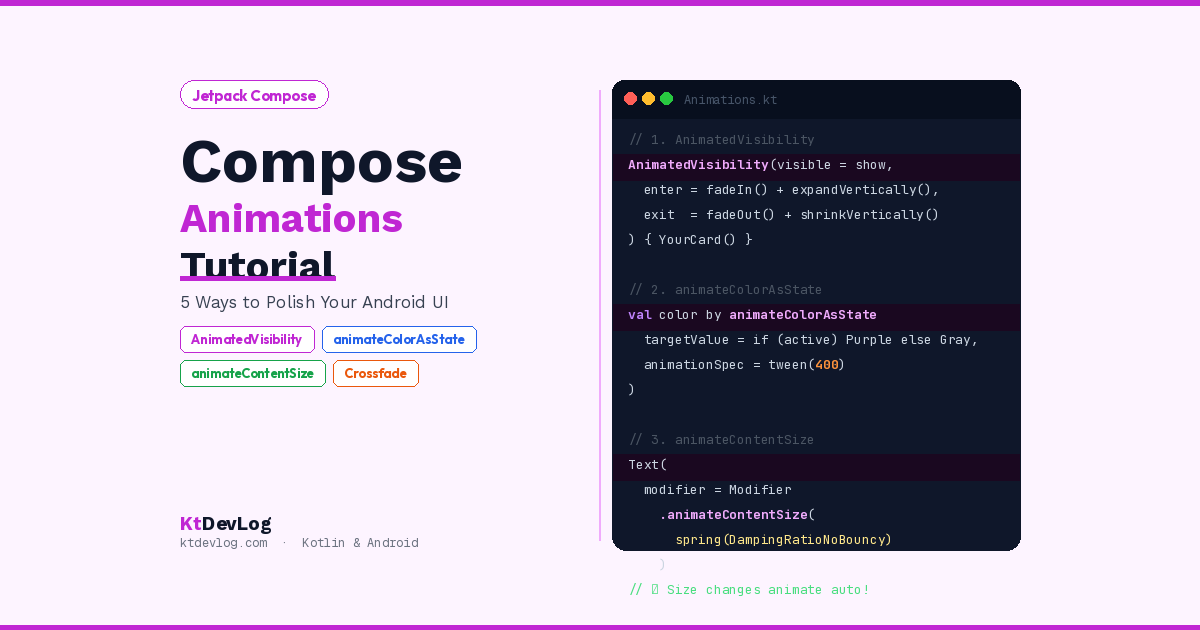

There’s a specific moment in app development when everything starts feeling real. Not when you get the layout right. Not when the data loads correctly. It’s when things start moving.
A button that fades in. A card that expands smoothly. A colour that transitions instead of snapping. A loading spinner that slides out when content arrives. These are the details that separate an app that works from an app that feels genuinely polished — and this Jetpack Compose animations tutorial shows you exactly how to build them.
In Jetpack Compose, adding animations is far simpler than you might think. This tutorial covers five practical animation APIs you’ll actually use in real apps — no complex math, no canvas drawing, just the right composable or modifier for each situation with clear examples you can drop into your project today.


Table of Contents
Jetpack Compose Animations Tutorial: Why Motion Matters
Before writing a single line of animation code, it’s worth being honest about when animations help and when they hurt.
Good animations do one thing: they communicate. A fade-in tells the user “this content just appeared.” A slide-out says “this item was removed.” A colour change says “something about this element’s state just changed.” Every animation should have a reason.
Bad animations distract, confuse, or slow the user down. An overly long fade on a loading spinner that the user sees fifty times a day isn’t polish — it’s friction. According to the official Jetpack Compose animation documentation, animations are most effective when they respond to user actions and reinforce the mental model of your UI.
The Jetpack Compose animations tutorial API divides into three levels of complexity:
| Level | APIs | Best for |
|---|---|---|
| High-level | AnimatedVisibility, AnimatedContent, Crossfade | Show/hide, content switching |
| State-based | animate*AsState | Single property changes |
| Low-level | Animatable, Transition | Complex custom animations |
This tutorial focuses on the high-level and state-based APIs — the ones that cover 90% of real-world needs.
1. AnimatedVisibility — Show and Hide With Polish
AnimatedVisibility is the first composable every Jetpack Compose animations tutorial should start with — and it’s the right first stop. It animates the appearance and disappearance of any composable with a single visible boolean.
@Composable
fun BasicAnimatedVisibility() {
    var isVisible by remember { mutableStateOf(false) }

    Column(
        modifier = Modifier
            .fillMaxSize()
            .padding(24.dp),
        horizontalAlignment = Alignment.CenterHorizontally,
        verticalArrangement = Arrangement.Center
    ) {
        Button(onClick = { isVisible = !isVisible }) {
            Text(if (isVisible) "Hide" else "Show")
        }

        Spacer(modifier = Modifier.height(16.dp))

        AnimatedVisibility(visible = isVisible) {
            Card(
                modifier = Modifier.fillMaxWidth(),
                shape = RoundedCornerShape(12.dp)
            ) {
                Text(
                    text = "Welcome to KtDevLog!",
                    modifier = Modifier.padding(24.dp),
                    fontSize = 18.sp
                )
            }
        }
    }
}By default, AnimatedVisibility fades in and expands when visible becomes true, and fades out and shrinks when it becomes false. That’s already a significant improvement over instant appearing and disappearing.
Custom Enter and Exit Transitions
The real power is in the enter and exit parameters. You can combine multiple transitions using the + operator:
AnimatedVisibility(
    visible = isVisible,
    enter = fadeIn(animationSpec = tween(300)) +
            slideInVertically(
                initialOffsetY = { -40 },
                animationSpec  = tween(300)
            ),
    exit = fadeOut(animationSpec = tween(200)) +
           slideOutVertically(
               targetOffsetY = { -40 },
               animationSpec = tween(200)
           )
) {
    Text("I slide in from above and fade out!")
}Available enter transitions: fadeIn, slideInVertically, slideInHorizontally, expandVertically, expandHorizontally, scaleIn
Available exit transitions: fadeOut, slideOutVertically, slideOutHorizontally, shrinkVertically, shrinkHorizontally, scaleOut
Real-World Pattern — Expandable Card
This is one of the most used AnimatedVisibility patterns in production apps — an expandable card that reveals extra content on tap:
@Composable
fun ExpandableCard(title: String, content: String) {
    var isExpanded by remember { mutableStateOf(false) }

    Card(
        modifier = Modifier
            .fillMaxWidth()
            .clickable { isExpanded = !isExpanded },
        shape = RoundedCornerShape(12.dp),
        elevation = CardDefaults.cardElevation(defaultElevation = 2.dp)
    ) {
        Column(modifier = Modifier.padding(16.dp)) {
            Row(
                modifier = Modifier.fillMaxWidth(),
                horizontalArrangement = Arrangement.SpaceBetween,
                verticalAlignment = Alignment.CenterVertically
            ) {
                Text(text = title, fontWeight = FontWeight.Bold, fontSize = 16.sp)
                Icon(
                    imageVector = if (isExpanded)
                        Icons.Default.ExpandLess else Icons.Default.ExpandMore,
                    contentDescription = if (isExpanded) "Collapse" else "Expand"
                )
            }

            AnimatedVisibility(
                visible = isExpanded,
                enter = expandVertically(tween(300)) + fadeIn(tween(300)),
                exit  = shrinkVertically(tween(200)) + fadeOut(tween(200))
            ) {
                Text(
                    text = content,
                    modifier = Modifier.padding(top = 12.dp),
                    color = Color(0xFF64748B),
                    fontSize = 14.sp
                )
            }
        }
    }
}The ExpandMore/ExpandLess icon swap combined with the expandVertically animation makes the interaction feel completely natural. This exact pattern appears in settings screens, FAQ sections, and product description cards across the Play Store.
2. animateColorAsState — Smooth Colour Transitions
Instant colour changes feel abrupt. animateColorAsState makes any colour change smooth automatically — the colour interpolates from the old value to the new one with no manual animation code.
@Composable
fun AnimatedColorButton() {
    var isActive by remember { mutableStateOf(false) }

    val backgroundColor by animateColorAsState(
        targetValue   = if (isActive) Color(0xFF7C3AED) else Color(0xFFE2E8F0),
        animationSpec = tween(durationMillis = 400),
        label         = "buttonColor"
    )

    val textColor by animateColorAsState(
        targetValue   = if (isActive) Color.White else Color(0xFF1E293B),
        animationSpec = tween(durationMillis = 400),
        label         = "textColor"
    )

    Box(
        modifier = Modifier
            .fillMaxWidth()
            .height(52.dp)
            .clip(RoundedCornerShape(12.dp))
            .background(backgroundColor)
            .clickable { isActive = !isActive },
        contentAlignment = Alignment.Center
    ) {
        Text(
            text = if (isActive) "Active ✓" else "Tap to activate",
            color = textColor,
            fontWeight = FontWeight.Bold
        )
    }
}The Performance-Correct Way to Animate Background Color
Here’s an important 2026 tip from the official Android documentation that most Jetpack Compose animations tutorials skip. When animating background colour over time, Modifier.background(animatedColor) can cause more recompositions than necessary. The recommended approach is Modifier.drawBehind:
val animatedColor by animateColorAsState(
    targetValue = if (isHighlighted) Color(0xFFEDE9FE) else Color.White,
    label = "cardBackground"
)

Box(
    modifier = Modifier
        .fillMaxWidth()
        .drawBehind {
            drawRect(animatedColor)  // ✅ More performant
        }
        .padding(16.dp)
) {
    Text("Animated background card")
}drawBehind draws directly to the canvas without triggering layout recomposition — noticeably more efficient for frequently-updating colour animations.
3. animate*AsState — Animate Any Single Value
animateColorAsState is one member of a family of functions that animate individual values. The animate*AsState pattern works for Float, Dp, Size, Offset, Int, and more:
@Composable
fun AnimatedSizeCard() {
    var isExpanded by remember { mutableStateOf(false) }

    val cardHeight by animateDpAsState(
        targetValue   = if (isExpanded) 200.dp else 80.dp,
        animationSpec = spring(
            dampingRatio = Spring.DampingRatioMediumBouncy,
            stiffness    = Spring.StiffnessLow
        ),
        label = "cardHeight"
    )

    val cornerRadius by animateDpAsState(
        targetValue   = if (isExpanded) 24.dp else 12.dp,
        animationSpec = tween(300),
        label         = "cornerRadius"
    )

    Card(
        modifier = Modifier
            .fillMaxWidth()
            .height(cardHeight)
            .clickable { isExpanded = !isExpanded },
        shape = RoundedCornerShape(cornerRadius)
    ) {
        Box(
            modifier = Modifier.fillMaxSize().padding(16.dp),
            contentAlignment = Alignment.Center
        ) {
            Text(if (isExpanded) "Tap to collapse" else "Tap to expand")
        }
    }
}Spring vs Tween — Choosing Your Animation Feel
Every animate*AsState function accepts an animationSpec that controls how the animation moves:
tween(durationMillis, easing) — time-based. Runs for a fixed duration. Good for colour changes and opacity.
animationSpec = tween(durationMillis = 400, easing = FastOutSlowInEasing)spring(dampingRatio, stiffness) — physics-based. Simulates a real spring, can bounce. Feels more natural for size and position changes.
animationSpec = spring(
    dampingRatio = Spring.DampingRatioMediumBouncy,
    stiffness    = Spring.StiffnessLow
)The official Android documentation recommends preferring spring for animations that follow user gestures — it feels physically responsive. Use tween when you need precise timing.
4. animateContentSize — Size Changes Made Easy
This is a single modifier that smoothly animates any size change in a composable. No state tracking. No animation spec boilerplate. Just add the modifier and Compose handles the rest:
@Composable
fun ExpandableText(fullText: String, previewLines: Int = 3) {
    var isExpanded by remember { mutableStateOf(false) }

    Column(modifier = Modifier.fillMaxWidth()) {
        Text(
            text     = fullText,
            maxLines = if (isExpanded) Int.MAX_VALUE else previewLines,
            overflow = TextOverflow.Ellipsis,
            modifier = Modifier
                .animateContentSize(
                    animationSpec = spring(
                        dampingRatio = Spring.DampingRatioNoBouncy,
                        stiffness    = Spring.StiffnessMedium
                    )
                )
        )

        TextButton(onClick = { isExpanded = !isExpanded }) {
            Text(if (isExpanded) "Show less" else "Show more")
        }
    }
}When maxLines changes and the text reflows to a different height, animateContentSize smoothly transitions between the old and new height automatically. This works for any composable whose size changes dynamically — Card contents that grow, text that expands, images that load.
5. Crossfade — Smooth Content Transitions
Crossfade animates between two different composables — fading out the old one while fading in the new. It’s perfect for switching between loading, error, and content states:
@Composable
fun CrossfadeExample() {
    var currentScreen by remember { mutableStateOf("loading") }

    Column(modifier = Modifier.fillMaxSize()) {
        Crossfade(
            targetState  = currentScreen,
            animationSpec = tween(500),
            label        = "screenTransition"
        ) { screen ->
            when (screen) {
                "loading" -> LoadingContent()
                "content" -> MainContent()
                "error"   -> ErrorContent()
            }
        }

        Row(
            modifier = Modifier.padding(16.dp),
            horizontalArrangement = Arrangement.spacedBy(8.dp)
        ) {
            Button(onClick = { currentScreen = "loading" }) { Text("Loading") }
            Button(onClick = { currentScreen = "content" }) { Text("Content") }
            Button(onClick = { currentScreen = "error" })   { Text("Error") }
        }
    }
}

@Composable fun LoadingContent() {
    Box(Modifier.fillMaxSize(), contentAlignment = Alignment.Center) {
        CircularProgressIndicator(color = Color(0xFF7C3AED))
    }
}

@Composable fun MainContent() {
    Box(Modifier.fillMaxSize(), contentAlignment = Alignment.Center) {
        Text("Content loaded! 🎉", fontSize = 24.sp)
    }
}

@Composable fun ErrorContent() {
    Box(Modifier.fillMaxSize(), contentAlignment = Alignment.Center) {
        Text("Something went wrong.", color = Color(0xFFDC2626))
    }
}This pattern pairs perfectly with Kotlin sealed classes for UI state — your Loading, Success, and Error states map directly to what Crossfade switches between.
Jetpack Compose Animations Tutorial: Performance Tips
A few rules that keep Compose animations tutorial patterns smooth on real devices:
Keep animated composables simple. The more complex a composable inside AnimatedVisibility, the more work Compose does on every animation frame. Extract animated content into small, focused composables.
Always add the label parameter to every animate*AsState call — it helps Android Studio’s animation inspector identify your animations during debugging:
val color by animateColorAsState(targetValue = myColor, label = "buttonColor")Avoid animating inside LazyColumn items without key. Without stable keys, list animations don’t work correctly. Always use key = { item.id } when you want animateItemPlacement() to work in lists.
Test on a real device. The emulator GPU is software-rendered and significantly slower than real hardware. Always benchmark animations on a physical device.
Frequently Asked Questions
Jetpack Compose Animations Tutorial Basics
What is AnimatedVisibility in Jetpack Compose?
AnimatedVisibility is a composable that animates the appearance and disappearance of its content based on a visible boolean. When visible changes to true, the content animates in using the enter transitions. When it changes to false, it animates out using the exit transitions and is eventually removed from the composition. The default animation is a fade combined with an expand/shrink.
What is the difference between AnimatedVisibility and alpha animation in Compose?
AnimatedVisibility eventually removes the composable from the composition when invisible — it no longer occupies space and is not accessible to screen readers. Animating alpha to 0 keeps the composable in its layout position — invisible but still occupying space. Use AnimatedVisibility when you want the element to truly disappear. Use alpha when you want to fade without affecting layout.
Choosing the Right Animation API
When should I use animate*AsState vs AnimatedVisibility in this tutorial?
Use animate*AsState — like animateColorAsState or animateDpAsState — when you want to animate a single property of an existing composable. The composable stays in the composition; only one value changes smoothly. Use AnimatedVisibility when you want to animate the entire appearance and disappearance of a composable — adding it to and removing it from the UI tree entirely.
What is the difference between tween and spring in Jetpack Compose animations?
tween runs for a fixed duration in milliseconds and follows an easing curve — predictable, good for colour and opacity changes. spring simulates physical behaviour — it can overshoot and bounce, duration isn’t fixed. Spring feels more natural for size, position, and gesture-driven changes. The official Android recommendation is to prefer spring for gesture-following animations and tween when you need exact timing.
What does animateContentSize do in Jetpack Compose?
animateContentSize() is a modifier that automatically animates any size change in the composable it’s applied to. When content causes a size change — like text expanding from 3 lines to full — the height transition animates smoothly without any additional state management. It accepts an optional animationSpec for customising the animation feel.
Conclusion
This Jetpack Compose animations tutorial covered five practical APIs that cover the vast majority of animation needs in real Android apps — AnimatedVisibility, animateColorAsState, animate*AsState, animateContentSize, and Crossfade.
Start with AnimatedVisibility on your next show/hide element. Add animateColorAsState to a button or card that changes states. Drop animateContentSize on your expandable text and watch it feel immediately more polished. Each of these is one composable or one modifier — the investment is tiny, the result is visible to every user.
The best animations are the ones users never consciously notice — they just make the app feel right. That’s the goal: not to impress with complexity, but to communicate clearly through motion.
For building the screens that house these animations, the complete app structure guide in Jetpack Compose Scaffold shows you how TopAppBar, NavigationBar, and FAB all fit together — the same slots where many of these animations live in production apps.
Movement communicates meaning. Every animation you add should have a reason — and now you have the tools to add them right.