
You’ve seen the ChatGPT-style chat UI everywhere — a scrollable message list, a text input at the bottom, and AI responses that feel instant and conversational. Building that exact experience in Android is more achievable than most developers think, and in 2026 you have everything you need to do it properly with Jetpack Compose and the Gemini API.
I built my first Android chatbot about a year ago and made every mistake possible — hardcoded API keys, no conversation history, a UI that broke on long responses, and a threading model that caused the app to freeze. This tutorial covers all of those pitfalls so you don’t have to learn them the hard way.
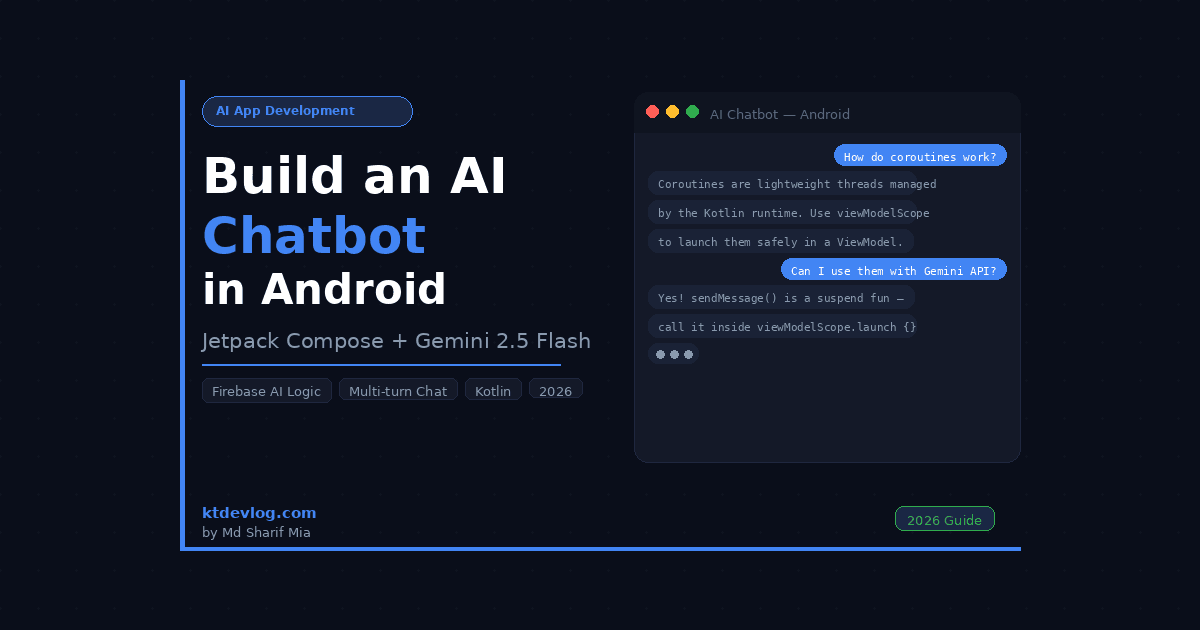
By the end of this guide, you’ll have a fully working ChatGPT-style Android chatbot with a scrollable message history, user and AI message bubbles, a loading indicator, and real multi-turn conversation powered by gemini-2.5-flash through the Firebase AI Logic SDK. I’m building and testing this on Android Studio Meerkat, API 35 emulator, Kotlin 2.0.21.



Table of Contents
What We’re Building — and Why This Architecture Matters
Before writing code, it’s worth being clear about what separates a real chatbot from a single-prompt demo. The difference is conversation history — the model needs to remember what was said earlier in the conversation to give contextually relevant answers.
The Firebase AI Logic SDK handles this for you automatically through startChat(). When you use this method instead of the basic generateContent(), the SDK maintains a ChatSession object that tracks every message sent and received. You don’t manually build a history list — the SDK manages it internally. This is one of the most underexplained features in most Android AI tutorials, and it’s the entire reason a chatbot feels like a real conversation rather than a series of disconnected responses.
Here’s the architecture we’re building:
ChatMessage— a simple data class representing one message with a role (user or model) and text contentChatRepository— initializes the Gemini model, starts a chat session, and sends messagesChatViewModel— manages UI state usingStateFlow, calls the repository on background coroutinesChatScreen— a Compose UI withLazyColumnfor the message list and a bottom input bar
This is a clean MVVM structure that scales well if you want to add features like message persistence, system instructions, or streaming responses later.
Project Setup and Dependencies
If you followed the Android Gemini API tutorial on KtDevLog, your Firebase project is already connected and your google-services.json is in place. If not, set that up first — that post walks through the complete Firebase project setup from scratch.
Open your app-level build.gradle.kts and add these dependencies:
// app/build.gradle.kts
// All dependencies needed for the AI chatbot

plugins {
    id("com.android.application")
    id("org.jetbrains.kotlin.android")
    id("com.google.gms.google-services")
}

android {
    buildFeatures {
        compose = true
        buildConfig = true
    }
    composeOptions {
        kotlinCompilerExtensionVersion = "1.5.14"
    }
}

dependencies {
    // Firebase BoM — manages all Firebase version compatibility automatically
    // As of May 2026, the current stable BoM is 34.12.0
    implementation(platform("com.google.firebase:firebase-bom:34.12.0"))

    // Firebase AI Logic SDK — the correct modern path for Gemini on Android
    implementation("com.google.firebase:firebase-ai")

    // Kotlin Coroutines
    implementation("org.jetbrains.kotlinx:kotlinx-coroutines-android:1.8.1")

    // ViewModel + Lifecycle
    implementation("androidx.lifecycle:lifecycle-viewmodel-ktx:2.8.7")
    implementation("androidx.lifecycle:lifecycle-runtime-ktx:2.8.7")

    // Jetpack Compose
    implementation(platform("androidx.compose:compose-bom:2024.12.01"))
    implementation("androidx.compose.ui:ui")
    implementation("androidx.compose.material3:material3")
    implementation("androidx.compose.ui:ui-tooling-preview")
    implementation("androidx.activity:activity-compose:1.9.3")
}Always use the Firebase BoM rather than specifying individual Firebase library versions. The BoM guarantees all Firebase libraries in your project remain compatible with each other — the principle stays the same regardless of which BoM version you’re on.
Sync your project before moving on. If Gradle sync fails, double-check that google() is listed in your settings.gradle.kts repositories block and that google-services.json is inside the /app directory.
What you should see: Gradle sync completes with no errors. No red underlines on the import statements in any of the files you’re about to create.
Modelling the Chat Data
Create a new file called ChatMessage.kt:
// ChatMessage.kt
// Data model representing a single message in the conversation

data class ChatMessage(
    val text: String,
    // Role is either "user" (sent by the human) or "model" (sent by Gemini)
    val role: MessageRole,
    // Timestamp for ordering messages correctly in the UI
    val timestamp: Long = System.currentTimeMillis()
)

enum class MessageRole {
    USER,
    MODEL
}This is intentionally simple. You don’t need to store the full Firebase Content objects in your UI layer — that’s the repository’s job. Your UI only needs the text and who sent it.
One thing I wish someone had told me early on: keep your UI data models completely separate from your SDK data models. When I first built this, I tried passing Firebase Content objects directly to Compose — and then spent hours debugging weird recomposition issues because Content isn’t a stable, immutable type. A plain data class with a String and an enum is stable, predictable, and causes zero recomposition problems.
Building the ChatRepository with Multi-Turn History
This is the most important file in the whole project. Create ChatRepository.kt:
// ChatRepository.kt
// Manages the Gemini chat session and all communication with the Firebase AI Logic SDK

import com.google.firebase.Firebase
import com.google.firebase.ai.ai
import com.google.firebase.ai.type.GenerativeBackend
import com.google.firebase.ai.type.content
import com.google.firebase.ai.type.generationConfig

class ChatRepository {

    // Initialize the generative model using Firebase AI Logic
    // gemini-2.5-flash is the current recommended model as of May 2026
    // Note: gemini-2.0-flash shuts down June 1, 2026 — do NOT use it
    private val model = Firebase.ai(backend = GenerativeBackend.googleAI())
        .generativeModel(
            modelName = "gemini-2.5-flash",
            generationConfig = generationConfig {
                temperature = 0.8f
                maxOutputTokens = 2048
            },
            // System instruction sets the chatbot's persona and behavior
            systemInstruction = content {
                text("You are a helpful Android development assistant. " +
                     "Answer questions clearly and concisely. " +
                     "When providing code, always use Kotlin.")
            }
        )

    // startChat() is the key difference from single-prompt apps.
    // The SDK manages conversation history internally in this ChatSession object.
    // Every sendMessage() call automatically includes the full prior conversation context.
    private val chatSession = model.startChat()

    // Sends a user message and returns the model's text response
    // Must be called from a coroutine — this is a suspend function
    suspend fun sendMessage(userMessage: String): Result<String> {
        return try {
            val response = chatSession.sendMessage(userMessage)
            val responseText = response.text
            if (responseText != null) {
                Result.success(responseText)
            } else {
                Result.failure(Exception("Empty response from model"))
            }
        } catch (e: Exception) {
            Result.failure(e)
        }
    }
}The systemInstruction parameter is something most tutorials skip entirely. It lets you define the chatbot’s personality and constraints at initialization — before any user message is sent. The model treats this as a persistent instruction that applies to every turn in the conversation. For an Android dev assistant, this is the place to tell Gemini to always use Kotlin, stay on topic, and keep answers practical.
What you should see: No compilation errors. The chatSession object is created once and reused across every message — this is correct. Creating a new ChatSession per message would reset the conversation history every time, which is the single most common mistake developers make when first building chatbots.
ViewModel and UI State Management
Create ChatViewModel.kt:
// ChatViewModel.kt
// Manages UI state and coordinates between the UI layer and ChatRepository

import androidx.lifecycle.ViewModel
import androidx.lifecycle.viewModelScope
import kotlinx.coroutines.flow.MutableStateFlow
import kotlinx.coroutines.flow.StateFlow
import kotlinx.coroutines.flow.asStateFlow
import kotlinx.coroutines.flow.update
import kotlinx.coroutines.launch

class ChatViewModel : ViewModel() {

    private val repository = ChatRepository()

    // Holds the complete list of chat messages shown in the UI
    private val _messages = MutableStateFlow<List<ChatMessage>>(emptyList())
    val messages: StateFlow<List<ChatMessage>> = _messages.asStateFlow()

    // Controls whether the send button and input field are enabled
    private val _isLoading = MutableStateFlow(false)
    val isLoading: StateFlow<Boolean> = _isLoading.asStateFlow()

    // Holds any error message to show in the UI
    private val _errorMessage = MutableStateFlow<String?>(null)
    val errorMessage: StateFlow<String?> = _errorMessage.asStateFlow()

    fun sendMessage(userInput: String) {
        if (userInput.isBlank()) return

        // Add the user's message to the list immediately — don't wait for the API
        val userMessage = ChatMessage(text = userInput, role = MessageRole.USER)
        _messages.update { current -> current + userMessage }
        _isLoading.value = true
        _errorMessage.value = null

        viewModelScope.launch {
            val result = repository.sendMessage(userInput)

            result.fold(
                onSuccess = { responseText ->
                    val modelMessage = ChatMessage(
                        text = responseText,
                        role = MessageRole.MODEL
                    )
                    _messages.update { current -> current + modelMessage }
                },
                onFailure = { error ->
                    _errorMessage.value = "Something went wrong: ${error.message}"
                }
            )
            _isLoading.value = false
        }
    }

    fun clearError() {
        _errorMessage.value = null
    }
}Notice that user messages are added to the list immediately — before the API call completes. This is intentional. Adding the user message instantly makes the UI feel responsive, even when the network call takes 2–3 seconds. If you wait for the full round-trip to add the user message, the app feels laggy and broken even when it isn’t.
I use _messages.update { current -> current + message } rather than _messages.value = _messages.value + message because update is thread-safe — it guarantees the list update is atomic even if multiple coroutines are running simultaneously.
Building the Chat UI in Jetpack Compose
This is where everything comes together. Create ChatScreen.kt:
// ChatScreen.kt
// Full ChatGPT-style chat UI built with Jetpack Compose

import androidx.compose.foundation.background
import androidx.compose.foundation.layout.*
import androidx.compose.foundation.lazy.LazyColumn
import androidx.compose.foundation.lazy.items
import androidx.compose.foundation.lazy.rememberLazyListState
import androidx.compose.foundation.shape.RoundedCornerShape
import androidx.compose.foundation.text.KeyboardActions
import androidx.compose.foundation.text.KeyboardOptions
import androidx.compose.material.icons.Icons
import androidx.compose.material.icons.filled.Send
import androidx.compose.material3.*
import androidx.compose.runtime.*
import androidx.compose.ui.Alignment
import androidx.compose.ui.Modifier
import androidx.compose.ui.graphics.Color
import androidx.compose.ui.text.input.ImeAction
import androidx.compose.ui.unit.dp
import androidx.lifecycle.viewmodel.compose.viewModel
import kotlinx.coroutines.launch

@Composable
fun ChatScreen(viewModel: ChatViewModel = viewModel()) {
    val messages by viewModel.messages.collectAsState()
    val isLoading by viewModel.isLoading.collectAsState()
    val errorMessage by viewModel.errorMessage.collectAsState()

    var inputText by remember { mutableStateOf("") }
    val listState = rememberLazyListState()
    val coroutineScope = rememberCoroutineScope()

    // Automatically scroll to the latest message whenever the list changes
    LaunchedEffect(messages.size) {
        if (messages.isNotEmpty()) {
            listState.animateScrollToItem(messages.size - 1)
        }
    }

    Scaffold(
        topBar = {
            TopAppBar(
                title = { Text("AI Assistant") },
                colors = TopAppBarDefaults.topAppBarColors(
                    containerColor = MaterialTheme.colorScheme.primaryContainer
                )
            )
        }
    ) { paddingValues ->
        Column(
            modifier = Modifier
                .fillMaxSize()
                .padding(paddingValues)
        ) {
            // Message list — takes all available space above the input bar
            LazyColumn(
                state = listState,
                modifier = Modifier
                    .weight(1f)
                    .fillMaxWidth()
                    .padding(horizontal = 12.dp),
                verticalArrangement = Arrangement.spacedBy(8.dp),
                contentPadding = PaddingValues(vertical = 12.dp)
            ) {
                items(messages) { message ->
                    MessageBubble(message = message)
                }

                // Loading indicator appears as the last item while waiting for a response
                if (isLoading) {
                    item {
                        LoadingBubble()
                    }
                }
            }

            // Error snackbar
            errorMessage?.let { error ->
                Snackbar(
                    modifier = Modifier.padding(8.dp),
                    action = {
                        TextButton(onClick = { viewModel.clearError() }) {
                            Text("Dismiss")
                        }
                    }
                ) {
                    Text(error)
                }
            }

            // Input bar — fixed at the bottom
            ChatInputBar(
                inputText = inputText,
                isLoading = isLoading,
                onInputChange = { inputText = it },
                onSend = {
                    if (inputText.isNotBlank()) {
                        viewModel.sendMessage(inputText)
                        inputText = ""
                        coroutineScope.launch {
                            if (messages.isNotEmpty()) {
                                listState.animateScrollToItem(messages.size - 1)
                            }
                        }
                    }
                }
            )
        }
    }
}

@Composable
fun MessageBubble(message: ChatMessage) {
    val isUser = message.role == MessageRole.USER

    Row(
        modifier = Modifier.fillMaxWidth(),
        horizontalArrangement = if (isUser) Arrangement.End else Arrangement.Start
    ) {
        Box(
            modifier = Modifier
                .widthIn(max = 300.dp)
                .background(
                    color = if (isUser)
                        MaterialTheme.colorScheme.primary
                    else
                        MaterialTheme.colorScheme.surfaceVariant,
                    shape = RoundedCornerShape(
                        topStart = 16.dp,
                        topEnd = 16.dp,
                        bottomStart = if (isUser) 16.dp else 4.dp,
                        bottomEnd = if (isUser) 4.dp else 16.dp
                    )
                )
                .padding(horizontal = 14.dp, vertical = 10.dp)
        ) {
            Text(
                text = message.text,
                color = if (isUser)
                    MaterialTheme.colorScheme.onPrimary
                else
                    MaterialTheme.colorScheme.onSurfaceVariant,
                style = MaterialTheme.typography.bodyMedium
            )
        }
    }
}

@Composable
fun LoadingBubble() {
    Row(
        modifier = Modifier.fillMaxWidth(),
        horizontalArrangement = Arrangement.Start
    ) {
        Box(
            modifier = Modifier
                .background(
                    color = MaterialTheme.colorScheme.surfaceVariant,
                    shape = RoundedCornerShape(16.dp)
                )
                .padding(horizontal = 16.dp, vertical = 12.dp)
        ) {
            CircularProgressIndicator(
                modifier = Modifier.size(20.dp),
                strokeWidth = 2.dp
            )
        }
    }
}

@Composable
fun ChatInputBar(
    inputText: String,
    isLoading: Boolean,
    onInputChange: (String) -> Unit,
    onSend: () -> Unit
) {
    Surface(
        tonalElevation = 4.dp,
        modifier = Modifier.fillMaxWidth()
    ) {
        Row(
            modifier = Modifier
                .padding(horizontal = 12.dp, vertical = 8.dp)
                .fillMaxWidth(),
            verticalAlignment = Alignment.CenterVertically,
            horizontalArrangement = Arrangement.spacedBy(8.dp)
        ) {
            OutlinedTextField(
                value = inputText,
                onValueChange = onInputChange,
                modifier = Modifier.weight(1f),
                placeholder = { Text("Ask anything...") },
                maxLines = 4,
                enabled = !isLoading,
                keyboardOptions = KeyboardOptions(imeAction = ImeAction.Send),
                keyboardActions = KeyboardActions(onSend = { onSend() }),
                shape = RoundedCornerShape(24.dp)
            )
            IconButton(
                onClick = onSend,
                enabled = inputText.isNotBlank() && !isLoading
            ) {
                Icon(
                    imageVector = Icons.Default.Send,
                    contentDescription = "Send message",
                    tint = if (inputText.isNotBlank() && !isLoading)
                        MaterialTheme.colorScheme.primary
                    else
                        MaterialTheme.colorScheme.onSurface.copy(alpha = 0.3f)
                )
            }
        }
    }
}Finally, wire it up in MainActivity.kt:
// MainActivity.kt
// Entry point — launches the ChatScreen

import android.os.Bundle
import androidx.activity.ComponentActivity
import androidx.activity.compose.setContent
import androidx.activity.enableEdgeToEdge
import com.example.geminichat.ui.theme.GeminiChatTheme

class MainActivity : ComponentActivity() {
    override fun onCreate(savedInstanceState: Bundle?) {
        super.onCreate(savedInstanceState)
        enableEdgeToEdge()
        setContent {
            GeminiChatTheme {
                ChatScreen()
            }
        }
    }
}What you should see: The app launches with a clean chat interface — a top bar labelled “AI Assistant”, an empty message area, and an input bar at the bottom. Type a message, tap send, and your message immediately appears as a blue bubble on the right. A loading indicator appears on the left while Gemini processes. Within 2–3 seconds, the AI response appears as a grey bubble on the left. The list automatically scrolls to show the latest message. Type a follow-up question — Gemini’s response will reference what was discussed earlier, confirming the conversation history is working correctly.
One Thing Most Chatbot Tutorials Get Completely Wrong
Here’s the insight that took me longer than I’d like to admit to figure out. Most tutorials create a new ChatSession for every message sent, then manually reconstruct the history by passing prior messages back to the model. That approach works, but it’s fragile, error-prone, and completely unnecessary.
The Firebase AI Logic SDK’s startChat() method returns a ChatSession that handles all of this automatically. The session is stateful — it accumulates history with every sendMessage() call. The correct pattern is to create the ChatSession once (which I do in ChatRepository at initialization) and reuse it for the entire conversation lifetime.
The implication: if your ChatRepository is scoped to your ViewModel (which it is, since ViewModel is initialized once per screen), the conversation history survives configuration changes like screen rotations automatically. You get persistent conversation state for free.
Common Errors and Fixes
App crashes immediately on launch with FirebaseApp is not initialized Your google-services.json is missing or in the wrong location. It must be in the /app directory — not the project root. Switch Android Studio’s file view from “Android” to “Project” to see the exact file structure and verify placement.
Responses always return empty — response.text is null This usually means the model’s safety filters blocked the response. Add logging to inspect the full GenerateContentResponse object. Check response.candidates — if the list is empty or the finishReason is SAFETY, your prompt triggered a content filter. Adjust the prompt or check your system instruction.
The conversation doesn’t remember previous messages You’re creating a new ChatSession on every sendMessage() call instead of reusing one session. Move model.startChat() out of your send function and into the class-level initialization of ChatRepository as shown in this tutorial.
NetworkOnMainThreadException crash You’re calling chatSession.sendMessage() directly on the main thread. All Firebase AI Logic SDK calls are suspend functions — they must be called from inside a viewModelScope.launch block or another coroutine context.
Build error: Unresolved reference: GenerativeBackend Your Firebase BoM version is outdated. Update to 34.12.0 in your build.gradle.kts, sync, and rebuild.
The LazyColumn doesn’t scroll to the latest message automatically Check that your LaunchedEffect(messages.size) block is correctly placed inside your ChatScreen composable, and that it calls listState.animateScrollToItem(messages.size - 1). If messages is empty when this runs, the scroll call will throw an IndexOutOfBoundsException — the if (messages.isNotEmpty()) guard is not optional.
FAQ
How do I clear the conversation history and start fresh?
The ChatSession object holds the history internally. To reset, you need to create a new ChatSession by calling model.startChat() again. The cleanest way to expose this in your app is to add a clearConversation() function to your ChatRepository that reassigns chatSession to a fresh session, and a corresponding function in your ChatViewModel that calls it and clears the _messages StateFlow.
Can I use a different Gemini model for the chatbot?
Yes — change the modelName string in ChatRepository. As of May 2026, gemini-2.5-flash is the recommended model for most Android chatbot use cases — fast, capable, and well within the free tier’s rate limits. Do not use gemini-2.0-flash or any gemini-1.5 model — Google has shut these down and they return errors. Check the Firebase AI Logic supported models page for the current full list.
How do I add a system prompt to give the chatbot a specific personality?
Pass a systemInstruction parameter when initializing your GenerativeModel — exactly as shown in the ChatRepository in this tutorial. The system instruction is sent to the model before any user message and persists for the entire conversation. Use it to define the chatbot’s role, tone, language, and any constraints you want to enforce.
Is the conversation history saved when the user closes the app?
No — in this tutorial, history lives in memory only and is lost when the app process is killed. To persist conversation history across sessions, you’d need to save ChatMessage objects to a local database using Room. I cover Room database setup in the notes app tutorial on KtDevLog if you want to extend this project with persistence.
How do I implement streaming responses for a typing effect?
Instead of chatSession.sendMessage(), use chatSession.sendMessageStream(), which returns a Flow of response chunks. Collect each chunk and append it to the current AI message in your _messages StateFlow as it arrives. This gives the typing-as-you-watch effect you see in ChatGPT. I’ll cover streaming responses in a dedicated post on KtDevLog.
What You’ve Built — and Where to Go Next
You now have a complete, production-ready AI chatbot architecture in Android. Real conversation history that persists across turns. A clean Compose UI with user and AI message bubbles. Proper state management using StateFlow and ViewModel. Error handling that surfaces issues to the user without crashing the app.
This is the foundation that every serious AI-powered Android app builds on. The next step from here is making the chatbot smarter — giving it the ability to see and analyze images alongside text. That’s what the Gemini Vision API tutorial covers: Gemini Vision API Tutorial: Image Analysis in Android Kotlin.
If you want to learn more about the StateFlow and SharedFlow patterns used in this tutorial’s ViewModel, the Kotlin StateFlow and SharedFlow beginner guide on KtDevLog breaks it down from scratch.
Building AI into Android apps used to require a backend server, server-side API calls, and a whole authentication layer. In 2026, with Firebase AI Logic and Jetpack Compose, you can ship a fully conversational AI experience directly from your Android app with less than 300 lines of Kotlin. That’s genuinely remarkable — and now you know exactly how to do it right.
Always test in your own environment before using in production.