
Most Android AI chatbot tutorials stop at displaying text responses. The response appears in a bubble, the user reads it, done. But what if your app could read those AI responses aloud — the way a real assistant does? That one addition transforms a chatbot from a messaging interface into something that genuinely feels intelligent and hands-free.
I added Android Text-to-Speech to my own AI chatbot project last month, and what surprised me was how little code it required compared to how much it improved the user experience. The TextToSpeech class ships directly with the Android SDK — no third-party libraries, no API keys, no network calls. It runs entirely on-device using Google’s TTS engine, which is pre-installed on virtually every Android device sold today.
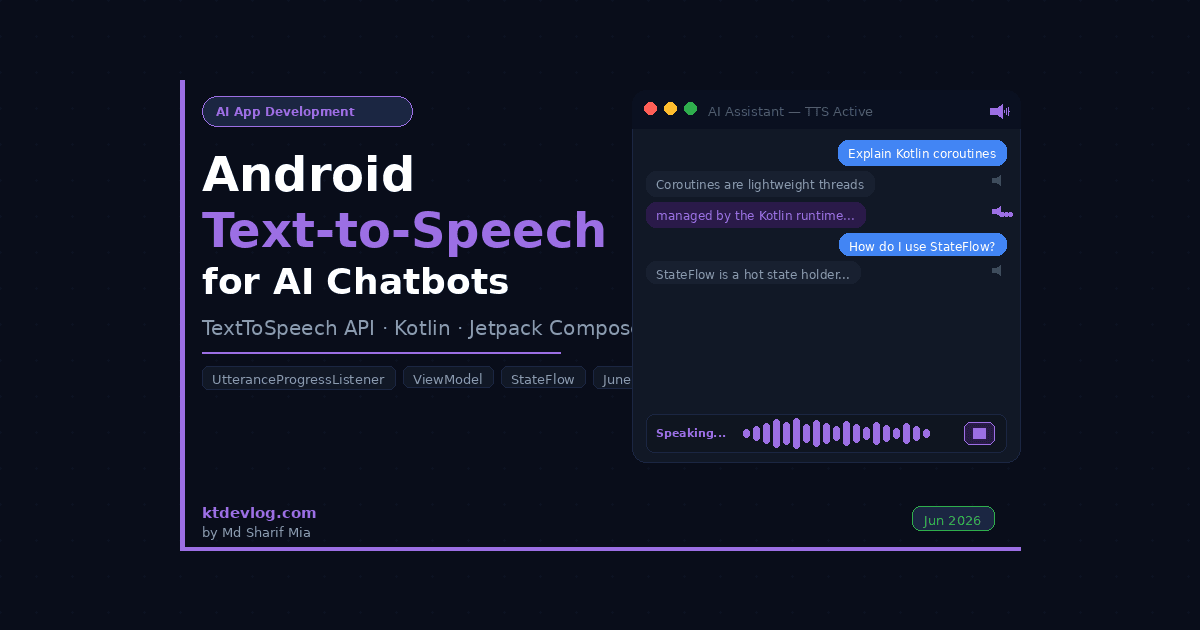
By the end of this android text to speech ai tutorial, you’ll have a fully working TTS implementation that reads Gemini API responses aloud, shows a speaking indicator in your Jetpack Compose UI, lets users pause and resume speech, and cleans up properly without leaking memory. I’m building and testing this on Android Studio Meerkat, API 35 emulator, Kotlin 2.0.21, published June 23, 2026.


Table of Contents
How Android Text-to-Speech Works — What Every Developer Should Know
Before writing code, understanding the TextToSpeech lifecycle prevents the most common mistakes developers make with this API.
The TextToSpeech class is Android’s built-in text-to-speech engine. It’s been available since API level 4, but the modern API — the one you should use in 2026 — requires API 21 minimum. On the vast majority of Android devices, Google’s TTS engine comes pre-installed and handles synthesis locally, without any internet connection.
Here’s what makes the TTS lifecycle slightly tricky: initialization is asynchronous. When you create a TextToSpeech instance, you pass an OnInitListener callback. The engine isn’t ready until that callback fires with TextToSpeech.SUCCESS. Calling speak() before initialization completes fails silently — no error, no speech, no crash. That silent failure is the single most common TTS bug I see in other developers’ code.
Two other things worth knowing upfront. First, OnUtteranceCompletedListener is deprecated — the modern replacement is UtteranceProgressListener, which gives you callbacks for speech start, completion, and errors independently. Second, for the UtteranceProgressListener to fire at all, you must pass a non-null, non-empty utterance ID string as the fourth parameter of speak(). Pass null and the listener never triggers — another completely silent failure.
According to the official Android documentation, you must also call shutdown() when you’re finished with the TTS engine to release native resources. Failing to do this is a genuine memory leak — not a theoretical one.
One more important note for Android 11 (API 30) and above: you need to declare the TTS service in your AndroidManifest.xml using a <queries> element. Without it, Android’s package visibility restrictions prevent your app from discovering the TTS engine on some devices.
Project Setup — No Extra Dependencies Needed
This is one of the genuinely pleasant aspects of Android Text-to-Speech: you need zero additional dependencies. The android.speech.tts.TextToSpeech class is part of the Android SDK itself.
Your app/build.gradle.kts only needs your standard Compose and ViewModel dependencies:
// app/build.gradle.kts
// No TTS-specific dependencies needed — TextToSpeech is part of the Android SDK

dependencies {
    // ViewModel + Lifecycle
    implementation("androidx.lifecycle:lifecycle-viewmodel-ktx:2.8.7")
    implementation("androidx.lifecycle:lifecycle-runtime-ktx:2.8.7")

    // Jetpack Compose
    implementation(platform("androidx.compose:compose-bom:2024.12.01"))
    implementation("androidx.compose.ui:ui")
    implementation("androidx.compose.material3:material3")
    implementation("androidx.activity:activity-compose:1.9.3")

    // Coroutines
    implementation("org.jetbrains.kotlinx:kotlinx-coroutines-android:1.8.1")
}Open your AndroidManifest.xml and add the <queries> declaration for Android 11+ compatibility:
<!-- AndroidManifest.xml -->
<!-- Required on Android 11+ for TTS engine discovery -->
<!-- Without this, TextToSpeech initialization may fail silently on some devices -->
<manifest>
    <queries>
        <intent>
            <action android:name="android.intent.action.TTS_SERVICE" />
        </intent>
    </queries>

    <application>
        <!-- your existing application config -->
    </application>
</manifest>This <queries> block is something a surprisingly large number of TTS tutorials still leave out in 2026. On Android 11 and above, package visibility is restricted by default — your app can only interact with other apps and services it explicitly declares it needs. Without this, the TTS engine may be invisible to your app on some devices.
What you should see: No Gradle errors. The project structure doesn’t change at all — no new files, no new modules. The TTS capability comes entirely from the Android system.
Building a Clean TtsManager Class
Rather than putting TTS logic directly in a ViewModel or Activity, the cleanest approach is a dedicated manager class that handles the full TTS lifecycle. This makes testing easier and keeps your ViewModel focused on business logic.
Create TtsManager.kt:
// TtsManager.kt
// Handles Android TextToSpeech lifecycle, initialization, and speech control
// Designed to be held by a ViewModel and survive configuration changes

import android.content.Context
import android.speech.tts.TextToSpeech
import android.speech.tts.UtteranceProgressListener
import kotlinx.coroutines.flow.MutableStateFlow
import kotlinx.coroutines.flow.StateFlow
import kotlinx.coroutines.flow.asStateFlow
import java.util.Locale
import java.util.UUID

class TtsManager(context: Context) {

    // Use application context to avoid leaking Activity
    private val appContext = context.applicationContext

    private var textToSpeech: TextToSpeech? = null

    // Tracks whether the TTS engine is fully initialized and ready
    private val _isInitialized = MutableStateFlow(false)
    val isInitialized: StateFlow<Boolean> = _isInitialized.asStateFlow()

    // Tracks whether the engine is currently speaking
    private val _isSpeaking = MutableStateFlow(false)
    val isSpeaking: StateFlow<Boolean> = _isSpeaking.asStateFlow()

    // Tracks any error message for surface-level display
    private val _error = MutableStateFlow<String?>(null)
    val error: StateFlow<String?> = _error.asStateFlow()

    // Text queued before initialization completes — spoken once engine is ready
    private var pendingText: String? = null

    init {
        initializeTts()
    }

    private fun initializeTts() {
        // TextToSpeech initialization is asynchronous
        // The OnInitListener fires when the engine is ready — or failed
        textToSpeech = TextToSpeech(appContext) { status ->
            if (status == TextToSpeech.SUCCESS) {
                setupEngine()
            } else {
                _error.value = "TTS engine failed to initialize (status: $status)"
                _isInitialized.value = false
            }
        }
    }

    private fun setupEngine() {
        val tts = textToSpeech ?: return

        // Set language to device default — fall back to US English if unsupported
        val languageResult = tts.setLanguage(Locale.getDefault())
        if (languageResult == TextToSpeech.LANG_MISSING_DATA ||
            languageResult == TextToSpeech.LANG_NOT_SUPPORTED) {
            tts.setLanguage(Locale.US)
        }

        // Speech rate: 0.9f is slightly slower than default
        // Slightly slower feels more natural for longer AI responses
        tts.setSpeechRate(0.9f)

        // Pitch: 1.0f is the default natural pitch
        tts.setPitch(1.0f)

        // UtteranceProgressListener — modern replacement for deprecated OnUtteranceCompletedListener
        // IMPORTANT: This only fires if speak() is called with a non-null utteranceId
        tts.setOnUtteranceProgressListener(object : UtteranceProgressListener() {
            override fun onStart(utteranceId: String?) {
                _isSpeaking.value = true
            }

            override fun onDone(utteranceId: String?) {
                _isSpeaking.value = false
            }

            // onError(String) is deprecated — override both for compatibility
            @Deprecated("Deprecated in API 21")
            override fun onError(utteranceId: String?) {
                _isSpeaking.value = false
                _error.value = "TTS speech error"
            }

            override fun onError(utteranceId: String?, errorCode: Int) {
                _isSpeaking.value = false
                _error.value = "TTS error code: $errorCode"
            }
        })

        _isInitialized.value = true

        // Speak any text that was requested before initialization completed
        pendingText?.let { text ->
            speakInternal(text)
            pendingText = null
        }
    }

    // Public function — safe to call at any time, even before initialization
    fun speak(text: String) {
        if (text.isBlank()) return

        if (_isInitialized.value) {
            speakInternal(text)
        } else {
            // Queue the text — it will be spoken once initialization completes
            pendingText = text
        }
    }

    private fun speakInternal(text: String) {
        // QUEUE_FLUSH stops any current speech and starts the new text immediately
        // Use QUEUE_ADD if you want to queue multiple utterances sequentially
        // The utteranceId MUST be non-null and non-empty for UtteranceProgressListener to fire
        val utteranceId = UUID.randomUUID().toString()
        textToSpeech?.speak(text, TextToSpeech.QUEUE_FLUSH, null, utteranceId)
    }

    // Stops current speech without shutting down the engine
    // The engine remains initialized and ready for the next speak() call
    fun stop() {
        textToSpeech?.stop()
        _isSpeaking.value = false
    }

    // Call this in ViewModel.onCleared() to release native TTS resources
    // Failing to call shutdown() is a genuine memory leak
    fun shutdown() {
        textToSpeech?.stop()
        textToSpeech?.shutdown()
        textToSpeech = null
        _isInitialized.value = false
        _isSpeaking.value = false
    }

    fun clearError() {
        _error.value = null
    }
}The pendingText pattern is the insight most TTS tutorials miss. When a user taps “Read aloud” immediately after the screen loads, the TTS engine might not have finished initializing yet. Without the pending text queue, that request silently disappears. With it, the text is held and spoken the moment the engine is ready.
What you should see: The class compiles without errors. The UtteranceProgressListener override generates a deprecation warning on onError(String?) — this is expected and intentional. Overriding both the deprecated and non-deprecated versions ensures maximum device compatibility.
Integrating TTS with Your AI Chatbot ViewModel
If you built the AI chatbot from the How to Build an AI Chatbot in Android using Jetpack Compose tutorial, you already have a ChatViewModel. Here is how to extend it with TTS support cleanly:
// ChatViewModel.kt
// Extended with TTS support — manages AI responses and speech playback together

import android.app.Application
import androidx.lifecycle.AndroidViewModel
import androidx.lifecycle.viewModelScope
import kotlinx.coroutines.flow.MutableStateFlow
import kotlinx.coroutines.flow.StateFlow
import kotlinx.coroutines.flow.asStateFlow
import kotlinx.coroutines.flow.update
import kotlinx.coroutines.launch

// Using AndroidViewModel to safely access Application context for TtsManager
class ChatViewModel(application: Application) : AndroidViewModel(application) {

    private val repository = ChatRepository()

    // TtsManager held by the ViewModel — survives configuration changes
    private val ttsManager = TtsManager(application)

    // Expose TTS state flows for the UI to observe
    val isSpeaking: StateFlow<Boolean> = ttsManager.isSpeaking
    val ttsInitialized: StateFlow<Boolean> = ttsManager.isInitialized
    val ttsError: StateFlow<String?> = ttsManager.error

    // Chat message list
    private val _messages = MutableStateFlow<List<ChatMessage>>(emptyList())
    val messages: StateFlow<List<ChatMessage>> = _messages.asStateFlow()

    private val _isLoading = MutableStateFlow(false)
    val isLoading: StateFlow<Boolean> = _isLoading.asStateFlow()

    // Tracks which message is currently being read aloud (by index)
    private val _speakingMessageIndex = MutableStateFlow<Int?>(null)
    val speakingMessageIndex: StateFlow<Int?> = _speakingMessageIndex.asStateFlow()

    fun sendMessage(userInput: String) {
        if (userInput.isBlank()) return

        val userMessage = ChatMessage(text = userInput, role = MessageRole.USER)
        _messages.update { current -> current + userMessage }
        _isLoading.value = true

        viewModelScope.launch {
            val result = repository.sendMessage(userInput)

            result.fold(
                onSuccess = { responseText ->
                    val modelMessage = ChatMessage(
                        text = responseText,
                        role = MessageRole.MODEL
                    )
                    _messages.update { current -> current + modelMessage }

                    // Auto-read the AI response aloud when it arrives
                    // Comment this out if you prefer manual read-aloud only
                    speakMessage(responseText, _messages.value.lastIndex)
                },
                onFailure = { error ->
                    _messages.update { current ->
                        current + ChatMessage(
                            text = "Error: ${error.message}",
                            role = MessageRole.MODEL
                        )
                    }
                }
            )
            _isLoading.value = false
        }
    }

    // Speaks a specific message — called from UI when user taps the speaker icon
    fun speakMessage(text: String, messageIndex: Int) {
        _speakingMessageIndex.value = messageIndex
        ttsManager.speak(text)

        // Clear the speaking index when speech finishes
        viewModelScope.launch {
            ttsManager.isSpeaking.collect { speaking ->
                if (!speaking) {
                    _speakingMessageIndex.value = null
                }
            }
        }
    }

    fun stopSpeaking() {
        ttsManager.stop()
        _speakingMessageIndex.value = null
    }

    fun clearTtsError() {
        ttsManager.clearError()
    }

    // CRITICAL — release TTS native resources when ViewModel is cleared
    // Skipping this causes a genuine memory leak that persists until process death
    override fun onCleared() {
        super.onCleared()
        ttsManager.shutdown()
    }
}Notice AndroidViewModel instead of ViewModel. The difference is important: AndroidViewModel provides access to the Application context, which is what TtsManager needs. Never pass an Activity context to TtsManager — that causes a memory leak because the TTS engine can outlive the Activity.
What you should see: The ViewModel compiles without errors. The TtsManager is initialized once when the ViewModel is created and properly shutdown when onCleared() is called — which happens automatically when the user leaves the screen.
Building the Compose UI with Speaking Controls
Now add TTS controls to your chat UI. The key addition is a speaker icon button on each AI message bubble that lets users tap to hear any response read aloud:
// ChatScreen.kt
// Updated with TTS speaker controls on AI message bubbles

import androidx.compose.animation.core.*
import androidx.compose.foundation.layout.*
import androidx.compose.foundation.lazy.LazyColumn
import androidx.compose.foundation.lazy.itemsIndexed
import androidx.compose.foundation.lazy.rememberLazyListState
import androidx.compose.foundation.shape.RoundedCornerShape
import androidx.compose.material.icons.Icons
import androidx.compose.material.icons.filled.Send
import androidx.compose.material.icons.filled.VolumeOff
import androidx.compose.material.icons.filled.VolumeUp
import androidx.compose.material3.*
import androidx.compose.runtime.*
import androidx.compose.ui.Alignment
import androidx.compose.ui.Modifier
import androidx.compose.ui.unit.dp

@Composable
fun ChatScreen(viewModel: ChatViewModel = viewModel()) {
    val messages by viewModel.messages.collectAsState()
    val isLoading by viewModel.isLoading.collectAsState()
    val isSpeaking by viewModel.isSpeaking.collectAsState()
    val speakingMessageIndex by viewModel.speakingMessageIndex.collectAsState()
    val ttsError by viewModel.ttsError.collectAsState()

    var inputText by remember { mutableStateOf("") }
    val listState = rememberLazyListState()
    val coroutineScope = rememberCoroutineScope()

    LaunchedEffect(messages.size) {
        if (messages.isNotEmpty()) {
            listState.animateScrollToItem(messages.size - 1)
        }
    }

    Scaffold(
        topBar = {
            TopAppBar(
                title = { Text("AI Assistant") },
                actions = {
                    // Global stop button — visible while any speech is playing
                    if (isSpeaking) {
                        IconButton(onClick = { viewModel.stopSpeaking() }) {
                            Icon(
                                Icons.Default.VolumeOff,
                                contentDescription = "Stop speaking",
                                tint = MaterialTheme.colorScheme.primary
                            )
                        }
                    }
                },
                colors = TopAppBarDefaults.topAppBarColors(
                    containerColor = MaterialTheme.colorScheme.primaryContainer
                )
            )
        }
    ) { paddingValues ->
        Column(
            modifier = Modifier
                .fillMaxSize()
                .padding(paddingValues)
        ) {
            LazyColumn(
                state = listState,
                modifier = Modifier
                    .weight(1f)
                    .fillMaxWidth()
                    .padding(horizontal = 12.dp),
                verticalArrangement = Arrangement.spacedBy(8.dp),
                contentPadding = PaddingValues(vertical = 12.dp)
            ) {
                // Use itemsIndexed to track each message's position
                itemsIndexed(messages) { index, message ->
                    MessageBubble(
                        message = message,
                        isCurrentlySpeaking = speakingMessageIndex == index,
                        onSpeakClick = {
                            if (speakingMessageIndex == index) {
                                viewModel.stopSpeaking()
                            } else {
                                viewModel.speakMessage(message.text, index)
                            }
                        }
                    )
                }

                if (isLoading) {
                    item { LoadingBubble() }
                }
            }

            // TTS error display
            ttsError?.let { error ->
                Snackbar(
                    modifier = Modifier.padding(8.dp),
                    action = {
                        TextButton(onClick = { viewModel.clearTtsError() }) {
                            Text("Dismiss")
                        }
                    }
                ) { Text(error) }
            }

            ChatInputBar(
                inputText = inputText,
                isLoading = isLoading,
                onInputChange = { inputText = it },
                onSend = {
                    if (inputText.isNotBlank()) {
                        viewModel.sendMessage(inputText)
                        inputText = ""
                    }
                }
            )
        }
    }
}

@Composable
fun MessageBubble(
    message: ChatMessage,
    isCurrentlySpeaking: Boolean,
    onSpeakClick: () -> Unit
) {
    val isUser = message.role == MessageRole.USER

    Row(
        modifier = Modifier.fillMaxWidth(),
        horizontalArrangement = if (isUser) Arrangement.End else Arrangement.Start,
        verticalAlignment = Alignment.Bottom
    ) {
        // Speaker button — only shown on AI (model) messages
        if (!isUser) {
            IconButton(
                onClick = onSpeakClick,
                modifier = Modifier.size(32.dp)
            ) {
                // Pulse animation when speaking
                val infiniteTransition = rememberInfiniteTransition(label = "speaker_pulse")
                val alpha by infiniteTransition.animateFloat(
                    initialValue = if (isCurrentlySpeaking) 0.4f else 1f,
                    targetValue = 1f,
                    animationSpec = infiniteRepeatable(
                        animation = tween(600),
                        repeatMode = RepeatMode.Reverse
                    ),
                    label = "alpha"
                )

                Icon(
                    imageVector = if (isCurrentlySpeaking) Icons.Default.VolumeOff
                                  else Icons.Default.VolumeUp,
                    contentDescription = if (isCurrentlySpeaking) "Stop reading"
                                         else "Read aloud",
                    tint = MaterialTheme.colorScheme.primary.copy(
                        alpha = if (isCurrentlySpeaking) alpha else 1f
                    ),
                    modifier = Modifier.size(20.dp)
                )
            }
            Spacer(Modifier.width(4.dp))
        }

        Box(
            modifier = Modifier
                .widthIn(max = 300.dp)
                .background(
                    color = if (isUser) MaterialTheme.colorScheme.primary
                            else MaterialTheme.colorScheme.surfaceVariant,
                    shape = RoundedCornerShape(
                        topStart = 16.dp,
                        topEnd = 16.dp,
                        bottomStart = if (isUser) 16.dp else 4.dp,
                        bottomEnd = if (isUser) 4.dp else 16.dp
                    )
                )
                .padding(horizontal = 14.dp, vertical = 10.dp)
        ) {
            Text(
                text = message.text,
                color = if (isUser) MaterialTheme.colorScheme.onPrimary
                        else MaterialTheme.colorScheme.onSurfaceVariant,
                style = MaterialTheme.typography.bodyMedium
            )
        }
    }
}The pulsing speaker icon when speech is active is a small but meaningful UX detail. It gives users clear visual feedback that audio is playing — critical for accessibility and for users in noisy environments who might not immediately hear the speech start.
What you should see: The chat UI shows a speaker icon to the left of every AI message bubble. Tapping it starts the TTS engine reading that message. The icon pulses while speaking and switches to a VolumeOff icon. The top app bar also shows a stop button while speech is active. Tapping either stops speech immediately.
Connecting Android Text-to-Speech to Gemini AI Responses
The integration point between the Gemini API and TTS is already in the ChatViewModel.sendMessage() function above. But there’s one refinement worth adding — long AI responses can contain markdown formatting characters like **bold**, *italic*, and ## headings. These sound terrible when read aloud.
Add a simple text sanitizer before passing AI responses to TTS:
// TextSanitizer.kt
// Strips markdown formatting before TTS reads AI responses aloud
// Gemini often returns markdown — reading "asterisk asterisk bold asterisk asterisk" is awful

object TextSanitizer {

    fun sanitizeForSpeech(text: String): String {
        return text
            // Remove markdown bold and italic markers
            .replace(Regex("\\*{1,3}"), "")
            // Remove markdown headers (##, ###, etc.)
            .replace(Regex("^#{1,6}\\s", RegexOption.MULTILINE), "")
            // Remove markdown code blocks
            .replace(Regex("```[\\s\\S]*?```"), "code block omitted")
            // Remove inline code
            .replace(Regex("`[^`]+`")) { match ->
                match.value.trim('`')
            }
            // Remove markdown links — keep the link text, drop the URL
            .replace(Regex("\\[([^\\]]+)\\]\\([^)]+\\)"), "$1")
            // Remove bullet point markers
            .replace(Regex("^[-*+]\\s", RegexOption.MULTILINE), "")
            // Remove numbered list markers
            .replace(Regex("^\\d+\\.\\s", RegexOption.MULTILINE), "")
            // Collapse multiple blank lines
            .replace(Regex("\\n{3,}"), "\n\n")
            .trim()
    }
}Then use it in your ChatViewModel:
// In ChatViewModel.sendMessage() — updated speak call
// Sanitize markdown before TTS reads the AI response

onSuccess = { responseText ->
    val modelMessage = ChatMessage(text = responseText, role = MessageRole.MODEL)
    _messages.update { current -> current + modelMessage }

    // Clean the text before speaking — Gemini returns markdown that sounds awful raw
    val cleanText = TextSanitizer.sanitizeForSpeech(responseText)
    speakMessage(cleanText, _messages.value.lastIndex)
}This sanitizer is the original insight most android text to speech ai tutorials skip entirely. I discovered this issue immediately when I first added TTS to my chatbot — Gemini’s response came back with **Here are 3 tips:** and the engine dutifully read “asterisk asterisk Here are 3 tips asterisk asterisk.” Not exactly the polished experience you’re aiming for.
What you should see: AI responses are spoken without any markdown artifacts. “Here are 3 tips” is read as “Here are 3 tips.” Code blocks are replaced with the phrase “code block omitted” rather than having the engine attempt to read raw syntax.
Common Errors and Fixes
TTS speaks nothing — no error, no crash Two possible causes. First: speak() was called before OnInitListener fired. Check that _isInitialized.value is true before calling speakInternal(). The pending text queue in TtsManager handles this automatically. Second: you passed null as the utteranceId. UtteranceProgressListener requires a non-null, non-empty string — use UUID.randomUUID().toString().
UtteranceProgressListener.onDone() never fires The utteranceId passed to speak() is null or empty. This is the most common TTS bug in Kotlin code. Always use UUID.randomUUID().toString() or any non-empty string as the fourth parameter.
App crashes with NullPointerException on TTS engine speak() was called after shutdown(). This can happen if the ViewModel is cleared but a pending coroutine still holds a reference. Add a null check: textToSpeech?.speak(...) as shown in the tutorial.
TTS engine fails to initialize on some devices — OnInitListener returns ERROR The <queries> block in AndroidManifest.xml is missing. On Android 11+, the system blocks TTS engine discovery without it. Add the <queries> element exactly as shown in Step 2.
Speech sounds robotic or too fast Call tts.setSpeechRate(0.85f) and tts.setPitch(1.05f) for a slightly more natural voice. Different device TTS engines respond differently to these values — test on a real device rather than the emulator, since emulator TTS quality is notably worse than on-device.
Memory leak warning in Android Studio You’re passing an Activity context to TtsManager instead of the application context. Always use context.applicationContext inside TtsManager. The AndroidViewModel pattern shown in this tutorial handles this correctly.
FAQ
Does Android Text-to-Speech work offline?
Yes — the built-in Android TTS engine runs entirely on-device using pre-installed language packs. No internet connection is required for speech synthesis. This is one of the main advantages of using the built-in TextToSpeech class over cloud-based alternatives like Google Cloud TTS or Amazon Polly. The trade-off is that voice quality varies by device and manufacturer, but Google’s TTS engine — present on all Google-certified Android devices — produces excellent results for most use cases.
Can I change the voice or language at runtime?
Yes. Call tts.setLanguage(Locale) before calling speak(). You can switch languages between utterances — for example, detecting the language of the AI response and setting the appropriate locale automatically. For voice selection within a language, use tts.voices to get the list of available voices on the current device and tts.setVoice(Voice) to select one. Voice availability varies by device and Android version.
How do I control speech speed and pitch?
Use tts.setSpeechRate(Float) where 1.0f is normal speed, 0.5f is half speed, and 2.0f is double speed. Use tts.setPitch(Float) where 1.0f is the default pitch. For AI chatbot responses, I recommend setSpeechRate(0.9f) — slightly slower than default, which improves comprehension of longer, more complex responses. Always call these before speak() as they take effect on the next utterance.
What’s the maximum text length TTS can handle?
The Android TextToSpeech API has an internal limit of approximately 4,000 characters per speak() call (TextToSpeech.getMaxSpeechInputLength()). For longer AI responses, split the text at sentence boundaries and queue multiple speak() calls using TextToSpeech.QUEUE_ADD after the first call uses QUEUE_FLUSH. The UtteranceProgressListener makes it straightforward to chain utterances sequentially.
Should I use the built-in TTS or a cloud TTS service for an AI chatbot?
For most Android AI chatbot apps, the built-in TextToSpeech API is the right choice. It’s free, works offline, requires no additional setup, and produces good enough quality for conversational text. Cloud TTS services like Google Cloud TTS or ElevenLabs offer higher-quality, more natural-sounding voices — but they add network latency, require API keys and billing, and break offline functionality. Start with the built-in API and upgrade to a cloud service only if your specific use case genuinely requires higher voice quality.
What You’ve Built — and Where to Go Next
You now have a complete android text to speech ai implementation — a TtsManager that handles the full TTS lifecycle correctly, a ChatViewModel that coordinates Gemini API responses with speech playback, a markdown sanitizer that makes AI responses sound natural when spoken, and a Jetpack Compose UI with per-message speaker controls and a global stop button.
The architecture is clean and extensible. Want to add a speech rate slider? Expose setSpeechRate() from TtsManager and wire it to a UI control. Want to auto-detect response language and switch locales? Add language detection before the speak() call in ChatViewModel. The foundation handles all the tricky parts — initialization timing, resource cleanup, utterance tracking — so you can focus on features.
If you haven’t built the underlying AI chatbot yet, the How to Build an AI Chatbot in Android using Jetpack Compose tutorial on KtDevLog is the perfect starting point. And if you want to go deeper on the StateFlow patterns used throughout this tutorial, the Kotlin StateFlow and SharedFlow beginner guide covers the foundations from scratch.
The best AI assistants don’t just display text — they speak. With this implementation, your Android chatbot does both, using nothing but the APIs Google ships with every Android device.
Always test in your own environment before using in production.