
Picture a scoreboard at a live cricket match. Every run scored updates the board instantly — and everyone in the stadium sees that update at the same time, automatically.
That’s pretty much what Kotlin Flows do inside your Android app. Data changes in one place, and every part of your UI that cares about it gets notified immediately — no manual refreshing, no polling, no spaghetti callbacks.
But here’s where beginners get confused: there isn’t just one type of Flow. Two in particular — StateFlow and SharedFlow — show up everywhere in modern Android codebases, and knowing the difference between them is a skill every Kotlin developer needs today.
This guide will walk you through both. What they are, how to create them, when to use each one, and how they fit into a real Android ViewModel. By the end, you won’t just understand the theory — you’ll know exactly what to type and why.
Table of Contents
What Is a Kotlin Flow? (Quick Background)
Before we talk about StateFlow and SharedFlow, let’s make sure we’re on the same page about what a Flow actually is.
A regular Kotlin Flow is a cold stream. Think of it like a YouTube video that hasn’t been played yet. The video exists, but nothing happens until someone presses play. Every new person who presses play starts the video from the beginning.
That’s a cold flow — it only starts producing data when something actively collects it. And every collector gets its own independent stream.
StateFlow and SharedFlow are different. They’re hot streams — they’re always running, always alive, whether anyone is watching or not. More like a live TV channel than a YouTube video. You tune in and see whatever is currently broadcasting. Miss something? Too bad — it already aired.
According to the official Kotlin documentation, a StateFlow is “a hot flow because its active instance exists independently of the presence of collectors.” That’s the key phrase. Hot = always on.
Understanding this cold vs. hot distinction first makes everything else click much faster.
What Is StateFlow in Kotlin?
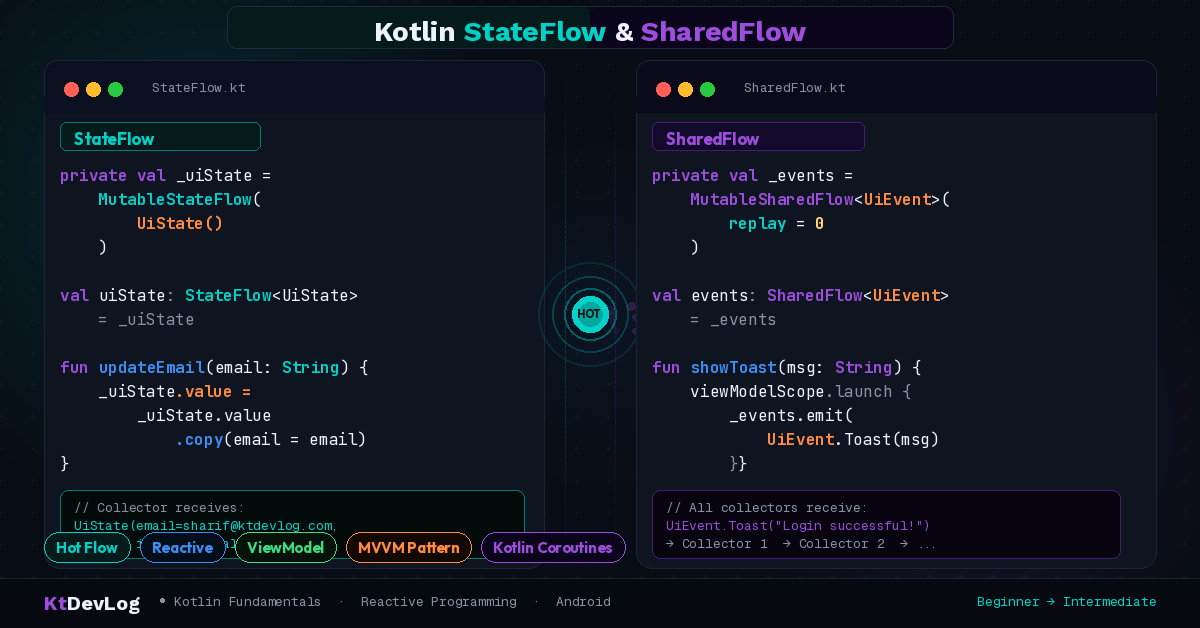
StateFlow is designed to do one specific job: hold a single piece of state and keep it observable.
If you’ve used LiveData before, StateFlow will feel familiar. It’s basically LiveData’s modern replacement for Kotlin-first projects. The biggest difference? StateFlow always requires an initial value — you can’t create one without telling it what the starting state should be.
Here’s the simplest StateFlow you’ll ever write:
That’s it. You’ve created a StateFlow that holds a Boolean, starting at false. Now anything that collects from loginState will know the current value — and get notified whenever it changes.
How to Create and Update a StateFlow
The pattern used in almost every real Android app looks like this:
class LoginViewModel : ViewModel() {

    // Private mutable — only this ViewModel can change it
    private val _isLoggedIn = MutableStateFlow(false)

    // Public read-only — UI can observe but not modify
    val isLoggedIn: StateFlow<Boolean> = _isLoggedIn

    fun login() {
        _isLoggedIn.value = true
    }

    fun logout() {
        _isLoggedIn.value = false
    }
}The underscore prefix on _isLoggedIn is a convention, not a rule. But it’s used everywhere in professional Kotlin codebases for good reason — it signals “this one is internal, hands off.”
The public isLoggedIn exposed as a read-only StateFlow means your UI can observe the value but can’t accidentally overwrite it. Clean, safe, intentional.
How to Collect a StateFlow in the UI
lifecycleScope.launch {
    repeatOnLifecycle(Lifecycle.State.STARTED) {
        viewModel.isLoggedIn.collect { isLoggedIn ->
            if (isLoggedIn) {
                showHomeScreen()
            } else {
                showLoginScreen()
            }
        }
    }
}Notice repeatOnLifecycle. This is important. Unlike LiveData, StateFlow doesn’t automatically stop collecting when your screen goes to the background. You need repeatOnLifecycle to handle that safely — it pauses collection when your Activity or Fragment is stopped, and resumes it when it comes back.
StateFlow with a Data Class (Real-World Pattern)
In real projects, you rarely store just a Boolean. You typically store the entire screen’s state in one Kotlin data class and update it with copy():
data class LoginUiState(
    val email: String = "",
    val password: String = "",
    val isLoading: Boolean = false,
    val errorMessage: String? = null
)

class LoginViewModel : ViewModel() {

    private val _uiState = MutableStateFlow(LoginUiState())
    val uiState: StateFlow<LoginUiState> = _uiState

    fun onEmailChanged(email: String) {
        _uiState.value = _uiState.value.copy(email = email)
    }

    fun onLoginClicked() {
        _uiState.value = _uiState.value.copy(isLoading = true)
        // ... make API call
    }
}This pattern — a single data class holding all UI state, updated via copy() — is the standard approach in modern Android apps. Once you see it in a real codebase, you’ll recognize it immediately. This is also why understanding Kotlin data classes and copy() before Flows makes your life significantly easier.
What Is SharedFlow in Kotlin?
SharedFlow is StateFlow’s more flexible sibling. Where StateFlow is laser-focused on holding the latest state, SharedFlow is built for broadcasting events to multiple collectors simultaneously.
The classic real-world analogy: a group WhatsApp chat. When you send a message, everyone in the group receives it — at the same time. You’re not holding a “current message” — you’re broadcasting a one-time event. That’s SharedFlow.
Here’s what makes SharedFlow different from StateFlow at a glance:
- SharedFlow has no initial value — there’s nothing to show until something is emitted
- SharedFlow doesn’t conflate — every single emission is delivered, even duplicates
- SharedFlow can be configured with a replay cache — store the last N values for new collectors
- SharedFlow is perfect for one-time events like navigation, toasts, and error messages
How to Create a SharedFlow
class NotificationViewModel : ViewModel() {

    private val _events = MutableSharedFlow<String>()
    val events: SharedFlow<String> = _events

    fun sendNotification(message: String) {
        viewModelScope.launch {
            _events.emit(message)
        }
    }
}Notice that emit() is a suspend function — you need to call it from inside a coroutine. That’s why viewModelScope.launch is wrapping it.
Collecting SharedFlow in the UI
lifecycleScope.launch {
    repeatOnLifecycle(Lifecycle.State.STARTED) {
        viewModel.events.collect { message ->
            Toast.makeText(this@MainActivity, message, Toast.LENGTH_SHORT).show()
        }
    }
}Every time sendNotification() is called in the ViewModel, this Toast fires. Clean. Direct. No messy flags, no Event wrappers, no boilerplate.
SharedFlow With Replay Cache
Here’s something most beginner guides don’t explain clearly: the replay parameter.
With replay = 1, any new collector that subscribes to _events will immediately receive the last emitted value — even if it was emitted before they started collecting. This is useful when you want late subscribers to get caught up.
With replay = 0 (the default), new collectors only receive emissions that happen after they subscribe. They miss anything sent before they tuned in.
Choosing the right replay value depends entirely on your use case. Navigation events? replay = 0 — you never want a late subscriber to trigger a navigation that already happened. Notifications? Maybe replay = 1 — so the UI can show the last message even after a configuration change.
StateFlow vs SharedFlow — When to Use Which
This is the question every beginner asks. Here’s the honest answer:
Use StateFlow when:
- You need to hold and display the current state of your UI
- You want new collectors to immediately know the latest value
- You’re replacing LiveData in a ViewModel
- You’re managing loading states, user input, API response data
Use SharedFlow when:
- You need to fire a one-time event that shouldn’t repeat on rotation
- You’re broadcasting the same event to multiple parts of the app
- You’re showing toasts, snackbars, dialogs, or triggering navigation
- You’re building something like an event bus
Here’s a quick cheat-sheet to remember it:
| StateFlow | SharedFlow | |
|---|---|---|
| Has initial value | ✅ Required | ❌ Not required |
| Replays to new collectors | ✅ Always (last value) | ⚙️ Configurable |
| Drops duplicate values | ✅ Yes | ❌ No |
| Best for | UI state | One-time events |
| Needs coroutine to emit | ❌ No (value =) | ✅ Yes (emit()) |
Personally, I think the confusion comes from people trying to use one for everything. StateFlow for state. SharedFlow for events. Keep that rule in your head and you’ll rarely go wrong.
How Flows Fit Into a Real ViewModel
Let me show you how StateFlow and SharedFlow often live together in the same ViewModel — which is exactly how you’ll see it in production code:
class SignUpViewModel : ViewModel() {

    // StateFlow — holds the current form state
    private val _uiState = MutableStateFlow(SignUpUiState())
    val uiState: StateFlow<SignUpUiState> = _uiState

    // SharedFlow — one-time navigation event
    private val _navigationEvent = MutableSharedFlow<String>()
    val navigationEvent: SharedFlow<String> = _navigationEvent

    fun onSignUpClicked() {
        viewModelScope.launch {
            _uiState.value = _uiState.value.copy(isLoading = true)

            // Simulate an API call
            val success = performSignUp()

            if (success) {
                _navigationEvent.emit("home") // One-time event — navigate home
            } else {
                _uiState.value = _uiState.value.copy(
                    isLoading = false,
                    errorMessage = "Sign up failed. Try again."
                )
            }
        }
    }
}See how they each do their job? _uiState holds the screen’s current data — loading indicators, error messages, form values. _navigationEvent fires once to tell the UI “go to the home screen.” No overlap. No confusion.
This is the architecture pattern that Kotlin Coroutines make possible — and once it clicks, building reactive Android UIs starts to feel natural rather than complicated.
Frequently Asked Questions
What is the difference between StateFlow and SharedFlow in Kotlin?
StateFlow holds a current value and always replays it to new collectors — it’s designed for UI state management. SharedFlow doesn’t hold a value by default and is designed for broadcasting one-time events to multiple listeners simultaneously. Think of StateFlow as an observable variable and SharedFlow as a broadcast channel.
Do I need coroutines to use StateFlow and SharedFlow?
Yes, both StateFlow and SharedFlow are built on top of Kotlin Coroutines and must be collected inside a coroutine scope. You update StateFlow using .value = ... (no suspend needed), but you emit to SharedFlow using the emit() suspend function, which must be called from within a coroutine or viewModelScope.launch.
Should I use StateFlow or LiveData in new Android projects?
For new projects — especially those using Jetpack Compose — StateFlow is the recommended choice. According to Android’s official developer guides, StateFlow is a great fit for maintaining observable mutable state in ViewModels. LiveData still works fine, but it’s a Java-first API. StateFlow is Kotlin-native and integrates more cleanly with coroutines and Compose.
What does the replay parameter do in SharedFlow?
The replay parameter tells SharedFlow how many previously-emitted values to store in a cache for new collectors. With replay = 0 (default), new subscribers only receive future emissions. With replay = 1, they immediately get the last emitted value when they subscribe. Most one-time events like navigation or toasts should use replay = 0 to avoid re-triggering them after a configuration change.
Can StateFlow and SharedFlow be used together in one ViewModel?
Absolutely — and this is actually the recommended pattern. Use StateFlow to hold and update your screen’s UI state, and use SharedFlow to fire one-time events like navigation, error toasts, or dialog triggers. Using both together in one ViewModel gives you clean, predictable reactive state management without any awkward workarounds.
Wrapping Up
StateFlow and SharedFlow aren’t complicated once you see them for what they are: two tools for two different jobs.
StateFlow is your observable state holder — always has a value, always keeps collectors in sync. SharedFlow is your event broadcaster — fires and forgets, perfect for toasts, navigation, and anything that should happen exactly once.
Start with StateFlow in your next ViewModel. Replace that MutableLiveData and see how naturally it fits. Once you’re comfortable with that, add SharedFlow for your one-time events. Before long, you’ll have a clean, reactive architecture that handles everything your UI needs without a single messy callback in sight.
The best Android apps aren’t built by avoiding reactive programming — they’re built by understanding it well enough to use the right tool for the right job. You now know what that looks like.