
Profile pictures. Post images. Product photos. Recipe thumbnails. If your Android app involves users and content, it almost certainly involves image uploads.
Firebase Storage is how most Android developers handle this — a Google-managed cloud storage bucket with tight Firebase Authentication integration, built-in upload progress tracking, automatic retry on poor connections, and a simple Kotlin SDK. You select an image, call putFile(), and Firebase handles compression, chunked upload, CDN distribution, and serving at scale.
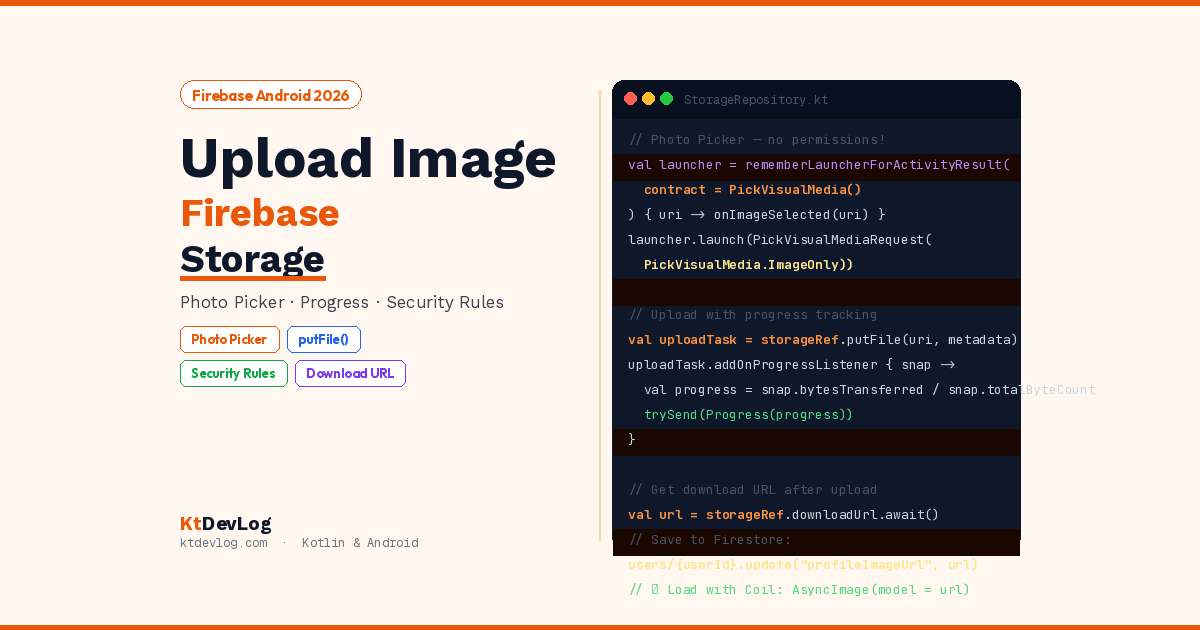
This guide covers the complete upload image to firebase storage android workflow in 2026: using the Android Photo Picker (the modern, privacy-safe replacement for old gallery intents), uploading with progress tracking, configuring Storage Security Rules to protect your bucket, saving the download URL to Firestore for later retrieval, and loading uploaded images back into your UI with Coil.




Table of Contents
The Android Photo Picker — Why It Matters in 2026
Before writing any Firebase code, it’s worth understanding why this guide uses the Android Photo Picker instead of ActivityResultContracts.GetContent() or the old ACTION_PICK intent that most older tutorials use.
The Photo Picker was introduced in Android 13 and backported all the way to Android 4.4 via Jetpack. It’s the Google-recommended way to let users select images in 2026 for three reasons:
Privacy — The Photo Picker gives users access to a sandboxed view of their gallery. Your app never receives broad storage permissions. The user picks specific photos and only those URIs are accessible to you — the rest of their gallery stays private.
No permission needed — READ_EXTERNAL_STORAGE or READ_MEDIA_IMAGES permissions are not required when using the Photo Picker. This is a significant UX improvement — no permission dialog before the user even sees the picker.
Consistent UI — The Photo Picker provides a Google-designed, consistent experience across all Android versions rather than device-specific gallery apps.
According to the official Android developer documentation, the Photo Picker is the recommended approach for all new Android apps in 2026 when you need users to select images or videos.
Step 1 — Firebase and Storage Setup
Enable Firebase Storage
In Firebase Console:
Build → Storage → Get StartedChoose Start in production mode — you’ll write proper Security Rules in Step 5. Select the nearest storage region (e.g. asia-south1 for Bangladesh).
Add Dependencies
// app/build.gradle.kts
dependencies {
    // Firebase BoM — manages all Firebase library versions
    implementation(platform("com.google.firebase:firebase-bom:34.12.0"))
    implementation("com.google.firebase:firebase-storage")
    implementation("com.google.firebase:firebase-firestore")  // For saving download URL
    implementation("com.google.firebase:firebase-auth")       // For Security Rules

    // Coil — for loading Firebase Storage images in Compose
    implementation("io.coil-kt:coil-compose:2.7.0")

    // Coroutines for .await() on Firebase Tasks
    implementation("org.jetbrains.kotlinx:kotlinx-coroutines-play-services:1.8.1")
}Step 2 — Android Photo Picker Integration
The Photo Picker in Compose uses rememberLauncherForActivityResult with PickVisualMedia:
// ImagePickerScreen.kt
import androidx.activity.compose.rememberLauncherForActivityResult
import androidx.activity.result.PickVisualMediaRequest
import androidx.activity.result.contract.ActivityResultContracts

@Composable
fun ImagePickerButton(onImageSelected: (Uri) -> Unit) {
    // Photo Picker launcher — no storage permissions needed
    val photoPickerLauncher = rememberLauncherForActivityResult(
        contract = ActivityResultContracts.PickVisualMedia()
    ) { uri ->
        uri?.let { onImageSelected(it) }
    }

    Button(
        onClick = {
            photoPickerLauncher.launch(
                PickVisualMediaRequest(
                    ActivityResultContracts.PickVisualMedia.ImageOnly  // Images only, no videos
                )
            )
        },
        modifier = Modifier.fillMaxWidth(),
        shape    = RoundedCornerShape(12.dp),
        colors   = ButtonDefaults.buttonColors(containerColor = Color(0xFF7C3AED))
    ) {
        Icon(Icons.Default.Image, contentDescription = null)
        Spacer(modifier = Modifier.width(8.dp))
        Text("Choose Photo")
    }
}PickVisualMedia.ImageOnly restricts the picker to images — no video files. If you need both, use PickVisualMedia.ImageAndVideo. For multiple image selection, use PickMultipleVisualMedia(maxItems = 5).
Step 3 — Storage Repository
All Firebase Storage operations belong in a repository — keeping upload logic completely out of your ViewModel and composables:
// StorageRepository.kt
import android.net.Uri
import com.google.firebase.storage.FirebaseStorage
import com.google.firebase.storage.StorageMetadata
import kotlinx.coroutines.flow.Flow
import kotlinx.coroutines.flow.callbackFlow
import kotlinx.coroutines.channels.awaitClose
import kotlinx.coroutines.tasks.await
import java.util.UUID

class StorageRepository {

    private val storage = FirebaseStorage.getInstance()

    // ── Upload With Progress ────────────────────────────────────
    fun uploadImage(
        uri: Uri,
        userId: String,
        folder: String = "profile_images"
    ): Flow<UploadState> = callbackFlow {

        // Build a unique file path: folder/userId/uuid.jpg
        val fileName = "${UUID.randomUUID()}.jpg"
        val storageRef = storage.reference
            .child(folder)
            .child(userId)
            .child(fileName)

        // Set metadata — content type tells Firebase this is an image
        val metadata = StorageMetadata.Builder()
            .setContentType("image/jpeg")
            .build()

        // Start the upload task
        val uploadTask = storageRef.putFile(uri, metadata)

        // Emit progress updates
        uploadTask.addOnProgressListener { snapshot ->
            val progress = snapshot.bytesTransferred.toFloat() /
                           snapshot.totalByteCount.toFloat()
            trySend(UploadState.Progress(progress))
        }

        // Emit success with download URL
        uploadTask.addOnSuccessListener {
            kotlinx.coroutines.launch {
                try {
                    val downloadUrl = storageRef.downloadUrl.await().toString()
                    trySend(UploadState.Success(downloadUrl))
                    close()
                } catch (e: Exception) {
                    trySend(UploadState.Error("Failed to get download URL: ${e.message}"))
                    close(e)
                }
            }
        }

        // Emit error
        uploadTask.addOnFailureListener { e ->
            trySend(UploadState.Error(e.message ?: "Upload failed"))
            close(e)
        }

        // Cancel the upload if the Flow is cancelled
        awaitClose { uploadTask.cancel() }
    }

    // ── Delete an Image ─────────────────────────────────────────
    suspend fun deleteImage(downloadUrl: String): Result<Unit> {
        return try {
            val ref = storage.getReferenceFromUrl(downloadUrl)
            ref.delete().await()
            Result.success(Unit)
        } catch (e: Exception) {
            Result.failure(e)
        }
    }
}

// Upload state sealed class
sealed class UploadState {
    data class Progress(val fraction: Float) : UploadState()
    data class Success(val downloadUrl: String) : UploadState()
    data class Error(val message: String) : UploadState()
}File path structure: folder/userId/uuid.jpg — this is the pattern that keeps Firebase Storage organised and securable. The userId segment means your Security Rules can enforce that users only access their own files. The UUID ensures each upload gets a unique filename — no collisions, no overwriting.
awaitClose { uploadTask.cancel() } — when the Compose screen leaves the composition and stops collecting the Flow, this cancels the upload automatically. No hanging upload tasks, no wasted bandwidth on abandoned screens.
Step 4 — ViewModel With Upload Flow
// UploadViewModel.kt
import android.net.Uri
import androidx.lifecycle.ViewModel
import androidx.lifecycle.viewModelScope
import kotlinx.coroutines.flow.*
import kotlinx.coroutines.launch

data class ImageUploadUiState(
    val selectedImageUri: Uri?      = null,
    val uploadProgress: Float       = 0f,
    val isUploading: Boolean        = false,
    val downloadUrl: String?        = null,
    val errorMessage: String?       = null
)

class UploadViewModel(
    private val storageRepository: StorageRepository = StorageRepository()
) : ViewModel() {

    private val _uiState = MutableStateFlow(ImageUploadUiState())
    val uiState: StateFlow<ImageUploadUiState> = _uiState

    fun onImageSelected(uri: Uri) {
        _uiState.update { it.copy(selectedImageUri = uri, downloadUrl = null, errorMessage = null) }
    }

    fun uploadImage(userId: String) {
        val uri = _uiState.value.selectedImageUri ?: return

        viewModelScope.launch {
            _uiState.update { it.copy(isUploading = true, uploadProgress = 0f, errorMessage = null) }

            storageRepository.uploadImage(uri = uri, userId = userId)
                .collect { state ->
                    when (state) {
                        is UploadState.Progress -> {
                            _uiState.update { it.copy(uploadProgress = state.fraction) }
                        }
                        is UploadState.Success  -> {
                            _uiState.update {
                                it.copy(
                                    isUploading    = false,
                                    downloadUrl    = state.downloadUrl,
                                    uploadProgress = 1f
                                )
                            }
                            // Save download URL to Firestore
                            saveUrlToFirestore(userId, state.downloadUrl)
                        }
                        is UploadState.Error    -> {
                            _uiState.update {
                                it.copy(isUploading = false, errorMessage = state.message)
                            }
                        }
                    }
                }
        }
    }

    private fun saveUrlToFirestore(userId: String, downloadUrl: String) {
        viewModelScope.launch {
            com.google.firebase.firestore.FirebaseFirestore.getInstance()
                .collection("users")
                .document(userId)
                .update("profileImageUrl", downloadUrl)
                .addOnSuccessListener {
                    android.util.Log.d("Upload", "Profile URL saved to Firestore")
                }
                .addOnFailureListener { e ->
                    android.util.Log.e("Upload", "Failed to save URL: ${e.message}")
                }
        }
    }

    fun clearError() { _uiState.update { it.copy(errorMessage = null) } }
}Step 5 — Upload Screen UI
@Composable
fun ImageUploadScreen(
    viewModel: UploadViewModel = viewModel(),
    userId: String
) {
    val uiState by viewModel.uiState.collectAsStateWithLifecycle()
    val context = LocalContext.current

    Column(
        modifier = Modifier
            .fillMaxSize()
            .padding(24.dp),
        verticalArrangement   = Arrangement.spacedBy(16.dp),
        horizontalAlignment   = Alignment.CenterHorizontally
    ) {
        Text(
            text = "Upload Profile Photo",
            fontSize = 24.sp,
            fontWeight = FontWeight.Bold
        )

        // Image preview
        Box(
            modifier = Modifier
                .size(200.dp)
                .clip(CircleShape)
                .background(Color(0xFFF1F5F9)),
            contentAlignment = Alignment.Center
        ) {
            if (uiState.selectedImageUri != null) {
                AsyncImage(
                    model           = uiState.selectedImageUri,
                    contentDescription = "Selected image",
                    contentScale    = ContentScale.Crop,
                    modifier        = Modifier.fillMaxSize()
                )
            } else if (uiState.downloadUrl != null) {
                AsyncImage(
                    model           = uiState.downloadUrl,
                    contentDescription = "Uploaded profile photo",
                    contentScale    = ContentScale.Crop,
                    modifier        = Modifier.fillMaxSize()
                )
            } else {
                Icon(
                    imageVector = Icons.Default.Person,
                    contentDescription = null,
                    modifier = Modifier.size(80.dp),
                    tint     = Color(0xFF94A3B8)
                )
            }
        }

        // Upload progress bar
        if (uiState.isUploading) {
            Column(modifier = Modifier.fillMaxWidth()) {
                LinearProgressIndicator(
                    progress = { uiState.uploadProgress },
                    modifier = Modifier
                        .fillMaxWidth()
                        .height(8.dp)
                        .clip(RoundedCornerShape(4.dp)),
                    color      = Color(0xFF7C3AED),
                    trackColor = Color(0xFFE2E8F0)
                )
                Spacer(modifier = Modifier.height(4.dp))
                Text(
                    text     = "${(uiState.uploadProgress * 100).toInt()}% uploaded",
                    fontSize = 12.sp,
                    color    = Color(0xFF64748B),
                    modifier = Modifier.fillMaxWidth(),
                    textAlign = TextAlign.End
                )
            }
        }

        // Success message
        if (uiState.downloadUrl != null && !uiState.isUploading) {
            Row(
                verticalAlignment = Alignment.CenterVertically,
                horizontalArrangement = Arrangement.spacedBy(8.dp)
            ) {
                Icon(
                    Icons.Default.CheckCircle,
                    contentDescription = null,
                    tint = Color(0xFF16A34A)
                )
                Text(
                    text     = "Photo uploaded successfully!",
                    color    = Color(0xFF16A34A),
                    fontWeight = FontWeight.Medium
                )
            }
        }

        // Error message
        if (uiState.errorMessage != null) {
            Text(
                text  = uiState.errorMessage!!,
                color = Color(0xFFDC2626),
                textAlign = TextAlign.Center
            )
        }

        // Photo Picker button
        ImagePickerButton(
            onImageSelected = { uri -> viewModel.onImageSelected(uri) }
        )

        // Upload button
        Button(
            onClick   = { viewModel.uploadImage(userId) },
            modifier  = Modifier.fillMaxWidth(),
            shape     = RoundedCornerShape(12.dp),
            colors    = ButtonDefaults.buttonColors(containerColor = Color(0xFF16A34A)),
            enabled   = uiState.selectedImageUri != null && !uiState.isUploading
        ) {
            if (uiState.isUploading) {
                CircularProgressIndicator(
                    color    = Color.White,
                    modifier = Modifier.size(20.dp),
                    strokeWidth = 2.dp
                )
                Spacer(modifier = Modifier.width(8.dp))
                Text("Uploading...")
            } else {
                Icon(Icons.Default.CloudUpload, contentDescription = null)
                Spacer(modifier = Modifier.width(8.dp))
                Text("Upload Photo")
            }
        }
    }
}Step 6 — Firebase Storage Security Rules
This is the step that determines whether your app is production-safe or a security liability. Never deploy with allow read, write: if true — it makes your entire Storage bucket public.
// Firebase Console → Storage → Rules
rules_version = '2';
service firebase.storage {
  match /b/{bucket}/o {

    // Profile images — users can only access their own folder
    match /profile_images/{userId}/{fileName} {
      // Read: only the owner can read their own images
      allow read: if request.auth != null
                  && request.auth.uid == userId;

      // Write: only the owner can upload to their folder
      // AND the file must be an image under 5MB
      allow write: if request.auth != null
                   && request.auth.uid == userId
                   && request.resource.size <= 5 * 1024 * 1024        // 5MB limit
                   && request.resource.contentType.matches('image/.*'); // Images only
    }

    // Public images — anyone can read, only authenticated users can write
    match /public_images/{userId}/{fileName} {
      allow read: if true;
      allow write: if request.auth != null
                   && request.auth.uid == userId
                   && request.resource.size <= 10 * 1024 * 1024
                   && request.resource.contentType.matches('image/.*');
    }
  }
}request.resource.size <= 5 * 1024 * 1024 — enforces a 5MB file size limit at the server level. Without this, users could upload gigabyte files that exhaust your Firebase Storage quota. Always set size limits in Security Rules, not just client-side validation.
request.resource.contentType.matches('image/.*') — verifies the MIME type is an image before accepting the upload. This prevents users from uploading executable files, scripts, or other potentially dangerous content by simply renaming them with an image extension.
request.auth.uid == userId — the path variable {userId} must match the authenticated user’s UID. This is the structural rule that makes each user’s folder private — no user can read or write to another user’s folder regardless of what URI they try to access.
Step 7 — Loading Uploaded Images With Coil
Once uploaded, the download URL can be used anywhere. In Jetpack Compose, Coil loads it automatically with caching:
// Display a Firebase Storage image anywhere in your app
AsyncImage(
    model = ImageRequest.Builder(LocalContext.current)
        .data(userProfileUrl)                          // Firebase Storage download URL
        .crossfade(true)                               // Smooth fade-in when loaded
        .placeholder(R.drawable.ic_profile_placeholder) // Show while loading
        .error(R.drawable.ic_profile_placeholder)      // Show on load failure
        .build(),
    contentDescription = "Profile photo",
    contentScale       = ContentScale.Crop,
    modifier           = Modifier
        .size(56.dp)
        .clip(CircleShape)
)Coil automatically caches Firebase Storage images on disk — the second load is instantaneous. Combined with the Firebase CDN, images load fast from anywhere in the world.
Complete File Path Strategy
How you structure paths in Firebase Storage affects both Security Rules and organisation. Here’s a production-tested strategy:
Firebase Storage bucket:
├── profile_images/
│   ├── {userId}/
│   │   └── abc123.jpg          ← User's profile photo
├── post_images/
│   ├── {userId}/
│   │   ├── post_001.jpg        ← User's post images
│   │   └── post_002.jpg
├── public_images/
│   └── banners/
│       └── welcome_banner.jpg  ← App-wide public images
Never use predictable file names like profile.jpg — if a user uploads a new photo, it would overwrite their old one without invalidating Coil’s cache. Use UUIDs (${UUID.randomUUID()}.jpg) to ensure each upload is a fresh file, and delete the old one explicitly when replacing.
Common Mistakes to Avoid
Using deprecated ACTION_PICK intent or GetContent() contract. These require READ_MEDIA_IMAGES or READ_EXTERNAL_STORAGE permissions — which Android shows as a scary permissions dialog. The Photo Picker API needs no permissions at all for image selection.
Not setting contentType in StorageMetadata. Without the content type, Firebase Storage doesn’t know the file format. Some browsers and CDN clients mishandle files without a declared MIME type. Always set "image/jpeg" or "image/png" in metadata.
Saving the storage path instead of the download URL. The storage path (e.g. profile_images/user123/abc.jpg) requires a Storage reference to access. The download URL is a public HTTPS URL that works directly in AsyncImage, Glide, or any HTTP client. Save the download URL.
Not enforcing size limits in Security Rules. Client-side validation can be bypassed. Security Rules run on Firebase’s servers and cannot be circumvented by a malicious client. Always include request.resource.size and contentType checks.
Frequently Asked Questions
Photo Picker and Permissions
Does the Android Photo Picker require storage permissions?
No — this is one of the Photo Picker’s biggest advantages over older gallery selection approaches. The Photo Picker (ActivityResultContracts.PickVisualMedia) operates in a sandboxed mode that doesn’t expose your full gallery to the app. Users select specific images and only those URIs are accessible. No READ_MEDIA_IMAGES or READ_EXTERNAL_STORAGE permissions are needed or requested.
What versions of Android does the Photo Picker support?
The Photo Picker is natively available on Android 13 (API 33) and higher. For older Android versions, Google backported it via the Jetpack androidx.activity:activity-compose library down to Android 4.4 (API 19). When you use ActivityResultContracts.PickVisualMedia on older Android versions, Jetpack automatically falls back to a system picker that matches the Photo Picker’s behaviour as closely as the OS supports.
Firebase Storage
How do I track upload progress in Firebase Storage?
Use addOnProgressListener on the StorageReference.putFile() upload task. The listener receives a TaskSnapshot with bytesTransferred and totalByteCount fields. Divide them to get a fraction from 0.0 to 1.0. In the repository pattern shown in this guide, wrap the upload in callbackFlow and trySend(UploadState.Progress(fraction)) to emit progress to your ViewModel as a Kotlin Flow.
What is a Firebase Storage download URL and how is it different from the storage path?
The storage path is the internal location of a file within your Firebase Storage bucket — for example profile_images/user123/abc.jpg. To access a file using a path, you need a StorageReference from the Firebase SDK. A download URL is a full HTTPS URL like https://firebasestorage.googleapis.com/... that can be used directly in AsyncImage, Glide, or any standard HTTP client without the Firebase SDK. Always save the download URL to Firestore — it’s what allows you to display images in your app without another Firebase Storage SDK call.
How do I delete an old profile image when a user uploads a new one?
Store the current download URL in Firestore. When the user uploads a new image, retrieve the old URL, call FirebaseStorage.getInstance().getReferenceFromUrl(oldUrl).delete().await() to delete the old file, then save the new URL. This prevents unused files from accumulating in your Storage bucket. Also update your Security Rules size limits — unchecked file accumulation inflates your Firebase Storage costs.
Conclusion
Uploading an image to Firebase Storage in Android involves more moving parts than most tutorials show — the Photo Picker for privacy-safe selection, StorageMetadata for content type, a callbackFlow for progress tracking, Security Rules for access control, and Firestore for persisting the download URL.
The patterns here — the storage path structure with userId segments, Security Rules enforcing both authentication and content type, and deleting old files on replacement — are production standards, not tutorial conventions.
Combine this with the Firebase Authentication guide for user identity and the Firestore CRUD operations guide for storing user data alongside the upload URL — and you have a complete, production-ready user profile system.
Every profile photo, every product image, every user-generated post — it all starts with a URI and a storage reference. Now you know exactly what comes next.