
So you’ve decided to build an Android app. Good call. Kotlin is now Google’s officially recommended language for Android development, and honestly, once you get the hang of it, you’ll wonder why you ever stressed about it.
I remember the first time I opened Android Studio — it felt overwhelming. Too many folders, too many files, and zero idea where to start. That’s exactly why I’m writing this. By the end of this post, you’ll have a real Android project up and running with Kotlin, and you’ll actually understand what you’re looking at.
No fluff. Just the steps that matter.
What You Need Before You Start
Before anything else, you need two things installed on your machine:
- Android Studio — the official IDE for Android development (download it from developer.android.com/studio)
Android Studio handles Kotlin automatically. You don’t need to install Kotlin separately — it comes built into the IDE. That’s one less thing to worry about.
Make sure you have at least 8GB of RAM and around 8GB of free disk space. Android Studio is powerful, but it’s hungry for resources.
Step 1: Open Android Studio and Start a New Project
Once Android Studio is installed and you open it, you’ll land on the welcome screen. You’ll see three options: New Project, Open, and Clone Repository.
Click New Project.
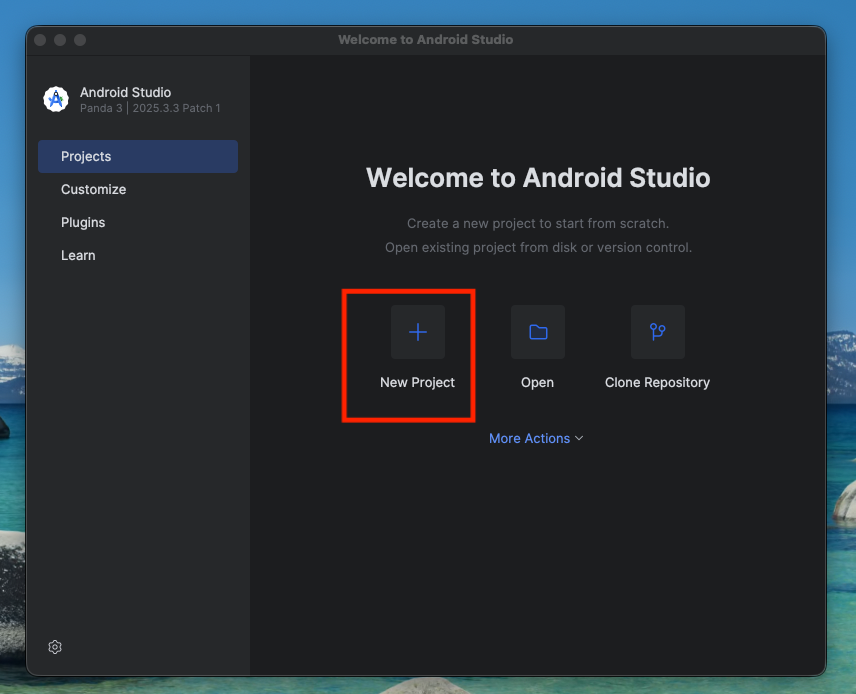
This is exactly what you see in the screenshot above — a clean welcome screen running Android Studio Panda (2025.3.3 Patch 1). If yours looks slightly different depending on your version, don’t worry. The flow is essentially the same.
Step 2: Choose Your Project Template
After clicking New Project, a window pops up asking you to pick a template. This is where beginners often freeze — there are a lot of options.
Here’s what each main template means in plain English:
- Empty Activity — a blank screen with Jetpack Compose (modern UI toolkit). Best for beginners starting fresh.
- Basic Views Activity — uses the older XML-based layout system. Fine, but Compose is the future.
- No Activity — literally an empty shell. Only useful if you know exactly what you’re doing.
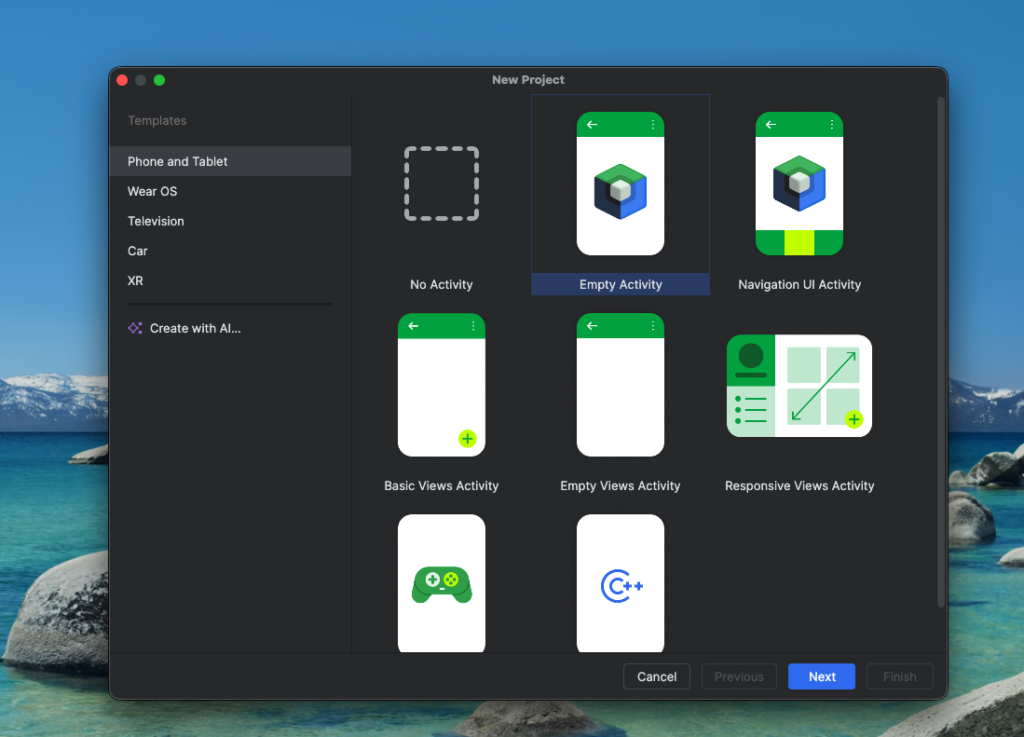
My recommendation? Go with Empty Activity. It gives you a working app right out of the box with Jetpack Compose, which is what Google is pushing hard in 2025. The screenshot above shows “Empty Activity” selected and highlighted in blue — that’s the sweet spot for new projects.
You’ll also notice options for Wear OS, Television, Car, and XR on the left sidebar. Stick with Phone and Tablet unless you’re building for a specific platform.
Click Next.
Step 3: Configure Your Project Settings
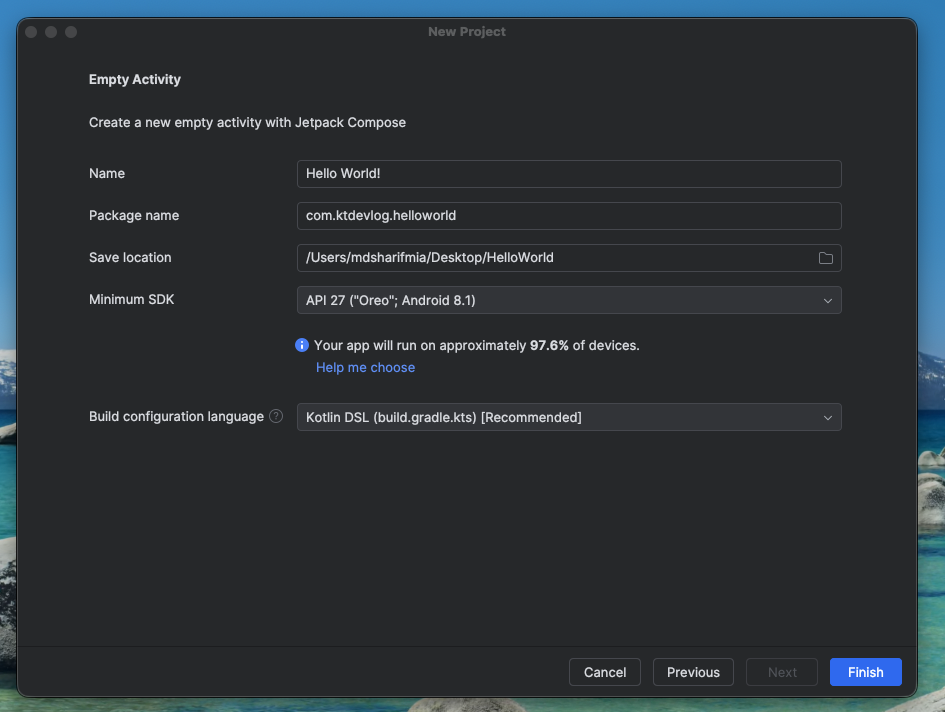
This is the page where your project gets its identity. Let’s walk through each field:
Name
This is your app’s display name. Something like “Hello World!” works perfectly for your first project. You can see in the screenshot this is exactly what’s been used — clean, simple, no overthinking needed.
Package Name
This is your app’s unique identifier on the Play Store and your device. It follows a reverse-domain format: com.yourname.appname. In the example, it’s com.ktdevlog.helloworld. Use something that makes sense for you — just keep it lowercase with no spaces.
Save Location
Where the project files live on your computer. Pick somewhere easy to find, like your Desktop or a dedicated AndroidProjects folder.
Minimum SDK
This is one of the most important settings. It determines the oldest Android version your app will support. The screenshot shows API 27 (“Oreo”; Android 8.1), which covers approximately 97.6% of active devices — that’s a sweet spot between broad compatibility and access to modern features.
If you drop it lower, you support more old devices but lose access to newer APIs. If you go higher, you get more features but fewer users. API 27 is a solid, safe choice for most projects.
Build Configuration Language
You’ll see two options: Kotlin DSL (build.gradle.kts) and Groovy DSL. The screenshot shows Kotlin DSL marked as [Recommended], and that’s what you should choose. It’s more consistent since you’re already writing Kotlin everywhere else, and it has better IDE support.
Once everything looks good, hit Finish.
Step 4: Understand Your Project Structure
Android Studio will spend a minute syncing and building. When it’s done, you’ll see your project open — and it might look intimidating. Let’s break down what you’re actually looking at.
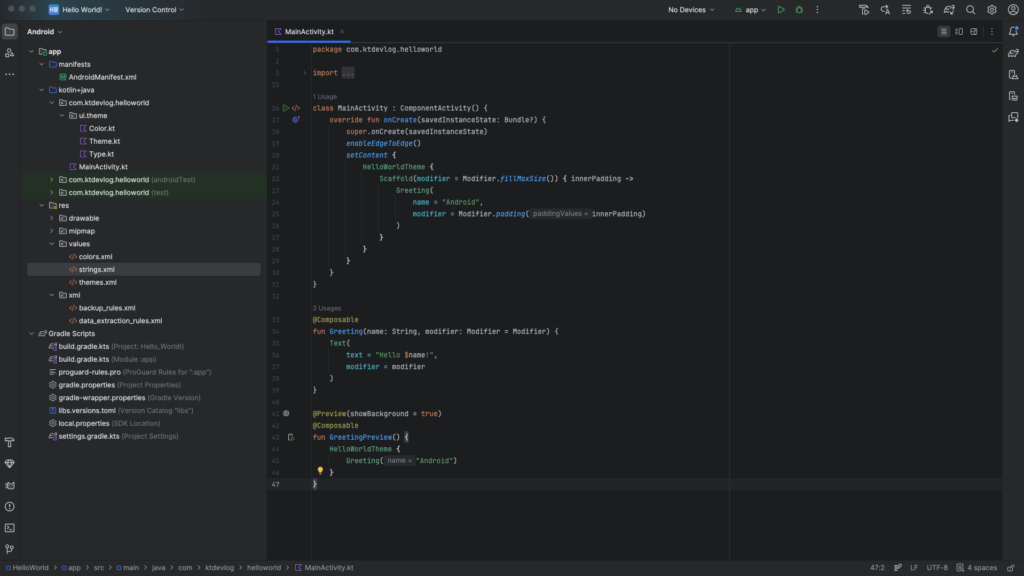
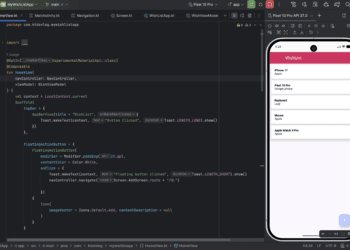
Looking at the first screenshot (the code view), here’s the key structure:
manifests/AndroidManifest.xml— the config file of your app. Tells Android what your app is called, what permissions it needs, and which screen opens first.kotlin+java/com.yourpackage/— this is where your actual Kotlin code lives. The main file here isMainActivity.kt.res/— resources like images, colors, strings, and themes. These are the non-code parts of your app.Gradle Scripts/— build configuration files. You usually don’t touch these much at the start.
The MainActivity.kt file is your entry point. It’s what runs when someone opens your app.
Step 5: Read the Default Kotlin Code
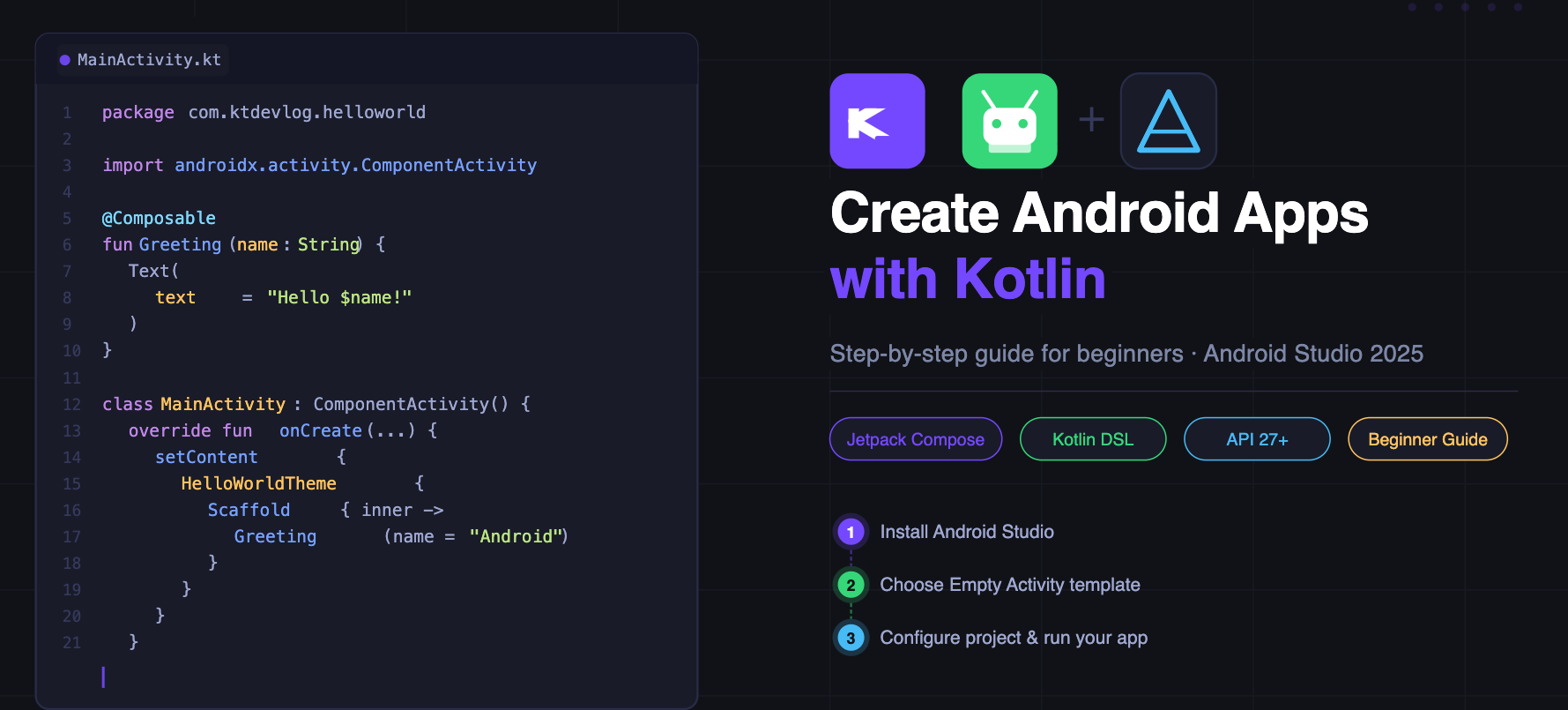
Here’s what the auto-generated MainActivity.kt looks like — and most guides just skip explaining this part:
class MainActivity : ComponentActivity() {
    override fun onCreate(savedInstanceState: Bundle?) {
        super.onCreate(savedInstanceState)
        setContent {
            HelloWorldTheme {
                Scaffold { innerPadding ->
                    Greeting(
                        name = "Android",
                        modifier = Modifier.padding(paddingValues = innerPadding)
                    )
                }
            }
        }
    }
}

@Composable
fun Greeting(name: String, modifier: Modifier = Modifier) {
    Text(
        text = "Hello $name!",
        modifier = modifier
    )
}What’s happening here: MainActivity is your screen. When the app starts, onCreate runs and sets up the UI using Jetpack Compose. The Greeting function is a composable — a reusable UI piece that displays “Hello Android!” on screen.
That’s literally your first app. It runs, it shows text, and it’s 100% Kotlin.
Step 6: Run Your App
To test your app, you need either a physical Android phone connected via USB or an Android emulator set up in Android Studio.
To create an emulator: go to Device Manager (the phone icon in the toolbar), click Create Device, pick a phone model, download a system image, and you’re set.
Then hit the green play button at the top of Android Studio. It’ll build, install, and launch your app. You’ll see “Hello Android!” on the screen.
That’s it. You just built and ran your first Android app with Kotlin.
FAQ
Do I need to know Java before learning Kotlin for Android?
Not at all. Kotlin was designed to be beginner-friendly, and you can jump straight in without any Java background. That said, if you do know Java, you’ll find Kotlin feels cleaner and more modern — it eliminates a lot of boilerplate code Java requires.
What’s the difference between Jetpack Compose and XML layouts?
Jetpack Compose is Google’s newer, declarative UI system where you build your interface entirely in Kotlin code. XML layouts are the older approach where UI is defined in separate XML files. Google officially recommends Compose for new projects in 2025, so start there.
Which Minimum SDK should I choose?
API 27 (Android 8.1) is a solid starting point — it covers nearly 98% of active devices. If you need very specific modern features, you might bump it up to API 30+, but for most beginner projects, API 27 is just right.
Can I use Kotlin for free?
Yes, completely. Kotlin is open-source and free to use. Android Studio is also free. The only cost comes if you want to publish on the Google Play Store, which requires a one-time $25 developer registration fee.
Why is my Gradle sync taking so long?
Gradle syncs download dependencies from the internet on first setup. It’s totally normal for the first sync to take 5–15 minutes depending on your internet speed. After that, subsequent builds are much faster since everything is cached locally.
Conclusion
Creating your first Android project with Kotlin really comes down to four things: install Android Studio, pick the right template, configure your project settings sensibly, and understand what the generated code is doing.
Most people get stuck because they overthink the setup or feel overwhelmed by all the files. The truth is, you only need to focus on MainActivity.kt to start. Everything else can wait.
Your next step: try changing "Android" to your own name in the Greeting function and run the app again. Small wins like that build momentum fast — and momentum is everything when you’re learning something new.