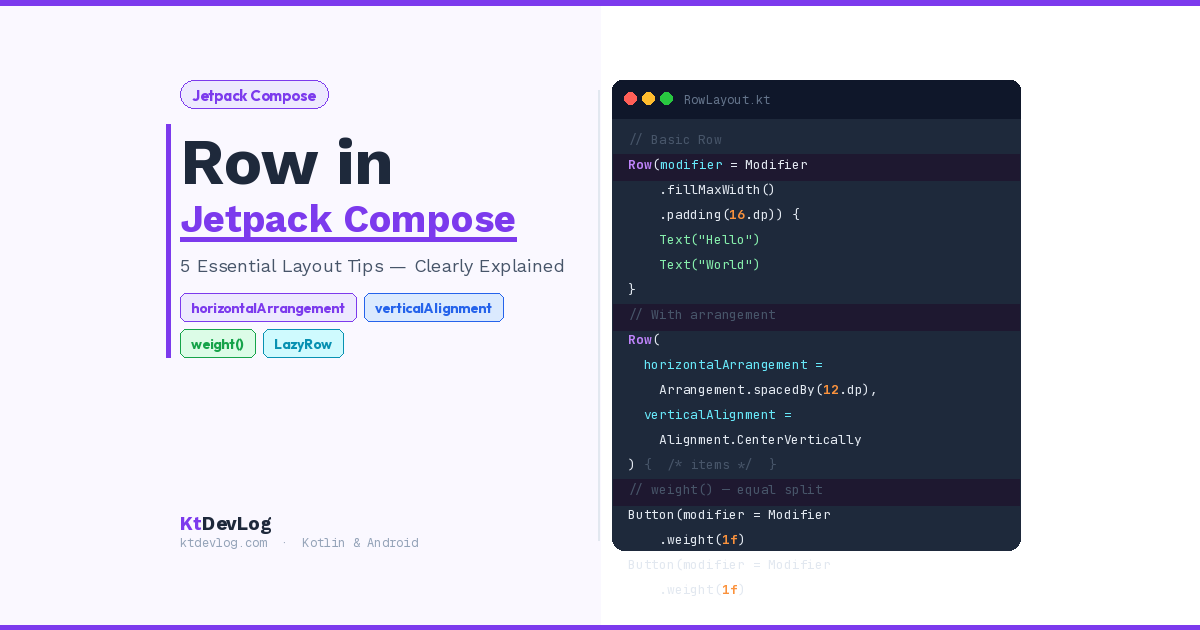

Picture a restaurant menu. The dish name is on the left. The price is on the right. Everything sits neatly on the same horizontal line.
That’s a Row in Jetpack Compose.
Any time you want UI elements placed side by side — a profile picture next to a name, two buttons in a line, icons across a navigation bar — Row is the composable you’ll reach for every single time. It’s one of the three fundamental layout building blocks in Compose, alongside Column and Box, and understanding it deeply will change how confidently you build Android UIs.



This guide walks you through everything — from your first Row to real-world layout patterns that show up in production apps. No prior Compose experience required.
Table of Contents
What Is Row in Jetpack Compose?
A Row in Jetpack Compose is a layout composable that places its children horizontally — one after another, left to right.
Think of it like a shelf. You put books on a shelf and they line up side by side. Put a Text, an Icon, and a Button inside a Row, and they appear on the same horizontal line. If you’ve worked with XML-based Android layouts before, Row is the Compose equivalent of a LinearLayout with android:orientation="horizontal".
According to the official Jetpack Compose documentation, Row is one of the standard layout composables that Compose provides for arranging UI elements. It works with Column and Box to build virtually any UI structure your app needs.
Here’s the simplest possible Row you can write:
@Composable
fun SimpleRow() {
    Row {
        Text(text = "Hello")
        Text(text = "World")
    }
}// Output on screen:
HelloWorldRun that and you’ll see “Hello” and “World” sitting right next to each other on the same line. That’s your first Row. Now let’s make it actually useful.
Setting Up Your First Row in Jetpack Compose
Before you start building, make sure you have a working Jetpack Compose project in Android Studio. If you haven’t done that yet, check out how to create your first Android project with Kotlin — it’ll get you ready in minutes. And if you’re brand new to Compose, reading Your First Jetpack Compose Function Explained first will give you the foundation that makes everything here click faster.
Once your project is open, find your MainActivity.kt file. Inside your setContent block, you can start writing composable functions right away.
Here’s a more realistic first Row — a user profile header with an icon and a name:
@Composable
fun UserProfileRow() {
    Row {
        Icon(
            imageVector = Icons.Default.Person,
            contentDescription = "Profile Icon"
        )
        Text(text = "Md Sharif Mia")
    }
}Simple and readable. But right now everything is crammed together with zero breathing room. That’s where Row‘s parameters make all the difference.
Tip 1 — Master the Modifier Parameter
The modifier parameter is how you control the size, padding, background, click behavior, and almost everything visual about your Row. It works the same way across every composable in Jetpack Compose — once you understand Modifier, you understand how to style anything in Compose.
@Composable
fun StyledRow() {
    Row(
        modifier = Modifier
            .fillMaxWidth()
            .padding(16.dp)
            .background(Color.LightGray)
    ) {
        Text(text = "Left")
        Text(text = "Right")
    }
}Three modifiers doing three jobs: fillMaxWidth() stretches the Row to fill the full screen width, padding(16.dp) adds breathing room around the content, and background() gives it a visible color.
That background() tip is genuinely useful while you’re learning. Add a colored background to any Row you’re debugging — it immediately shows you the exact size and position of your layout, which makes fixing alignment problems much faster.
Tip 2 — Control Spacing With horizontalArrangement
horizontalArrangement controls how children are distributed along the horizontal axis inside the Row. This single parameter is responsible for most of the spacing decisions in your layouts.
@Composable
fun ArrangementRow() {
    Row(
        modifier = Modifier.fillMaxWidth(),
        horizontalArrangement = Arrangement.SpaceBetween
    ) {
        Text(text = "Home")
        Text(text = "Search")
        Text(text = "Profile")
    }
}Here’s what each Arrangement option does:
| Arrangement | Behaviour |
|---|---|
Arrangement.Start | All items packed to the left (default) |
Arrangement.End | All items pushed to the right |
Arrangement.Center | All items centered |
Arrangement.SpaceBetween | Equal space between items, nothing on the edges |
Arrangement.SpaceAround | Equal space around each item including edges |
Arrangement.SpaceEvenly | Perfectly equal space everywhere |
Arrangement.spacedBy(8.dp) | Fixed gap between each item |
The last one — spacedBy() — is the one I use most in real projects. It’s predictable, easy to read, and works cleanly at any screen size:
Row(
    horizontalArrangement = Arrangement.spacedBy(12.dp)
) {
    Text("One")
    Text("Two")
    Text("Three")
}Each item gets exactly 12dp of space between it and the next one. No math. No manual Spacer calls. Just clean, consistent spacing.
Tip 3 — Align Items With verticalAlignment
verticalAlignment controls how children are positioned on the vertical axis inside the Row — are they pinned to the top, centered, or at the bottom?
@Composable
fun AlignedRow() {
    Row(
        modifier = Modifier.height(80.dp),
        verticalAlignment = Alignment.CenterVertically
    ) {
        Icon(
            imageVector = Icons.Default.Star,
            contentDescription = "Star"
        )
        Text(
            text = "KtDevLog",
            fontSize = 24.sp
        )
    }
}Without verticalAlignment, a small Icon and a large Text in the same Row both align to the top by default — which almost always looks awkward. Setting Alignment.CenterVertically keeps everything on the same visual baseline regardless of height differences.
Your three options are Alignment.Top, Alignment.CenterVertically, and Alignment.Bottom. In practice, CenterVertically covers about 90% of real-world use cases.
Tip 4 — Use weight() to Distribute Space Proportionally
Here’s the Row feature most beginner tutorials skip — and it’s one of the most powerful layout tools in all of Jetpack Compose.
The weight() modifier, applied to children inside a Row, tells each child how much of the remaining horizontal space it should claim. Think of it like slicing a pizza: weight(1f) means equal slices, weight(2f) means double the slice.
@Composable
fun WeightedRow() {
    Row(modifier = Modifier.fillMaxWidth()) {
        Text(
            text = "Title",
            modifier = Modifier.weight(1f)  // Takes up remaining space
        )
        Text(
            text = "Action",
            modifier = Modifier.weight(0.4f) // Takes 40% of weight portion
        )
    }
}This is most visible in button rows — where you want two buttons to share the screen width equally:
@Composable
fun ActionButtons() {
    Row(
        modifier = Modifier
            .fillMaxWidth()
            .padding(16.dp),
        horizontalArrangement = Arrangement.spacedBy(12.dp)
    ) {
        Button(
            onClick = { },
            modifier = Modifier.weight(1f)
        ) {
            Text("Cancel")
        }
        Button(
            onClick = { },
            modifier = Modifier.weight(1f),
            colors = ButtonDefaults.buttonColors(
                containerColor = Color(0xFF7C3AED)
            )
        ) {
            Text("Confirm")
        }
    }
}Both buttons take exactly half the available width, with a 12dp gap between them from spacedBy. Change one to weight(2f) and it takes twice the space of the other. This scales automatically to any screen size — no hardcoded widths needed.
This is the pattern you’ll use for toolbar actions, form buttons, bottom bar items, and any layout where you need proportional sizing. Once you understand weight(), a whole category of layout problems disappear.
Tip 5 — Use LazyRow for Scrollable Horizontal Lists
A regular Row renders all its children at once. If you have 50 items, all 50 get composed and laid out — even the ones off screen. For small, fixed numbers of items, that’s fine. For dynamic lists of unknown length, it’s a performance problem.
That’s where LazyRow comes in. It’s the horizontal equivalent of LazyColumn — it only composes and renders the items that are currently visible on screen, lazily loading the rest as the user scrolls.
@Composable
fun CategoryChips(categories: List<String>) {
    LazyRow(
        horizontalArrangement = Arrangement.spacedBy(8.dp),
        contentPadding = PaddingValues(horizontal = 16.dp)
    ) {
        items(categories) { category ->
            FilterChip(
                selected = false,
                onClick = { },
                label = { Text(category) }
            )
        }
    }
}This pattern is everywhere in real Android apps — horizontally scrollable category chips, image carousels, story feeds, tag lists. The contentPadding parameter adds padding at the start and end of the scrollable area without cutting off the last item, which is a subtle detail that polishes the feel of any horizontal scroll.
Use Row when you have a fixed, small number of items that always fit on screen. Use LazyRow when you have a dynamic list of unknown or large size.
3 Real-World Row Patterns You’ll Build Constantly
Navigation Bar Item
@Composable
fun NavItem(label: String) {
    Row(
        modifier = Modifier
            .fillMaxWidth()
            .padding(horizontal = 16.dp, vertical = 12.dp),
        verticalAlignment = Alignment.CenterVertically,
        horizontalArrangement = Arrangement.spacedBy(12.dp)
    ) {
        Icon(
            imageVector = Icons.Default.Home,
            contentDescription = null,
            tint = Color(0xFF7C3AED)
        )
        Text(
            text = label,
            fontSize = 16.sp,
            fontWeight = FontWeight.Medium
        )
    }
}Profile Card Header
@Composable
fun ProfileHeader(name: String, role: String) {
    Row(
        modifier = Modifier
            .fillMaxWidth()
            .padding(16.dp),
        verticalAlignment = Alignment.CenterVertically,
        horizontalArrangement = Arrangement.spacedBy(16.dp)
    ) {
        Box(
            modifier = Modifier
                .size(56.dp)
                .clip(CircleShape)
                .background(Color(0xFF9B5FFF)),
            contentAlignment = Alignment.Center
        ) {
            Text(
                text = name.first().toString(),
                color = Color.White,
                fontSize = 22.sp,
                fontWeight = FontWeight.Bold
            )
        }
        Column {
            Text(
                text = name,
                fontSize = 18.sp,
                fontWeight = FontWeight.Bold
            )
            Text(
                text = role,
                fontSize = 14.sp,
                color = Color.Gray
            )
        }
    }
}Notice how Row and Column work together here — the Row handles horizontal placement of the avatar and text block, while the Column inside handles the vertical stacking of name and role. This Row + Column nesting pattern is the backbone of almost every card UI in Android apps.
Price Row (Product Card)
@Composable
fun PriceRow(originalPrice: String, discountPrice: String) {
    Row(
        verticalAlignment = Alignment.CenterVertically,
        horizontalArrangement = Arrangement.spacedBy(8.dp)
    ) {
        Text(
            text = discountPrice,
            fontSize = 20.sp,
            fontWeight = FontWeight.Bold,
            color = Color(0xFF16A34A)
        )
        Text(
            text = originalPrice,
            fontSize = 14.sp,
            color = Color.Gray,
            textDecoration = TextDecoration.LineThrough
        )
    }
}Common Mistakes With Row in Jetpack Compose
Every beginner hits these. Knowing them in advance saves real debugging time.
Forgetting fillMaxWidth() — By default, a Row only takes up as much horizontal space as its children need. If you want it to stretch across the full screen, add modifier = Modifier.fillMaxWidth(). This catches almost everyone the first time.
Skipping verticalAlignment — Mixed-height children inside a Row look misaligned without it. Always add verticalAlignment = Alignment.CenterVertically unless you specifically want top or bottom alignment.
Content overflowing without scrolling — If too many items exceed the screen width, Compose clips them silently. Wrap your Row with Modifier.horizontalScroll(rememberScrollState()) to make it scrollable, or switch to LazyRow for dynamic lists.
// Fix for overflow — scrollable Row
Row(
    modifier = Modifier.horizontalScroll(rememberScrollState())
) {
    // many items
}Overusing nested Rows — When you find yourself nesting three Rows inside each other, stop and reconsider. Usually weight() modifiers on existing children solve the same problem more cleanly.
Row vs Column vs Box — When to Use Which
| Composable | Use When |
|---|---|
Row | You want items side by side horizontally |
Column | You want items stacked vertically |
Box | You want items layered on top of each other |
In real Android apps, you’ll almost always combine all three. A Column might contain several Rows. A Row might contain a Box for an avatar with a notification badge overlaid on top. They’re designed to compose together — mix and match freely based on what your layout needs.
Understanding how these three work together is exactly what separates a developer who can build simple screens from one who can build any screen. To take the next step, Your First Jetpack Compose Function Explained covers the composable system that makes all of this possible.
Frequently Asked Questions
What is Row used for in Jetpack Compose?
Row is a layout composable that arranges its children horizontally from left to right. It’s used whenever you want UI elements side by side — an icon next to text, two buttons in a line, a navigation bar with multiple items, or a profile picture next to a name. It’s one of the three core layout composables in Jetpack Compose alongside Column and Box.
What’s the difference between Row and Column in Jetpack Compose?
Row arranges children horizontally (left to right). Column arranges children vertically (top to bottom). They’re the two most fundamental layout composables and are frequently nested inside each other to build complex screen layouts. A real-world card typically uses a Row inside a Column — the Column stacks sections vertically, while the Row handles side-by-side elements within each section.
How do I add space between items in a Row?
The cleanest way is horizontalArrangement = Arrangement.spacedBy(Xdp) where X is your desired gap. This applies consistent spacing between every item automatically. For manual control between specific items, use Spacer(modifier = Modifier.width(8.dp)) at any point inside the Row.
What is the difference between Row and LazyRow in Jetpack Compose?
Row renders all its children immediately — it’s best for a small, fixed number of items that always fit on screen. LazyRow renders only the visible items and loads others lazily as the user scrolls — it’s the right choice for dynamic or large lists. Use Row for navigation bars and button groups, LazyRow for carousels, chip lists, and any horizontally scrollable collection.
How do I make items in a Row take equal width?
Use the weight() modifier on each child. Modifier.weight(1f) on two children splits the available space equally between them. Change the weight values to create proportional distributions — weight(2f) on one child and weight(1f) on another gives the first child twice the space.
Conclusion
Row in Jetpack Compose quietly powers a huge portion of every Android UI you’ve ever used. Navigation bars, profile headers, button pairs, price displays, tag rows — they’re all built on this one composable.
Start with the basics: put two Text elements in a Row and see them line up. Then add horizontalArrangement, verticalAlignment, and a Modifier. Build the profile header example. Try the action buttons with weight(). By the time you’ve worked through those, Row will feel completely natural.
From here, pair your Row knowledge with Kotlin data classes to build clean data models for your UI, and explore Kotlin StateFlow and SharedFlow to connect your layouts to reactive state — that combination is the foundation of every modern Android app.
If anything here didn’t click or you hit an error you can’t figure out, drop a message at hello@ktdevlog.com — I read every one.
Open Android Studio and build something. That’s where the real learning happens.