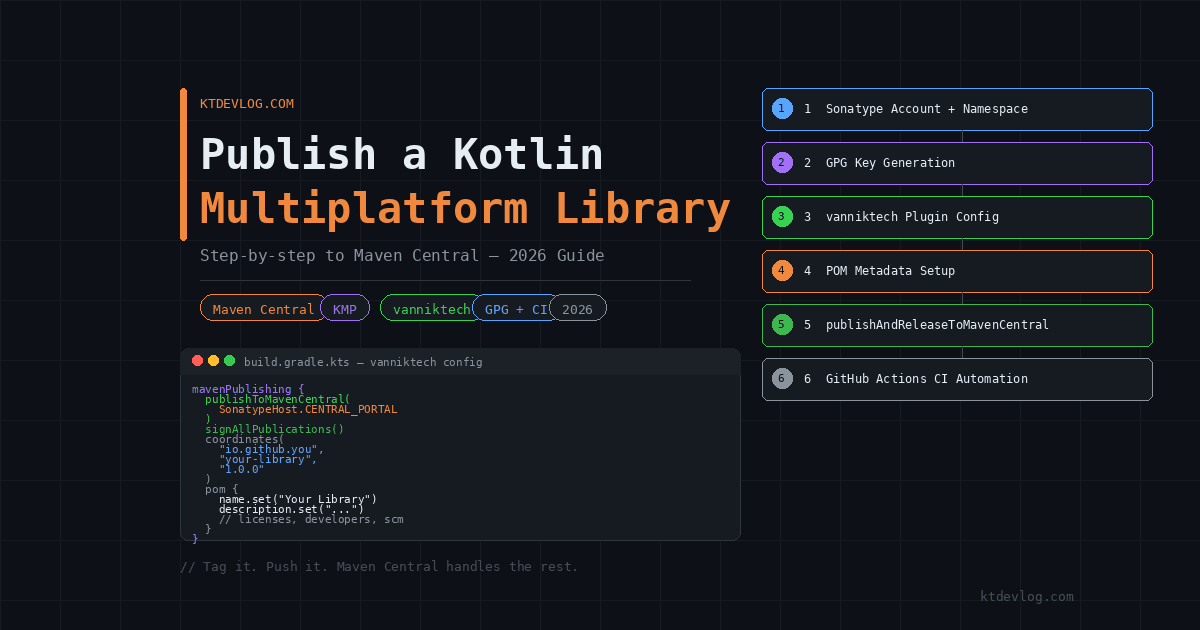

You’ve built a Kotlin Multiplatform library. It works beautifully on Android. iOS runs it without a complaint. Your colleagues want to use it in their projects, and honestly — it deserves to be public.
Then you start Googling how to publish it to Maven Central and suddenly you’re drowning. GPG keys. Sonatype namespaces. Staging repositories. PGP signing. Half the tutorials you find were written before March 2024 when Sonatype switched to the Central Portal — so they reference a JIRA-based registration flow that no longer exists.
This guide is written for 2026. It uses the current Central Portal, the vanniktech Gradle publish plugin at version 0.36.0, and GitHub Actions for automated CI publishing. Every step is in the right order, every credential is explained, and nothing is left as “you’ll figure this out.”
Table of Contents
What You Need Before Starting
Before touching a single line of Gradle config, get these four things ready. Missing any one of them mid-process is how developers lose an afternoon.
A Sonatype Central Portal account. Register at central.sonatype.com. This is the new portal — not the old issues.sonatype.org that most older tutorials reference. If you registered after March 12th, 2024, you’re automatically on the new system.
A verified namespace. Maven Central requires you to prove you own the group ID you’re publishing under. The fastest way: use a GitHub-based namespace like io.github.yourusername. Sonatype verifies it by checking that a GitHub repository exists at github.com/yourusername/yourusername. Create that repo if it doesn’t exist, then register the namespace in the Central Portal dashboard under your account.
A GPG key pair. Every artifact published to Maven Central must be signed. You’ll generate a GPG key, upload the public key to a keyserver, and use the private key to sign your artifacts during the publish task.
Your library on GitHub. The CI workflow in this guide uses GitHub Actions. Your library needs to be in a GitHub repository before the automated publishing step.
Step 1 — Generate and Upload Your GPG Key
Open your terminal. On macOS, install GPG via Homebrew if you haven’t already:
brew install gnupgOn Linux, GPG is typically pre-installed. On Windows, use GnuPG or Gpg4win.
Generate a 4096-bit RSA key pair:
gpg --full-generate-keyWhen prompted:
- Key type:
RSA and RSA - Key size:
4096 - Expiration: your choice —
2yfor two years is reasonable - Your real name and email address
Once generated, list your keys to find the key ID:
gpg --list-secret-keys --keyid-format LONGThe output looks like this:
sec   rsa4096/F175482952A225BF 2024-01-01 [SC]
      F175482952A225BFC4A07A715EE6B5F76620B385CE
The last 8 characters of the full fingerprint — 20B385CE in this example — is your SIGNING_KEY_ID. Note this down.
Now upload your public key to the Ubuntu keyserver so Maven Central can verify your signatures:
gpg --keyserver keyserver.ubuntu.com --send-keys F175482952A225BFC4A07A715EE6B5F76620B385CEExport your private key in ASCII armor format — you’ll need this for GitHub Actions secrets:
gpg --armor --export-secret-keys F175482952A225BFC4A07A715EE6B5F76620B385CE > secret-key.ascCritical: Never commit secret-key.asc to version control. Add it to your .gitignore immediately.
Step 2 — Configure the vanniktech Maven Publish Plugin
The official maven-publish Gradle plugin can publish KMP libraries, but configuring it for Maven Central’s requirements — sources JARs, Javadoc JARs, POM metadata, GPG signing — involves a lot of manual setup. The vanniktech plugin handles all of that automatically.
Add it to your gradle/libs.versions.toml:
[versions]
vanniktech = "0.36.0"

[plugins]
maven-publish = { id = "com.vanniktech.maven.publish", version.ref = "vanniktech" }Apply it in your library module’s build.gradle.kts:
plugins {
    kotlin("multiplatform")
    id("com.android.library")           // if your library targets Android
    id("com.vanniktech.maven.publish")
}Now configure the publication metadata and Maven Central target in the same file:
mavenPublishing {
    publishToMavenCentral(SonatypeHost.CENTRAL_PORTAL)
    signAllPublications()

    coordinates(
        groupId    = "io.github.yourusername",
        artifactId = "your-library-name",
        version    = "1.0.0"
    )

    pom {
        name.set("Your Library Name")
        description.set("A concise description of what your library does.")
        inceptionYear.set("2026")
        url.set("https://github.com/yourusername/your-library-name")

        licenses {
            license {
                name.set("Apache-2.0")
                url.set("https://www.apache.org/licenses/LICENSE-2.0.txt")
            }
        }

        developers {
            developer {
                id.set("yourusername")
                name.set("Your Name")
                email.set("your@email.com")
            }
        }

        scm {
            url.set("https://github.com/yourusername/your-library-name")
            connection.set("scm:git:git://github.com/yourusername/your-library-name.git")
            developerConnection.set("scm:git:ssh://git@github.com/yourusername/your-library-name.git")
        }
    }
}Maven Central enforces every POM field above — name, description, url, licenses, developers, and scm. Missing any one of them causes the upload validation to fail with a cryptic error. Fill them all in now.
Important for Android targets: If your library includes an Android target, add the namespace to your android {} block to avoid a build error during the release preparation:
android {
    namespace = "io.github.yourusername.yourlibrary"
    compileSdk = 35
    minSdk = 21
}Step 3 — Set Up Local Credentials for Testing
Before automating with CI, test the publish task locally first. Create or open your global ~/.gradle/gradle.properties file — not the one inside your project — and add your credentials:
properties
# Sonatype Central Portal — use Token credentials, not your login password
mavenCentralUsername=YOUR_TOKEN_USERNAME
mavenCentralPassword=YOUR_TOKEN_PASSWORD

# GPG signing
signing.keyId=20B385CE
signing.password=YOUR_GPG_PASSPHRASE
signing.secretKeyRingFile=/Users/yourusername/.gnupg/secring.gpg
To get your token credentials, log into central.sonatype.com, click your profile, and go to Generate User Token. The username and password shown there — not your login credentials — go into gradle.properties.
Why ~/.gradle/gradle.properties and not the project file? Because credentials in a project-level gradle.properties risk being committed to GitHub. The global file never touches version control.
Now run a local publish to Maven Local first to verify everything builds correctly before uploading to Central:
./gradlew publishToMavenLocalCheck ~/.m2/repository/io/github/yourusername/ — your artifacts should be there with .jar, -sources.jar, -javadoc.jar, .pom, and .asc signature files. If any of these are missing, something in the plugin config needs fixing before you try Maven Central.
Step 4 — Publish Manually to Maven Central
With local publishing confirmed clean, run the full publish task:
./gradlew publishAndReleaseToMavenCentral --no-configuration-cacheThe --no-configuration-cache flag is required — the plugin is not compatible with Gradle’s configuration cache during the release step.
This task uploads all KMP target artifacts, signs them, and submits the deployment to the Central Portal. The plugin polls the deployment status every 5 seconds and waits until validation passes. Once it completes, log into your Central Portal dashboard and your deployment should show as PUBLISHED within a few minutes.
The first time you publish a new groupId, it takes up to 30 minutes to appear on search.maven.org. Subsequent releases are faster — usually under 10 minutes.
Step 5 — Automate Publishing with GitHub Actions
Manual publishing works but it’s not a scalable workflow. The cleaner setup: push a version tag, GitHub Actions signs and publishes automatically.
First, add your credentials as GitHub repository secrets. Go to your repo → Settings → Secrets and variables → Actions → New repository secret — and create these five secrets:
MAVEN_CENTRAL_USERNAME     ← Your Sonatype token username
MAVEN_CENTRAL_PASSWORD     ← Your Sonatype token password
SIGNING_KEY_ID             ← Last 8 chars of your GPG key fingerprint
SIGNING_PASSWORD           ← Your GPG key passphrase
SIGNING_KEY                ← ASCII-armored private key (entire content of secret-key.asc)
For SIGNING_KEY, paste the full content of your secret-key.asc file — headers and all.
Now create .github/workflows/publish.yml in your library repo:
name: Publish to Maven Central

on:
  push:
    tags:
      - 'v*'         # triggers on any tag starting with 'v'

jobs:
  publish:
    runs-on: macos-latest    # macOS required for Kotlin/Native iOS targets

    steps:
      - name: Checkout
        uses: actions/checkout@v4

      - name: Set up JDK 17
        uses: actions/setup-java@v4
        with:
          java-version: '17'
          distribution: 'temurin'

      - name: Publish to Maven Central
        run: ./gradlew publishAndReleaseToMavenCentral --no-configuration-cache
        env:
          ORG_GRADLE_PROJECT_mavenCentralUsername:  ${{ secrets.MAVEN_CENTRAL_USERNAME }}
          ORG_GRADLE_PROJECT_mavenCentralPassword:  ${{ secrets.MAVEN_CENTRAL_PASSWORD }}
          ORG_GRADLE_PROJECT_signingInMemoryKeyId:  ${{ secrets.SIGNING_KEY_ID }}
          ORG_GRADLE_PROJECT_signingInMemoryKeyPassword: ${{ secrets.SIGNING_PASSWORD }}
ORG_GRADLE_PROJECT_signingInMemoryKey: ${{ secrets.SIGNING_KEY }}Why macos-latest? Kotlin Multiplatform compiles iOS and macOS targets using Kotlin/Native, which requires a macOS host. Linux runners cannot compile Apple targets — the build will fail if you use ubuntu-latest for a library with an iOS target.
To trigger a release, create a version tag and push it:
git tag v1.0.0
git push origin v1.0.0GitHub Actions picks it up, runs the workflow, and your library appears on Maven Central automatically.
Common Errors and How to Fix Them
“No signature for artifact” — you haven’t called signAllPublications() in your mavenPublishing block, or your GPG key isn’t available to Gradle. Check that signing.keyId, signing.password, and signing.secretKeyRingFile are all set in ~/.gradle/gradle.properties.
“Namespace not verified” — your group ID doesn’t match a namespace you’ve verified in the Central Portal. For GitHub-based namespaces, make sure the repository github.com/yourusername/yourusername exists before registering.
“Missing required POM element” — one of name, description, url, licenses, or developers is absent from your pom {} block. Maven Central rejects any artifact missing these fields.
“iOS target not found” — your GitHub Actions workflow uses a Linux runner. Switch to runs-on: macos-latest for any library with iOS or macOS targets.
Deployment stuck in VALIDATING — this sometimes takes up to 30 minutes on first publish. If it stays there longer, check the Central Portal dashboard for validation error messages. They’re usually specific enough to point you to the exact missing field.
Frequently Asked Questions
Do I need a Mac to publish a KMP library with iOS support?
For local publishing, yes — Kotlin/Native iOS compilation requires macOS. For CI, you need macos-latest in your GitHub Actions runner. There are workarounds using Linux for non-Apple targets and combining artifacts in a two-stage CI pipeline, but for most libraries the simplest approach is using a macOS runner for the full publish task.
Can I publish snapshot versions to Maven Central?
Yes — the Central Portal supports snapshot publishing as of 2025. Add -SNAPSHOT to your version string and use publishAllPublicationsToMavenCentralRepository instead of publishAndReleaseToMavenCentral. Make sure snapshots are enabled for your namespace in the Central Portal dashboard. Snapshots are available at s01.oss.sonatype.org/content/repositories/snapshots/.
What’s the difference between SIGNING_KEY and SIGNING_KEY_ID in GitHub Actions?
SIGNING_KEY_ID is the last 8 characters of your GPG key’s fingerprint — used to identify which key to use when multiple keys exist. SIGNING_KEY is the full ASCII-armored private key content — used for in-memory signing on CI without needing a keyring file on disk. Both are required. Missing either causes the signing step to fail silently.
How long does it take for my library to appear on Maven Central after publishing?
First-time publications typically appear on search.maven.org within 10–30 minutes after the Central Portal shows the deployment as PUBLISHED. Subsequent versions of the same artifact are usually indexed within 5–10 minutes. The implementation("io.github.yourusername:your-library:1.0.0") dependency becomes resolvable by other Gradle projects once the search index updates.
Should I use the official maven-publish plugin or vanniktech?
Both work — the official maven-publish plugin is built into Gradle and requires no extra dependency. The trade-off is manual configuration of sources JARs, Javadoc JARs, POM signing, and Central Portal credentials per target. The vanniktech plugin handles all of that automatically for KMP projects and is the approach the official JetBrains KMP publishing tutorial recommends for Maven Central. For most library authors, vanniktech saves significant setup time.
Conclusion
Publishing a Kotlin Multiplatform library to Maven Central in 2026 is genuinely manageable once you understand the moving parts — Sonatype namespace verification, GPG signing, vanniktech plugin configuration, and the macOS CI requirement for iOS targets. None of it is magic, but each step depends on the previous one being done correctly.
The setup takes an hour the first time. After that, releasing a new version is a single git push away — tag it, push, let GitHub Actions do the rest while you move on to building the next feature.
If you’re building a library that wraps platform-specific APIs using expect/actual, make sure the mechanism is solid before publishing — the KMP expect/actual guide walks through every pattern your library consumers will encounter when integrating your code.
Your library is only useful if developers can find it. Ship it.