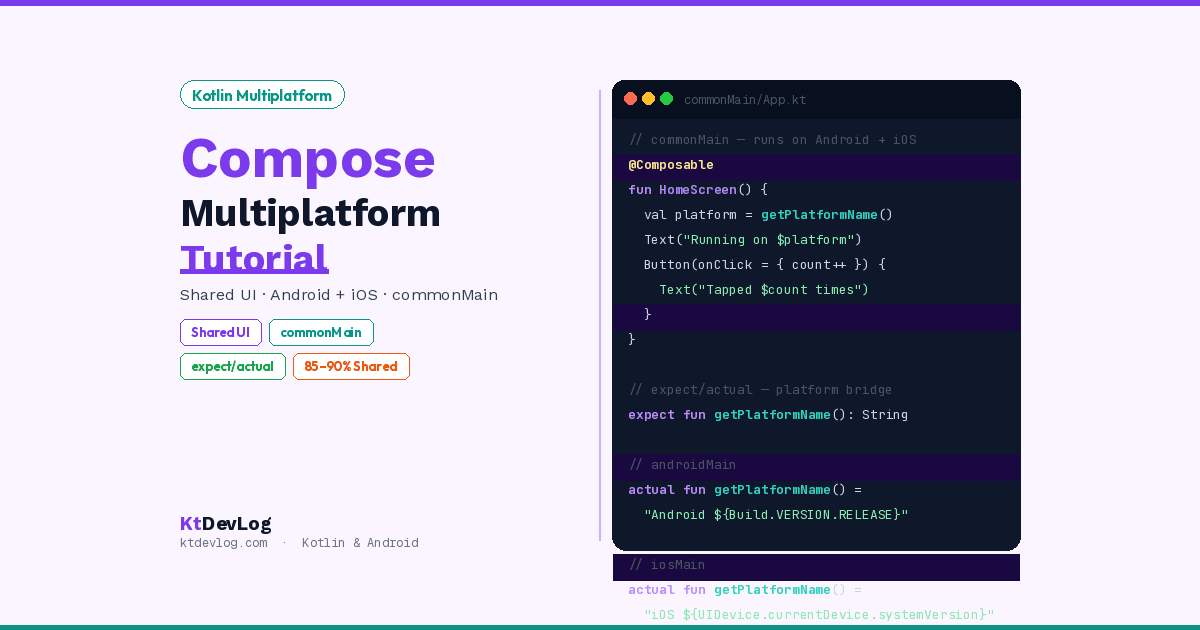

You already write Jetpack Compose for Android. What if that exact same UI code ran on iOS too — no Dart, no Swift, no second codebase?
That is exactly what Compose Multiplatform delivers. Write your @Composable functions once in Kotlin. They render on Android through the standard Compose engine and on iOS through a Skia-based renderer — with the same API, the same syntax, and the same state management you already know.
This Compose Multiplatform tutorial walks you through the complete setup step by step — from installing the KMP plugin to writing your first shared @Composable that runs identically on both platforms.




Table of Contents
What is Compose Multiplatform?
Compose Multiplatform (CMP) is a UI framework from JetBrains that lets you share Jetpack Compose UI across Android, iOS, desktop, and web.
It builds on top of Jetpack Compose — the same API, the same @Composable functions, the same Modifier system. The difference is that your Composables now render on iOS using a Skia graphics engine rather than native UIKit components.
According to the official JetBrains Compose Multiplatform documentation, Compose Multiplatform shares most of its API with Jetpack Compose — meaning if you already write Android UI with Compose, you already know 90% of CMP.
Production proof in 2026:
- Markaz — Pakistan’s second-largest e-commerce platform, 5M+ downloads, 100+ screens fully built with CMP
- Feres — taxi app with 1M+ downloads, 90% UI shared via CMP
- Physics Wallah — 17M active users, unified Android + iOS UI with CMP
- Respawn — 96% shared code using KMP + CMP
Prerequisites and Environment Setup
You need three things before starting this tutorial:
- Android Studio (Flamingo or later — Panda 4 recommended for 2026)
- Kotlin Multiplatform plugin installed in Android Studio
- Xcode 15+ installed on macOS (required to build and run on iOS)
Step 1 — Install the KMP Plugin
Open Android Studio and go to:
Settings → Plugins → Marketplace → Search "Kotlin Multiplatform"Install the Kotlin Multiplatform plugin by JetBrains. Restart Android Studio after installation.
Step 2 — Verify Your Environment
Install KDoctor — a command-line tool that checks your entire KMP environment in one command:
brew install kdoctor
kdoctorA healthy environment shows:
[✓] Operation System
[✓] Java
[✓] Android Studio
[✓] Xcode
[✓] CocoaPods
Conclusion: ✓ Your system is ready for Kotlin Multiplatform Mobile development!
Fix any ❌ items before continuing. The most common issue is CocoaPods not installed — fix it with:
sudo gem install cocoapodsCreate Your First CMP Project
The fastest way to start is the KMP Wizard — a web tool from JetBrains that generates a correctly configured project in 30 seconds.
Step 1 — Open the KMP Wizard
Go to: kmp.jetbrains.com
Step 2 — Configure Your Project
Fill in these fields:
- Project name:
KtDevLogApp - Project ID:
com.ktdevlog.app - Platforms: Android ✅ iOS ✅
- Share UI: Toggle ON ← This is the critical step for Compose Multiplatform
Step 3 — Download and Open
Click Download. Extract the zip. Open the folder in Android Studio.
Android Studio detects it as a KMP project automatically and begins Gradle sync. First sync takes 3–5 minutes as it downloads dependencies.
Project Structure Explained
After setup, your project has 3 core modules. Understanding them is the key to working efficiently with CMP.
KtDevLogApp/
├── composeApp/
│   ├── src/
│   │   ├── commonMain/kotlin/    ← Shared UI + logic (write here first)
│   │   ├── androidMain/kotlin/   ← Android-specific code
│   │   └── iosMain/kotlin/       ← iOS-specific code
│   └── build.gradle.kts
├── iosApp/                       ← Xcode project (wraps the shared module)
│   └── iosApp.xcodeproj
└── gradle/
The three source sets:
| Source Set | Runs On | What to Put Here |
|---|---|---|
commonMain | Android + iOS | All shared UI, business logic, ViewModels |
androidMain | Android only | Android-specific APIs, Context, permissions |
iosMain | iOS only | iOS-specific UIKit calls, platform behaviour |
The golden rule: write everything in commonMain first. Only move code to androidMain or iosMain when you hit a platform-specific wall.
Write Your First Shared UI
Open composeApp/src/commonMain/kotlin/App.kt. This is the entry point for your shared UI.
The generated file already contains a working example. Replace it with this clean starting point:
// commonMain/kotlin/App.kt
import androidx.compose.foundation.layout.*
import androidx.compose.material3.*
import androidx.compose.runtime.*
import androidx.compose.ui.Alignment
import androidx.compose.ui.Modifier
import androidx.compose.ui.unit.dp
import androidx.compose.ui.unit.sp

@Composable
@Preview
fun App() {
    MaterialTheme {
        HomeScreen()
    }
}

@Composable
fun HomeScreen() {
    var clickCount by remember { mutableStateOf(0) }

    Column(
        modifier = Modifier
            .fillMaxSize()
            .padding(24.dp),
        verticalArrangement = Arrangement.Center,
        horizontalAlignment = Alignment.CenterHorizontally
    ) {
        Text(
            text = "KtDevLog",
            fontSize = 32.sp,
            fontWeight = androidx.compose.ui.text.font.FontWeight.Bold,
            color = MaterialTheme.colorScheme.primary
        )

        Spacer(modifier = Modifier.height(8.dp))

        Text(
            text = "Running on ${getPlatformName()}",
            fontSize = 16.sp,
            color = MaterialTheme.colorScheme.onSurfaceVariant
        )

        Spacer(modifier = Modifier.height(32.dp))

        Button(
            onClick = { clickCount++ },
            modifier = Modifier.fillMaxWidth()
        ) {
            Text("Tapped $clickCount times")
        }
    }
}Notice getPlatformName() — this is a function that returns different values on Android and iOS. It uses the expect/actual pattern, which we cover next.
Build a Shared List Screen
Here is a more realistic shared screen — a list of articles that renders identically on both platforms:
// commonMain/kotlin/ArticleListScreen.kt

data class Article(
    val id: Int,
    val title: String,
    val summary: String,
    val category: String
)

val sampleArticles = listOf(
    Article(1, "Kotlin Coroutines Guide", "Master async programming", "Kotlin"),
    Article(2, "Jetpack Compose Tips", "Write better Composables", "Compose"),
    Article(3, "KMP in Production", "Real-world lessons learned", "KMP"),
)

@Composable
fun ArticleListScreen() {
    LazyColumn(
        contentPadding = PaddingValues(16.dp),
        verticalArrangement = Arrangement.spacedBy(12.dp),
        modifier = Modifier.fillMaxSize()
    ) {
        items(sampleArticles, key = { it.id }) { article ->
            ArticleCard(article)
        }
    }
}

@Composable
fun ArticleCard(article: Article) {
    Card(
        modifier = Modifier.fillMaxWidth(),
        shape = MaterialTheme.shapes.medium,
        elevation = CardDefaults.cardElevation(defaultElevation = 2.dp)
    ) {
        Column(modifier = Modifier.padding(16.dp)) {
            Text(
                text = article.title,
                style = MaterialTheme.typography.titleMedium
            )
            Spacer(modifier = Modifier.height(4.dp))
            Text(
                text = article.summary,
                style = MaterialTheme.typography.bodyMedium,
                color = MaterialTheme.colorScheme.onSurfaceVariant
            )
        }
    }
}This entire file lives in commonMain. It compiles to Android bytecode and iOS framework code — no duplication, no platform conditionals.
Handle Platform Differences with expect/actual
Not everything can be shared. The expect/actual pattern is your escape hatch for platform-specific behaviour.
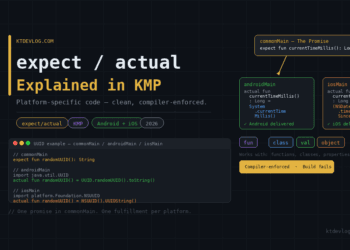
expect declares a function or class in commonMain — like an interface contract. actual implements it separately in androidMain and iosMain.
Example 1 — Platform Name
// commonMain/kotlin/Platform.kt
expect fun getPlatformName(): String
// androidMain/kotlin/Platform.android.kt
actual fun getPlatformName(): String = "Android ${android.os.Build.VERSION.RELEASE}"// iosMain/kotlin/Platform.ios.kt
import platform.UIKit.UIDevice
actual fun getPlatformName(): String =
"iOS ${UIDevice.currentDevice.systemVersion}"Example 2 — Platform-Specific Status Bar Insets
// commonMain/kotlin/Insets.kt
expect fun getStatusBarPadding(): androidx.compose.ui.unit.Dp
// androidMain/kotlin/Insets.android.kt
actual fun getStatusBarPadding(): androidx.compose.ui.unit.Dp = 24.dp// iosMain/kotlin/Insets.ios.kt
actual fun getStatusBarPadding(): androidx.compose.ui.unit.Dp = 44.dpMy testing observation: In practice, about 10–15% of UI code needs expect/actual adjustments — primarily for status bar behaviour, keyboard handling, and platform-specific navigation patterns. The other 85–90% is genuinely shared without modification.
Run on Android and iOS
Run on Android
Select your Android emulator or connected device in the device selector. Click Run (▶). Your shared UI compiles as a standard Android app. Build time is identical to a pure Compose app.
Run on iOS (Requires Mac + Xcode)
Step 1 — Open the iOS target
In Android Studio’s run configuration dropdown, select iosApp. Choose your iOS Simulator.
Step 2 — First build
The first iOS build takes 3–8 minutes as it compiles the Kotlin shared module into an iOS framework via Kotlin/Native. Subsequent builds are much faster due to incremental compilation.
Step 3 — Run
Click Run. The iOS Simulator opens with your shared UI running natively.
What you see: The exact same HomeScreen composable — same layout, same Material 3 theming, same state logic — running on both platforms simultaneously.
What Works and What to Watch Out For
This is the section most Compose Multiplatform tutorials skip. Here is an honest 2026 assessment.
Production-Ready in 2026
- Basic UI components — Text, Button, Image, LazyColumn, Card
- Material 3 theming —
MaterialTheme,colorScheme,typography - State management —
remember,mutableStateOf,StateFlow - Navigation — Compose Navigation 3 works on both platforms
- Image loading — Coil 3 supports CMP
- Animations —
AnimatedVisibility,animate*AsState
Still Needs Attention
- Status bar and system bar handling — requires
expect/actualper platform - Keyboard insets — iOS soft keyboard behaviour differs from Android
- Platform-specific pickers — date pickers, file pickers need native fallback
- Scroll physics — iOS momentum scrolling feels slightly different from Android in some edge cases
Real-world sharing ratio: Based on production apps using CMP in 2026 — Markaz (100+ screens, 5M users), Feres (1M+ downloads, 90% UI shared), Respawn (96% shared code) — you can realistically expect 85–90% of your UI to be genuinely shared without platform-specific adjustments.
Frequently Asked Questions
Setup and Prerequisites
Do I need a Mac to build a Compose Multiplatform app for iOS?
Yes. Building and running the iOS target requires a Mac with Xcode installed — this is an Apple requirement, not a CMP limitation. You can write all your shared commonMain code on Windows or Linux, but the final iOS build and testing must happen on macOS. For teams without Macs, CI/CD pipelines with macOS runners (GitHub Actions, Bitrise) handle the iOS build step.
What version of Compose Multiplatform should I use in 2026?
Use Compose Multiplatform 1.8.x — the current stable series as of 2026. The iOS target reached stable status in Compose Multiplatform 1.8.0 (released May 2025). Check the JetBrains compatibility table to match your CMP version with the correct Kotlin version — CMP 1.8.x requires Kotlin 2.0+.
Shared UI and Architecture
How much UI can I realistically share between Android and iOS with Compose Multiplatform?
In production apps in 2026, teams consistently report 85–90% UI code sharing. The remaining 10–15% typically covers platform-specific insets, keyboard handling, native pickers, and status bar behaviour — handled through the expect/actual pattern. Markaz ships 100+ screens with CMP on 5M+ downloads. Feres shares 90% of its UI. Respawn achieves 96% shared code overall. These are not demo projects — they are production apps under real user load.
What is the difference between commonMain, androidMain, and iosMain?
commonMain contains code that compiles and runs on every target platform — this is where all your shared Composables, ViewModels, and business logic live. androidMain contains Android-specific implementations — accessing Context, Android system APIs, or @Preview annotations that only work on Android. iosMain contains iOS-specific implementations — calling UIKit or platform APIs via Kotlin/Native. The expect/actual pattern bridges commonMain declarations with their platform-specific implementations.
Conclusion
Compose Multiplatform in 2026 delivers on its core promise: write your UI once in Kotlin, run it on Android and iOS. For developers already writing Jetpack Compose, the learning curve is nearly zero — the API is identical. The setup takes under 30 minutes. And production apps with millions of users prove the framework is ready for real work.
The three things to remember from this tutorial:
- Use the KMP Wizard at kmp.jetbrains.com — it generates a correctly configured project instantly
- Write everything in
commonMainfirst — only reach forexpect/actualwhen you hit a real platform boundary - Expect 85–90% sharing — the remaining 10–15% is manageable, not a dealbreaker
The next step is adding real data to your shared screens. The Kotlin Multiplatform vs Flutter guide explains why CMP is the right architectural choice if you are already writing Kotlin — and what trade-offs to expect as your app grows.
Write once. Run everywhere. Keep your Kotlin.