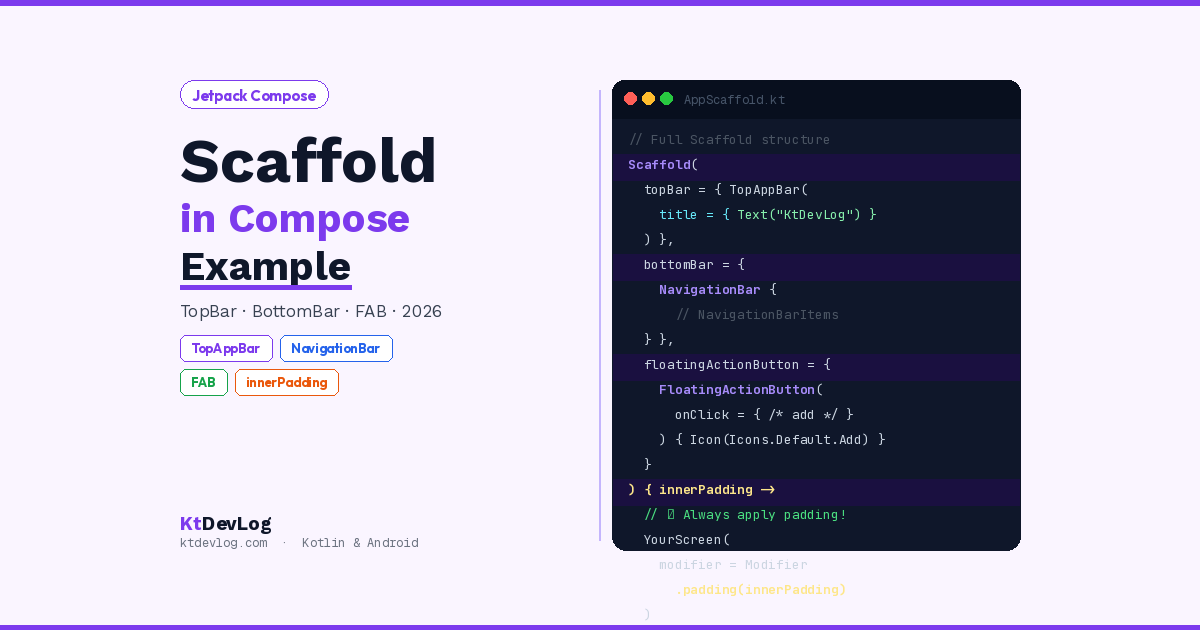

Open any Android app right now. There’s almost certainly a bar across the top with a title and some icons. There’s probably a navigation bar at the bottom with three or four tabs. And there might be a floating button hovering in the corner for the primary action.
That’s the standard Android app shell — and in Jetpack Compose, you build all of it with one composable: Scaffold.
Scaffold is the structural backbone of most Android app screens. It gives you dedicated slots for your TopAppBar, NavigationBar, and FloatingActionButton, and handles the layout so everything sits in the right place without you having to measure, pad, or position anything manually. One composable. The entire app shell.
This Jetpack Compose Scaffold example guide builds a real, working app structure step by step — from a basic skeleton all the way to a complete screen with a collapsible top bar, a working bottom navigation that switches screens, and a FAB.
Table of Contents
What Is Scaffold in Jetpack Compose?
According to the official Jetpack Compose documentation, Scaffold provides a straightforward API to quickly assemble your app’s structure following Material Design 3 guidelines. It accepts several composable slots as parameters and arranges them correctly on screen.
The main parameters you’ll use:
| Parameter | What it holds |
|---|---|
topBar | TopAppBar or CenterAlignedTopAppBar |
bottomBar | NavigationBar or BottomAppBar |
floatingActionButton | FloatingActionButton or ExtendedFloatingActionButton |
snackbarHost | Snackbar messages |
content | Your main screen content — receives innerPadding |
The content lambda receives a PaddingValues parameter — usually named innerPadding — that you must apply to your content’s root composable. This is the most important detail that beginners get wrong, and we’ll cover exactly why it matters.
Your First Scaffold — The Basic Structure
Start with the minimum viable Scaffold:
@Composable
fun BasicScaffoldExample() {
    Scaffold(
        topBar = {
            TopAppBar(
                title = { Text("KtDevLog") }
            )
        },
        floatingActionButton = {
            FloatingActionButton(onClick = { /* action */ }) {
                Icon(Icons.Default.Add, contentDescription = "Add")
            }
        }
    ) { innerPadding ->
        // Your screen content goes here
        // innerPadding MUST be applied
        Column(
            modifier = Modifier
                .fillMaxSize()
                .padding(innerPadding)  // ← Critical
                .padding(16.dp)
        ) {
            Text("Welcome to KtDevLog!")
        }
    }
}That innerPadding in the content lambda is non-negotiable. Without it, your content slides underneath the TopAppBar and gets clipped by the NavigationBar. Scaffold calculates the exact padding needed for all its slots — your job is to apply it to your content’s root modifier.
Adding a TopAppBar With Actions
A real TopAppBar has more than just a title. It typically has a navigation icon on the left — a back arrow or menu icon — and action icons on the right for search, profile, or settings.
@Composable
fun TopBarExample(onMenuClick: () -> Unit, onSearchClick: () -> Unit) {
    TopAppBar(
        title = {
            Text(
                text = "KtDevLog",
                fontWeight = FontWeight.Bold
            )
        },
        navigationIcon = {
            IconButton(onClick = onMenuClick) {
                Icon(
                    imageVector = Icons.Default.Menu,
                    contentDescription = "Open menu"
                )
            }
        },
        actions = {
            IconButton(onClick = onSearchClick) {
                Icon(
                    imageVector = Icons.Default.Search,
                    contentDescription = "Search"
                )
            }
            IconButton(onClick = { /* notifications */ }) {
                Icon(
                    imageVector = Icons.Default.Notifications,
                    contentDescription = "Notifications"
                )
            }
        },
        colors = TopAppBarDefaults.topAppBarColors(
            containerColor    = Color(0xFF7C3AED),
            titleContentColor = Color.White,
            navigationIconContentColor = Color.White,
            actionIconContentColor     = Color.White
        )
    )
}The colors parameter uses TopAppBarDefaults.topAppBarColors() — the Material 3 way to style your top bar in 2026. It gives you separate colour control for every element inside the bar.
CenterAlignedTopAppBar
For a centered title — common in detail screens and settings pages:
CenterAlignedTopAppBar(
    title = { Text("Profile") },
    navigationIcon = {
        IconButton(onClick = { /* navigate back */ }) {
            Icon(Icons.AutoMirrored.Filled.ArrowBack, contentDescription = "Back")
        }
    },
    colors = TopAppBarDefaults.centerAlignedTopAppBarColors(
        containerColor = Color(0xFF1E293B),
        titleContentColor = Color.White,
        navigationIconContentColor = Color.White
    )
)Collapsible TopAppBar With Scroll Behaviour
Here’s the feature most Scaffold guides skip — a TopAppBar that collapses as the user scrolls down content:
@OptIn(ExperimentalMaterial3Api::class)
@Composable
fun CollapsibleTopBarScreen() {
    val scrollBehavior = TopAppBarDefaults.enterAlwaysScrollBehavior()

    Scaffold(
        modifier = Modifier.nestedScroll(scrollBehavior.nestedScrollConnection),
        topBar = {
            TopAppBar(
                title = { Text("KtDevLog") },
                scrollBehavior = scrollBehavior  // ← Connects scroll to collapse
            )
        }
    ) { innerPadding ->
        LazyColumn(
            modifier = Modifier.padding(innerPadding),
            contentPadding = PaddingValues(16.dp),
            verticalArrangement = Arrangement.spacedBy(8.dp)
        ) {
            items(50) { index ->
                Text("Article $index", modifier = Modifier.padding(vertical = 8.dp))
            }
        }
    }
}Two things make this work. The scrollBehavior is created with enterAlwaysScrollBehavior() — the bar collapses on scroll down and expands on scroll up. The Modifier.nestedScroll(scrollBehavior.nestedScrollConnection) on the Scaffold connects the scroll events from LazyColumn up to the TopAppBar.
Building a NavigationBar — The 2026 Standard
The old BottomNavigation composable is deprecated in Material 3. In 2026, the correct composable is NavigationBar with NavigationBarItem. Let’s build it properly.
First define your destinations:
// Navigation destinations
sealed class AppDestination(
    val route: String,
    val label: String,
    val icon: ImageVector,
    val selectedIcon: ImageVector
) {
    object Home : AppDestination(
        route = "home",
        label = "Home",
        icon = Icons.Outlined.Home,
        selectedIcon = Icons.Filled.Home
    )
    object Courses : AppDestination(
        route = "courses",
        label = "Courses",
        icon = Icons.Outlined.Book,
        selectedIcon = Icons.Filled.Book
    )
    object Profile : AppDestination(
        route = "profile",
        label = "Profile",
        icon = Icons.Outlined.Person,
        selectedIcon = Icons.Filled.Person
    )
}

val destinations = listOf(
    AppDestination.Home,
    AppDestination.Courses,
    AppDestination.Profile
)Now build the NavigationBar:
@Composable
fun BottomNavigationBar(
    selectedIndex: Int,
    onDestinationSelected: (Int) -> Unit
) {
    NavigationBar(
        containerColor = Color.White,
        tonalElevation = 0.dp
    ) {
        destinations.forEachIndexed { index, destination ->
            NavigationBarItem(
                selected = selectedIndex == index,
                onClick = { onDestinationSelected(index) },
                icon = {
                    Icon(
                        imageVector = if (selectedIndex == index)
                            destination.selectedIcon else destination.icon,
                        contentDescription = destination.label
                    )
                },
                label = { Text(destination.label) },
                colors = NavigationBarItemDefaults.colors(
                    selectedIconColor   = Color(0xFF7C3AED),
                    selectedTextColor   = Color(0xFF7C3AED),
                    unselectedIconColor = Color(0xFF94A3B8),
                    unselectedTextColor = Color(0xFF94A3B8),
                    indicatorColor      = Color(0xFFEDE9FE)
                )
            )
        }
    }
}The selectedIcon vs unselected icon swap — using filled icons for selected and outlined for unselected — is the Material 3 standard pattern. It gives users a clear visual signal of which tab they’re on without any extra UI work.
Adding a FloatingActionButton
The FloatingActionButton sits in the floatingActionButton slot of Scaffold. By default it appears in the bottom-right corner:
FloatingActionButton(
    onClick = { /* primary action */ },
    containerColor = Color(0xFF7C3AED),
    contentColor   = Color.White
) {
    Icon(Icons.Default.Add, contentDescription = "Add new course")
}For a FAB with text alongside the icon — use ExtendedFloatingActionButton:
var isListScrolled by remember { mutableStateOf(false) }

ExtendedFloatingActionButton(
    onClick = { /* action */ },
    expanded = !isListScrolled,  // Collapses to icon when scrolled
    icon = { Icon(Icons.Default.Add, contentDescription = null) },
    text = { Text("New Course") },
    containerColor = Color(0xFF7C3AED),
    contentColor   = Color.White
)The expanded parameter is a great pattern — when the user starts scrolling a list, the FAB shrinks to just its icon to get out of the way. When they stop, it expands back to show the label. It’s a polished detail that users notice even if they can’t name it.
The Complete Scaffold Example — Everything Together
Here’s the full working app shell that combines everything:
@OptIn(ExperimentalMaterial3Api::class)
@Composable
fun KtDevLogApp() {
    // Survives rotation — selected tab persists
    var selectedTabIndex by rememberSaveable { mutableIntStateOf(0) }
    val scrollBehavior = TopAppBarDefaults.enterAlwaysScrollBehavior()

    Scaffold(
        modifier = Modifier.nestedScroll(scrollBehavior.nestedScrollConnection),

        // Top app bar
        topBar = {
            TopAppBar(
                title = {
                    Text(
                        text = destinations[selectedTabIndex].label,
                        fontWeight = FontWeight.Bold
                    )
                },
                navigationIcon = {
                    IconButton(onClick = { /* open drawer */ }) {
                        Icon(
                            Icons.Default.Menu,
                            contentDescription = "Menu",
                            tint = Color.White
                        )
                    }
                },
                actions = {
                    IconButton(onClick = { /* search */ }) {
                        Icon(
                            Icons.Default.Search,
                            contentDescription = "Search",
                            tint = Color.White
                        )
                    }
                },
                colors = TopAppBarDefaults.topAppBarColors(
                    containerColor             = Color(0xFF7C3AED),
                    titleContentColor          = Color.White,
                    navigationIconContentColor = Color.White,
                    actionIconContentColor     = Color.White
                ),
                scrollBehavior = scrollBehavior
            )
        },

        // Bottom navigation bar
        bottomBar = {
            BottomNavigationBar(
                selectedIndex = selectedTabIndex,
                onDestinationSelected = { selectedTabIndex = it }
            )
        },

        // Floating action button
        floatingActionButton = {
            FloatingActionButton(
                onClick = { /* add new item */ },
                containerColor = Color(0xFF7C3AED),
                contentColor   = Color.White
            ) {
                Icon(Icons.Default.Add, contentDescription = "Add")
            }
        }

    ) { innerPadding ->

        // Screen content — switches based on selected tab
        when (selectedTabIndex) {
            0 -> HomeScreen(innerPadding)
            1 -> CoursesScreen(innerPadding)
            2 -> ProfileScreen(innerPadding)
        }
    }
}Each screen composable receives innerPadding as a parameter and applies it to its content:
@Composable
fun HomeScreen(innerPadding: PaddingValues) {
    LazyColumn(
        modifier = Modifier
            .fillMaxSize()
            .padding(innerPadding),  // ← Always apply innerPadding
        contentPadding = PaddingValues(16.dp),
        verticalArrangement = Arrangement.spacedBy(12.dp)
    ) {
        items(20) { index ->
            Card(
                modifier = Modifier.fillMaxWidth(),
                shape = RoundedCornerShape(12.dp)
            ) {
                Text(
                    text = "Course $index",
                    modifier = Modifier.padding(16.dp),
                    fontSize = 16.sp
                )
            }
        }
    }
}Notice selectedTabIndex uses rememberSaveable — the selected tab persists through screen rotation so the user doesn’t lose their place when they tilt their phone. This is exactly the kind of intentional state decision covered in the remember vs rememberSaveable guide.
The Most Common Scaffold Mistake — Ignoring innerPadding
Let me be very direct about this because it’s the number one Scaffold mistake beginners make:
// ❌ Wrong — content slides under TopAppBar and behind NavigationBar
Scaffold(
    topBar = { TopAppBar(title = { Text("Home") }) },
    bottomBar = { NavigationBar { /* items */ } }
) { innerPadding ->
    LazyColumn(
        modifier = Modifier.fillMaxSize()
        // innerPadding NOT applied — content overlaps bars
    ) {
        items(50) { Text("Item $it") }
    }
}

// ✅ Correct — content sits between the bars cleanly
Scaffold(
    topBar = { TopAppBar(title = { Text("Home") }) },
    bottomBar = { NavigationBar { /* items */ } }
) { innerPadding ->
    LazyColumn(
        modifier = Modifier
            .fillMaxSize()
            .padding(innerPadding)  // ← Content respects bar boundaries
    ) {
        items(50) { Text("Item $it") }
    }
}Scaffold calculates the exact height of your topBar and bottomBar and packages it into innerPadding. Without it, your first list item hides under the TopAppBar and your last item gets clipped by the NavigationBar. Always apply innerPadding — no exceptions.
Frequently Asked Questions
Scaffold Basics
What is Scaffold in Jetpack Compose?
Scaffold is a layout composable that implements the Material Design 3 app structure. It provides dedicated slots for a topBar, bottomBar, floatingActionButton, and snackbarHost, and manages their layout automatically. You provide your screen content in the content lambda, which receives innerPadding — the padding needed to keep your content from overlapping the bars.
Why do I need to apply innerPadding in Scaffold?
Scaffold calculates the combined height of all its slots — topBar, bottomBar, and system bars — and delivers that measurement as PaddingValues to your content lambda. Without applying this padding, your content will render behind the TopAppBar at the top and behind the NavigationBar at the bottom. Always apply innerPadding to the root modifier of your content composable.
Navigation and TopBar
What is the difference between NavigationBar and BottomNavigation in Compose?
BottomNavigation is the older Material 2 composable and is deprecated in Material 3. NavigationBar is the correct Material 3 replacement used in 2026. Use NavigationBar as the bottomBar parameter in Scaffold, and NavigationBarItem for each tab. The API is cleaner and supports the latest Material You theming system.
How do I make the TopAppBar collapse on scroll in Jetpack Compose?
Create a scrollBehavior using TopAppBarDefaults.enterAlwaysScrollBehavior(), pass it to your TopAppBar‘s scrollBehavior parameter, and add Modifier.nestedScroll(scrollBehavior.nestedScrollConnection) to your Scaffold modifier. This connects the scroll events from your content — like a LazyColumn — to the TopAppBar, which then collapses automatically as the user scrolls.
How do I keep the selected tab after screen rotation?
Use rememberSaveable instead of remember for your selected tab index: var selectedTabIndex by rememberSaveable { mutableIntStateOf(0) }. This saves the selected index into Android’s Bundle and restores it after configuration changes like rotation. Without rememberSaveable, the app always resets to tab 0 on rotation.
Conclusion
Jetpack Compose Scaffold is the fastest way to build a professional, complete app shell. Define your topBar, your bottomBar, your floatingActionButton — and Scaffold handles the rest. Everything sits in the right place, spacing is calculated automatically, and the Material 3 design system gives you consistent colours and elevation out of the box.
The two rules that matter most: always apply innerPadding to your content, and use NavigationBar instead of the deprecated BottomNavigation. Get those right and your app will look and feel exactly like a production-quality Android app.
For the next step, wire your NavigationBar up to real screen navigation with Jetpack Compose Navigation — passing your navController through Scaffold to handle actual screen transitions rather than simple when switching.
The best app layouts are the ones users never have to think about — they just feel right from the moment the screen loads.