
Every Android app you’ve ever used has a list in it. Contacts, messages, products, news feeds, settings — lists are everywhere. And for years, building them meant one thing: RecyclerView.
RecyclerView worked. But “worked” is doing a lot of heavy lifting in that sentence. You needed an Adapter, a ViewHolder, a layout file for each item, an item layout XML, a DiffUtil callback, and a dozen lines of boilerplate just to show a list of strings.
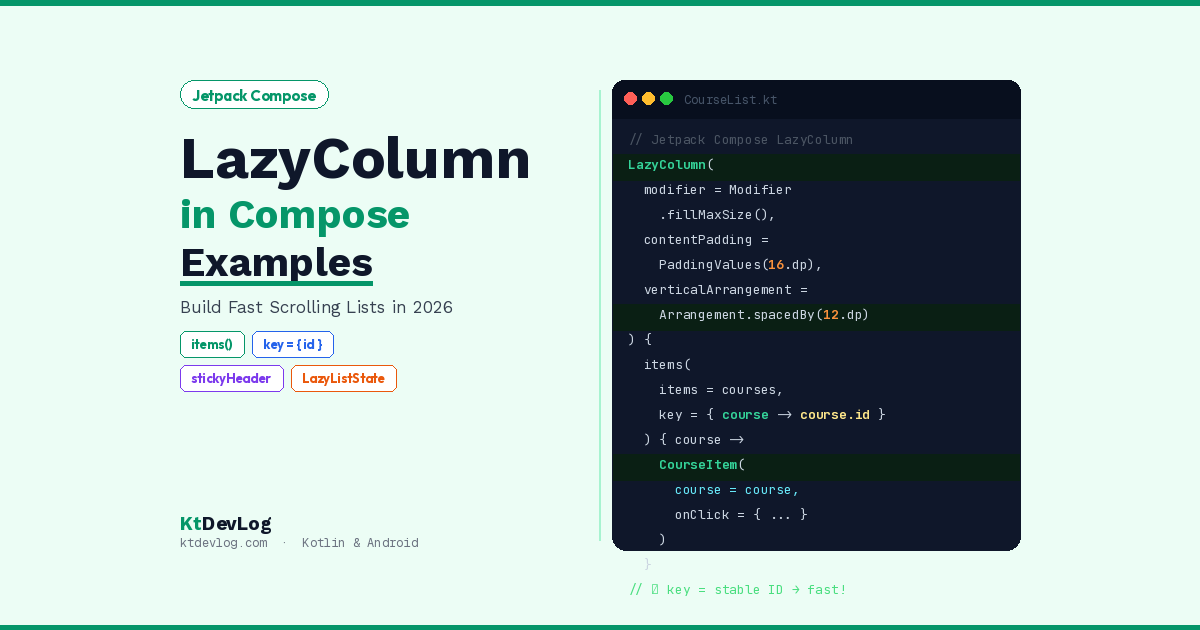
In Jetpack Compose, you do it differently. This Jetpack Compose LazyColumn example guide shows you how to build the same fast, efficient scrolling lists — with images, text, click handlers, and proper performance — in a fraction of the code. No Adapter. No ViewHolder. No XML.



Let’s build it from scratch.
Table of Contents
What Is LazyColumn in Jetpack Compose?
LazyColumn is Jetpack Compose’s answer to RecyclerView. It displays a vertically scrolling list of items — but crucially, it only composes and lays out the items that are currently visible on screen.
Think of a restaurant with 200 menu items. The waiter doesn’t bring all 200 to your table at once. They bring what’s in front of you, and swap items in as you look further down. LazyColumn works exactly the same way — it keeps your app fast and memory-efficient regardless of how many items are in your list.
According to the official Jetpack Compose documentation, LazyColumn provides a vertically scrolling list that composes only visible items, which is why it’s recommended for any list longer than a handful of items.
The difference between Column and LazyColumn is stark:
| Column | LazyColumn | |
|---|---|---|
| Renders items | All at once | Only visible items |
| Large lists | Slow — high memory use | Fast — efficient |
| Scrolling | Not built in | Built in automatically |
| Use case | 2–5 fixed items | Any dynamic list |
If you have more than about 5 items, always reach for LazyColumn.
Your First Jetpack Compose LazyColumn Example
Let’s start with the simplest possible working example — a list of strings:
@Composable
fun SimpleList() {
    val items = listOf(
        "Kotlin Fundamentals",
        "Jetpack Compose",
        "StateFlow & SharedFlow",
        "Navigation Compose",
        "Data Classes",
        "Extension Functions",
        "Sealed Classes",
        "Null Safety",
        "Coroutines",
        "Android Studio Gemini AI"
    )

    LazyColumn(
        modifier = Modifier.fillMaxSize(),
        contentPadding = PaddingValues(16.dp),
        verticalArrangement = Arrangement.spacedBy(8.dp)
    ) {
        items(items) { item ->
            Text(
                text = item,
                modifier = Modifier
                    .fillMaxWidth()
                    .padding(vertical = 8.dp),
                fontSize = 16.sp
            )
        }
    }
}Three things to notice immediately:
contentPadding = PaddingValues(16.dp) adds padding around the entire list — including the first and last item — without clipping the scroll edges. This is different from adding padding directly to the LazyColumn modifier, which would clip content at the edges during scrolling.
verticalArrangement = Arrangement.spacedBy(8.dp) adds consistent space between every item automatically. No manual Spacer() calls.
items(items) { item -> } is the LazyColumn DSL. You pass your list and receive each item in the lambda. That lambda is your item composable — whatever you put in here is what each row looks like.
Building a Real List Item — Text and Image Together
The simple string list is a starting point. Real apps need richer list items — an image, a title, a subtitle, maybe a badge. Here’s how to build a proper card-style list item with an image and text:
First, define your data model using a Kotlin data class:
data class Course(
    val id: Int,
    val title: String,
    val description: String,
    val imageUrl: String,
    val duration: String
)Now create the sample data:
val courses = listOf(
    Course(1, "Kotlin Fundamentals", "Master val, var, data classes and more", "https://ktdevlog.com/img/kotlin.png", "2h 30m"),
    Course(2, "Jetpack Compose UI", "Build modern Android UIs declaratively", "https://ktdevlog.com/img/compose.png", "4h 15m"),
    Course(3, "StateFlow & Coroutines", "Reactive state management in Android", "https://ktdevlog.com/img/flow.png", "3h 00m"),
    Course(4, "Navigation Compose", "Multi-screen apps with argument passing", "https://ktdevlog.com/img/nav.png", "1h 45m"),
    Course(5, "Sealed Classes", "Model UI state the professional way", "https://ktdevlog.com/img/sealed.png", "1h 20m"),
)Now build the item composable:
@Composable
fun CourseItem(
    course: Course,
    onClick: () -> Unit
) {
    Card(
        modifier = Modifier
            .fillMaxWidth()
            .clickable { onClick() },
        shape = RoundedCornerShape(12.dp),
        elevation = CardDefaults.cardElevation(defaultElevation = 2.dp),
        colors = CardDefaults.cardColors(containerColor = Color.White)
    ) {
        Row(
            modifier = Modifier
                .fillMaxWidth()
                .padding(16.dp),
            verticalAlignment = Alignment.CenterVertically,
            horizontalArrangement = Arrangement.spacedBy(16.dp)
        ) {
            // Course image
            AsyncImage(
                model = course.imageUrl,
                contentDescription = course.title,
                modifier = Modifier
                    .size(64.dp)
                    .clip(RoundedCornerShape(8.dp)),
                contentScale = ContentScale.Crop
            )

            // Text content
            Column(modifier = Modifier.weight(1f)) {
                Text(
                    text = course.title,
                    fontSize = 16.sp,
                    fontWeight = FontWeight.Bold,
                    color = Color(0xFF1E293B)
                )
                Spacer(modifier = Modifier.height(4.dp))
                Text(
                    text = course.description,
                    fontSize = 13.sp,
                    color = Color(0xFF64748B),
                    maxLines = 2,
                    overflow = TextOverflow.Ellipsis
                )
                Spacer(modifier = Modifier.height(6.dp))
                // Duration badge
                Surface(
                    shape = RoundedCornerShape(4.dp),
                    color = Color(0xFFEDE9FE)
                ) {
                    Text(
                        text = course.duration,
                        modifier = Modifier.padding(horizontal = 8.dp, vertical = 2.dp),
                        fontSize = 11.sp,
                        color = Color(0xFF7C3AED),
                        fontWeight = FontWeight.Medium
                    )
                }
            }
        }
    }
}AsyncImage from the Coil library loads remote images asynchronously with automatic caching — the standard choice for image loading in Compose apps in 2026.
Now wire it together with LazyColumn:
@Composable
fun CourseList(
    courses: List<Course>,
    onCourseClick: (Course) -> Unit
) {
    LazyColumn(
        modifier = Modifier
            .fillMaxSize()
            .background(Color(0xFFF8FAFC)),
        contentPadding = PaddingValues(16.dp),
        verticalArrangement = Arrangement.spacedBy(12.dp)
    ) {
        items(
            items = courses,
            key = { course -> course.id }  // ← Critical for performance
        ) { course ->
            CourseItem(
                course = course,
                onClick = { onCourseClick(course) }
            )
        }
    }
}The item key Parameter — Most Important LazyColumn Detail
That key = { course -> course.id } line deserves its own section — because it’s the single most impactful thing you can do for LazyColumn performance, and most beginner tutorials skip it entirely.
Here’s the problem without key:
// ❌ Without key — Compose can't track items
items(courses) { course ->
    CourseItem(course = course)
}When your list changes — an item gets moved, deleted, or inserted — Compose has no way to know which items are which. It treats every position change as a deletion and creation. So if one item moves from position 3 to position 1, Compose recomposes positions 1, 2, and 3 — even if items 2 and 3 didn’t change at all.
// ✅ With key — Compose tracks each item by its stable ID
items(
    items = courses,
    key = { course -> course.id }
) { course ->
    CourseItem(course = course)
}With a stable key, Compose knows exactly which item is which. If item with id=3 moves to position 1, Compose moves it rather than recomposing everything. According to the official Android performance best practices, providing stable keys for each item lets Compose avoid unnecessary recompositions — which directly translates to smoother scrolling and lower battery usage.
The key must be:
- Unique for each item
- Stable across recompositions — a database ID, a UUID, or any value that doesn’t change as the list updates
- Never the item’s position in the list — positions change, IDs don’t
Adding a List Header
Real apps almost always need a header above the list — a title, a filter row, a search bar. LazyColumn handles this cleanly with item {}:
LazyColumn(
    modifier = Modifier.fillMaxSize(),
    contentPadding = PaddingValues(16.dp),
    verticalArrangement = Arrangement.spacedBy(12.dp)
) {
    // Single header item
    item {
        Text(
            text = "KtDevLog Courses",
            fontSize = 24.sp,
            fontWeight = FontWeight.Bold,
            modifier = Modifier.padding(bottom = 8.dp)
        )
    }

    // The list items
    items(
        items = courses,
        key = { it.id }
    ) { course ->
        CourseItem(course = course, onClick = {})
    }

    // Footer item
    item {
        Text(
            text = "${courses.size} courses available",
            fontSize = 13.sp,
            color = Color.Gray,
            modifier = Modifier
                .fillMaxWidth()
                .padding(top = 8.dp),
            textAlign = TextAlign.Center
        )
    }
}item {} inserts a single composable into the lazy list at that position — perfectly scrollable alongside the rest of the list. Mix item {} and items() as many times as needed.
Sticky Headers — Group Your List
Sticky headers stay pinned at the top of the screen as the user scrolls through each group. In 2026, this is still an experimental API but widely used in production:
@OptIn(ExperimentalFoundationApi::class)
@Composable
fun GroupedCourseList(groupedCourses: Map<String, List<Course>>) {
    LazyColumn(
        modifier = Modifier.fillMaxSize(),
        contentPadding = PaddingValues(16.dp)
    ) {
        groupedCourses.forEach { (category, courses) ->

            // Sticky header — stays pinned while scrolling through group
            stickyHeader {
                Surface(
                    modifier = Modifier.fillMaxWidth(),
                    color = Color(0xFFF1F5F9)
                ) {
                    Text(
                        text = category,
                        modifier = Modifier.padding(horizontal = 16.dp, vertical = 8.dp),
                        fontSize = 14.sp,
                        fontWeight = FontWeight.Bold,
                        color = Color(0xFF7C3AED)
                    )
                }
            }

            // Items in this group
            items(
                items = courses,
                key = { it.id }
            ) { course ->
                CourseItem(course = course, onClick = {})
            }
        }
    }
}// Usage
val groupedCourses = mapOf(
"Kotlin Fundamentals" to listOf(course1, course2, course3),
"Jetpack Compose" to listOf(course4, course5),
"Architecture" to listOf(course6, course7, course8)
)Scroll to Top Button — Using rememberLazyListState
Here’s a pattern you’ll use in almost every real list screen — a “scroll to top” button that appears only after the user has scrolled down:
@Composable
fun CourseListWithScrollButton(courses: List<Course>) {
    val listState = rememberLazyListState()
    val coroutineScope = rememberCoroutineScope()

    // derivedStateOf — only recomposes when showButton actually changes
    val showScrollButton by remember {
        derivedStateOf { listState.firstVisibleItemIndex > 0 }
    }

    Box(modifier = Modifier.fillMaxSize()) {
        LazyColumn(
            state = listState,
            modifier = Modifier.fillMaxSize(),
            contentPadding = PaddingValues(16.dp),
            verticalArrangement = Arrangement.spacedBy(12.dp)
        ) {
            items(
                items = courses,
                key = { it.id }
            ) { course ->
                CourseItem(course = course, onClick = {})
            }
        }

        // Scroll to top button — animated visibility
        AnimatedVisibility(
            visible = showScrollButton,
            modifier = Modifier
                .align(Alignment.BottomEnd)
                .padding(16.dp)
        ) {
            FloatingActionButton(
                onClick = {
                    coroutineScope.launch {
                        listState.animateScrollToItem(0)
                    }
                },
                containerColor = Color(0xFF7C3AED)
            ) {
                Icon(
                    imageVector = Icons.Default.KeyboardArrowUp,
                    contentDescription = "Scroll to top",
                    tint = Color.White
                )
            }
        }
    }
}The derivedStateOf wrapper here is critical — and it’s one of the performance tips that came directly from the official 2026 Android documentation. Without derivedStateOf, showScrollButton would trigger recomposition on every single scroll event as firstVisibleItemIndex changes. With derivedStateOf, recomposition only happens when showScrollButton actually changes from false to true or back — which is exactly what you want.
This pattern works beautifully alongside the reactive state management patterns from Kotlin StateFlow when your list is driven by a ViewModel.
Performance Rules — What Not to Do
Here’s the performance section most LazyColumn tutorials gloss over. These mistakes will silently slow your list even when your item count is small.
❌ Don’t Sort Inside LazyColumn
// ❌ Wrong — sorts every time the list recomposes
LazyColumn {
    items(courses.sortedBy { it.title }) { course ->
        CourseItem(course)
    }
}
// ✅ Correct — sort once, remember the result
val sortedCourses = remember(courses) {
courses.sortedBy { it.title }
}
LazyColumn {
items(
items = sortedCourses,
key = { it.id }
) { course ->
CourseItem(course)
}
}❌ Don’t Use Non-Stable Keys
// ❌ Wrong — position changes as list updates
items(courses, key = { index -> index }) { ... }

// ✅ Correct — stable unique ID
items(courses, key = { course -> course.id }) { ... }❌ Don’t Build Heavy Composables Inline
// ❌ Wrong — complex logic inside the items block causes recomposition thrash
items(courses) { course ->
    val processedData = expensiveOperation(course) // Runs on every scroll
    CourseItem(processedData)
}
// ✅ Correct — extract into a separate composable
items(courses, key = { it.id }) { course ->
CourseItem(course = course, onClick = {})
}
// CourseItem handles its own internal logic cleanlyLazyColumn vs RecyclerView — The Real Comparison
If you’re coming from XML-based Android development, here’s the honest side-by-side:
| RecyclerView (XML) | LazyColumn (Compose) | |
|---|---|---|
| Adapter needed | ✅ Yes | ❌ No |
| ViewHolder needed | ✅ Yes | ❌ No |
| Item layout XML | ✅ Yes | ❌ No |
| DiffUtil needed | ✅ Yes | ❌ No (keys handle this) |
| Click handling | Callback pattern | Lambda directly in composable |
| Item animations | Manual animator setup | AnimatedVisibility, animateItemPlacement |
| Lines of boilerplate | ~80–150 lines | ~15–30 lines |
| Performance | Excellent | Excellent |
The performance is comparable. The development speed and maintainability favour LazyColumn significantly. Every new Android project in 2026 should default to LazyColumn unless there’s a specific reason to use RecyclerView.
For building the navigation between your list and detail screens, Jetpack Compose Navigation shows exactly how to pass the selected item’s ID to a detail screen — the standard pattern for list-detail apps.
Frequently Asked Questions
What is LazyColumn in Jetpack Compose?
LazyColumn is a vertically scrolling list composable in Jetpack Compose that only composes and lays out items currently visible on screen. It’s the Compose equivalent of RecyclerView — but without the need for an Adapter, ViewHolder, or XML item layout. You simply pass your list to items() inside the LazyColumn block, and Compose handles all the rendering and recycling automatically.
What is the difference between Column and LazyColumn in Jetpack Compose?
Column renders all its children immediately and doesn’t scroll by default — it’s suitable for a small, fixed number of items. LazyColumn only renders visible items, handles scrolling automatically, and is optimised for large or dynamic lists. Use Column for 2 to 5 static items. Use LazyColumn for anything that might grow, anything loaded from a database or API, or anything the user might scroll through.
Why should I use item keys in LazyColumn?
Item keys help Compose track individual items across list changes. Without keys, any list update causes Compose to recompose every affected position — even items that didn’t change. With a stable unique key like a database ID, Compose can identify exactly which items moved, were added, or were removed — and only recompose what actually changed. This directly improves scroll performance and prevents unnecessary animations.
How do I add images to LazyColumn items in Jetpack Compose?
Use the Coil library with AsyncImage for loading remote images, or Image with a local drawable resource for static images. Add Coil to your build.gradle.kts with implementation("io.coil-kt:coil-compose:2.7.0"), then use AsyncImage(model = imageUrl, contentDescription = "...") inside your item composable. Coil handles async loading, disk caching, and error states automatically.
Is LazyColumn better than RecyclerView?
For new projects using Jetpack Compose, yes. LazyColumn achieves comparable scrolling performance to RecyclerView but with dramatically less boilerplate — no Adapter, ViewHolder, DiffUtil, or XML item layouts required. It integrates naturally with Compose state management, click handlers are simple lambdas, and animations work with AnimatedVisibility and animateItemPlacement. For existing XML-based apps, RecyclerView remains perfectly valid — migration should be gradual and purposeful.
Conclusion
This Jetpack Compose LazyColumn example guide covered everything from a simple string list to a fully featured card list with images, text, headers, sticky sections, and a scroll-to-top button. You’ve seen why key is non-negotiable for performance, how derivedStateOf prevents unnecessary recomposition, and why LazyColumn replaces RecyclerView without any of the boilerplate.
The pattern is always the same: define your data model, build your item composable, pass your list to LazyColumn with stable keys, and let Compose handle the rest. No Adapter. No ViewHolder. No XML.
Start with the CourseList example from this guide. Drop in your own data class. Style the CourseItem to match your app’s design. Add the scroll-to-top button when your list gets long. Once you’ve built one LazyColumn that feels smooth and professional, you’ll build every future list in Compose without a second thought.
For the full modern Android architecture picture — connect your LazyColumn to a ViewModel using Kotlin StateFlow, model your loading and error states with Kotlin sealed classes, and wire up navigation to a detail screen with Jetpack Compose Navigation. Those three pieces together give you a complete, production-quality list feature.
RecyclerView had a great run. LazyColumn just made it optional.