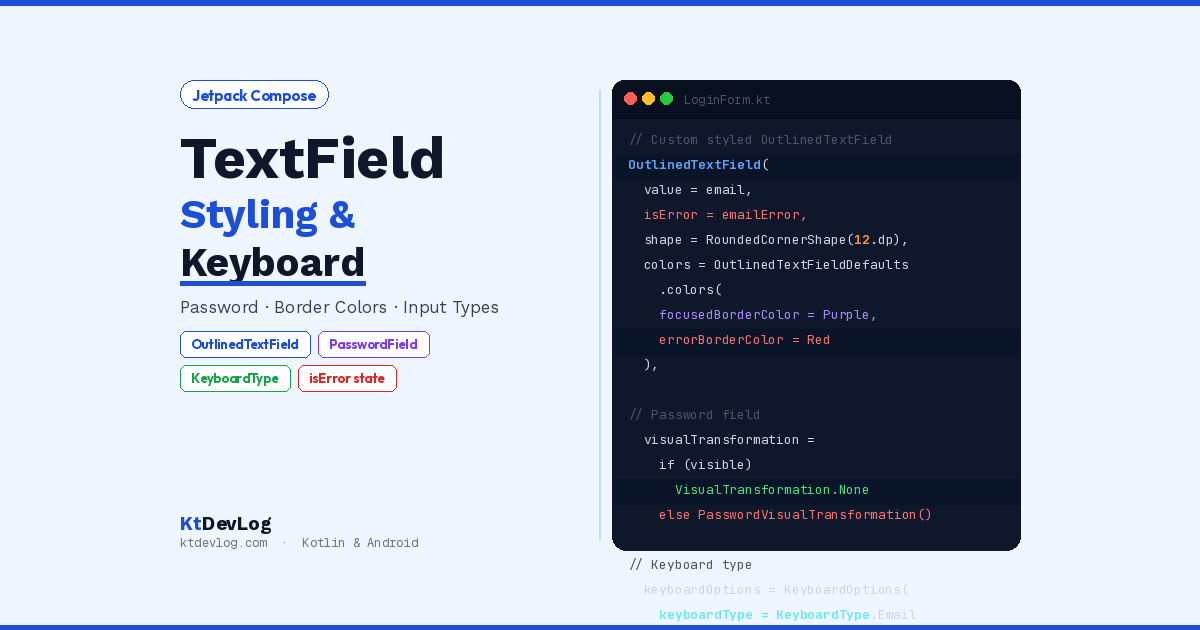

Every app that takes user input has a text field. Login screens, search bars, profile forms, chat inputs — they’re everywhere. And Jetpack Compose gives you one composable to handle all of it: TextField.
Here’s what catches most developers off guard though. Out of the box, TextField looks like a standard Material 3 input — which is perfectly fine for many apps. But the moment a designer hands you a custom border colour, a rounded input card, a password field with a show/hide toggle, or a form that validates email on the fly, you need to know exactly which parameters to reach for.
This Jetpack Compose TextField styling guide covers everything — OutlinedTextField vs TextField, custom colours and borders, password fields with VisualTransformation, keyboard types, leading and trailing icons, multiline inputs, input validation, and the new rememberTextFieldState API introduced in 2026. By the end, you’ll be able to build any text input your designer can sketch.
Table of Contents
TextField vs OutlinedTextField — Which One to Use?
Jetpack Compose gives you two primary text input composables, both built on Material 3 design.
TextField — filled style. Shows a solid coloured background below the label. The standard Material 3 text field.
OutlinedTextField — outlined style. Has a visible border around the entire input. More popular for custom forms because the border is easier to style.
// Filled style
TextField(
    value = text,
    onValueChange = { text = it },
    label = { Text("Full Name") },
    modifier = Modifier.fillMaxWidth()
)

// Outlined style — more commonly used for custom forms
OutlinedTextField(
    value = text,
    onValueChange = { text = it },
    label = { Text("Full Name") },
    modifier = Modifier.fillMaxWidth()
)Most professional Android apps in 2026 use OutlinedTextField for forms because the border makes focus states visually clearer and it’s easier to customise the shape and color. Use TextField (filled) when following Google’s own Material Design exactly — like in search bars and quick inputs.
The New rememberTextFieldState API (2026)
Before we get into styling, there’s an important update worth knowing. According to the official Jetpack Compose TextField documentation, the 2026 recommended approach introduces rememberTextFieldState() as the primary state holder for TextField:
// New 2026 approach — TextField with state holder
val nameState = rememberTextFieldState()

TextField(
    state = nameState,
    label = { Text("Full Name") },
    modifier = Modifier.fillMaxWidth()
)

// Access the current text value
println(nameState.text)The older approach using value + onValueChange with remember { mutableStateOf("") } still works and is widely used. Both approaches are valid in 2026. The new state parameter approach simplifies state management for complex inputs by encapsulating both the text content and selection state in one object.
Throughout this guide, we’ll use the familiar value/onValueChange pattern since it’s more beginner-friendly and still the most widely documented pattern. Just know the state-based API exists and is the direction Compose is moving.
Custom Styling — Colors, Borders and Shapes
This is where most Jetpack Compose TextField styling guides fall short. They show you the default and stop there. Let’s go deep.
Changing Border and Background Colors
The colors parameter controls every colour state of your TextField. The most important ones are focusedBorderColor, unfocusedBorderColor, and containerColor:
@Composable
fun StyledTextField() {
    var text by remember { mutableStateOf("") }

    OutlinedTextField(
        value = text,
        onValueChange = { text = it },
        label = { Text("Email Address") },
        modifier = Modifier.fillMaxWidth(),
        colors = OutlinedTextFieldDefaults.colors(
            focusedBorderColor    = Color(0xFF7C3AED),   // Purple when focused
            unfocusedBorderColor  = Color(0xFFE2E8F0),   // Light gray when not focused
            focusedLabelColor     = Color(0xFF7C3AED),   // Label matches border
            unfocusedLabelColor   = Color(0xFF94A3B8),
            cursorColor           = Color(0xFF7C3AED),
            focusedTextColor      = Color(0xFF1E293B),
            unfocusedTextColor    = Color(0xFF475569),
            containerColor        = Color.White           // White background
        )
    )
}The result: a clean white input field with a purple border when the user taps it, gray when inactive. Every colour state is separate and controllable.
Custom Shape — Fully Rounded TextField
The default OutlinedTextField has slightly rounded corners. To make it fully rounded — like a modern search bar or pill-shaped input:
OutlinedTextField(
    value = text,
    onValueChange = { text = it },
    label = { Text("Search") },
    modifier = Modifier.fillMaxWidth(),
    shape = RoundedCornerShape(50.dp),  // Fully rounded
    colors = OutlinedTextFieldDefaults.colors(
        focusedBorderColor   = Color(0xFF059669),
        unfocusedBorderColor = Color(0xFFE2E8F0),
        containerColor       = Color(0xFFF8FAFC)
    )
)Error State Styling
Here’s the detail most beginner guides miss — OutlinedTextField has a built-in isError parameter that automatically switches to error colours when true:
var emailError by remember { mutableStateOf(false) }
var email by remember { mutableStateOf("") }

OutlinedTextField(
    value = email,
    onValueChange = {
        email = it
        emailError = it.isNotEmpty() && !android.util.Patterns.EMAIL_ADDRESS.matcher(it).matches()
    },
    label = { Text("Email") },
    isError = emailError,
    supportingText = {
        if (emailError) {
            Text(
                text = "Please enter a valid email address",
                color = MaterialTheme.colorScheme.error
            )
        }
    },
    modifier = Modifier.fillMaxWidth(),
    colors = OutlinedTextFieldDefaults.colors(
        errorBorderColor    = Color(0xFFDC2626),
        errorLabelColor     = Color(0xFFDC2626),
        errorCursorColor    = Color(0xFFDC2626),
        errorSupportingTextColor = Color(0xFFDC2626)
    )
)The supportingText composable slot shows helper text below the field — perfect for inline validation messages. Combined with isError = true, the border automatically turns red and the label shifts to the error colour. This pairs naturally with Kotlin null safety patterns for safely handling the validation logic without null-related crashes.
Leading and Trailing Icons
Icons inside text fields make the purpose of each input immediately obvious. leadingIcon appears on the left. trailingIcon appears on the right.
@Composable
fun EmailTextField() {
    var email by remember { mutableStateOf("") }

    OutlinedTextField(
        value = email,
        onValueChange = { email = it },
        label = { Text("Email") },
        leadingIcon = {
            Icon(
                imageVector = Icons.Default.Email,
                contentDescription = "Email icon",
                tint = if (email.isNotEmpty()) Color(0xFF7C3AED) else Color(0xFF94A3B8)
            )
        },
        trailingIcon = {
            if (email.isNotEmpty()) {
                IconButton(onClick = { email = "" }) {
                    Icon(
                        imageVector = Icons.Default.Clear,
                        contentDescription = "Clear email",
                        tint = Color(0xFF94A3B8)
                    )
                }
            }
        },
        modifier = Modifier.fillMaxWidth()
    )
}The trailing Clear icon only appears when there’s text in the field — a polished UX detail that makes forms feel professional. The leading icon also changes colour dynamically when the field has content, giving the user visual feedback.
Password Fields With Show/Hide Toggle
Password fields need two things: a VisualTransformation to hide the text, and a trailing icon to toggle visibility. Here’s the complete implementation:
@Composable
fun PasswordTextField() {
    var password by remember { mutableStateOf("") }
    var isPasswordVisible by remember { mutableStateOf(false) }

    OutlinedTextField(
        value = password,
        onValueChange = { password = it },
        label = { Text("Password") },
        modifier = Modifier.fillMaxWidth(),
        visualTransformation = if (isPasswordVisible) {
            VisualTransformation.None       // Show plain text
        } else {
            PasswordVisualTransformation()  // Show dots
        },
        keyboardOptions = KeyboardOptions(
            keyboardType = KeyboardType.Password,
            imeAction = ImeAction.Done
        ),
        leadingIcon = {
            Icon(
                imageVector = Icons.Default.Lock,
                contentDescription = "Password",
                tint = Color(0xFF94A3B8)
            )
        },
        trailingIcon = {
            IconButton(onClick = { isPasswordVisible = !isPasswordVisible }) {
                Icon(
                    imageVector = if (isPasswordVisible) {
                        Icons.Default.Visibility
                    } else {
                        Icons.Default.VisibilityOff
                    },
                    contentDescription = if (isPasswordVisible) {
                        "Hide password"
                    } else {
                        "Show password"
                    },
                    tint = Color(0xFF94A3B8)
                )
            }
        },
        colors = OutlinedTextFieldDefaults.colors(
            focusedBorderColor   = Color(0xFF7C3AED),
            unfocusedBorderColor = Color(0xFFE2E8F0),
            containerColor       = Color.White
        )
    )
}PasswordVisualTransformation() replaces every character with a dot — the standard password masking. When isPasswordVisible is true, VisualTransformation.None shows the raw text. The isPasswordVisible state is stored with remember — not rememberSaveable — because resetting the show/hide state on rotation is actually the right UX behaviour for security. This connects directly to the patterns covered in remember vs rememberSaveable — choosing the right state holder is a deliberate decision here, not guesswork.
Keyboard Types and IME Actions
Showing the right keyboard for the right input type is a small detail that makes a huge difference to the user experience. keyboardOptions controls both:
// Email keyboard — shows @ and .com
OutlinedTextField(
    value = email,
    onValueChange = { email = it },
    label = { Text("Email") },
    keyboardOptions = KeyboardOptions(
        keyboardType = KeyboardType.Email,
        imeAction = ImeAction.Next  // Moves focus to next field
    )
)

// Phone number keyboard — numeric dial pad
OutlinedTextField(
    value = phone,
    onValueChange = { phone = it },
    label = { Text("Phone Number") },
    keyboardOptions = KeyboardOptions(
        keyboardType = KeyboardType.Phone,
        imeAction = ImeAction.Next
    )
)

// Number keyboard — digits only
OutlinedTextField(
    value = age,
    onValueChange = { age = it },
    label = { Text("Age") },
    keyboardOptions = KeyboardOptions(
        keyboardType = KeyboardType.Number,
        imeAction = ImeAction.Done
    )
)Available keyboard types:
| KeyboardType | When to use |
|---|---|
Text | Default — general text input |
Email | Email addresses — shows @ key |
Password | Password inputs — keyboard hides input |
Number | Integer numbers only |
Decimal | Numbers with decimal point |
Phone | Phone dial pad |
Uri | URL inputs |
IME Action controls the action button on the keyboard:
| ImeAction | Effect |
|---|---|
Next | Moves focus to the next field |
Done | Closes the keyboard |
Search | Shows search button |
Send | Shows send button |
Go | Shows go/navigate button |
Handling Keyboard Actions With keyboardActions
keyboardOptions tells the keyboard what to show. keyboardActions tells your app what to do when the user presses that action key:
val focusManager = LocalFocusManager.current

OutlinedTextField(
    value = email,
    onValueChange = { email = it },
    label = { Text("Email") },
    keyboardOptions = KeyboardOptions(
        keyboardType = KeyboardType.Email,
        imeAction = ImeAction.Next
    ),
    keyboardActions = KeyboardActions(
        onNext = { focusManager.moveFocus(FocusDirection.Down) }
    )
)

OutlinedTextField(
    value = password,
    onValueChange = { password = it },
    label = { Text("Password") },
    keyboardOptions = KeyboardOptions(
        keyboardType = KeyboardType.Password,
        imeAction = ImeAction.Done
    ),
    keyboardActions = KeyboardActions(
        onDone = { focusManager.clearFocus() }  // Closes keyboard
    )
)LocalFocusManager.current gives you access to the focus system. moveFocus(FocusDirection.Down) moves to the next focusable element — perfect for multi-field forms where pressing Next on the email field should jump to the password field automatically.
Multiline TextField
For text areas like bio fields, comments, or message inputs:
var bio by remember { mutableStateOf("") }

OutlinedTextField(
    value = bio,
    onValueChange = { if (it.length <= 200) bio = it },
    label = { Text("Bio") },
    placeholder = { Text("Tell us about yourself...") },
    modifier = Modifier
        .fillMaxWidth()
        .height(120.dp),
    maxLines = 5,
    minLines = 3,
    supportingText = {
        Text(
            text = "${bio.length}/200",
            modifier = Modifier.fillMaxWidth(),
            textAlign = TextAlign.End,
            color = if (bio.length > 180) Color(0xFFDC2626) else Color(0xFF94A3B8)
        )
    }
)The character counter in supportingText turns red when the user approaches the limit — a polished detail that users notice. The if (it.length <= 200) bio = it check in onValueChange enforces the limit without any extra validation logic.
Complete Login Form — Putting It All Together
Here’s everything combined in a real login form that uses all the patterns from this guide:
@Composable
fun LoginForm(onLoginClick: (String, String) -> Unit) {
    var email by rememberSaveable { mutableStateOf("") }
    var password by rememberSaveable { mutableStateOf("") }
    var isPasswordVisible by remember { mutableStateOf(false) }
    var emailError by remember { mutableStateOf(false) }

    val focusManager = LocalFocusManager.current

    Column(
        modifier = Modifier
            .fillMaxWidth()
            .padding(24.dp),
        verticalArrangement = Arrangement.spacedBy(16.dp)
    ) {
        // Email field
        OutlinedTextField(
            value = email,
            onValueChange = {
                email = it
                emailError = it.isNotEmpty() &&
                    !android.util.Patterns.EMAIL_ADDRESS.matcher(it).matches()
            },
            label = { Text("Email Address") },
            isError = emailError,
            supportingText = {
                if (emailError) Text("Enter a valid email", color = MaterialTheme.colorScheme.error)
            },
            leadingIcon = {
                Icon(Icons.Default.Email, contentDescription = null, tint = Color(0xFF94A3B8))
            },
            keyboardOptions = KeyboardOptions(
                keyboardType = KeyboardType.Email,
                imeAction = ImeAction.Next
            ),
            keyboardActions = KeyboardActions(
                onNext = { focusManager.moveFocus(FocusDirection.Down) }
            ),
            modifier = Modifier.fillMaxWidth(),
            shape = RoundedCornerShape(12.dp),
            colors = OutlinedTextFieldDefaults.colors(
                focusedBorderColor   = Color(0xFF7C3AED),
                unfocusedBorderColor = Color(0xFFE2E8F0),
                errorBorderColor     = Color(0xFFDC2626),
                containerColor       = Color.White
            )
        )

        // Password field
        OutlinedTextField(
            value = password,
            onValueChange = { password = it },
            label = { Text("Password") },
            visualTransformation = if (isPasswordVisible)
                VisualTransformation.None else PasswordVisualTransformation(),
            leadingIcon = {
                Icon(Icons.Default.Lock, contentDescription = null, tint = Color(0xFF94A3B8))
            },
            trailingIcon = {
                IconButton(onClick = { isPasswordVisible = !isPasswordVisible }) {
                    Icon(
                        imageVector = if (isPasswordVisible)
                            Icons.Default.Visibility else Icons.Default.VisibilityOff,
                        contentDescription = null,
                        tint = Color(0xFF94A3B8)
                    )
                }
            },
            keyboardOptions = KeyboardOptions(
                keyboardType = KeyboardType.Password,
                imeAction = ImeAction.Done
            ),
            keyboardActions = KeyboardActions(
                onDone = { focusManager.clearFocus() }
            ),
            modifier = Modifier.fillMaxWidth(),
            shape = RoundedCornerShape(12.dp),
            colors = OutlinedTextFieldDefaults.colors(
                focusedBorderColor   = Color(0xFF7C3AED),
                unfocusedBorderColor = Color(0xFFE2E8F0),
                containerColor       = Color.White
            )
        )

        // Login button
        Button(
            onClick = {
                if (!emailError && email.isNotEmpty() && password.isNotEmpty()) {
                    onLoginClick(email, password)
                }
            },
            modifier = Modifier
                .fillMaxWidth()
                .height(52.dp),
            shape = RoundedCornerShape(12.dp),
            colors = ButtonDefaults.buttonColors(containerColor = Color(0xFF7C3AED))
        ) {
            Text("Log In", fontSize = 16.sp, fontWeight = FontWeight.Bold)
        }
    }
}Notice email and password use rememberSaveable — they survive rotation. isPasswordVisible and emailError use remember — they reset on rotation intentionally. This is exactly the decision framework from remember vs rememberSaveable in Jetpack Compose applied to a real form.
Frequently Asked Questions
TextField Basics
What is the difference between TextField and OutlinedTextField in Jetpack Compose?
TextField uses a filled Material 3 style with a solid coloured container and an underline indicator. OutlinedTextField has a visible border around the entire input instead of a filled background. For most custom forms and login screens in 2026, OutlinedTextField is the preferred choice because the border is easier to style and communicates focus states more clearly to users.
What is rememberTextFieldState in Jetpack Compose?
rememberTextFieldState() is a new state holder API introduced in 2026 for managing TextField state. Instead of using value and onValueChange with remember { mutableStateOf("") }, you create a TextFieldState object that encapsulates both the text content and cursor selection. It’s the direction Compose is moving for text input state management, though the older value/onValueChange pattern remains fully supported.
Styling and Customization
How do I change the border color of OutlinedTextField in Jetpack Compose?
Use the colors parameter with OutlinedTextFieldDefaults.colors(). Set focusedBorderColor for the active state and unfocusedBorderColor for the inactive state. For example: colors = OutlinedTextFieldDefaults.colors(focusedBorderColor = Color(0xFF7C3AED), unfocusedBorderColor = Color(0xFFE2E8F0)). You can also set errorBorderColor for validation error states.
How do I make a password field in Jetpack Compose?
Add visualTransformation = PasswordVisualTransformation() to your TextField or OutlinedTextField. This replaces every character with a bullet. To add a show/hide toggle, hold the visibility state in a remember variable and swap between PasswordVisualTransformation() and VisualTransformation.None based on that variable. Use Icons.Default.Visibility and Icons.Default.VisibilityOff for the toggle icon in trailingIcon.
Keyboard and Input
How do I show the email keyboard for a TextField in Jetpack Compose?
Add keyboardOptions = KeyboardOptions(keyboardType = KeyboardType.Email) to your TextField. This tells Android to show a keyboard layout optimised for email input — with the @ symbol and .com readily accessible. For phone numbers use KeyboardType.Phone, for numbers use KeyboardType.Number, and for passwords use KeyboardType.Password.
How do I move focus to the next TextField when the user presses Next on the keyboard?
Use keyboardOptions = KeyboardOptions(imeAction = ImeAction.Next) on the first field and keyboardActions = KeyboardActions(onNext = { focusManager.moveFocus(FocusDirection.Down) }). Get focusManager from LocalFocusManager.current. On the last field, use ImeAction.Done and keyboardActions = KeyboardActions(onDone = { focusManager.clearFocus() }) to close the keyboard.
Conclusion
Jetpack Compose TextField styling gives you precise control over every visual aspect of your text inputs — border colours, shapes, icons, focus states, error states, and everything in between. The key is knowing which parameter does what: colors for colours, shape for rounded corners, visualTransformation for password masking, keyboardOptions for input type, and keyboardActions for navigation between fields.
Start with the OutlinedTextField and OutlinedTextFieldDefaults.colors() — they give you the most control with the least friction. Add leading icons for context, trailing icons for actions, and supportingText for validation messages. Wire up keyboardOptions and keyboardActions so your forms flow naturally from field to field without the user touching anything but keys.
The complete login form from this guide is a solid template — take it, change the colours to match your brand, adjust the shape, add your own validation logic, and you have a production-ready form in minutes.
For the full picture of building complete app screens, connect your TextField inputs to a ViewModel using Kotlin StateFlow, model the form states with Kotlin sealed classes, and navigate after a successful login with Jetpack Compose Navigation.
The best text input is the one the user never has to think about — it just works.