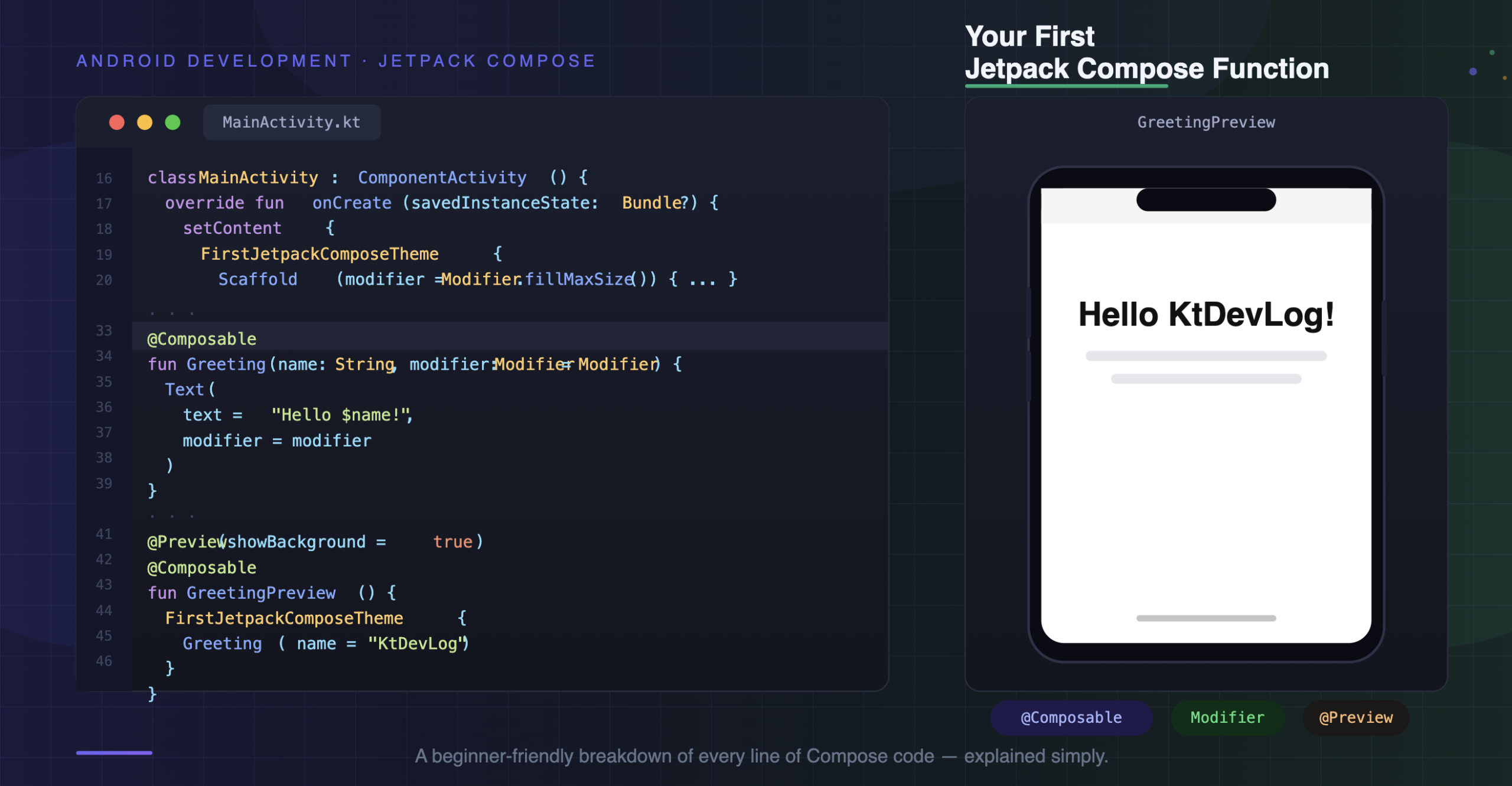

If you’ve just created a new Android project in Android Studio and stared at the auto-generated code wondering “what on earth is going on here?” — you’re not alone. That was me a couple of years ago.
Jetpack Compose is Google’s modern way of building Android UIs. Instead of dragging widgets into XML layouts, you write UI in pure Kotlin using special functions. It sounds intimidating at first, but once it clicks, you’ll wonder how you ever tolerated XML.
Let’s walk through exactly what the starter code in your MainActivity.kt is doing — line by line, no assumptions, no skipped steps.



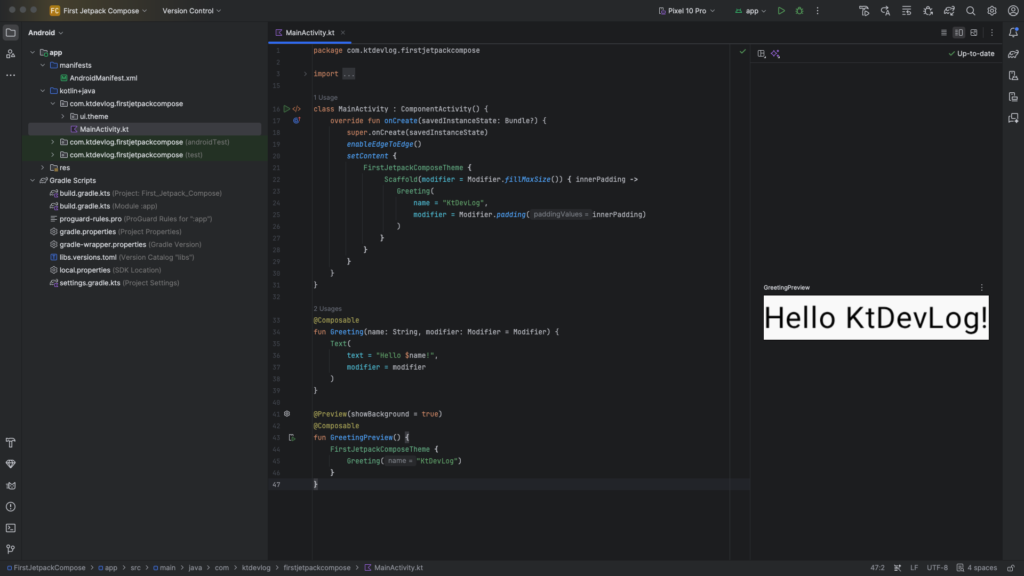
Table of Contents
Before anything else, you need to understand one word: Composable.
In Jetpack Compose, a Composable function is a special kind of Kotlin function that describes what your UI should look like. You mark it with the @Composable annotation, and Android knows to treat it as a UI building block — not just regular logic.
Think of it like a LEGO brick. One Composable can contain other Composables, and together they build your entire screen. According to the official Android documentation, Compose works by calling these functions repeatedly to “recompose” (redraw) the UI whenever data changes.
@Composable
fun Greeting(name: String, modifier: Modifier = Modifier) {
    Text(
        text = "Hello $name!",
        modifier = modifier
    )
}This is your very first Composable function. Let’s unpack every part of it.
Breaking Down the Greeting Function
The @Composable Annotation
@Composable
This single annotation is what transforms an ordinary Kotlin function into a UI function. Without it, Android won’t know this function is supposed to render something on screen. It’s a compile-time signal that tells the Compose compiler: “treat this differently.”
You’ll put @Composable above every function that draws UI. If you forget it and try to call a Composable from inside a non-Composable function, Android Studio will immediately give you an error. It enforces good structure from day one.
The Function Signature
fun Greeting(name: String, modifier: Modifier = Modifier) {This function takes two parameters:
name: String— a piece of text you want to display. In the screenshot,"KtDevLog"is passed in, which is why the preview shows “Hello KtDevLog!”modifier: Modifier = Modifier— this one trips up a lot of beginners
The Modifier is one of the most important concepts in Jetpack Compose. It’s a chainable object that controls layout properties — things like size, padding, background color, click behavior, and more. By passing it as a parameter with a default value of Modifier (an empty modifier), you give the caller the flexibility to customize this composable’s appearance from outside.
This is a common Compose pattern you’ll use constantly. Most guides gloss over why modifier has a default value — the reason is that it makes the function reusable. You can call Greeting(name = "Alice") without worrying about modifiers, or Greeting(name = "Alice", modifier = Modifier.padding(16.dp)) when you need layout control.
The Text Composable
Text(
    text = "Hello $name!",
    modifier = modifier
)
Text is a built-in Composable from Jetpack Compose. It renders a string on screen — basically the equivalent of a TextView in the old XML world.
The string "Hello $name!" uses Kotlin string templates. The $name part gets replaced at runtime with whatever string you pass in.
The modifier = modifier line passes the modifier this function received down into the Text composable, so any padding or sizing applied from outside actually takes effect on the text.
Understanding MainActivity and setContent
Now let’s look at the top part of the file — the MainActivity class.
class MainActivity : ComponentActivity() {
    override fun onCreate(savedInstanceState: Bundle?) {
        super.onCreate(savedInstanceState)
        enableEdgeToEdge()
        setContent {
            FirstJetpackComposeTheme {
                Scaffold(modifier = Modifier.fillMaxSize()) { innerPadding ->
                    Greeting(
                        name = "KtDevLog",
                        modifier = Modifier.padding(paddingValues = innerPadding)
                    )
                }
            }
        }
    }
}ComponentActivity and onCreate
MainActivity extends ComponentActivity — a Jetpack-compatible version of the regular Activity. The onCreate function is the entry point that runs when your app starts.
super.onCreate(savedInstanceState) calls the parent class’s setup logic. Always keep this line — skipping it causes crashes.
enableEdgeToEdge()
This is a newer Android API call (added for Android 15 compatibility) that lets your UI draw behind system bars like the status bar and navigation bar. It makes your app look more modern and immersive. You don’t need to configure anything extra — just calling this method enables it.
setContent { }
This is where Jetpack Compose takes over. Instead of using setContentView(R.layout.activity_main) like in the old XML approach, you call setContent and describe your UI inside the lambda using Composable functions.
Everything inside the curly braces is Compose territory.
FirstJetpackComposeTheme { }
This wraps everything in your app’s Material Design theme. Android Studio auto-generates this theme based on your app name. It handles colors, typography, and shapes consistently across your app. Think of it as the styling layer that every screen in your app shares.
Scaffold
Scaffold(modifier = Modifier.fillMaxSize()) { innerPadding ->Scaffold is a layout container that implements the basic Material Design visual structure — it handles things like top bars, bottom bars, and floating action buttons. Even if you’re not using those, Scaffold is still useful because it provides innerPadding.
Modifier.fillMaxSize() makes the Scaffold fill the entire screen.
The innerPadding lambda parameter is automatically calculated by Scaffold to account for system UI insets (like the status bar height). You pass it into your content so nothing gets hidden behind system bars.
Calling Greeting
Greeting(
    name = "KtDevLog",
    modifier = Modifier.padding(paddingValues = innerPadding)
)Here’s where the Greeting function you wrote actually gets used. The name "KtDevLog" is passed in, and innerPadding is applied as padding so the text doesn’t overlap with the status bar.
The @Preview Function — Your Best Friend in Compose
@Preview(showBackground = true)
@Composable
fun GreetingPreview() {
    FirstJetpackComposeTheme {
        Greeting(name = "KtDevLog")
    }
}This is a preview-only Composable. The @Preview annotation tells Android Studio to render it in the design panel — which is exactly the “Hello KtDevLog!” box you see on the right side of the screenshot.
The showBackground = true parameter adds a white background to the preview so it looks closer to how it’ll appear on a real screen.
Here’s something most beginner tutorials miss: @Preview functions should never be called from your real app code. They exist only for the IDE preview tool. If you call them elsewhere, you’re essentially hardcoding dummy data into your production UI.
FAQ
What does @Composable actually do under the hood?
The Compose compiler processes @Composable annotations at build time and adds special logic that lets the function participate in recomposition — Android’s process of automatically redrawing UI when state changes. Without this annotation, the function has no connection to Compose’s rendering system.
Why does Modifier have a capital M?
Modifier with a capital M refers to the type (the class), while Modifier as a default value refers to the companion object that gives you an empty starting modifier. Yes, they share the same name — it’s a Kotlin idiom. You’ll see modifier: Modifier = Modifier frequently, and it always means: “this parameter is of type Modifier, and if you don’t provide one, use an empty Modifier.”
Can I have multiple @Preview functions in one file?
Absolutely. You can have as many @Preview functions as you want, each showing a different state or screen size. This is a powerful way to test your UI without running the app on a device or emulator.
What’s the difference between ComponentActivity and AppCompatActivity?
ComponentActivity is the lightweight Jetpack base class designed specifically for Compose. AppCompatActivity is the older base class for apps that use XML layouts and the AppCompat support library. For new Compose-first projects, stick with ComponentActivity.
Do I always need Scaffold?
No, Scaffold isn’t required. You can put any Composable directly inside setContent. But Scaffold is recommended because it handles padding for system bars correctly — especially important after enabling edge-to-edge.
Conclusion
That’s the full picture of your first Jetpack Compose screen. What looks like a simple “Hello World” is actually teaching you the entire foundation of Compose: Composable functions, Modifiers, themes, Scaffold, and previews.
The honest truth? Once this structure clicks, everything else in Compose follows naturally. Start with @Composable. Add a Modifier. Nest your UI components. Preview as you go.
Your next step: try modifying the Greeting function to show a different message, or add a second Text Composable below the first one. Break it, fix it, and own it — that’s how Compose starts to feel like second nature.